> ## Documentation Index
> Fetch the complete documentation index at: https://docs.getthread.com/llms.txt
> Use this file to discover all available pages before exploring further.
# Getting Started with Client Intelligence
> Manager guide to Client Intelligence: turn resolved threads into AI-generated KB articles, client dashboards, contact lists, configurations, and client notes.
**Client Intelligence** is an automated knowledge base feature that transforms your resolved threads into actionable intelligence. Working from your historical ticketing data, Client Intelligence automatically generates knowledge articles, surfaces proactive resolution suggestions to technicians, and lets you query your environment using AI.
Client Intelligence is part of **Service Intelligence** and is available where enabled for your workspace. Article generation runs automatically on resolved threads once it's turned on — there's nothing for technicians to configure.
Read on to learn more about -
* C**lient Overview** D**ashboard:** highlighting company-level insights for sentiment, open tickets, time spent on issues, top recurring issues, and more
* **AI-Generated Knowledge Base:** Resolved threads automatically generate and refine client-specific KB articles, reducing manual documentation while helping technicians maintain consistency during troubleshooting. Articles are also accessible directly in Super Magic for on-demand reference.
* C**ontacts List**: provides one spot to see all contacts for a specific client and their issues within one view
* C**onfigurations:** shows a list of unique configurations that are used for contacts within a client
* A**pplications**: provides lets you see which software is used by which contacts within a client
* **Client Notes:** MSPs can now add custom notes about specific clients that are easily discoverable. Technicians can ask Super Magic about any client and retrieve these notes along with other client intelligence - ensuring critical context is always accessible when needed.
### How It Works
The core engine of Client Intelligence relies on **closed threads**. When a thread is resolved, the system analyzes the interaction, compares it against existing articles for that client, and decides what to do:
* **New issues:** If the issue is unique, a new article is created.
* **Recurring issues:** If the issue matches an existing topic, the system refines the existing article with new findings.
* **No new value:** If the thread duplicates what's already documented, it's skipped so the knowledge base stays clean.
A thread is only eligible to generate an article when it has both a customer message and a technician reply, and when its client, board, and source are included in your access settings (see [Client access](#managing-knowledge-articles) below).
> **Tip:** The accuracy of your knowledge base grows with the volume of threads you close. The more data you feed it, the smarter it becomes.
### The Client Intelligence Dashboard
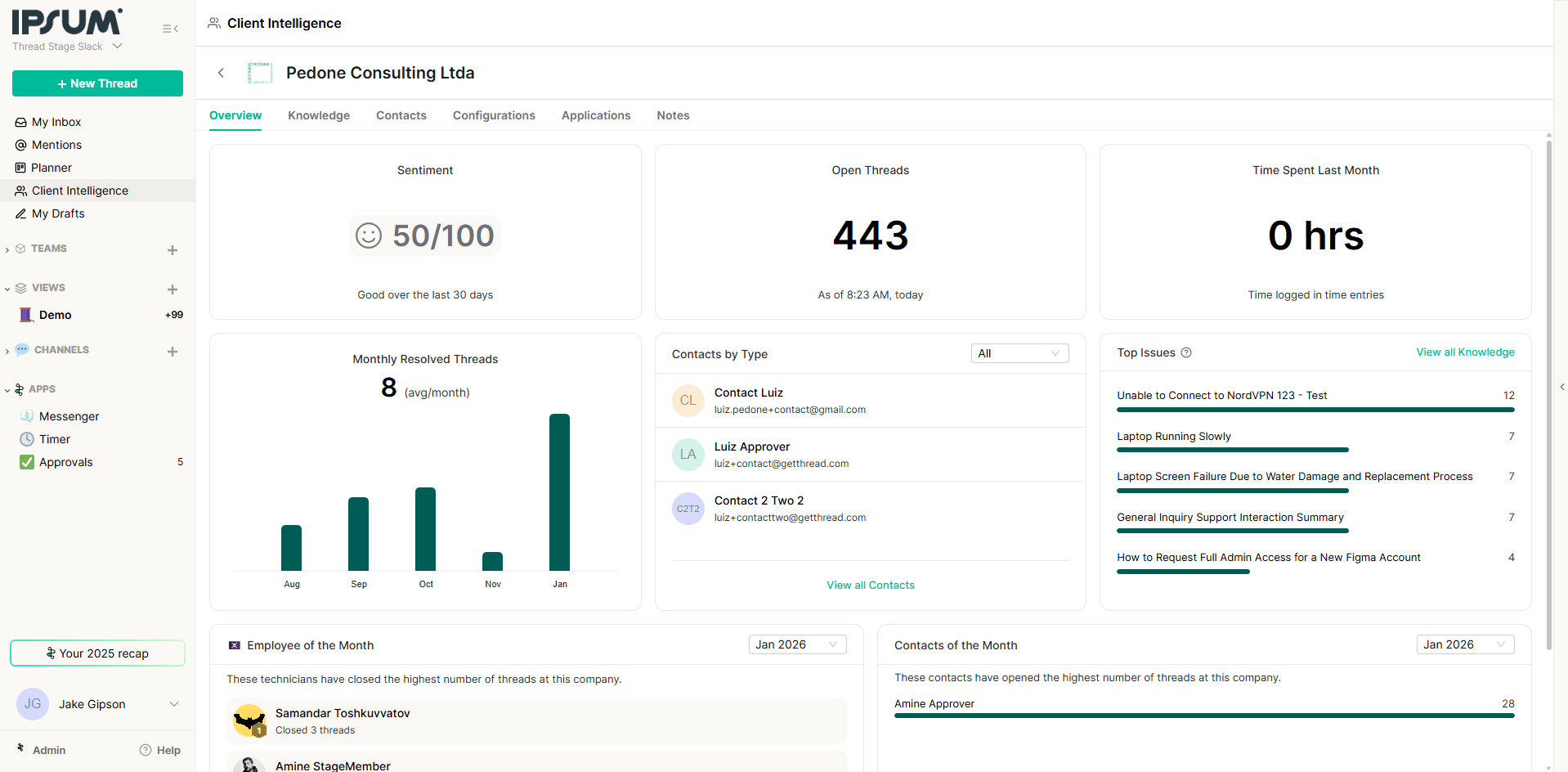
The main dashboard provides a high-level view of your clients health and efficiency.
 ### Key Metrics
* **Sentiment:** An AI-analyzed overview of client sentiment.
* **Volume:** Tracks thread volume over specific periods (e.g., past 2 days).
* **Knowledge Articles:** The total count of articles generated.
* **Open Seconds:** Total time threads have remained open.
* **Top Issues:** Identifies the most frequent problems matching your knowledge base (e.g., "NordVPN connection issues").
### Company & Contact Views
You can drill down into specific companies (e.g., Acme Corp) to view:
* **Approvers & Points of Contact:** detailed contact intelligence.
* **Employee/Contact of the Month:** Highlights technicians closing the most threads or contacts opening the most.
**Past Threads:** A history of interactions for specific contacts.
### Configurations & Applications
These tabs provide a granular look at the technical environment:
* **Configurations:** Displays a list of unique configurations used by contacts within a client.
* **Applications:** Shows which software is being utilized by which contacts within a client.
### Managing Knowledge Articles
You have full control over the content generated by the AI.
### Key Metrics
* **Sentiment:** An AI-analyzed overview of client sentiment.
* **Volume:** Tracks thread volume over specific periods (e.g., past 2 days).
* **Knowledge Articles:** The total count of articles generated.
* **Open Seconds:** Total time threads have remained open.
* **Top Issues:** Identifies the most frequent problems matching your knowledge base (e.g., "NordVPN connection issues").
### Company & Contact Views
You can drill down into specific companies (e.g., Acme Corp) to view:
* **Approvers & Points of Contact:** detailed contact intelligence.
* **Employee/Contact of the Month:** Highlights technicians closing the most threads or contacts opening the most.
**Past Threads:** A history of interactions for specific contacts.
### Configurations & Applications
These tabs provide a granular look at the technical environment:
* **Configurations:** Displays a list of unique configurations used by contacts within a client.
* **Applications:** Shows which software is being utilized by which contacts within a client.
### Managing Knowledge Articles
You have full control over the content generated by the AI.
 ### Editing and curating
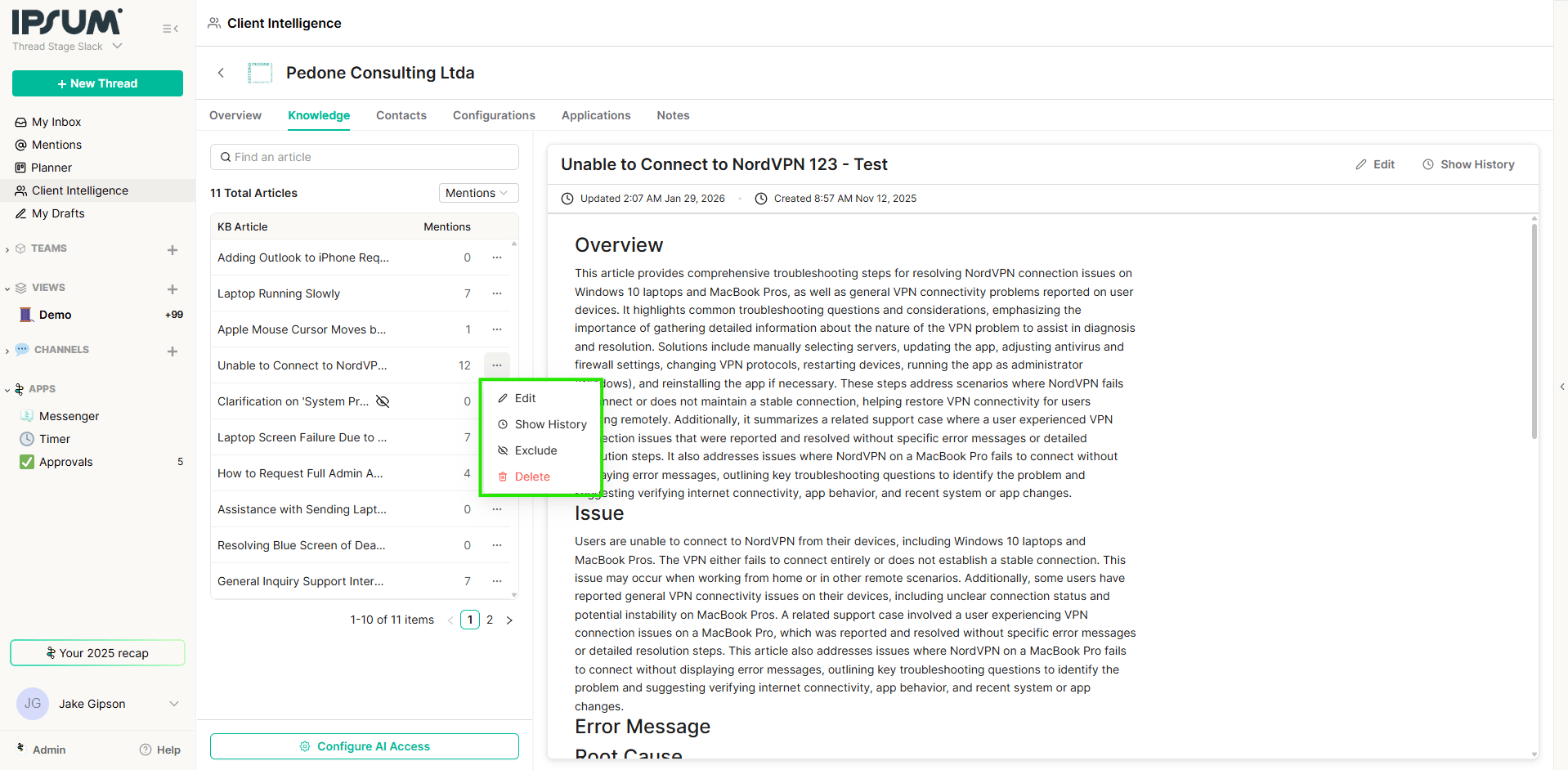
* **Edit:** If an auto-generated article isn't quite right, edit it in the Notion-style editor and save your changes. Every article keeps a **version history**, so you can review earlier versions and restore one if needed.
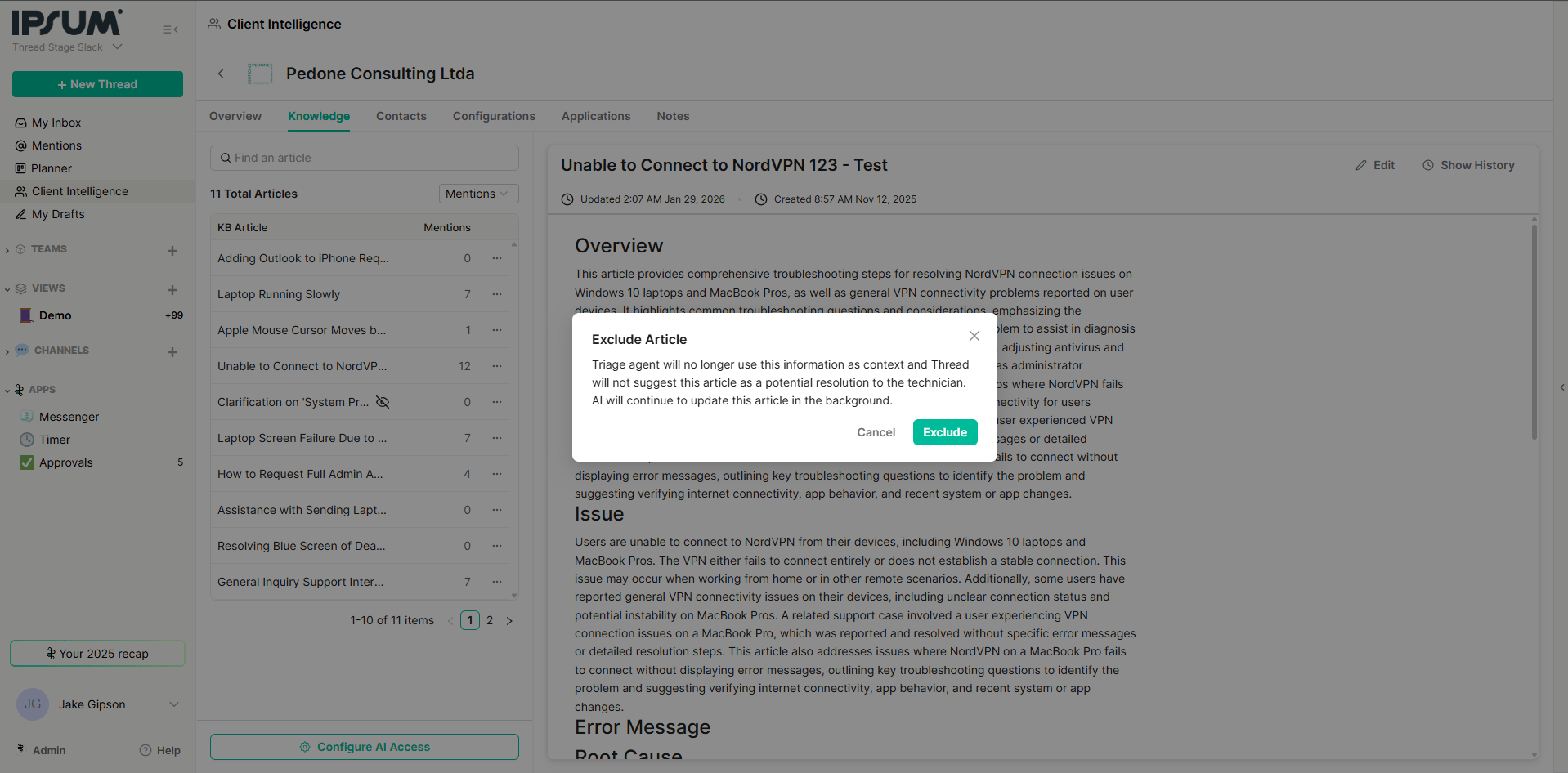
* **Exclude:** Click the **eye icon** (Exclude) to hide an article from the AI's reference. Excluded articles stay in your knowledge base but are no longer suggested to technicians or used by the Triage Agent.
* **AI Auto-Update:** A per-client setting that lets the knowledge base keep refining itself as new threads close. Turn it off for a client to freeze its articles.
### Deleting knowledge for a client
Admins can delete all AI-generated articles for a specific client — useful when a client asks for no AI association, or when you want to reset a client's knowledge base.
From the Client Intelligence list view, find the client row and click the **"..."** (More Options) menu on the right.
Choose **Delete Knowledge** from the dropdown. A confirmation modal appears.
### Editing and curating
* **Edit:** If an auto-generated article isn't quite right, edit it in the Notion-style editor and save your changes. Every article keeps a **version history**, so you can review earlier versions and restore one if needed.
* **Exclude:** Click the **eye icon** (Exclude) to hide an article from the AI's reference. Excluded articles stay in your knowledge base but are no longer suggested to technicians or used by the Triage Agent.
* **AI Auto-Update:** A per-client setting that lets the knowledge base keep refining itself as new threads close. Turn it off for a client to freeze its articles.
### Deleting knowledge for a client
Admins can delete all AI-generated articles for a specific client — useful when a client asks for no AI association, or when you want to reset a client's knowledge base.
From the Client Intelligence list view, find the client row and click the **"..."** (More Options) menu on the right.
Choose **Delete Knowledge** from the dropdown. A confirmation modal appears.
 The modal includes a checkbox — **"Don't generate any new articles for this company."** Check it to stop Client Intelligence from generating future articles for that client (this turns off AI Auto-Update for them); leave it unchecked to clear the current articles while letting new ones generate again later.
 **Best practice — client access:** In **Admin → Intelligence → Knowledge Base → Client access**, include only the clients you want to generate articles for (exclude internal teams and test clients), and exclude noisy boards such as alert boards so irrelevant threads don't create articles. Where enabled, you can also **sync your knowledge base to IT Glue** — see [Push knowledge base articles to IT Glue](/integrations/push-knowledge-base-articles-to-it-glue).
### Client Notes (static knowledge)
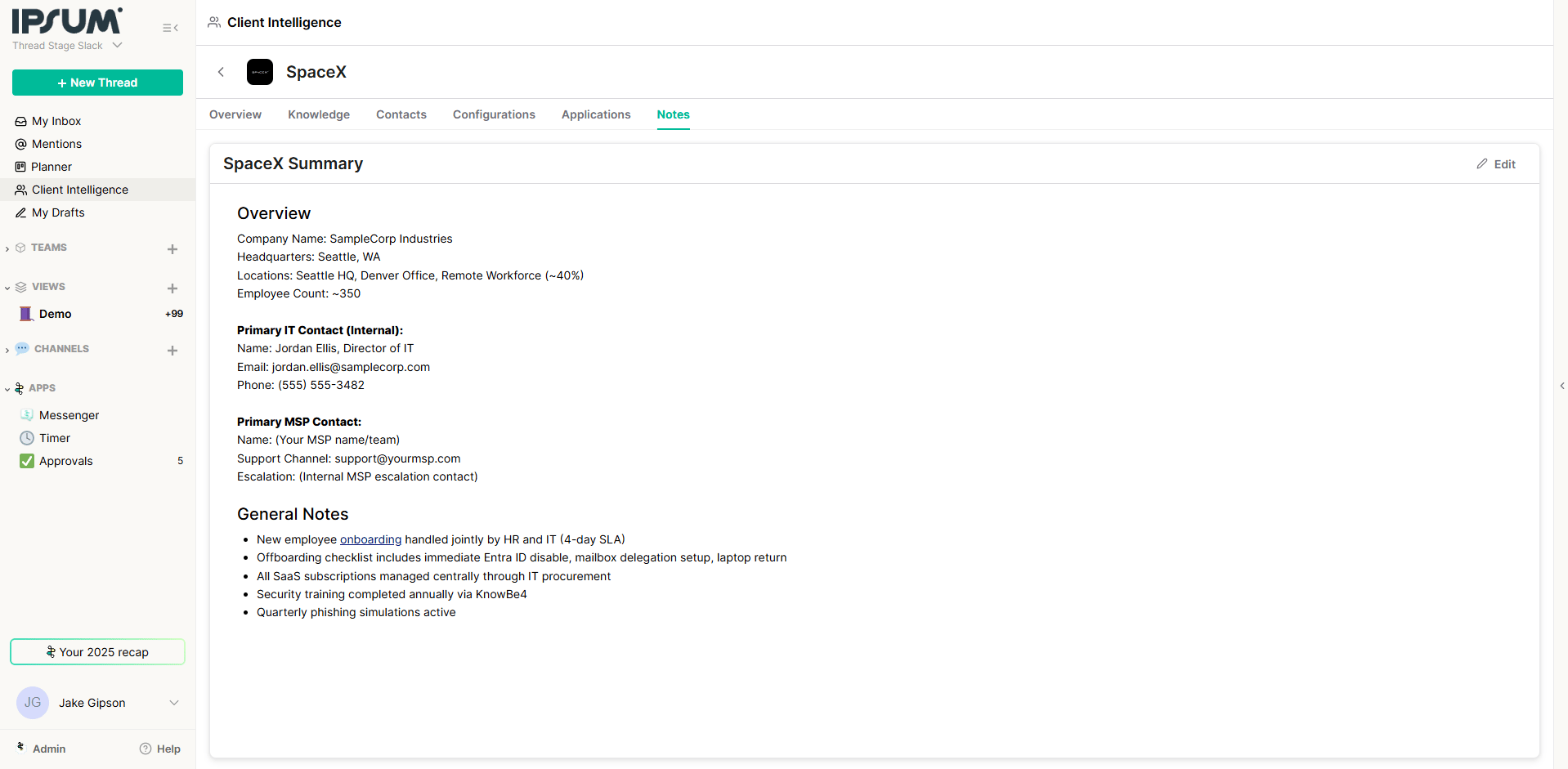
For information that doesn't come from tickets—such as executive sponsors, approved hardware lists, or SOPs from external tools like IT Glue—use the **Notes** section.
**Best practice — client access:** In **Admin → Intelligence → Knowledge Base → Client access**, include only the clients you want to generate articles for (exclude internal teams and test clients), and exclude noisy boards such as alert boards so irrelevant threads don't create articles. Where enabled, you can also **sync your knowledge base to IT Glue** — see [Push knowledge base articles to IT Glue](/integrations/push-knowledge-base-articles-to-it-glue).
### Client Notes (static knowledge)
For information that doesn't come from tickets—such as executive sponsors, approved hardware lists, or SOPs from external tools like IT Glue—use the **Notes** section.
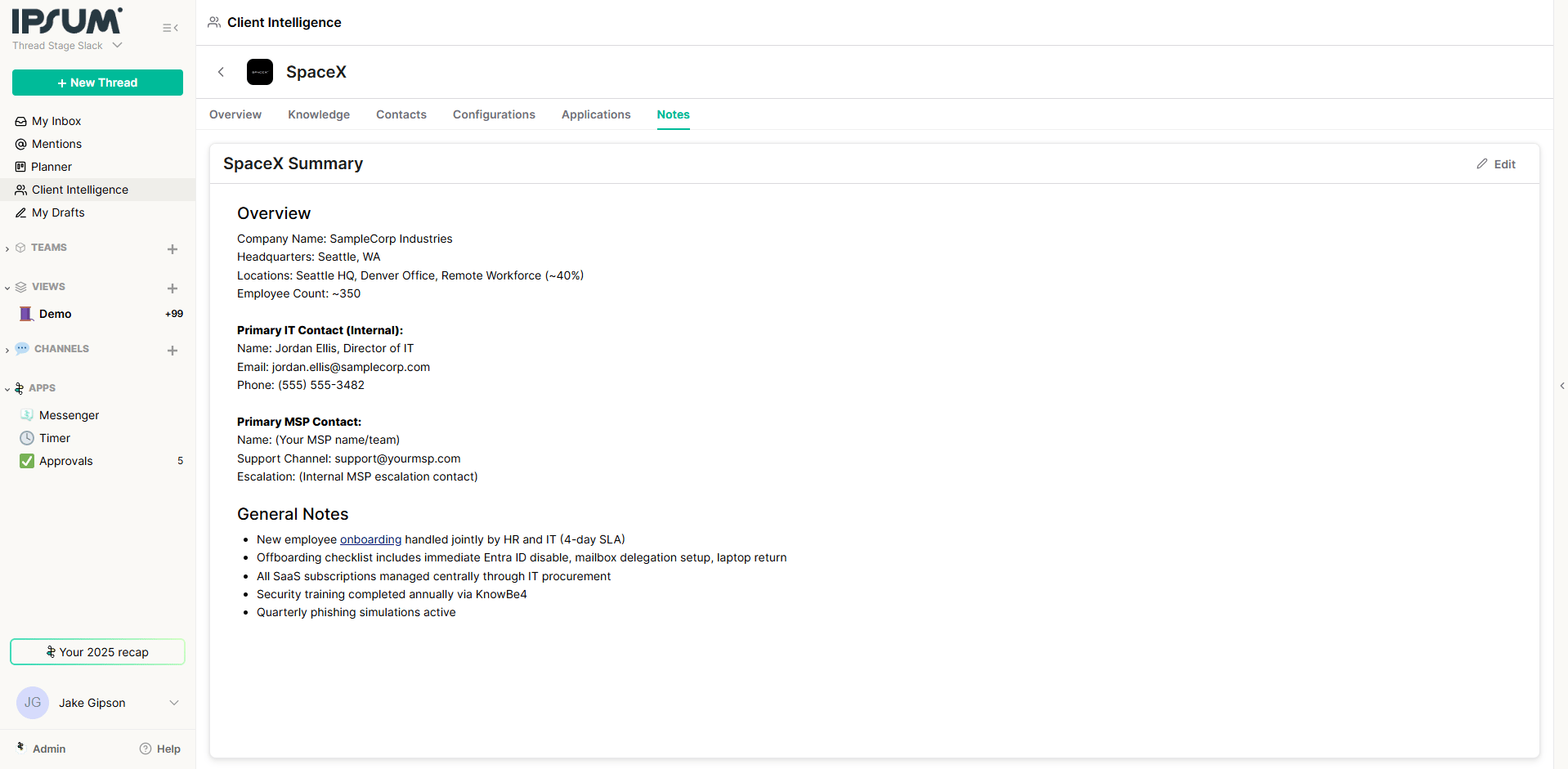 * **How to use:** Copy and paste static text (e.g., "Approver List" or "Change Request Process") into the Notes tab.
* **Result:** This information is immediately indexed and becomes searchable via Super Magic.
### Super Magic: AI-Powered Reporting & Assistance
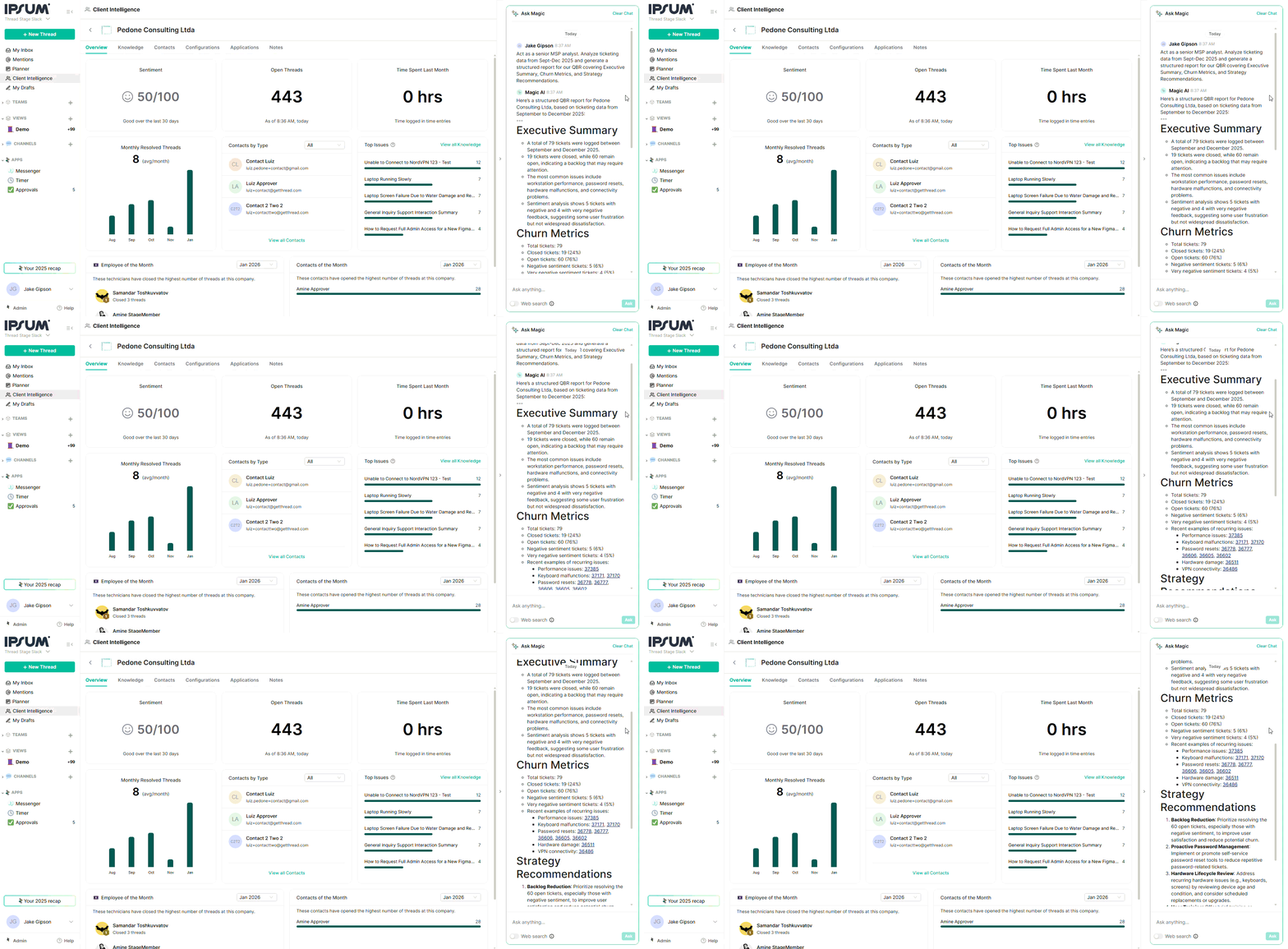
**Super Magic** allows you to query your data using natural language. It works in the Dashboard, Inbox, and within specific Tickets.
### Use Cases
1. **Generate Reports (QBRs):**
* Prompt: "Act as a senior MSP analyst. Analyze ticketing data from Sept-Dec 2025 and generate a structured report for our QBR covering Executive Summary, Churn Metrics, and Strategy Recommendations."
* **How to use:** Copy and paste static text (e.g., "Approver List" or "Change Request Process") into the Notes tab.
* **Result:** This information is immediately indexed and becomes searchable via Super Magic.
### Super Magic: AI-Powered Reporting & Assistance
**Super Magic** allows you to query your data using natural language. It works in the Dashboard, Inbox, and within specific Tickets.
### Use Cases
1. **Generate Reports (QBRs):**
* Prompt: "Act as a senior MSP analyst. Analyze ticketing data from Sept-Dec 2025 and generate a structured report for our QBR covering Executive Summary, Churn Metrics, and Strategy Recommendations."
 1. **Operational Queries:**
* Prompt: "What are the most common issues for \[Client Name] last month?"
* Prompt: "Who is the internal IT resource for the \[Location] office?"
2. **Technician Assistance (Inbox):**
* When a technician opens a thread (e.g., "VPN not working"), Super Magic proactively suggests resolutions, context, and links to relevant Knowledge Articles without the tech needing to search.
See **Assistive AI** and **Inbox** updates in the [changelog](/changelog/q3-2026).
## Skills that use this
Grow and curate the knowledge base that powers Client Intelligence.
Turn a resolution into a reusable KB article.
Organize your KB so people can find things.
Find the documentation you're missing.
Every documentation skill.
## Related topics
- [Read client health with Client Intelligence](/start-here/roles/csm-account-manager/client-intelligence-and-health.md)
- [What is Thread?](/get-started/what-is-thread-an-overview.md)
- [Getting Started with Magic Analytics](/analytics/getting-started-with-magic-analytics.md)
1. **Operational Queries:**
* Prompt: "What are the most common issues for \[Client Name] last month?"
* Prompt: "Who is the internal IT resource for the \[Location] office?"
2. **Technician Assistance (Inbox):**
* When a technician opens a thread (e.g., "VPN not working"), Super Magic proactively suggests resolutions, context, and links to relevant Knowledge Articles without the tech needing to search.
See **Assistive AI** and **Inbox** updates in the [changelog](/changelog/q3-2026).
## Skills that use this
Grow and curate the knowledge base that powers Client Intelligence.
Turn a resolution into a reusable KB article.
Organize your KB so people can find things.
Find the documentation you're missing.
Every documentation skill.
## Related topics
- [Read client health with Client Intelligence](/start-here/roles/csm-account-manager/client-intelligence-and-health.md)
- [What is Thread?](/get-started/what-is-thread-an-overview.md)
- [Getting Started with Magic Analytics](/analytics/getting-started-with-magic-analytics.md)