> ## Documentation Index
> Fetch the complete documentation index at: https://docs.getthread.com/llms.txt
> Use this file to discover all available pages before exploring further.
# Trigger Automations with the Magic Agents Automation URL
> Send Magic Agent intent data to any URL via POST to trigger automations in Power Automate, Azure Functions, Rewst, Zapier, or Make for onboarding and more.
## Overview
Magic Agent is great at troubleshooting and gathering information. It can take that information and either send it to a technician, or kick off an **automation**. Just like for a technician, it can kick off the automation by passing in the information to a URL of your choosing. This is a great way to kick off a Robotic Process Automation tool such as Microsoft's PowerAutomate / LogicApp or Azure Functions or Rewst or Zapier or Make or any other tool!
This makes the automation very powerful for many use cases, such as:
* Triggering a user onboarding
* Triggering an off boarding
* Looking up a help article from IT Glue or Hudu and sending it to the end user
* Assigning a license in M365
* And so much more!
This is a great way to continue to get more value out of your existing automations or to start on your automation journey. Here is how it works.
## How it works
1. Once Magic Agent detects the intent, it asks the questions of the user
2. Once the user gets all of the information across, Magic Agent will confirm that the information entered is right
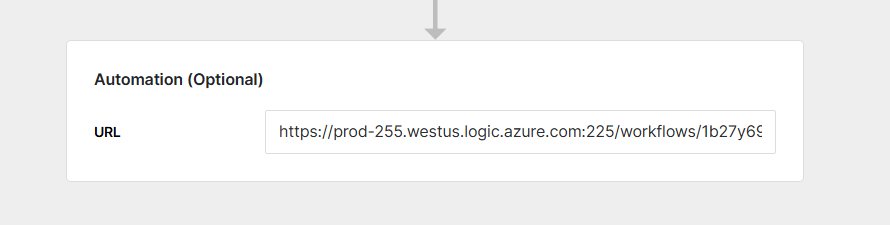
3. It will trigger the URL that you put into the Automation section
 ## Request payload
Magic Agent sends a **POST** request with the following JSON body.
The part to notice is `intent_fields`. These are dynamic, built from the arguments (form fields) you created on the intent, and the value is what the end user submitted. **Argument names are converted to snake\_case** in the payload — so an argument named "Group Email" arrives as `group_email`, and "User Name" arrives as `user_name`.
`intent_fields` are generated from the arguments you built for the intent. Each key is the argument name in snake\_case, and each value is the customer's answer.
```json theme={null}
{
"intent_name": "Add user to Microsoft Teams",
"intent_fields": {
"group_email": "sales@example.com",
"user_name": "Ben"
},
"meta_data": {
"ticket_id": 1234,
"thread_id": 98765,
"ticket_board_name": "Help Desk",
"ticket_board_id": 1,
"contact_id": 4567,
"contact_name": "Bruce Wayne",
"contact_email": "bruce@example.com",
"company_id": "2237",
"company_name": "Wayne Enterprises",
"company_types": ["Client"]
}
}
```
`meta_data` describes the ticket and requester. `ticket_id` is the ticket number in your PSA, while `thread_id` is Thread's own internal identifier for the conversation. Depending on the ticket, Magic Agent also includes additional context when it is available — `contact_phones`, ticket `configurations`, and PSA-specific classification fields (ConnectWise `type`/`subtype`/`item`, Autotask `issue_type`/`sub_issue_type`, HaloPSA `category_1`/`ticket_type`).
You can attach custom request **headers** (for example, an API key or bearer token) to the intent's Automation setting. They are stored encrypted and sent with every POST, so your endpoint can authenticate the request.
## Response
Magic Agent waits for your endpoint's response (up to about 60 seconds) so it can tell the end user what happened. Return a **2xx** status with a JSON body. The fields Magic Agent reads:
| Field | Required | What it does |
| ------------------ | -------- | -------------------------------------------------------------------------------------------------------------------- |
| `message` | Yes | The reply shown to the end user in the thread. |
| `internal_message` | No | An internal note added to the ticket for your technicians (not shown to the customer). |
| `status` | No | `complete` (default) ends the automation. `continue` keeps it open to ask the user for more information (see below). |
```json theme={null}
{
"message": "I was able to get that done for you!",
"internal_message": "Provisioned Teams license via Power Automate.",
"status": "complete"
}
```
If your endpoint returns an empty or unparseable body on success, Magic Agent falls back to a generic confirmation. If it returns a non-2xx status, Magic Agent still reads a `message` (or `error.message`) from the body so it can relay a useful reply to the user.
This can be extremely powerful if you want to send back a password reset link, a help article, or a message like "that user is already part of the email group."
See the latest **Magic Agents** updates in the [changelog](/changelog/q3-2026).
### Ask follow-up questions with `continue`
If your automation needs more information before it can finish, return `status: "continue"` with a `continuation_token` and a `form` describing the fields to collect. Magic Agent asks the user those questions, then re-POSTs to the same URL with the answers plus the `continuation_token`, so your endpoint can resume where it left off.
```json theme={null}
{
"message": "Which license type should I assign?",
"status": "continue",
"continuation_token": "abc123",
"form": {
"fields": [
{
"name": "license_type",
"description": "Microsoft 365 license to assign",
"type": "multiple",
"type_data": ["E3", "E5", "Business Premium"],
"is_required": true
}
]
}
}
```
Each field supports the same types as intent arguments: `text`, `number`, `date`, `email`, `boolean`, and `multiple` (with `type_data` listing the choices). A `continue` response that omits either the `continuation_token` or the form fields is treated as `complete`.
## Related topics
- [Status Automations: Auto-Update Thread Statuses](/inbox/status-automations.md)
- [Configure Status Mapping in Thread](/get-started/status-mapping-in-thread.md)
- [Trigger Rewst Workflows from Thread Magic Intents](/integrations/thread-rewst-integration.md)
## Request payload
Magic Agent sends a **POST** request with the following JSON body.
The part to notice is `intent_fields`. These are dynamic, built from the arguments (form fields) you created on the intent, and the value is what the end user submitted. **Argument names are converted to snake\_case** in the payload — so an argument named "Group Email" arrives as `group_email`, and "User Name" arrives as `user_name`.
`intent_fields` are generated from the arguments you built for the intent. Each key is the argument name in snake\_case, and each value is the customer's answer.
```json theme={null}
{
"intent_name": "Add user to Microsoft Teams",
"intent_fields": {
"group_email": "sales@example.com",
"user_name": "Ben"
},
"meta_data": {
"ticket_id": 1234,
"thread_id": 98765,
"ticket_board_name": "Help Desk",
"ticket_board_id": 1,
"contact_id": 4567,
"contact_name": "Bruce Wayne",
"contact_email": "bruce@example.com",
"company_id": "2237",
"company_name": "Wayne Enterprises",
"company_types": ["Client"]
}
}
```
`meta_data` describes the ticket and requester. `ticket_id` is the ticket number in your PSA, while `thread_id` is Thread's own internal identifier for the conversation. Depending on the ticket, Magic Agent also includes additional context when it is available — `contact_phones`, ticket `configurations`, and PSA-specific classification fields (ConnectWise `type`/`subtype`/`item`, Autotask `issue_type`/`sub_issue_type`, HaloPSA `category_1`/`ticket_type`).
You can attach custom request **headers** (for example, an API key or bearer token) to the intent's Automation setting. They are stored encrypted and sent with every POST, so your endpoint can authenticate the request.
## Response
Magic Agent waits for your endpoint's response (up to about 60 seconds) so it can tell the end user what happened. Return a **2xx** status with a JSON body. The fields Magic Agent reads:
| Field | Required | What it does |
| ------------------ | -------- | -------------------------------------------------------------------------------------------------------------------- |
| `message` | Yes | The reply shown to the end user in the thread. |
| `internal_message` | No | An internal note added to the ticket for your technicians (not shown to the customer). |
| `status` | No | `complete` (default) ends the automation. `continue` keeps it open to ask the user for more information (see below). |
```json theme={null}
{
"message": "I was able to get that done for you!",
"internal_message": "Provisioned Teams license via Power Automate.",
"status": "complete"
}
```
If your endpoint returns an empty or unparseable body on success, Magic Agent falls back to a generic confirmation. If it returns a non-2xx status, Magic Agent still reads a `message` (or `error.message`) from the body so it can relay a useful reply to the user.
This can be extremely powerful if you want to send back a password reset link, a help article, or a message like "that user is already part of the email group."
See the latest **Magic Agents** updates in the [changelog](/changelog/q3-2026).
### Ask follow-up questions with `continue`
If your automation needs more information before it can finish, return `status: "continue"` with a `continuation_token` and a `form` describing the fields to collect. Magic Agent asks the user those questions, then re-POSTs to the same URL with the answers plus the `continuation_token`, so your endpoint can resume where it left off.
```json theme={null}
{
"message": "Which license type should I assign?",
"status": "continue",
"continuation_token": "abc123",
"form": {
"fields": [
{
"name": "license_type",
"description": "Microsoft 365 license to assign",
"type": "multiple",
"type_data": ["E3", "E5", "Business Premium"],
"is_required": true
}
]
}
}
```
Each field supports the same types as intent arguments: `text`, `number`, `date`, `email`, `boolean`, and `multiple` (with `type_data` listing the choices). A `continue` response that omits either the `continuation_token` or the form fields is treated as `complete`.
## Related topics
- [Status Automations: Auto-Update Thread Statuses](/inbox/status-automations.md)
- [Configure Status Mapping in Thread](/get-started/status-mapping-in-thread.md)
- [Trigger Rewst Workflows from Thread Magic Intents](/integrations/thread-rewst-integration.md)