> ## Documentation Index
> Fetch the complete documentation index at: https://docs.getthread.com/llms.txt
> Use this file to discover all available pages before exploring further.
# Triage Agent Settings
> Configure Triage Agent in Thread Admin: response timeouts, timeout message, post-deactivation Magic AI actions, and PSA status mapping.
The **Settings** page defines how the Triage Agent behaves when there is no response from the
contact and what happens when the Agent deactivates. These options ensure a smooth handoff to a
technician and proper thread handling even when the contact becomes inactive.
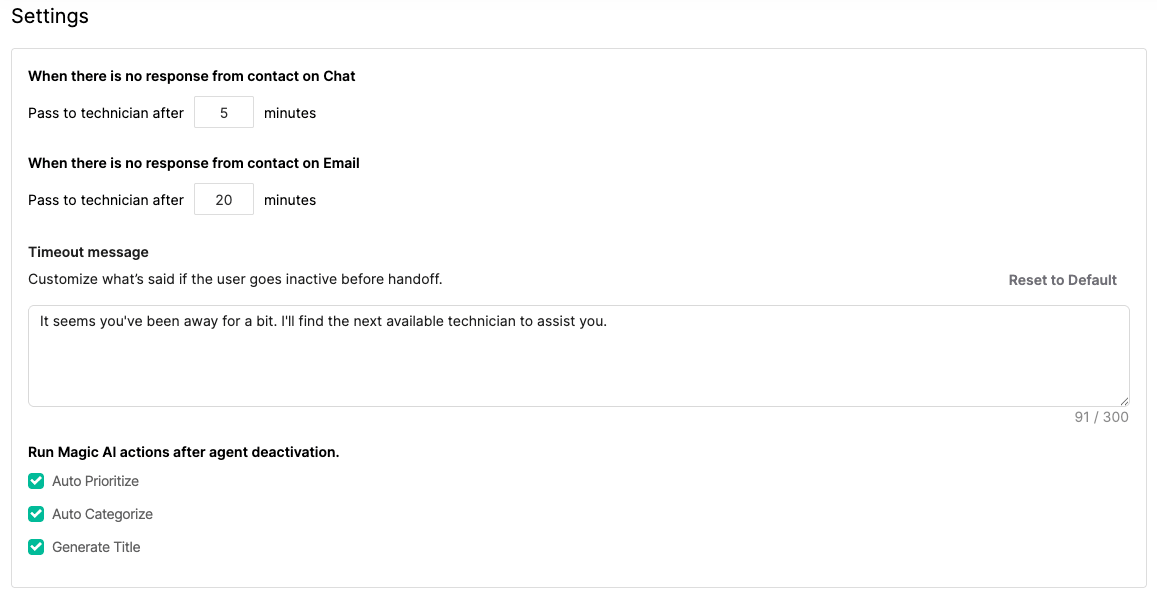 ## Response Timeout
These settings determine how long the Agent should wait for a reply before passing the thread to a technician.
* **When there is no response from contact on Chat** – Define the timeout (in minutes) for chat-based conversations.
* **When there is no response from contact on Email** – Define the timeout (in minutes) for email-based conversations.
## Timeout Message
The **Timeout Message** is shown when a contact becomes inactive before the Agent hands off the thread to a technician. This message can either be used verbatim or as a prompt for the Agent to craft its own version in a similar tone.
**Default message:**
> *It seems you've been away for a bit. I'll find the next available technician to assist you.*
You can edit this message at any time to match your support tone or escalation policy.
## Run Magic AI Actions After Agent Deactivation
After the Triage Agent deactivates, you can automatically run other **Magic AI** features to complete thread processing. These actions help ensure that all triaged threads are properly categorized and documented.
Available options include:
* **Auto Prioritize** – Assigns an appropriate priority level to the thread.
* **Auto Categorize** – Assigns the correct category and subcategory based on context.
* **Generate Title** – Creates a concise and descriptive thread title.
You can enable or disable any of these options as needed.
## Status Mapping
## Response Timeout
These settings determine how long the Agent should wait for a reply before passing the thread to a technician.
* **When there is no response from contact on Chat** – Define the timeout (in minutes) for chat-based conversations.
* **When there is no response from contact on Email** – Define the timeout (in minutes) for email-based conversations.
## Timeout Message
The **Timeout Message** is shown when a contact becomes inactive before the Agent hands off the thread to a technician. This message can either be used verbatim or as a prompt for the Agent to craft its own version in a similar tone.
**Default message:**
> *It seems you've been away for a bit. I'll find the next available technician to assist you.*
You can edit this message at any time to match your support tone or escalation policy.
## Run Magic AI Actions After Agent Deactivation
After the Triage Agent deactivates, you can automatically run other **Magic AI** features to complete thread processing. These actions help ensure that all triaged threads are properly categorized and documented.
Available options include:
* **Auto Prioritize** – Assigns an appropriate priority level to the thread.
* **Auto Categorize** – Assigns the correct category and subcategory based on context.
* **Generate Title** – Creates a concise and descriptive thread title.
You can enable or disable any of these options as needed.
## Status Mapping
 The **Status Mapping** section allows you to define which statuses the Magic Agent should use during triage and escalation.
This mapping ensures that the Agent’s actions align with your existing board and workflow statuses. For example, you can configure which status to apply when the Agent begins triage, when it escalates to a technician, or when a thread is closed automatically.
Click **Configure** to open the mapping interface. From there, you can:
* Select the appropriate status for each stage of the triage process.
* Map statuses across different boards if your organization uses multiple workflows.
* Ensure consistency between your PSA’s native statuses and Magic Agent automation.
Proper status mapping helps maintain smooth synchronization between automated Agent actions and your team’s manual processes.
**Status Mapping is REQUIRED for Resolutions.** This is required if you want Magic Agents to move tickets to an in-progress status while working an issue, or to close tickets when it resolves them. If you haven't done this yet, head over to [Status Automations](/inbox/status-automations) to get started.
## Related topics
- [Triage Agent Setup User Guide](/ai-agents/setting-up-your-triage-agent-user-guide.md)
- [Listening Mode for Triage Agents](/ai-agents/listening-mode-for-triage-agents.md)
- [Configuring the Triage Agent for OOO and Other Noisy Requests](/ai-agents/triage-agent-request-blocking-and-common-use-cases.md)
The **Status Mapping** section allows you to define which statuses the Magic Agent should use during triage and escalation.
This mapping ensures that the Agent’s actions align with your existing board and workflow statuses. For example, you can configure which status to apply when the Agent begins triage, when it escalates to a technician, or when a thread is closed automatically.
Click **Configure** to open the mapping interface. From there, you can:
* Select the appropriate status for each stage of the triage process.
* Map statuses across different boards if your organization uses multiple workflows.
* Ensure consistency between your PSA’s native statuses and Magic Agent automation.
Proper status mapping helps maintain smooth synchronization between automated Agent actions and your team’s manual processes.
**Status Mapping is REQUIRED for Resolutions.** This is required if you want Magic Agents to move tickets to an in-progress status while working an issue, or to close tickets when it resolves them. If you haven't done this yet, head over to [Status Automations](/inbox/status-automations) to get started.
## Related topics
- [Triage Agent Setup User Guide](/ai-agents/setting-up-your-triage-agent-user-guide.md)
- [Listening Mode for Triage Agents](/ai-agents/listening-mode-for-triage-agents.md)
- [Configuring the Triage Agent for OOO and Other Noisy Requests](/ai-agents/triage-agent-request-blocking-and-common-use-cases.md)