> ## Documentation Index
> Fetch the complete documentation index at: https://docs.getthread.com/llms.txt
> Use this file to discover all available pages before exploring further.
# Configure Magic Sentiment
> Enable Magic Sentiment in Thread to score customer messages in real time, surface at-risk threads, and prioritize support coaching across chat and email.
## **What is Magic Sentiment?**
**Magic Sentiment** gives your team real-time insight into customer satisfaction—so you can step in early, resolve issues faster, recognize great experiences, and continuously improve service quality.
No need to chase down CSAT scores or manually review conversations.
### **How It Works**
Magic Sentiment runs quietly in the background, analyzing conversations as they happen:
* **Runs whenever the customer replies** to an eligible thread
* **Reads the three most recent messages** in the thread to judge the current mood
* **Scores sentiment in real time** and updates the score on the thread
Every thread starts at a neutral 50. While a thread is new, Magic Sentiment sets an overall score from the messages so far. As the conversation continues, each new customer reply nudges the running score up or down in small, bounded steps—so one tense message won't swing the whole thread, and the score reflects the trend of the conversation.
### **The Scoring System**
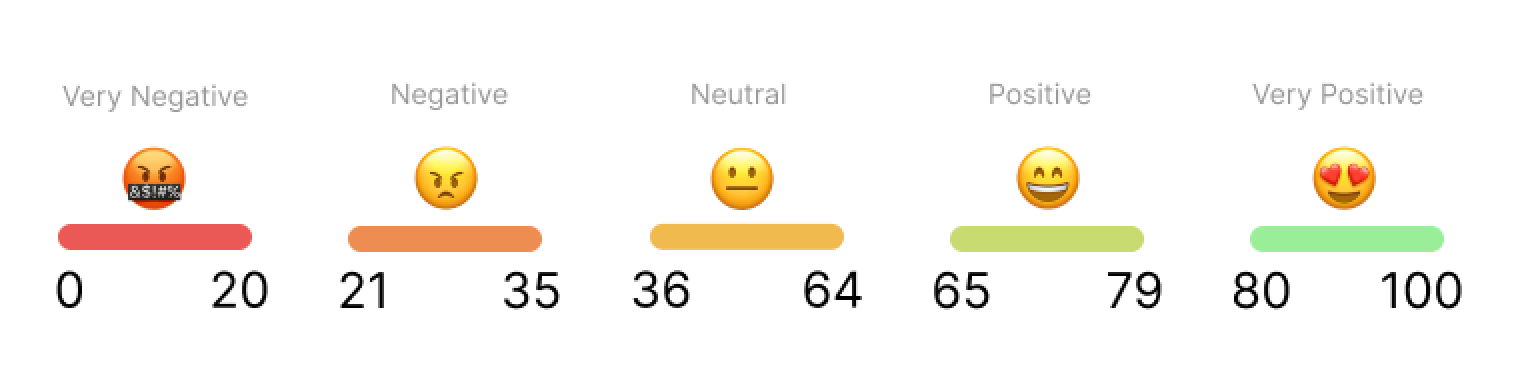 * Every thread starts with a **neutral score of 50**
* Each message can **raise or lower** that score based on sentiment
* The score ranges from **0 (very negative)** to **100 (very positive)**
This dynamic score gives your team a live view of how customers are feeling—so you can:
* Spot at-risk conversations quickly
* Prioritize issues that need extra attention
* Celebrate standout service moments
* Track sentiment trends across your support team
## **How to Configure Magic Sentiment**
You can enable and customize Magic Sentiment in just a few clicks.
Go to the [**Thread admin panel**](https://admin.getthread.com), then open **Assistive AI**.
Find the **Sentiment** card and switch its toggle to **ON**.
On the Sentiment card, click **Manage access** to open **Sentiment run conditions**.
Choose which threads Sentiment applies to:
* **All clients** (Recommended) — score every eligible thread. This score isn't shown to customers, so applying it to all clients is safe.
* **Specific clients** — include or exclude selected clients.
You can further narrow scope by **board** and by **source** (the channels a thread came in on). Changes save automatically.
Sentiment scoring now runs automatically whenever a customer replies to an eligible thread.
Magic Sentiment is available where enabled for your workspace. If you don't see the Sentiment card in Assistive AI, contact Thread support.
## **Next Up — Configure Automatic Escalations and Recap Templates for Sentiment Analysis**
Now that Sentiment is live, it’s time to make it actionable. Set up **automatic escalations and recap templates** to instantly flag moments of poor or excellent sentiment—so your team can step in early to resolve issues, or recognize wins while they’re still happening.
These workflows helps you:
* **Escalate at the right moment** when a customer message feels tense or urgent
* **Celebrate positive interactions** and reinforce great service
* **Summarize sentiment trends** with recaps your team can act on
Keep conversations on track, reduce response lag, and bring more visibility to what matters—without adding manual effort.
See **Assistive AI** updates in the [changelog](/changelog/q3-2026).
## Skills that use this
Act on sentiment — recover at-risk threads and report the trend.
Draft a calm, effective reply to a frustrated contact.
Flag accounts whose sentiment is trending down.
Report sentiment at closure across the desk.
Every communication skill.
## Related topics
- [How security work flows through Thread](/start-here/roles/security-compliance-owner/security-work-in-thread.md)
- [Read client health with Client Intelligence](/start-here/roles/csm-account-manager/client-intelligence-and-health.md)
- [Configure Magic Title in Thread](/assistive-ai/setting-up-magic-title.md)
* Every thread starts with a **neutral score of 50**
* Each message can **raise or lower** that score based on sentiment
* The score ranges from **0 (very negative)** to **100 (very positive)**
This dynamic score gives your team a live view of how customers are feeling—so you can:
* Spot at-risk conversations quickly
* Prioritize issues that need extra attention
* Celebrate standout service moments
* Track sentiment trends across your support team
## **How to Configure Magic Sentiment**
You can enable and customize Magic Sentiment in just a few clicks.
Go to the [**Thread admin panel**](https://admin.getthread.com), then open **Assistive AI**.
Find the **Sentiment** card and switch its toggle to **ON**.
On the Sentiment card, click **Manage access** to open **Sentiment run conditions**.
Choose which threads Sentiment applies to:
* **All clients** (Recommended) — score every eligible thread. This score isn't shown to customers, so applying it to all clients is safe.
* **Specific clients** — include or exclude selected clients.
You can further narrow scope by **board** and by **source** (the channels a thread came in on). Changes save automatically.
Sentiment scoring now runs automatically whenever a customer replies to an eligible thread.
Magic Sentiment is available where enabled for your workspace. If you don't see the Sentiment card in Assistive AI, contact Thread support.
## **Next Up — Configure Automatic Escalations and Recap Templates for Sentiment Analysis**
Now that Sentiment is live, it’s time to make it actionable. Set up **automatic escalations and recap templates** to instantly flag moments of poor or excellent sentiment—so your team can step in early to resolve issues, or recognize wins while they’re still happening.
These workflows helps you:
* **Escalate at the right moment** when a customer message feels tense or urgent
* **Celebrate positive interactions** and reinforce great service
* **Summarize sentiment trends** with recaps your team can act on
Keep conversations on track, reduce response lag, and bring more visibility to what matters—without adding manual effort.
See **Assistive AI** updates in the [changelog](/changelog/q3-2026).
## Skills that use this
Act on sentiment — recover at-risk threads and report the trend.
Draft a calm, effective reply to a frustrated contact.
Flag accounts whose sentiment is trending down.
Report sentiment at closure across the desk.
Every communication skill.
## Related topics
- [How security work flows through Thread](/start-here/roles/security-compliance-owner/security-work-in-thread.md)
- [Read client health with Client Intelligence](/start-here/roles/csm-account-manager/client-intelligence-and-health.md)
- [Configure Magic Title in Thread](/assistive-ai/setting-up-magic-title.md)