> ## Documentation Index
> Fetch the complete documentation index at: https://docs.getthread.com/llms.txt
> Use this file to discover all available pages before exploring further.
# Choose which ticket updates post to a channel
> Use per-flow Post to channel settings to control whether external notes, internal notes, and activity logs are posted to the companion app channel.
Each flow that posts to a companion app channel can now decide which ticket updates it sends. Use these settings to keep noisy activity out of channels that only need customer-facing replies, or to give technicians a full audit trail in a private channel.
 ## Before you begin
* You need permission to edit flows in the admin app.
* The flow must already be configured to post to a channel (Slack or Microsoft Teams companion app).
* Existing flows keep their current behavior — all update types are enabled by default, so nothing changes until you turn something off.
## Post to channel settings
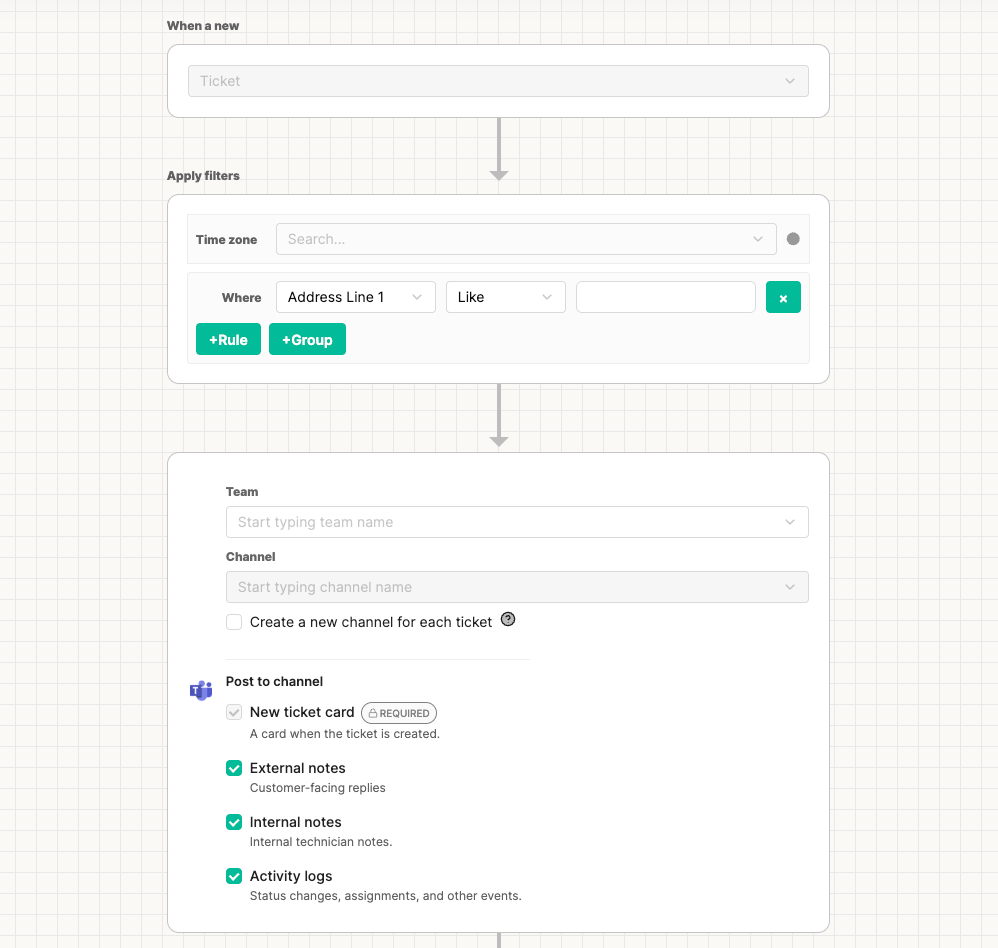
Open the flow in **Configure Flow**. In the channel section you'll see a **Post to channel** block with four options:
| Setting | What it posts | Editable |
| ------------------- | ----------------------------------------------------- | -------------- |
| **New ticket card** | The card that appears when the ticket is created. | No — always on |
| **External notes** | Customer-facing replies. | Yes |
| **Internal notes** | Internal technician notes. | Yes |
| **Activity logs** | Status changes, assignments, and other ticket events. | Yes |
The **New ticket card** is required so the channel always has an anchor card to reply to. The other three toggles are independent — turn any combination on or off.
## Configure the settings
Go to **Flows** and open the flow you want to change.
Scroll to the channel section for the flow.
Under **Post to channel**, toggle **External notes**, **Internal notes**, and **Activity logs** to match how you want the channel to behave.
Select **Save** to apply your changes.
Changes take effect for updates posted after you save. Existing messages in the channel are not removed.
## What updates look like in the channel
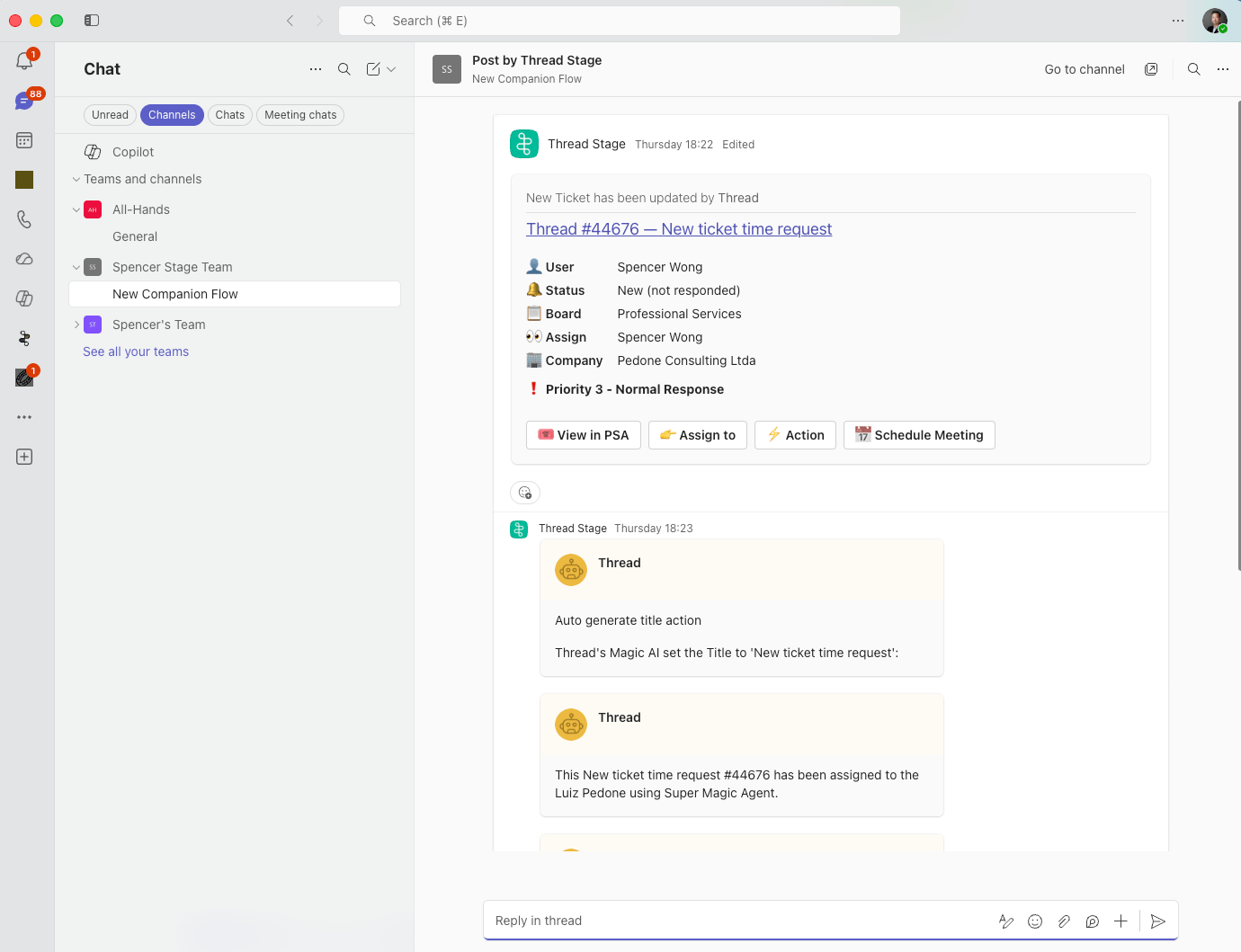
When enabled, updates appear alongside the ticket card in your Slack or Teams channel — external and internal notes render as replies to the card, and activity log entries show status, assignment, and other event changes.
## Before you begin
* You need permission to edit flows in the admin app.
* The flow must already be configured to post to a channel (Slack or Microsoft Teams companion app).
* Existing flows keep their current behavior — all update types are enabled by default, so nothing changes until you turn something off.
## Post to channel settings
Open the flow in **Configure Flow**. In the channel section you'll see a **Post to channel** block with four options:
| Setting | What it posts | Editable |
| ------------------- | ----------------------------------------------------- | -------------- |
| **New ticket card** | The card that appears when the ticket is created. | No — always on |
| **External notes** | Customer-facing replies. | Yes |
| **Internal notes** | Internal technician notes. | Yes |
| **Activity logs** | Status changes, assignments, and other ticket events. | Yes |
The **New ticket card** is required so the channel always has an anchor card to reply to. The other three toggles are independent — turn any combination on or off.
## Configure the settings
Go to **Flows** and open the flow you want to change.
Scroll to the channel section for the flow.
Under **Post to channel**, toggle **External notes**, **Internal notes**, and **Activity logs** to match how you want the channel to behave.
Select **Save** to apply your changes.
Changes take effect for updates posted after you save. Existing messages in the channel are not removed.
## What updates look like in the channel
When enabled, updates appear alongside the ticket card in your Slack or Teams channel — external and internal notes render as replies to the card, and activity log entries show status, assignment, and other event changes.
 ## Common setups
* **Customer-facing channel** — turn off **Internal notes** and **Activity logs** so only the new ticket card and external replies are posted.
* **Technician war-room channel** — leave all three on for a full audit trail of every reply, note, and status change.
* **Status-only channel** — turn off **External notes** and **Internal notes** and keep **Activity logs** on to see assignments, status transitions, and other events without any note content.
## Defaults for new flows
New flows are created with **External notes**, **Internal notes**, and **Activity logs** all enabled. Adjust them before saving if you want a narrower channel from the start.
## Related topics
- [Install the Teams Companion App](/companion-apps/install-the-teams-companion-app.md)
- [How to Use the Slack Companion App for Service Teams](/companion-apps/how-to-use-the-slack-companion-app-for-service-teams.md)
- [Install the Slack Companion App](/companion-apps/install-the-slack-companion-app.md)
## Common setups
* **Customer-facing channel** — turn off **Internal notes** and **Activity logs** so only the new ticket card and external replies are posted.
* **Technician war-room channel** — leave all three on for a full audit trail of every reply, note, and status change.
* **Status-only channel** — turn off **External notes** and **Internal notes** and keep **Activity logs** on to see assignments, status transitions, and other events without any note content.
## Defaults for new flows
New flows are created with **External notes**, **Internal notes**, and **Activity logs** all enabled. Adjust them before saving if you want a narrower channel from the start.
## Related topics
- [Install the Teams Companion App](/companion-apps/install-the-teams-companion-app.md)
- [How to Use the Slack Companion App for Service Teams](/companion-apps/how-to-use-the-slack-companion-app-for-service-teams.md)
- [Install the Slack Companion App](/companion-apps/install-the-slack-companion-app.md)