> ## Documentation Index
> Fetch the complete documentation index at: https://docs.getthread.com/llms.txt
> Use this file to discover all available pages before exploring further.
# Navigating a Thread in Inbox
> Walk through a Thread in Inbox: summary, contacts and members, thread actions like bundle, merge, notifications, and PSA sync, plus the chat composer.
## The Thread
This is where the magic happens. Threads are the heart of Inbox — where conversations, updates, and actions all come together in one place.
Let’s walk through an example thread and cover the key features.
### Summary
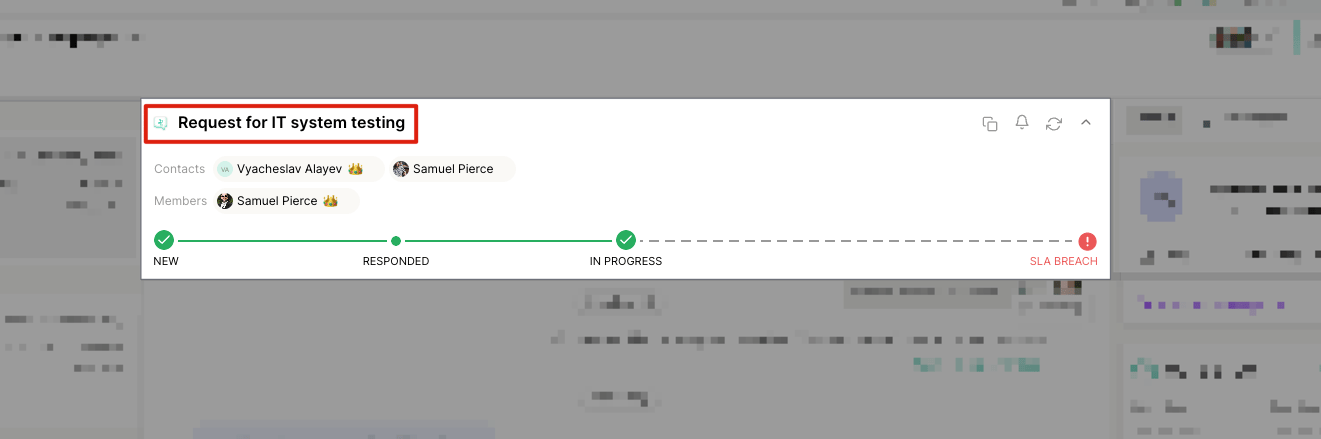
At the top of every thread, you’ll see the **summary**, displayed next to a small **source icon**.
The source icon shows where the thread originated — for example, this thread was submitted via **Messenger**.
 ### Contacts & Members
Each thread can have one or more **contacts** and **members** associated with it.
* **Contact** — The person who submitted the thread (usually the end user or customer).
* **Member** — Internal team members who are working on the thread or ticket.
### Contacts & Members
Each thread can have one or more **contacts** and **members** associated with it.
* **Contact** — The person who submitted the thread (usually the end user or customer).
* **Member** — Internal team members who are working on the thread or ticket.
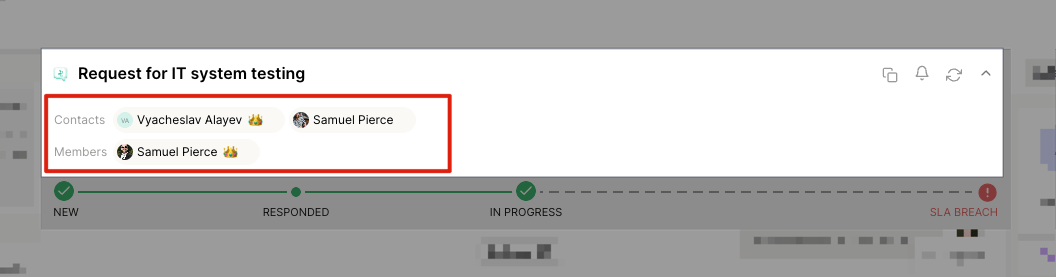 You can add contacts or members in two ways:
* **@ Mention** them directly within the thread.
* Click the **Add (+)** button next to the existing names at the top of the thread.
You can add contacts or members in two ways:
* **@ Mention** them directly within the thread.
* Click the **Add (+)** button next to the existing names at the top of the thread.
 Only see the summary? Try clicking the carrat arrow on the far right. For better conversation visibility, this panel can be hidden.
### Thread Actions
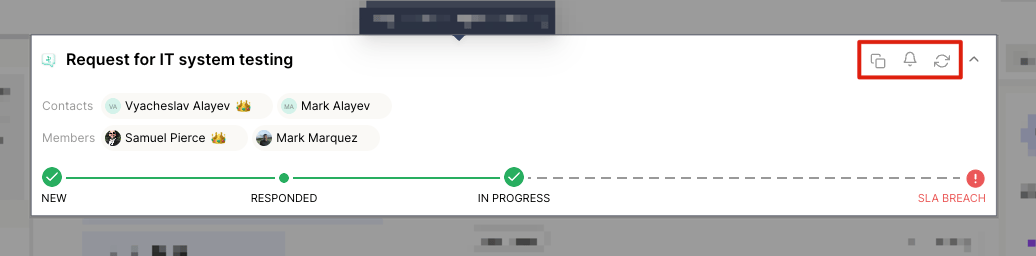
At the top right of each thread, you’ll find quick-action icons. Which ones appear depends on
your PSA and enabled features, but you’ll typically see **Link Threads**, **Notifications**,
**PSA Sync**, and an **expand/collapse** chevron for the details panel.
Only see the summary? Try clicking the carrat arrow on the far right. For better conversation visibility, this panel can be hidden.
### Thread Actions
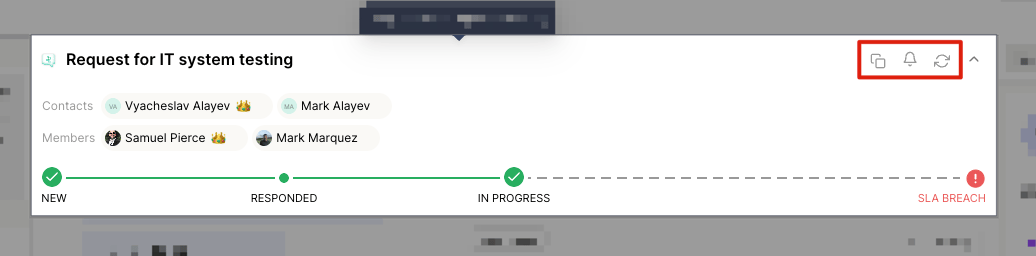
At the top right of each thread, you’ll find quick-action icons. Which ones appear depends on
your PSA and enabled features, but you’ll typically see **Link Threads**, **Notifications**,
**PSA Sync**, and an **expand/collapse** chevron for the details panel.
 ### Next / Previous ticket
Use the **up** and **down** arrows in the thread header to jump to the previous or next ticket in your current view without going back to the list.
### Next / Previous ticket
Use the **up** and **down** arrows in the thread header to jump to the previous or next ticket in your current view without going back to the list.
 These buttons are currently available on the thread details modal. Support in the full-page thread view is coming soon.
### Link Threads (Bundle & Merge)
Combine related threads through the **Link Threads** modal (keyboard shortcut
Ctrl/⌘ + Shift + L). Pick a parent thread, select the threads
to link, then choose a **link type**:
* **Bundle:** Keeps the child threads open and handled separately, while grouping them under
the parent.
* **Merge:** Closes the child threads and moves their conversation into the parent. You’re
prompted to **set a closing status** for the child threads before merging.
Link Threads is currently available for **ConnectWise** partners.
### Notifications
Manage alerts for this thread.
* **On:** You’ll receive notifications for new messages or updates.
* **Off:** Notifications are muted for this thread.
### PSA Sync
Pulls the latest information for this thread from your PSA on demand.
## The Chat Box
The chat box is where all communication happens. It supports multiple modes and tools to streamline your work.
### Reply
A **customer-facing message** sent to all contacts on the thread. Use this when responding to the end user.
### Note
An **internal-only message** visible to workspace members. Use this for internal discussions or updates.
Important:
Always double-check which tab you have selected before sending. Accidentally posting an internal note as a customer reply is a common mistake.
### Commands
Type `/` in the composer to open the command menu, then start typing to filter. The built-in
commands are:
| Command | Function |
| ----------- | ------------------------------------------------------ |
| `/reply` | Switch the input box to Reply |
| `/note` | Switch the input box to an internal Note |
| `/assign` | Change the assigned member |
| `/status` | Update the current thread status |
| `/priority` | Change the thread priority |
| `/snip` | Insert a snippet |
| `/time` | Start / stop the timer and log time |
| `/action` | Open the **Actions** menu for PSA and Magic AI actions |
Integration actions are surfaced through `/action` (or the **Actions** button above the
composer). Each available action also gets its own command that mirrors its name — for example
a PSA action, `/copilot` for Magic AI, or `/approvals` to request an approval — so the exact
list depends on your PSA and enabled integrations. Where end-user verification is enabled, a
**Send Verification** action is available for [Verify](/inbox/verify).
### Other Tabs
* **Snippets** — Access team snippets and your personal snippets for quick replies.
* **Time** — Log or adjust time entries using the time-pad.
* **Actions** — Trigger PSA actions or run Magic AI tools.
## Additional Options
### Text Editor Toggle
Click the **Aa** icon to toggle the text editor and adjust how messages are sent:
* **Enter:** Sends the message.
* **Ctrl + Enter:** Sends when text editor mode is active.We **highly** recommend enabling this to prevent accidental message sending
### Send by Email
This checkbox determines whether your reply is also sent as an email.
This checkbox is only available to Connectwise and Halo PSA users. For Autotask, see our
Setting up an email workflow documentation
* **Enabled by default** for non-live threads (email).
* **Disabled by default** for live threads (Messenger, Slack, and Teams).
See **Inbox** and **UI & UX** updates in the [changelog](/changelog/q3-2026).
## FAQ
You can send any file type. Three ways:
* type `/attachment` and pick a file,
* click the attachment icon,
* or drag and drop the file into the thread.
Yes — use markdown, or the rich text editor. Click the **Aa** icon to show the editor options:
| Style | Shortcut |
| -------------------- | ----------------------------------------------- |
| Bold | ⌘/Ctrl + B |
| Italic | ⌘/Ctrl + I |
| Add or remove a link | ⌘/Ctrl + K |
| Numbered list | type `1.` then a space |
| Bullet list | type `*` then a space |
| Code | ⌘/Ctrl + ⇧ + C |
**A:** ConnectWise’s API does not allow integrations to set the *Closed By* field. Many partners resolve this by updating their reports to display the *Owner* for closed tickets instead of *Closed By*.
## Related topics
- [Thread Partner Change Management Guide](/get-started/thread-partner-change-management-guide.md)
- [Views and Insights in Thread Inbox](/inbox/views-and-insights.md)
- [Flows: Automate Thread Routing and Actions in Inbox](/inbox/flows.md)
These buttons are currently available on the thread details modal. Support in the full-page thread view is coming soon.
### Link Threads (Bundle & Merge)
Combine related threads through the **Link Threads** modal (keyboard shortcut
Ctrl/⌘ + Shift + L). Pick a parent thread, select the threads
to link, then choose a **link type**:
* **Bundle:** Keeps the child threads open and handled separately, while grouping them under
the parent.
* **Merge:** Closes the child threads and moves their conversation into the parent. You’re
prompted to **set a closing status** for the child threads before merging.
Link Threads is currently available for **ConnectWise** partners.
### Notifications
Manage alerts for this thread.
* **On:** You’ll receive notifications for new messages or updates.
* **Off:** Notifications are muted for this thread.
### PSA Sync
Pulls the latest information for this thread from your PSA on demand.
## The Chat Box
The chat box is where all communication happens. It supports multiple modes and tools to streamline your work.
### Reply
A **customer-facing message** sent to all contacts on the thread. Use this when responding to the end user.
### Note
An **internal-only message** visible to workspace members. Use this for internal discussions or updates.
Important:
Always double-check which tab you have selected before sending. Accidentally posting an internal note as a customer reply is a common mistake.
### Commands
Type `/` in the composer to open the command menu, then start typing to filter. The built-in
commands are:
| Command | Function |
| ----------- | ------------------------------------------------------ |
| `/reply` | Switch the input box to Reply |
| `/note` | Switch the input box to an internal Note |
| `/assign` | Change the assigned member |
| `/status` | Update the current thread status |
| `/priority` | Change the thread priority |
| `/snip` | Insert a snippet |
| `/time` | Start / stop the timer and log time |
| `/action` | Open the **Actions** menu for PSA and Magic AI actions |
Integration actions are surfaced through `/action` (or the **Actions** button above the
composer). Each available action also gets its own command that mirrors its name — for example
a PSA action, `/copilot` for Magic AI, or `/approvals` to request an approval — so the exact
list depends on your PSA and enabled integrations. Where end-user verification is enabled, a
**Send Verification** action is available for [Verify](/inbox/verify).
### Other Tabs
* **Snippets** — Access team snippets and your personal snippets for quick replies.
* **Time** — Log or adjust time entries using the time-pad.
* **Actions** — Trigger PSA actions or run Magic AI tools.
## Additional Options
### Text Editor Toggle
Click the **Aa** icon to toggle the text editor and adjust how messages are sent:
* **Enter:** Sends the message.
* **Ctrl + Enter:** Sends when text editor mode is active.We **highly** recommend enabling this to prevent accidental message sending
### Send by Email
This checkbox determines whether your reply is also sent as an email.
This checkbox is only available to Connectwise and Halo PSA users. For Autotask, see our
Setting up an email workflow documentation
* **Enabled by default** for non-live threads (email).
* **Disabled by default** for live threads (Messenger, Slack, and Teams).
See **Inbox** and **UI & UX** updates in the [changelog](/changelog/q3-2026).
## FAQ
You can send any file type. Three ways:
* type `/attachment` and pick a file,
* click the attachment icon,
* or drag and drop the file into the thread.
Yes — use markdown, or the rich text editor. Click the **Aa** icon to show the editor options:
| Style | Shortcut |
| -------------------- | ----------------------------------------------- |
| Bold | ⌘/Ctrl + B |
| Italic | ⌘/Ctrl + I |
| Add or remove a link | ⌘/Ctrl + K |
| Numbered list | type `1.` then a space |
| Bullet list | type `*` then a space |
| Code | ⌘/Ctrl + ⇧ + C |
**A:** ConnectWise’s API does not allow integrations to set the *Closed By* field. Many partners resolve this by updating their reports to display the *Owner* for closed tickets instead of *Closed By*.
## Related topics
- [Thread Partner Change Management Guide](/get-started/thread-partner-change-management-guide.md)
- [Views and Insights in Thread Inbox](/inbox/views-and-insights.md)
- [Flows: Automate Thread Routing and Actions in Inbox](/inbox/flows.md)