> ## Documentation Index
> Fetch the complete documentation index at: https://docs.getthread.com/llms.txt
> Use this file to discover all available pages before exploring further.
# Add Thread Pods to ConnectWise Service Tickets
> Enable Thread Real-Time Notes and Auto Time Entries pods on ConnectWise PSA service tickets so technicians can chat, log time, and use snippets in-app.
Thread seamlessly integrates with ConnectWise, enabling real-time chat with your customers directly within service tickets using Pods.
Enjoy powerful features like real-time communication, automated time entries, snippets, @mentions, and more, all within the ConnectWise platform.
The best part? It's easy to set up! Follow this guide to get started.
## **How to Add Pods to Your Service Ticket View in ConnectWise**
Each technician who wants to access the Pods must set them up in their service ticket view in ConnectWise.
Open a Service Ticket in ConnectWise PSA.
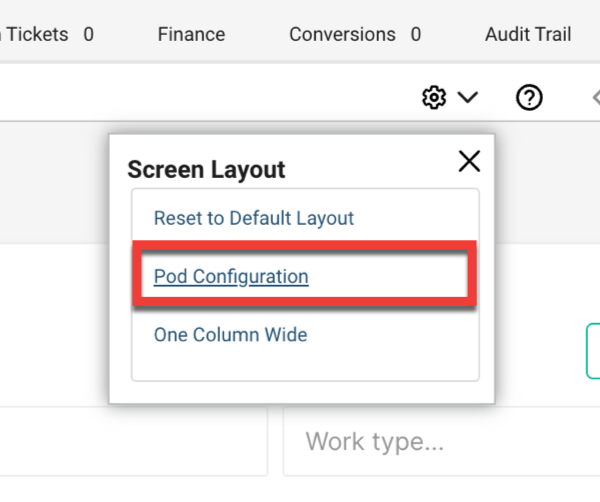
Click the gear icon () in the top-left corner.
Select **Pod** **Configuration**.
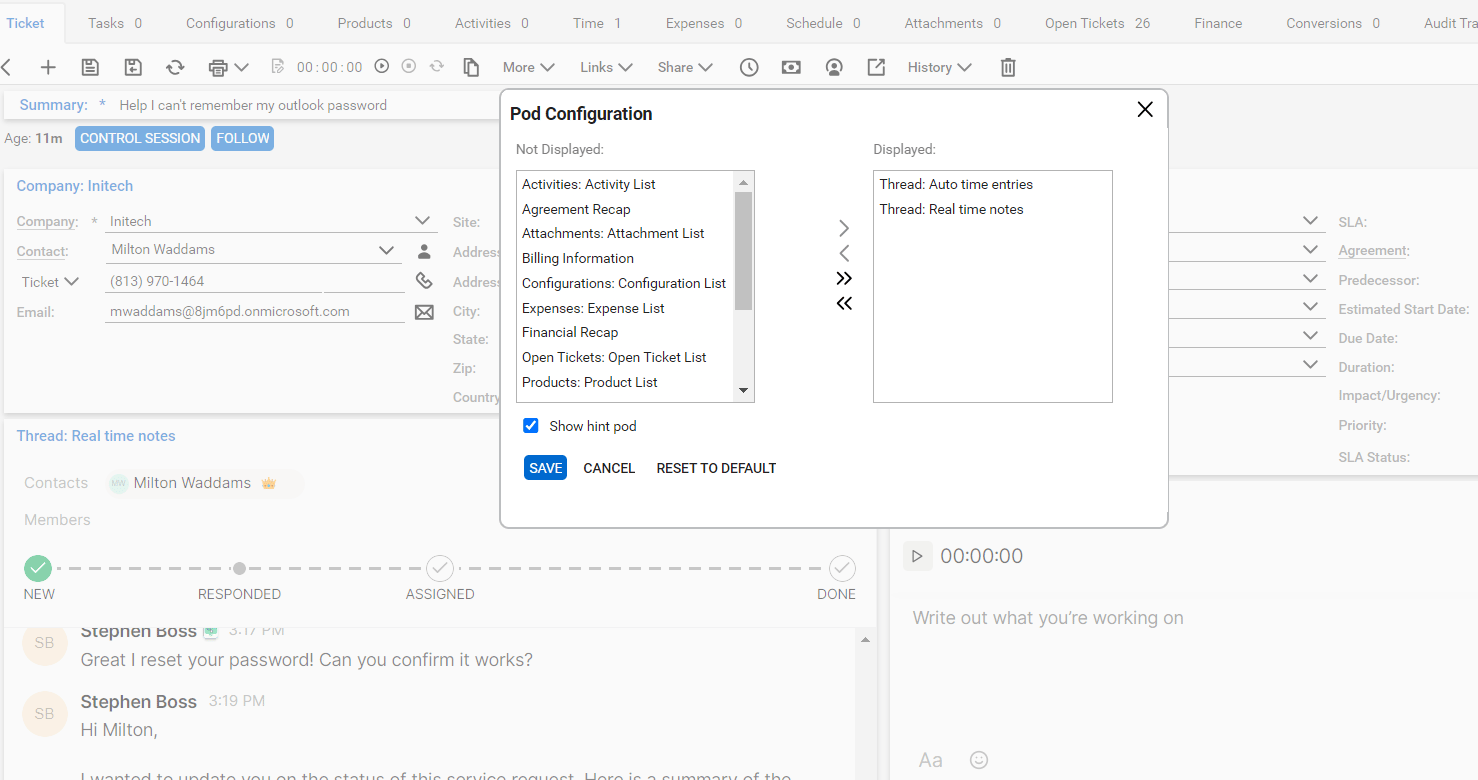
 From the available pods, select **Thread Auto Time Entries** and **Thread Real-Time Notes**.
Move these to the **Displayed** column.
Click **Save**.
From the available pods, select **Thread Auto Time Entries** and **Thread Real-Time Notes**.
Move these to the **Displayed** column.
Click **Save**.
 Customize the location of the pods by dragging and dropping them where you prefer within the service ticket view.
**Limits imposed by PSA**
* Max ticket summary length 100 chars
* Max note length Max number of member/contact participants
Due to PSA rate limits-
* PSA webhook processing is throttling without losing data
* PSA sync jobs can process slower when reaching rate limits
## **Troubleshooting**
**What if I don't see the option to add the pods to my service ticket view?**
If the pods aren't showing up in your service ticket view, follow these troubleshooting steps:
* Navigate to **System** -> **Setup Tables**.
* Search for the **Manage Hosted API** table and open it.
* If you see the entries for the pods, you're all set! Click on each pod and review the **Location Restrictions**.
* If a location restriction is set and you're not assigned to that location, you'll need to add your location to make the pods visible.
* It's possible that Thread did not have the necessary permissions to create the pods during your setup. To fix this, follow the next steps to review your permissions.
* Navigate to **System** -> **Security Roles** and search for the security role assigned to the **Thread API user**.
* Edit the security role settings for the **Thread API user**.
* Go to **System** -> **Table Setup**, then click **Customize**.
* In the pop-up modal, make sure to **Allow** the following permissions:
* **General / Manage Hosted API**.
* After updating permissions, save the settings.
* If the pods still aren't showing up, reach out to our support team and ask them to enable the pods for your workspace.
* Email: [help@getthread.com](mailto:help@getthread.com)
* Chat: [https://help.getthread.com](https://help.getthread.com)
## Watch the walkthrough
See how technicians use Thread Pods inside ConnectWise PSA to chat with customers and capture time on tickets.
## Related topics
- [Common questions](/get-started/common-questions.md)
- [ConnectWise Manage API Permissions Reference](/integrations/connectwise-permissions-overview.md)
- [Set Up the ConnectWise PSA Ticketing Integration](/integrations/creating-a-connect-wise-manage-api-user.md)
Customize the location of the pods by dragging and dropping them where you prefer within the service ticket view.
**Limits imposed by PSA**
* Max ticket summary length 100 chars
* Max note length Max number of member/contact participants
Due to PSA rate limits-
* PSA webhook processing is throttling without losing data
* PSA sync jobs can process slower when reaching rate limits
## **Troubleshooting**
**What if I don't see the option to add the pods to my service ticket view?**
If the pods aren't showing up in your service ticket view, follow these troubleshooting steps:
* Navigate to **System** -> **Setup Tables**.
* Search for the **Manage Hosted API** table and open it.
* If you see the entries for the pods, you're all set! Click on each pod and review the **Location Restrictions**.
* If a location restriction is set and you're not assigned to that location, you'll need to add your location to make the pods visible.
* It's possible that Thread did not have the necessary permissions to create the pods during your setup. To fix this, follow the next steps to review your permissions.
* Navigate to **System** -> **Security Roles** and search for the security role assigned to the **Thread API user**.
* Edit the security role settings for the **Thread API user**.
* Go to **System** -> **Table Setup**, then click **Customize**.
* In the pop-up modal, make sure to **Allow** the following permissions:
* **General / Manage Hosted API**.
* After updating permissions, save the settings.
* If the pods still aren't showing up, reach out to our support team and ask them to enable the pods for your workspace.
* Email: [help@getthread.com](mailto:help@getthread.com)
* Chat: [https://help.getthread.com](https://help.getthread.com)
## Watch the walkthrough
See how technicians use Thread Pods inside ConnectWise PSA to chat with customers and capture time on tickets.
## Related topics
- [Common questions](/get-started/common-questions.md)
- [ConnectWise Manage API Permissions Reference](/integrations/connectwise-permissions-overview.md)
- [Set Up the ConnectWise PSA Ticketing Integration](/integrations/creating-a-connect-wise-manage-api-user.md)