> ## Documentation Index
> Fetch the complete documentation index at: https://docs.getthread.com/llms.txt
> Use this file to discover all available pages before exploring further.
# Enable Thread Chat & Timepad Insights in Autotask
> Show Thread chat and Timepad insights inside Autotask ticket categories so technicians get real-time chat, auto time entries, snippets, and @mentions.
Now you can bring the power of Thread directly into Autotask, experience all the great features Inbox has to offer including real-time chat, automated time entries, snippets, @mentions and more!
Best of all, it is super easy to setup. This guide will show you how.
## **Adding Insights to Service Ticket Categories in Autotask**
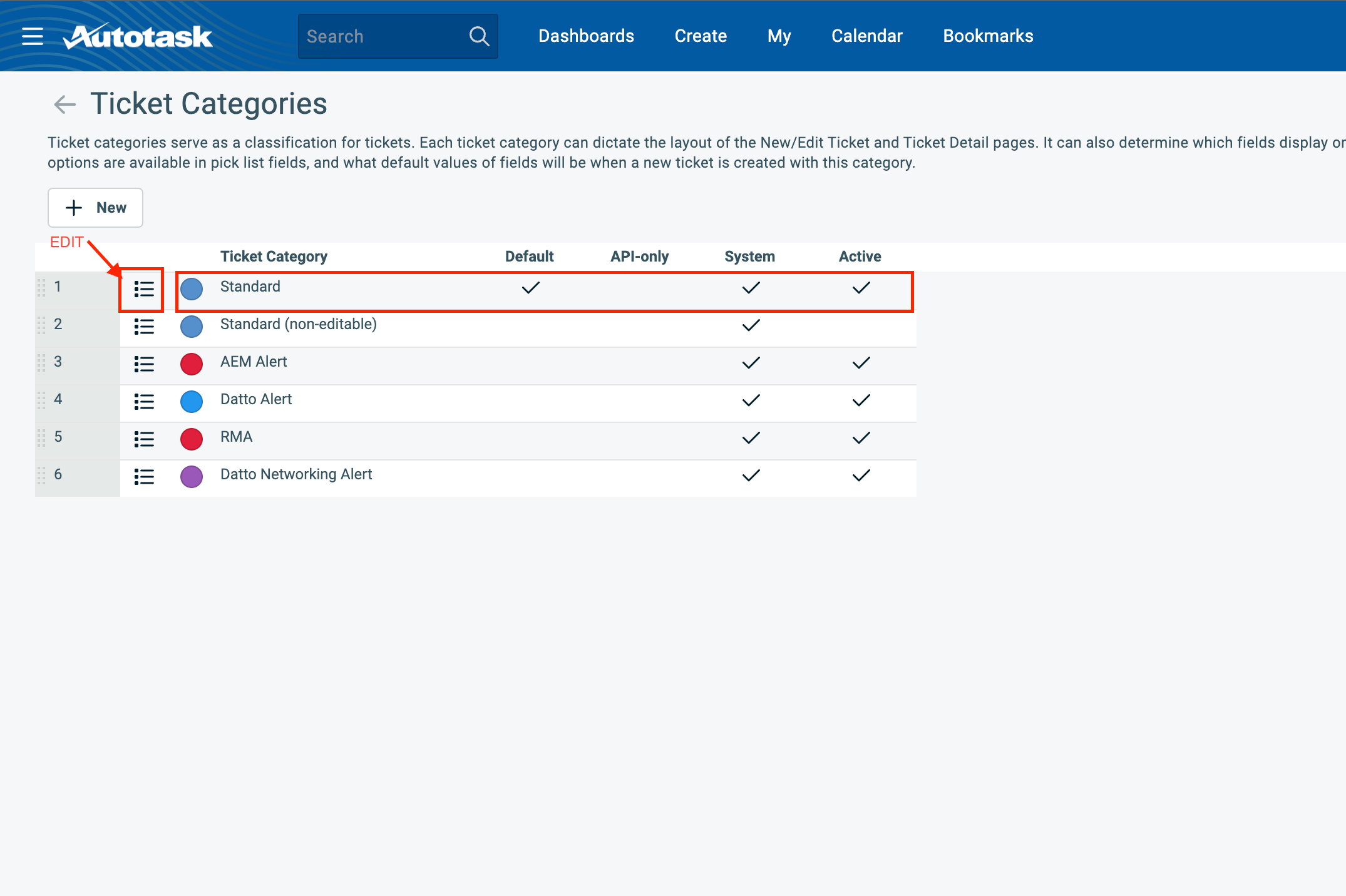
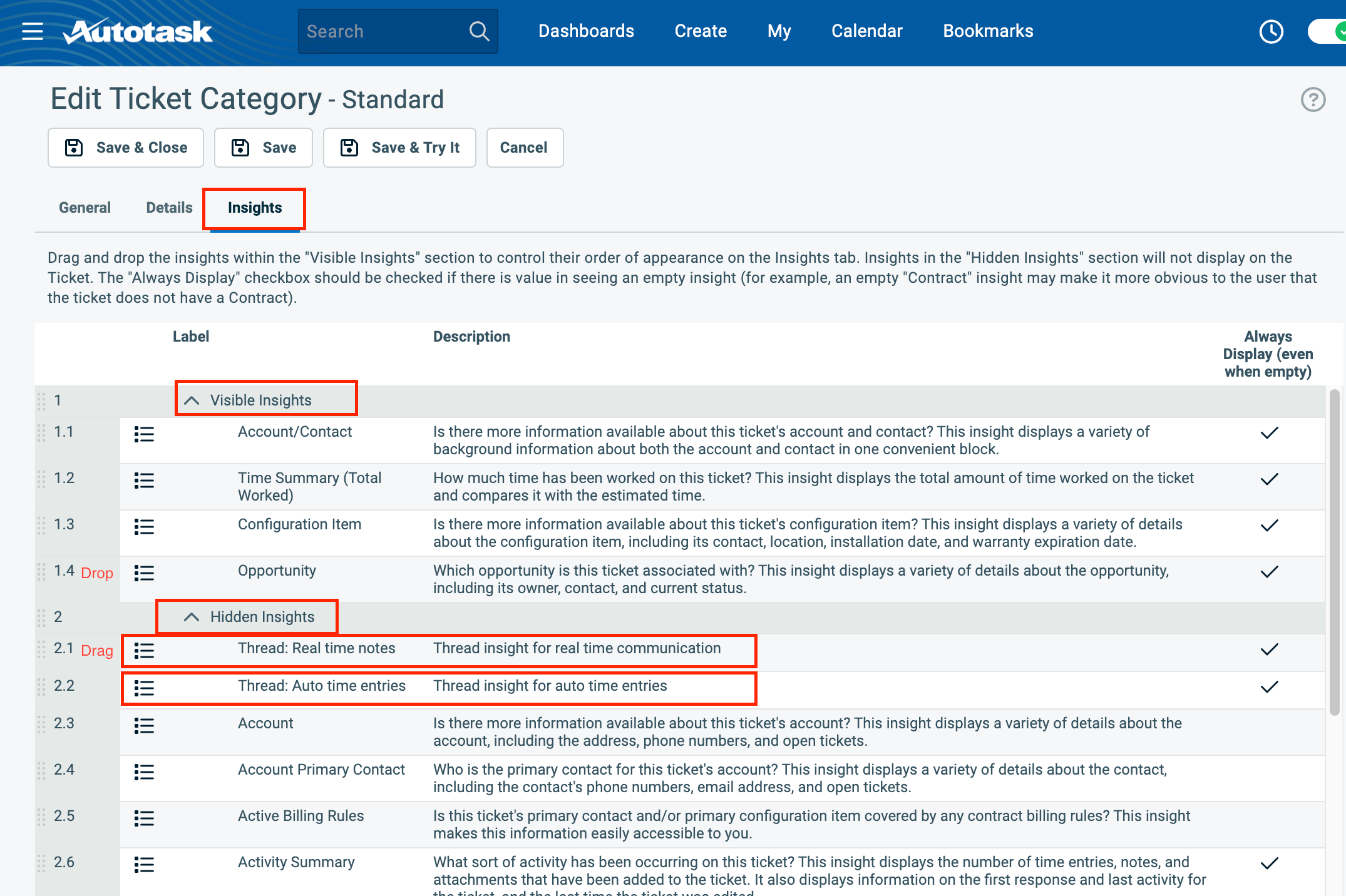
Make Layout adjustments in order to make Insights visible. Go to: **Admin → Features & Settings → Service Desk (Tickets) → Ticket Categories → Edit (category) → Insights:**
 Thread insights should be in “Hidden Insights” section. Drag them and drops into “Visible insights” section:
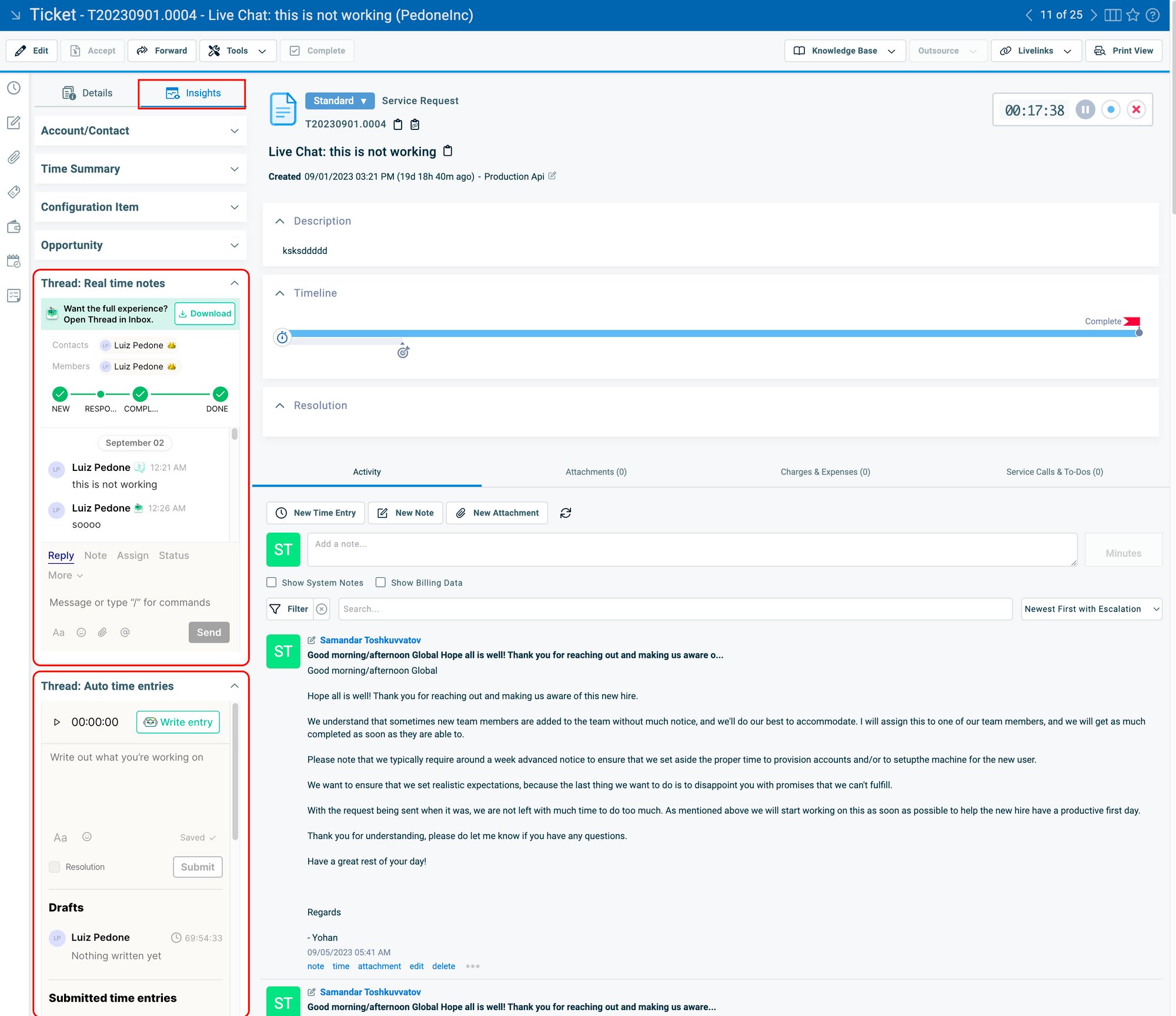
 That’s it! You should now see the insights in the Ticket screen
 ## **Troubleshooting**
If you have tried to steps above and are having trouble, please follow the steps below:
### **Step 1: Confirming Prerequisites**
1. First, check to make sure the Autotask API user for Thread has the correct API Tracking Identifier.
2. From Autotask, Navigate to **Admin -> Account Settings & Users -> Resources/Users (HR) -> Resources/Users -> Find the Thread API user you created when setting up your Thread Integration -> Edit -> Verify the API Tracking Identifier is set to Integration Vendor: Thread - Messaging**
## **Troubleshooting**
If you have tried to steps above and are having trouble, please follow the steps below:
### **Step 1: Confirming Prerequisites**
1. First, check to make sure the Autotask API user for Thread has the correct API Tracking Identifier.
2. From Autotask, Navigate to **Admin -> Account Settings & Users -> Resources/Users (HR) -> Resources/Users -> Find the Thread API user you created when setting up your Thread Integration -> Edit -> Verify the API Tracking Identifier is set to Integration Vendor: Thread - Messaging**
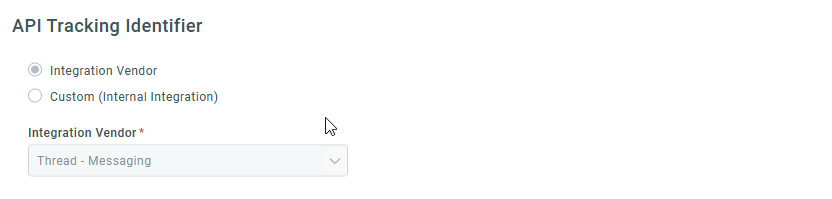 2. If you are one of our first Autotask partners, then the API Tracking Identifier may be set to custom. In order for the insights to work, we need an API member that is tied to our tracking identifier.
3. To fix this, you will need to set up a new API user for your Thread workspace. Follow [step 4: Create the API User from our document, How to setup the Autotask Ticketing Integration](/integrations/creating-a-autotask-api-user#4_create_the_api_user).
4. Once the API user is created, navigate to your [Thread Admin Panel -> Integrations -> Autotask](https://admin.getthread.com/dashboard/integrations/datto_autotask).
5. Enter the username and secret key you generated when creating the new API user.
6. Next, you must enable access to Insights for your Thread API member in Autotask.
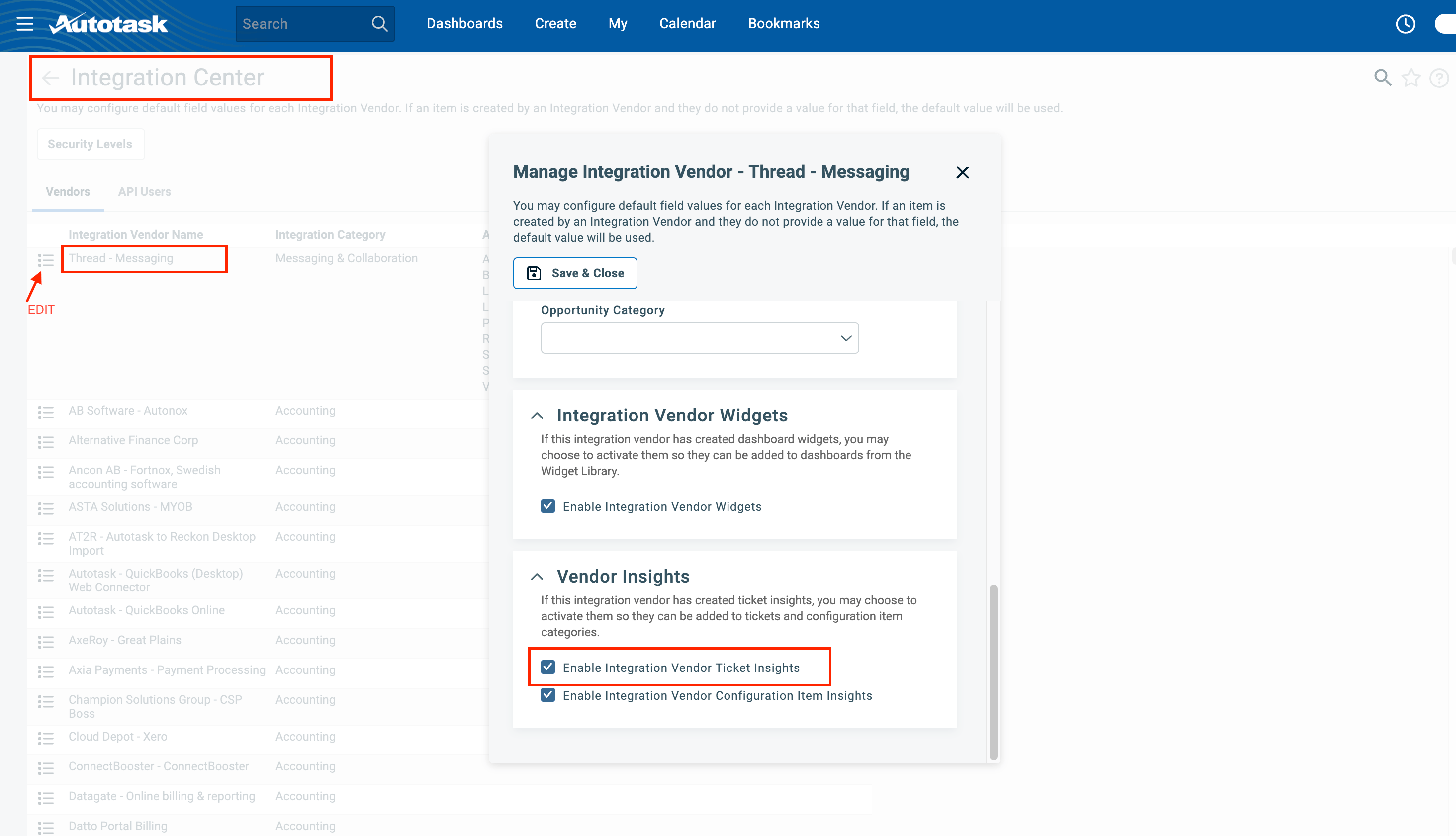
7. From Autotask, Navigate to **Admin → Extensions & Integrations → Other Extensions & Tools → Integration Center → Thread - Messaging (Edit) → Vendor Insights → Enable Integration Vendor Ticket Insights**
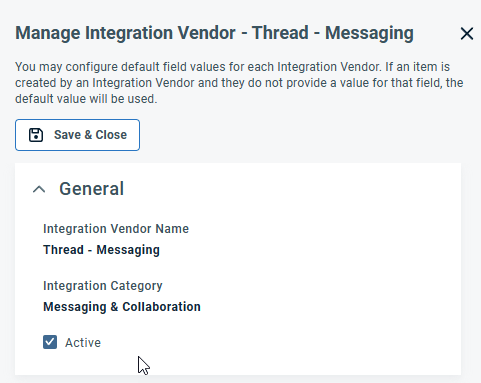
8. Check **Active** under **General**
2. If you are one of our first Autotask partners, then the API Tracking Identifier may be set to custom. In order for the insights to work, we need an API member that is tied to our tracking identifier.
3. To fix this, you will need to set up a new API user for your Thread workspace. Follow [step 4: Create the API User from our document, How to setup the Autotask Ticketing Integration](/integrations/creating-a-autotask-api-user#4_create_the_api_user).
4. Once the API user is created, navigate to your [Thread Admin Panel -> Integrations -> Autotask](https://admin.getthread.com/dashboard/integrations/datto_autotask).
5. Enter the username and secret key you generated when creating the new API user.
6. Next, you must enable access to Insights for your Thread API member in Autotask.
7. From Autotask, Navigate to **Admin → Extensions & Integrations → Other Extensions & Tools → Integration Center → Thread - Messaging (Edit) → Vendor Insights → Enable Integration Vendor Ticket Insights**
8. Check **Active** under **General**
 3. Check **Enable Integration Vendor Ticket Insights**
 ## Related topics
- [Track your time with TimePad](/inbox/track-your-time-with-timepad.md)
- [Set Up an Autotask Email Workflow for Thread Chats](/integrations/setting-up-an-email-communication-workflow-in-autotask.md)
- [Views and Insights in Thread Inbox](/inbox/views-and-insights.md)
## Related topics
- [Track your time with TimePad](/inbox/track-your-time-with-timepad.md)
- [Set Up an Autotask Email Workflow for Thread Chats](/integrations/setting-up-an-email-communication-workflow-in-autotask.md)
- [Views and Insights in Thread Inbox](/inbox/views-and-insights.md)