> ## Documentation Index
> Fetch the complete documentation index at: https://docs.getthread.com/llms.txt
> Use this file to discover all available pages before exploring further.
# Connect CloudRadial to Thread for Client Chat
> Integrate Thread with CloudRadial so MSP clients can chat with your service team in Microsoft Teams or Slack from the CloudRadial portal using your AppID.
## Overview
If you already integrated CloudRadial, please ensure that you delete the header text before performing the following.
Thread enables your service team to chat with clients in Microsoft Teams and Slack, plus a whole lot more. To integrate CloudRadial, please follow these steps:
## Connect CloudRadial to Thread
Navigate to Thread Admin Panel -> [Integrations](https://admin.getthread.com/dashboard/integrations)
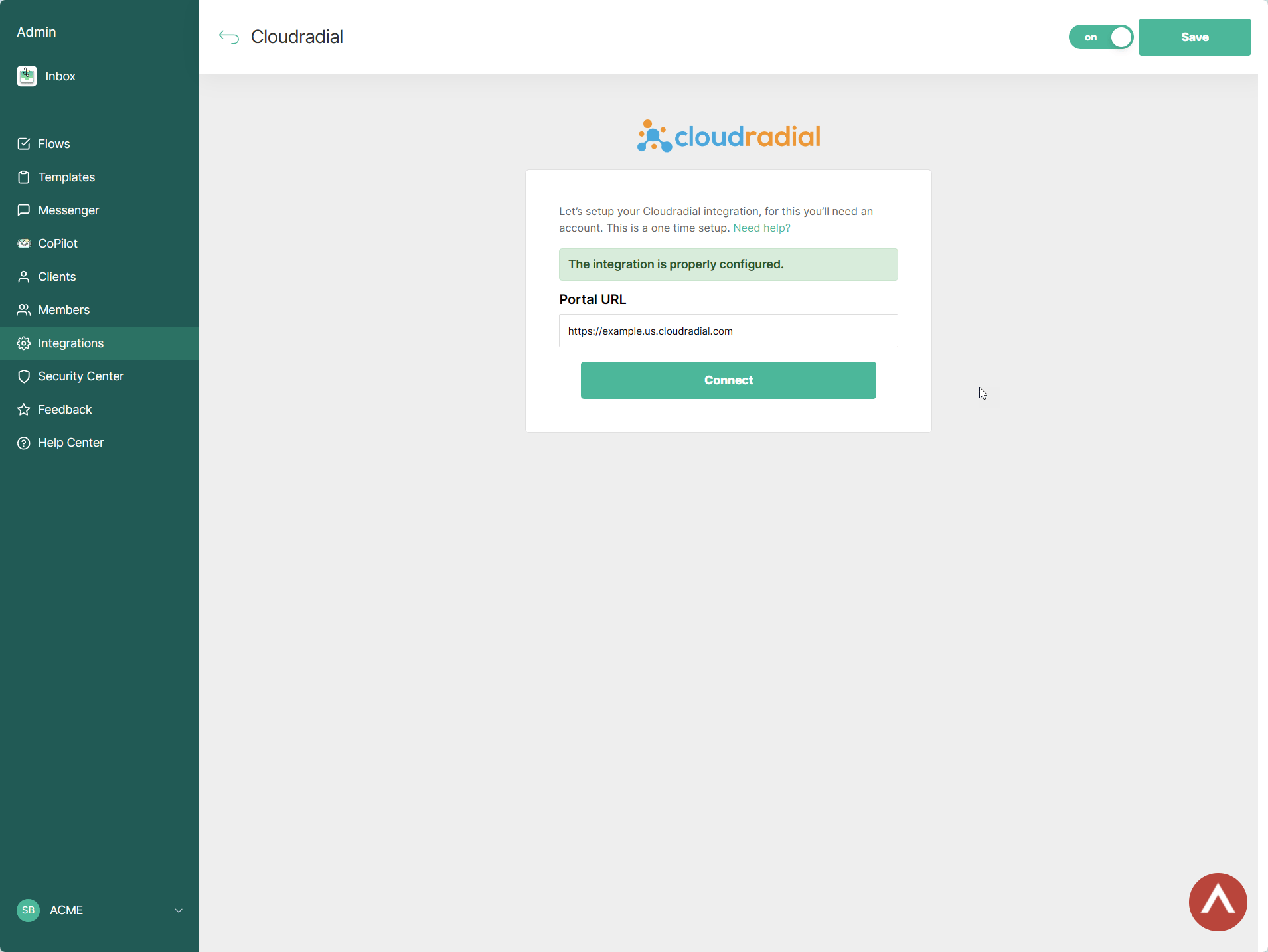
Click to setup your Cloudradial Integration
Enter your CloudRadial portal URL -> Click **Connect** & **Save**
 Retrieve your AppID [here](https://admin.getthread.com/dashboard/messenger/settings/installation) (keep this AppID handy, you will need it shortly)
Next, Navigate to the home page of CloudRadial application.
Go to Partners -> Settings.
Retrieve your AppID [here](https://admin.getthread.com/dashboard/messenger/settings/installation) (keep this AppID handy, you will need it shortly)
Next, Navigate to the home page of CloudRadial application.
Go to Partners -> Settings.
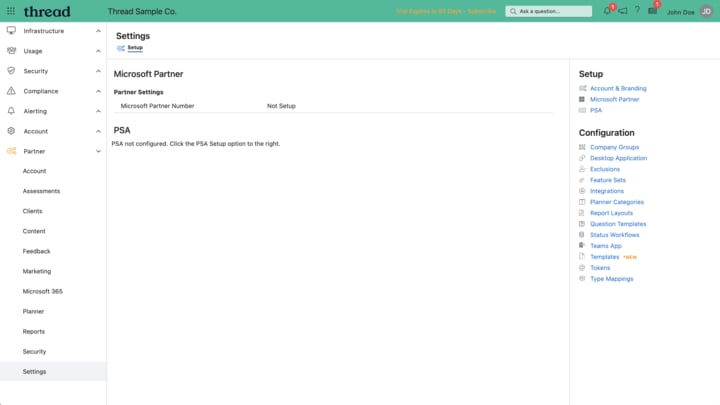 Then, click Integrations on the right side.
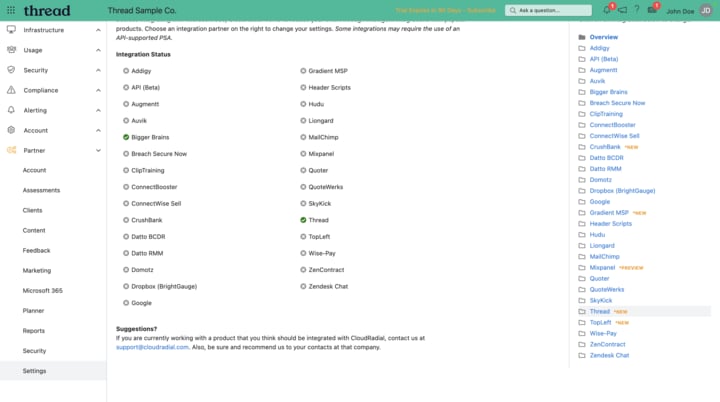 On the right side, click thread integration.
Click enable thread, enter the AppID, and click submit.
On the right side, click thread integration.
Click enable thread, enter the AppID, and click submit.
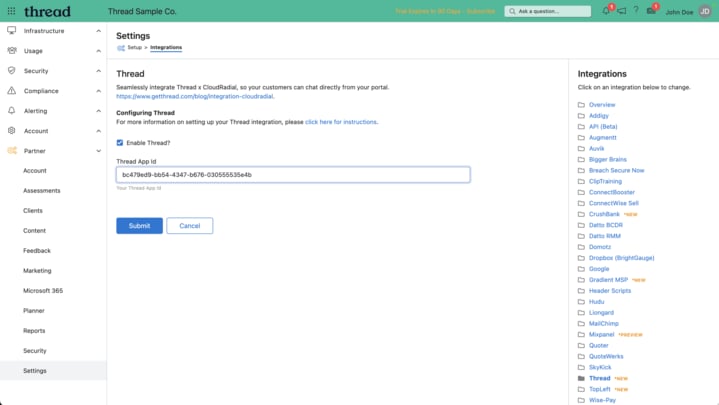 And that is it!
## How to disable the CloudRadial Integration
To disable the CloudRadial Integration, navigate to the home page of the CloudRadial application, and then go to Partners -> Settings -> Integrations (same steps as above)
Then you can uncheck the "Enable Thread?" box.
And that is it!
## How to disable the CloudRadial Integration
To disable the CloudRadial Integration, navigate to the home page of the CloudRadial application, and then go to Partners -> Settings -> Integrations (same steps as above)
Then you can uncheck the "Enable Thread?" box.
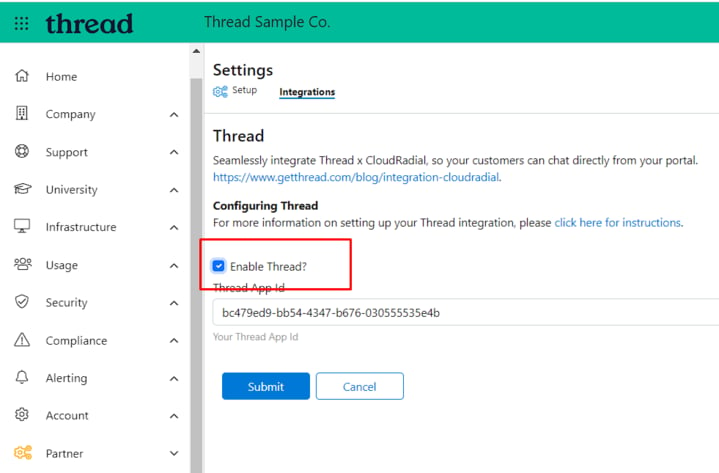 Then hit submit and the integration will be disabled.
## Related topics
- [Liongard JumpCloud Read](/skill-library/liongard-inspectors/liongard-jumpcloud.md)
- [On-Prem to Cloud File Migration](/skill-library/troubleshooting-playbooks/onprem-to-cloud-file-migration.md)
- [Adobe Creative Cloud Licensing](/skill-library/troubleshooting-playbooks/adobe-cc-licensing.md)
Then hit submit and the integration will be disabled.
## Related topics
- [Liongard JumpCloud Read](/skill-library/liongard-inspectors/liongard-jumpcloud.md)
- [On-Prem to Cloud File Migration](/skill-library/troubleshooting-playbooks/onprem-to-cloud-file-migration.md)
- [Adobe Creative Cloud Licensing](/skill-library/troubleshooting-playbooks/adobe-cc-licensing.md)