> ## Documentation Index
> Fetch the complete documentation index at: https://docs.getthread.com/llms.txt
> Use this file to discover all available pages before exploring further.
# Set Up an Autotask Email Workflow for Thread Chats
> Use an Autotask UDF and workflow rule to send closed-loop customer email notifications on every Thread chat reply while keeping chat-only replies quiet.
This guide will walk you through setting up an email communication workflow in Autotask and Thread. We recommend using workflows in Autotask to keep in touch with your customers to offer consistent communication across your customers' service experience.
**Send by Email is now supported natively for Autotask.** Thread can read and write an **EmailSuppress user-defined field (UDF)** on the ticket directly, so a technician can toggle email on or off per reply and Thread sends the customer email through Autotask — no manual workflow rules required. To use it, create the EmailSuppress UDF in Step 1 below, then select that UDF in **Thread Admin → Messenger settings** instead of building the Autotask workflow rules in Steps 2–3. The workflow-rule approach documented below still works and remains a valid alternative for teams that prefer to drive notifications entirely from Autotask automation.
This is a Best Practice guide to ensure communication is consistent across chat and email.
### Who is this guide for?
If you use **Quick Notification (Notify via "TO") on Notes** in Autotask to email ticket contacts, this guide is for you.
Autotask does not permit vendors like Thread from toggling these fields on your replies. If you use this toggle today to send emails to customers and you want your customers to get notified when you reply to a thread in Inbox, then this guide is for you.
 If you already use workflow rules to consistently send closed loop emails to your Customers whenever you add a discussion note to a ticket, then this guide could still be helpful! We will show you how to use UDFs and automation to take more control of your email notifications.
## How-To Guide
### 1. Setting up an Email Suppress User-Defined Field (UDF)
We are setting up a workflow to enable closed loop email notifications to your customers on all replies to a ticket. However, we are also using a UDF to enable us to toggle these email notifications off when desired.
This way, emails will be off by default for incoming customer chats but can be turned on quickly for all replies by toggling the UDF.
The following UDF should be created to support the use case.
Open Autotask as an Administrator
Navigate to **Admin** -> **Features & Settings** -> **Application-Wide (Shared) Features** -> and click on **User-Defined Fields**
Navigate to the **Tickets** tab
Click **New** and enter the following information:
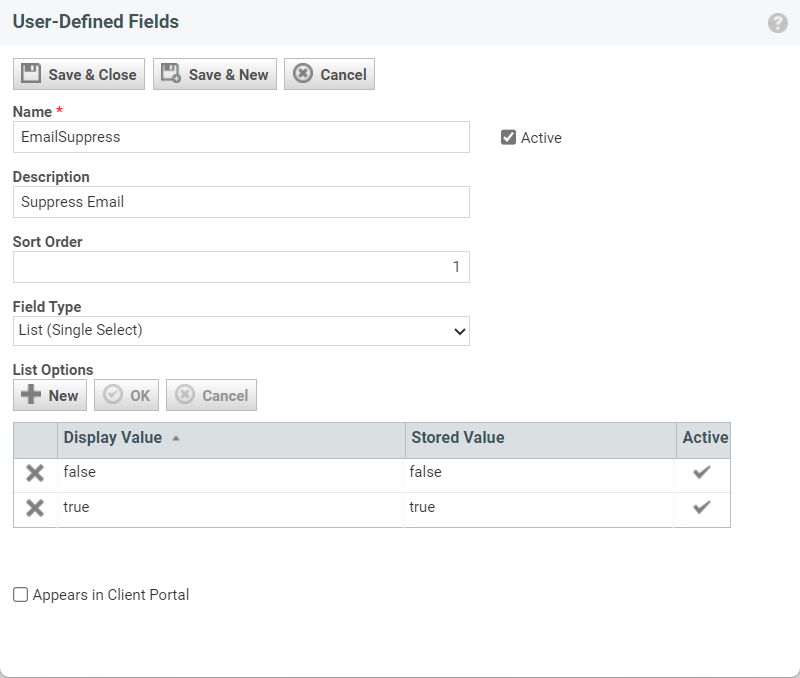
1. **UDF Type:** Ticket
2. **Field Type:** Single Select
3. **Name:** EmailSuppress (True/False)
If you already use workflow rules to consistently send closed loop emails to your Customers whenever you add a discussion note to a ticket, then this guide could still be helpful! We will show you how to use UDFs and automation to take more control of your email notifications.
## How-To Guide
### 1. Setting up an Email Suppress User-Defined Field (UDF)
We are setting up a workflow to enable closed loop email notifications to your customers on all replies to a ticket. However, we are also using a UDF to enable us to toggle these email notifications off when desired.
This way, emails will be off by default for incoming customer chats but can be turned on quickly for all replies by toggling the UDF.
The following UDF should be created to support the use case.
Open Autotask as an Administrator
Navigate to **Admin** -> **Features & Settings** -> **Application-Wide (Shared) Features** -> and click on **User-Defined Fields**
Navigate to the **Tickets** tab
Click **New** and enter the following information:
1. **UDF Type:** Ticket
2. **Field Type:** Single Select
3. **Name:** EmailSuppress (True/False)
 Click **Save & Close**
### 2. Create a workflow rule to send email notifications
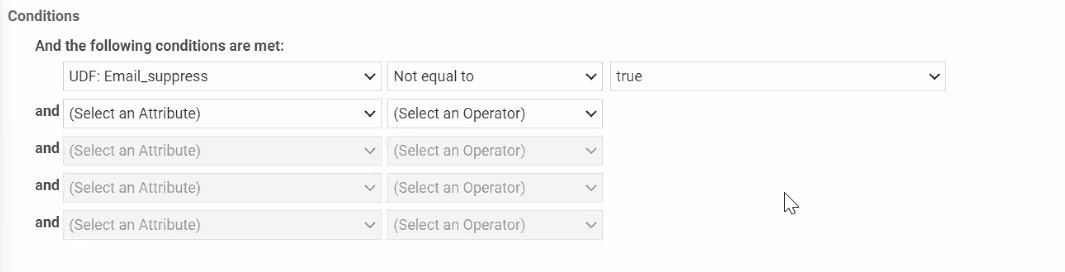
In this step, we set up a workflow rule to enable email notifications to Ticket contacts on reply. We are leveraging the UDF we created in the previous step to only send email when the Email Suppress UDF is NOT checked. This way, email will be sent by default except when the Email Suppress box is checked.
Open Autotask as an Administrator
Navigate to **Admin** -> **Automation** -> **Workflow Rules** -> open **Workflow Rules** page
Create a **New** workflow ruleIf you already have a workflow rule to send email to your customers, you can edit it to incorporate the UDF logic.
Enter in the following information:
1. Workflow Rule Name: Email Notification on Note Added by Resource
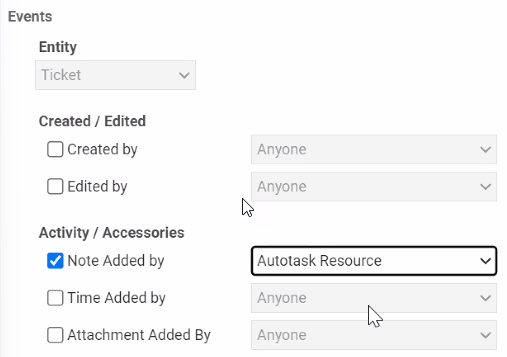
2. Events -> Activity/Accessories -> check the box for **Note Added By** -> Select **Autotask Resource** from the drop-down menu
Click **Save & Close**
### 2. Create a workflow rule to send email notifications
In this step, we set up a workflow rule to enable email notifications to Ticket contacts on reply. We are leveraging the UDF we created in the previous step to only send email when the Email Suppress UDF is NOT checked. This way, email will be sent by default except when the Email Suppress box is checked.
Open Autotask as an Administrator
Navigate to **Admin** -> **Automation** -> **Workflow Rules** -> open **Workflow Rules** page
Create a **New** workflow ruleIf you already have a workflow rule to send email to your customers, you can edit it to incorporate the UDF logic.
Enter in the following information:
1. Workflow Rule Name: Email Notification on Note Added by Resource
2. Events -> Activity/Accessories -> check the box for **Note Added By** -> Select **Autotask Resource** from the drop-down menu
 3. Add the following **Condition**: (CHANGE TO NOT EQUAL TO TRUE)
 4. Navigate to the **Notification** tab at the top of the window.
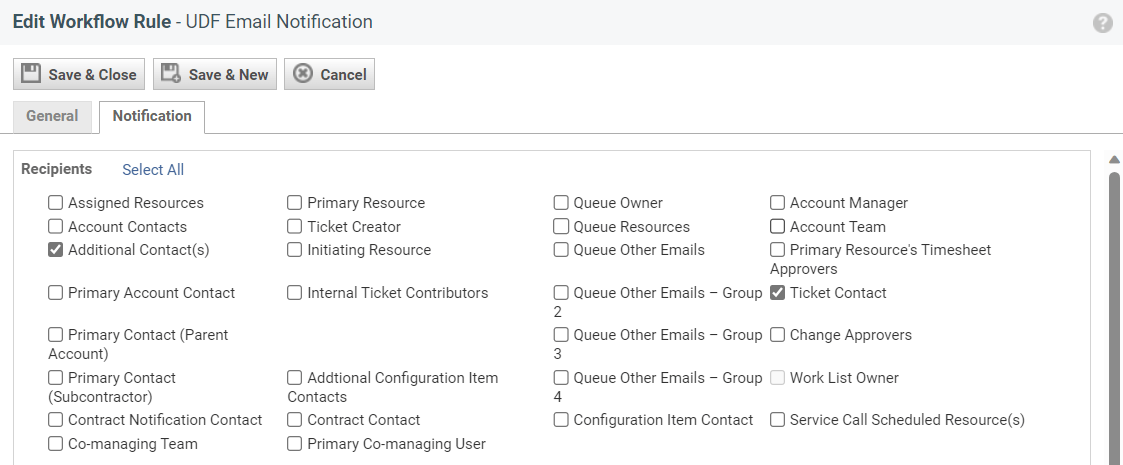
5. Select the user types you'd like to receive email notifications. We recommend selecting **Ticket Contact** and **Additional Contacts**.
4. Navigate to the **Notification** tab at the top of the window.
5. Select the user types you'd like to receive email notifications. We recommend selecting **Ticket Contact** and **Additional Contacts**.
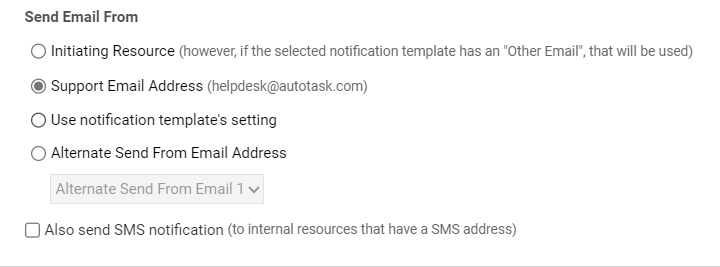
 6. Select the email address you'd like the email to come from
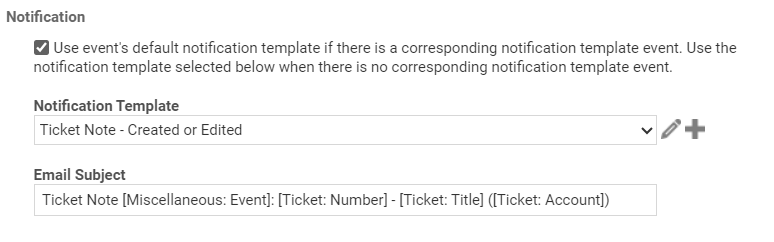
 7. Select the email notification you'd like to use for the emails.If you'd like to customize or build your own notification templates, you can follow this [guide](https://ww2.autotask.net/help/content/4_Admin/3Automation/EmailSurvey/EMAILS/NotificationTemplates/AddNotificationTemplate.htm) from Autotask.
 8. Click **Save & Close**
### 3. Create a workflow rule to suppress email notifications (UDF) on chats by default
In this step, we set up a workflow rule to suppress customer email notifications by default for chats. This toggles the EmailSuppress UDF on for incoming chats - this ensures email is turned off for chats. Because users are chatting with you, they will receive your replies in the context of their chat - emails might be redundant for them.
This workflow rule is optional. Only use this if you want to suppress email notifications by default for incoming chats.
Open Autotask as an Administrator
Navigate to **Admin** -> **Automation** -> **Workflow Rules** -> open **Workflow Rules** page
Create a **New** workflow rule
Enter in the following information:
1. Workflow Rule Name: UDF Email Suppression for New Chats
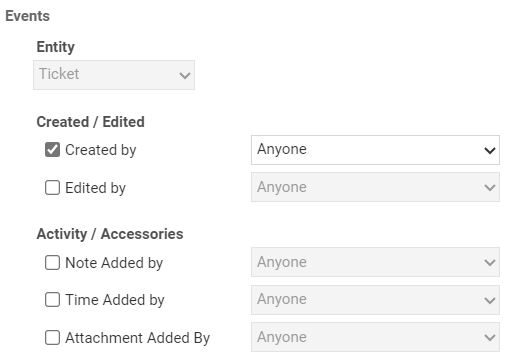
2. Events -> Created / Edited -> check the box for **Created By** -> Select **Anyone** from the drop-down menu.
8. Click **Save & Close**
### 3. Create a workflow rule to suppress email notifications (UDF) on chats by default
In this step, we set up a workflow rule to suppress customer email notifications by default for chats. This toggles the EmailSuppress UDF on for incoming chats - this ensures email is turned off for chats. Because users are chatting with you, they will receive your replies in the context of their chat - emails might be redundant for them.
This workflow rule is optional. Only use this if you want to suppress email notifications by default for incoming chats.
Open Autotask as an Administrator
Navigate to **Admin** -> **Automation** -> **Workflow Rules** -> open **Workflow Rules** page
Create a **New** workflow rule
Enter in the following information:
1. Workflow Rule Name: UDF Email Suppression for New Chats
2. Events -> Created / Edited -> check the box for **Created By** -> Select **Anyone** from the drop-down menu.
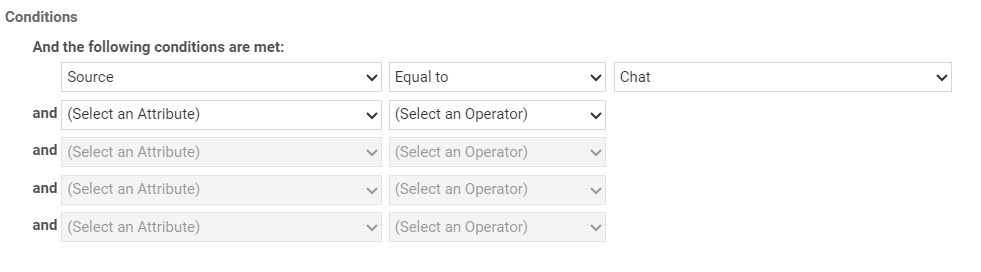
 3. Add the following **Condition**:
 4. Under **Updates**, add the following settings:
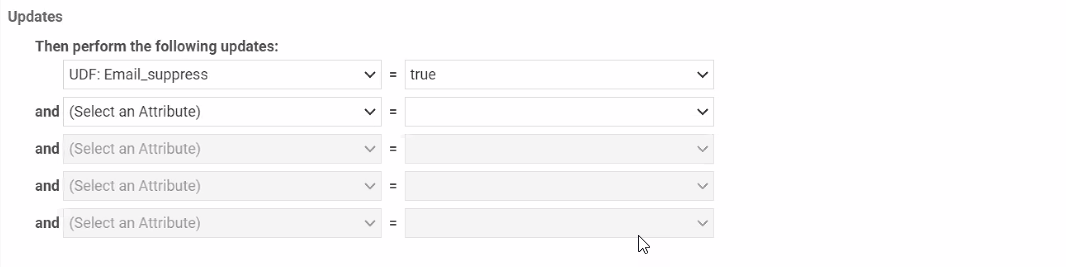 5. Click **Save & Close**
**Congrats!** You now have a consistent method for controlling communication with your customers across chat and email. Your customers will never miss an important update again!
See **Integrations** updates in the [changelog](/changelog/q3-2026).
## Related topics
- [Your daily workflows](/start-here/roles/technician/daily-workflows.md)
- [Set Up Email Support for Magic Agents and Inbox](/ai-agents/setting-up-email-support-for-magic-agents.md)
- [Set Up the Autotask PSA Ticketing Integration](/integrations/creating-a-autotask-api-user.md)
5. Click **Save & Close**
**Congrats!** You now have a consistent method for controlling communication with your customers across chat and email. Your customers will never miss an important update again!
See **Integrations** updates in the [changelog](/changelog/q3-2026).
## Related topics
- [Your daily workflows](/start-here/roles/technician/daily-workflows.md)
- [Set Up Email Support for Magic Agents and Inbox](/ai-agents/setting-up-email-support-for-magic-agents.md)
- [Set Up the Autotask PSA Ticketing Integration](/integrations/creating-a-autotask-api-user.md)