> ## Documentation Index
> Fetch the complete documentation index at: https://docs.getthread.com/llms.txt
> Use this file to discover all available pages before exploring further.
# Trigger Rewst Workflows from Thread Magic Intents
> Use the Thread Automations Crate to send Magic AI intent data, like employee onboarding fields, to Rewst workflows via secure shared-secret webhooks.
## Concept
**Don't let Rewst and Thread modify the same ticket at the same time.** Thread does not support Rewst (or other PSA automations, or a user working in the PSA) changing a ticket concurrently while Thread is working it — doing so can cause unexpected side effects that Thread can't prevent. Isolate your Rewst automations to **separate boards** from the ones Thread works, or disable them on Thread's boards. If both must touch the same tickets, delay the Rewst automation to run **after** Thread finishes.
The **Thread Automations Crate** creates a seamless integration bridge between **Thread** and **Rewst**, enabling automated workflows triggered directly from Thread's Magic AI Intents. At its core, this integration captures structured user information submitted through Thread's conversational AI interface and securely transmits it to Rewst via webhooks for downstream processing.
The current implementation focuses on **employee onboarding automation**. When an end user interacts with Thread's Magic Agent and triggers the onboarding intent, the AI conversationally collects key details — First Name, Last Name, Username, and Email Address — then pushes that data into a Rewst workflow. The Rewst workflow handles the actual provisioning and task execution, while Thread provides confirmation feedback directly in the PSA ticket.
Security is maintained through a **shared secret key** validated between Thread and Rewst on every webhook call, ensuring that only authorized requests are processed.
Important: This integration relies on Thread's native data collection capabilities. Any advanced validation logic or business rules should be built into the receiving Rewst workflow, not the Thread Intent itself.
Information collected in Thread flows automatically into Rewst workflows, so technicians don't re-enter data or copy details between systems, and users receive immediate confirmation in their ticket thread.
## How To Set Up
### Prerequisites
* You must be an **admin in Thread** to configure intents.
* You must have access to the **Rewst Marketplace** and **Workflow Builder**.
1. Log into your **Thread** account.
2. Navigate to **Thread Admin → Magic AI → Magic Agents → Catalog**.
3. Click **Create Intent**.
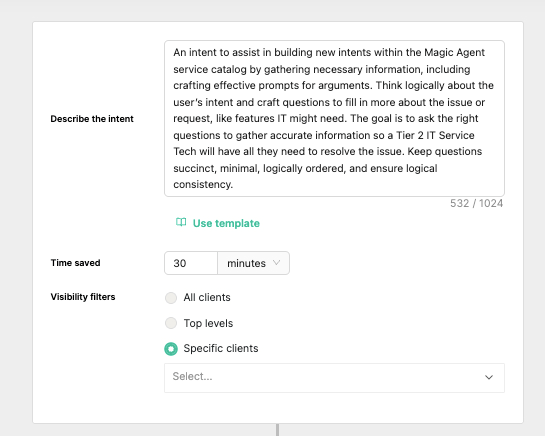
4. Fill in the following fields **exactly as shown**: FieldValue**Intent Name**`Rewst - Onboarding`**Describe the intent**`An intent to assist in building new intents within the Magic Agent service catalog by gathering necessary information, including crafting effective prompts for arguments. Think logically about the user's intent and craft questions to fill in more about the issue or request, like features IT might need. The goal is to ask the right questions to gather accurate information so a Tier 2 IT Service Tech will have all they need to resolve the issue. Keep questions succinct, minimal, logically ordered, and ensure logical consistency.`**Visibility filters**Choose **Specific clients** (select your internal or test companies) or **All clients** as preferred.

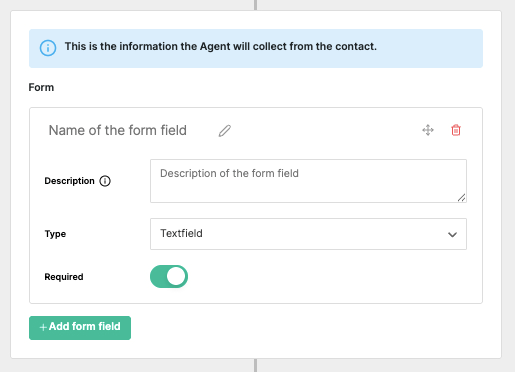
 5. Click **+Add form field** three times to create a total of **four form fields**. Name them exactly:
* `First Name`
* `Last Name`
* `Username`
* `Email`
>
> Field names must match exactly for the Crate to function. Adding fields beyond these four will require additional configuration in the Thread
>
> wrapper to pass data into the Rewst workflow.
>
>
>
5. Click **+Add form field** three times to create a total of **four form fields**. Name them exactly:
* `First Name`
* `Last Name`
* `Username`
* `Email`
>
> Field names must match exactly for the Crate to function. Adding fields beyond these four will require additional configuration in the Thread
>
> wrapper to pass data into the Rewst workflow.
>
>
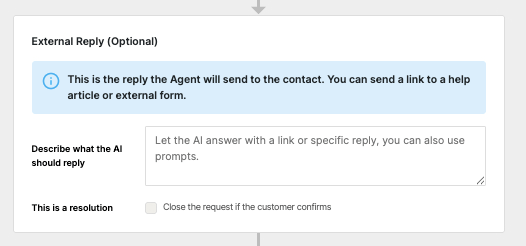
>  6. *(Optional)* In the **External Reply (Optional)** submenu, enter a reply description in the *Describe what the AI should reply* field, such as:
> *Reply with the summary of what they provided against the field names, so for instance telling us that the first name they provided was X.*
>
>
6. *(Optional)* In the **External Reply (Optional)** submenu, enter a reply description in the *Describe what the AI should reply* field, such as:
> *Reply with the summary of what they provided against the field names, so for instance telling us that the first name they provided was X.*
>
>  7. **Keep your Thread browser window open** — you'll return to it after completing the Rewst steps.
1. In Rewst, navigate to **Marketplace → Crates**.
2. Search for **Thread Automation**.
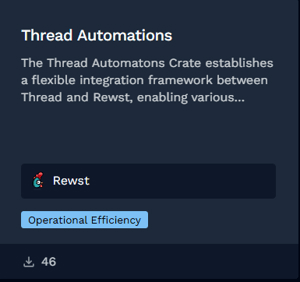
3. Click the Crate tile to open its details page.
7. **Keep your Thread browser window open** — you'll return to it after completing the Rewst steps.
1. In Rewst, navigate to **Marketplace → Crates**.
2. Search for **Thread Automation**.
3. Click the Crate tile to open its details page.
 4. Click **Unpack Crate → Continue**.
5. Enter your **time saved** estimate.
6. Expand the **Webhook** accordion menu and ensure **Enabled** is toggled on.
4. Click **Unpack Crate → Continue**.
5. Enter your **time saved** estimate.
6. Expand the **Webhook** accordion menu and ensure **Enabled** is toggled on.
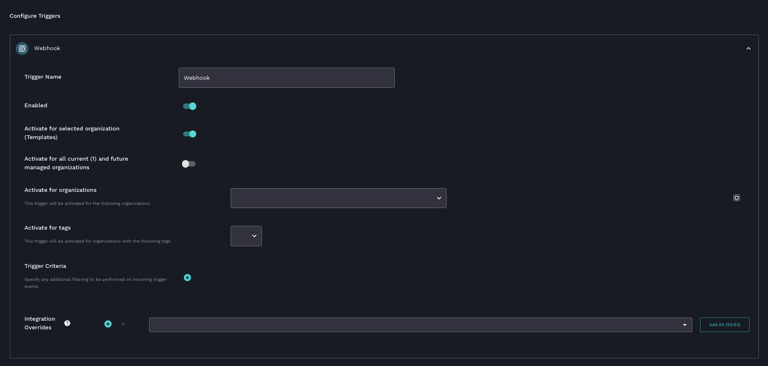 7. *(Optional)* Select organizations in the **Activate for Organizations** dropdown.
8. Click **Unpack**.
1. Navigate to **Configuration → Organization Variables**.
2. Create a new organization variable: SettingValue**Name**`rewst_thread_webhook_secret`**Category**`Secret`**Value**A secure password of your choosing
7. *(Optional)* Select organizations in the **Activate for Organizations** dropdown.
8. Click **Unpack**.
1. Navigate to **Configuration → Organization Variables**.
2. Create a new organization variable: SettingValue**Name**`rewst_thread_webhook_secret`**Category**`Secret`**Value**A secure password of your choosing
 3. **Copy this password** and store it securely — you'll need it for both Rewst and Thread configuration.
1. Navigate to **Automations → Workflows**.
2. Search for **\[Rewst - Crate] Thread Automations**.
3. Click the workflow to enter the **Workflow Builder** view.
4. Open the **Trigger** settings.
5. Click **View Webhook URLs** under *Trigger Configuration*.
3. **Copy this password** and store it securely — you'll need it for both Rewst and Thread configuration.
1. Navigate to **Automations → Workflows**.
2. Search for **\[Rewst - Crate] Thread Automations**.
3. Click the workflow to enter the **Workflow Builder** view.
4. Open the **Trigger** settings.
5. Click **View Webhook URLs** under *Trigger Configuration*.
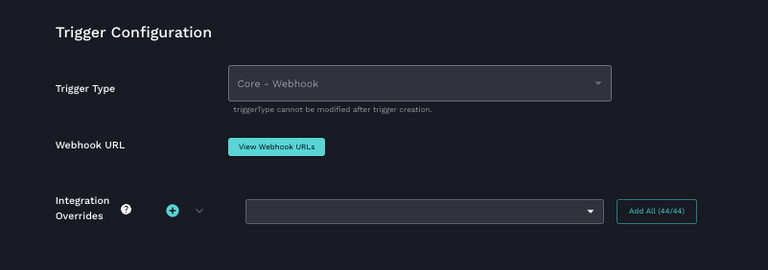 6. **Copy the webhook URL** — you'll need it for Thread.
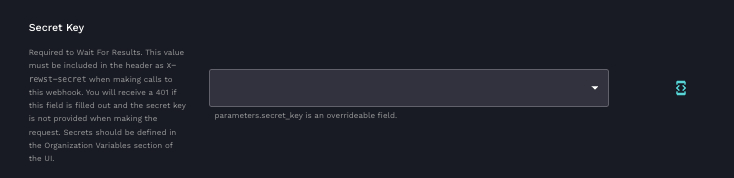
7. Under the **Trigger Parameters** submenu, find the **Secret Key** dropdown and select the organization variable you created (`rewst_thread_webhook_secret`).
6. **Copy the webhook URL** — you'll need it for Thread.
7. Under the **Trigger Parameters** submenu, find the **Secret Key** dropdown and select the organization variable you created (`rewst_thread_webhook_secret`).
 8. Click **Submit**.
1. Return to your Thread browser window with the intent still open.
2. In the **Automation (Optional)** submenu, paste the webhook URL into the **API URL** field.
8. Click **Submit**.
1. Return to your Thread browser window with the intent still open.
2. In the **Automation (Optional)** submenu, paste the webhook URL into the **API URL** field.
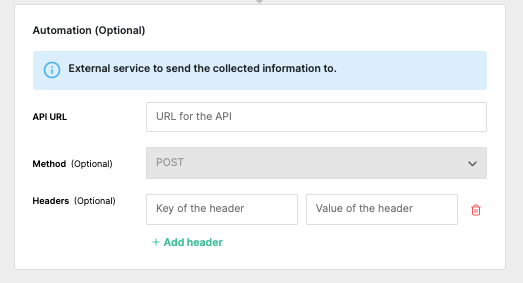 3. In the **Headers (Optional)** section:SettingValue**Key**`x-rewst-secret`**Value**The secret password you created in Rewst
4. Ensure **MagicAI is enabled** for the client you are using in Thread.
5. Click **Save** in the top right corner of the intent screen.
#### Customization Options
| What You Can Customize | How |
| ---------------------- | ----------------------------------------------------------------------------------------------------------------------------------------------------------------------------------------------------------------------------------------------- |
| Intent form fields | Modify the fields in the Thread Intent to match your specific use case. The defaults are First Name, Last Name, Username, and Email. Adding new fields requires updating the Thread wrapper configuration to pass data into the Rewst workflow. |
| Confirmation message | Edit the External Reply field in the Intent to personalize the message users see after submitting their information. |
| Downstream logic | Build any validation rules, business logic, or provisioning steps directly in the Rewst workflow that receives the webhook data. |
This integration is designed as a **starting template**. The onboarding intent demonstrates the pattern, but the same webhook-driven architecture can power any scenario where Thread collects structured information and Rewst executes the resulting automation.
## Related topics
- [Trigger Automations with the Magic Agents Automation URL](/ai-agents/magic-agents-automation-url.md)
- [Build with Super Magic](/start-here/roles/automation-engineer/build-with-super-magic.md)
- [Scheduling Intent Detector](/skill-library/triage-and-routing/scheduling-intent-detector.md)
3. In the **Headers (Optional)** section:SettingValue**Key**`x-rewst-secret`**Value**The secret password you created in Rewst
4. Ensure **MagicAI is enabled** for the client you are using in Thread.
5. Click **Save** in the top right corner of the intent screen.
#### Customization Options
| What You Can Customize | How |
| ---------------------- | ----------------------------------------------------------------------------------------------------------------------------------------------------------------------------------------------------------------------------------------------- |
| Intent form fields | Modify the fields in the Thread Intent to match your specific use case. The defaults are First Name, Last Name, Username, and Email. Adding new fields requires updating the Thread wrapper configuration to pass data into the Rewst workflow. |
| Confirmation message | Edit the External Reply field in the Intent to personalize the message users see after submitting their information. |
| Downstream logic | Build any validation rules, business logic, or provisioning steps directly in the Rewst workflow that receives the webhook data. |
This integration is designed as a **starting template**. The onboarding intent demonstrates the pattern, but the same webhook-driven architecture can power any scenario where Thread collects structured information and Rewst executes the resulting automation.
## Related topics
- [Trigger Automations with the Magic Agents Automation URL](/ai-agents/magic-agents-automation-url.md)
- [Build with Super Magic](/start-here/roles/automation-engineer/build-with-super-magic.md)
- [Scheduling Intent Detector](/skill-library/triage-and-routing/scheduling-intent-detector.md)