> ## Documentation Index
> Fetch the complete documentation index at: https://docs.getthread.com/llms.txt
> Use this file to discover all available pages before exploring further.
# Deploy the Slack Service App to a customer
> Deploy your branded Slack Service App into a customer's workspace with a magic link or email invite, roll out the welcome message, and test it first in a free Slack sandbox.
The **Slack Service App** is a branded app you deploy into your *customers'* Slack workspaces, so
they can raise and follow tickets from Slack.
This is the **customer-facing** app. For your own service team in your own workspace, use the
[Slack Companion App](/companion-apps/install-the-slack-companion-app) instead. A given Slack
workspace can hold **one or the other**, never both.
## Before you start: request your branded app
Thread builds the branded Slack experience for you — you can't self-serve it.
Submit the app request form and select that you plan to deploy Thread to customers using Slack.
Allow **up to 5 business days**; you'll be notified when your custom app is ready. Ask your
Customer Success Manager for the form if you don't have it.
It's also worth [testing in a sandbox](#test-in-a-slack-sandbox-first) before you touch a real
customer — the customer-facing app **cannot** be installed in your own company's Slack workspace.
## Deploy to a customer
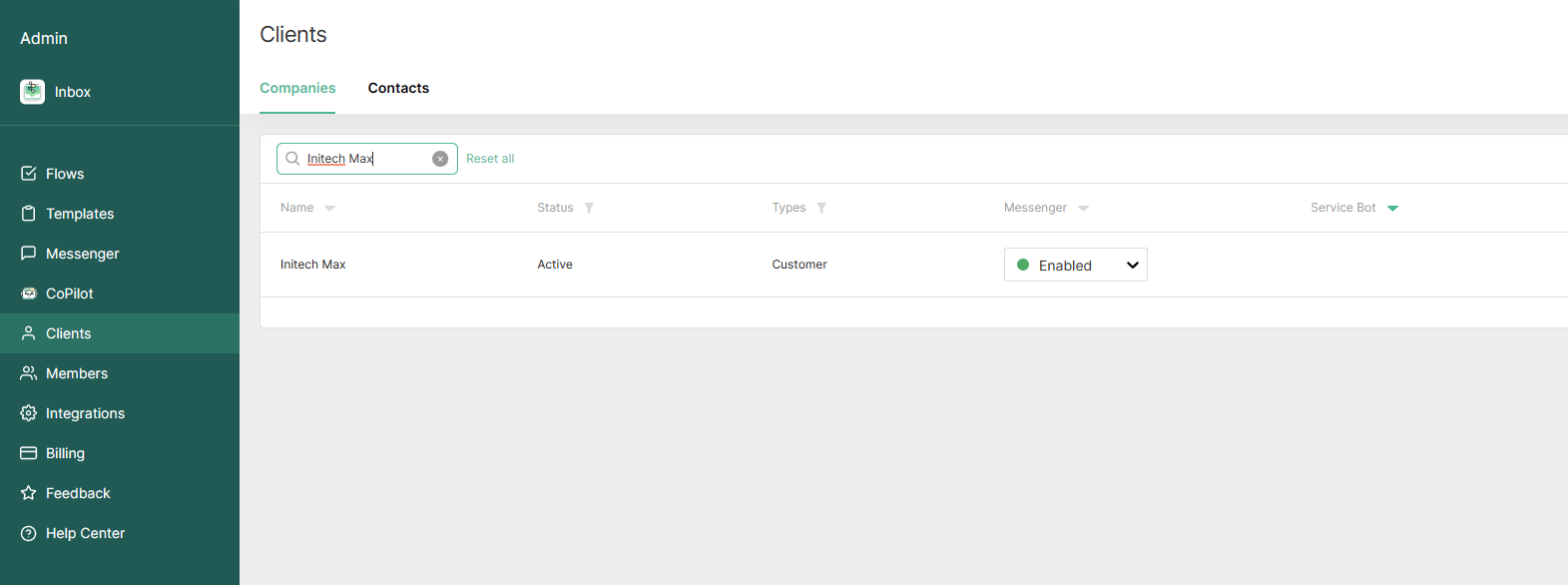
In the [Thread Admin Panel](https://admin.getthread.com/), open **Clients** and search for the customer.
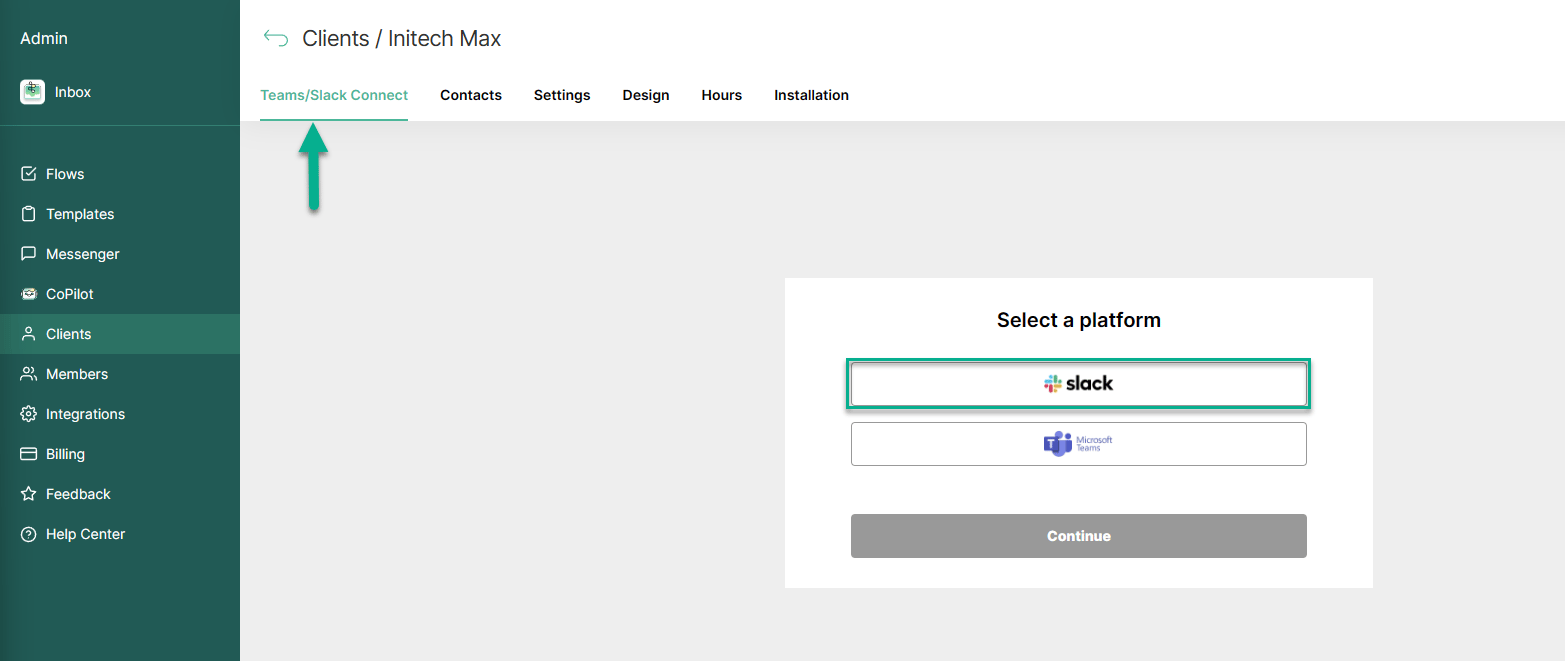
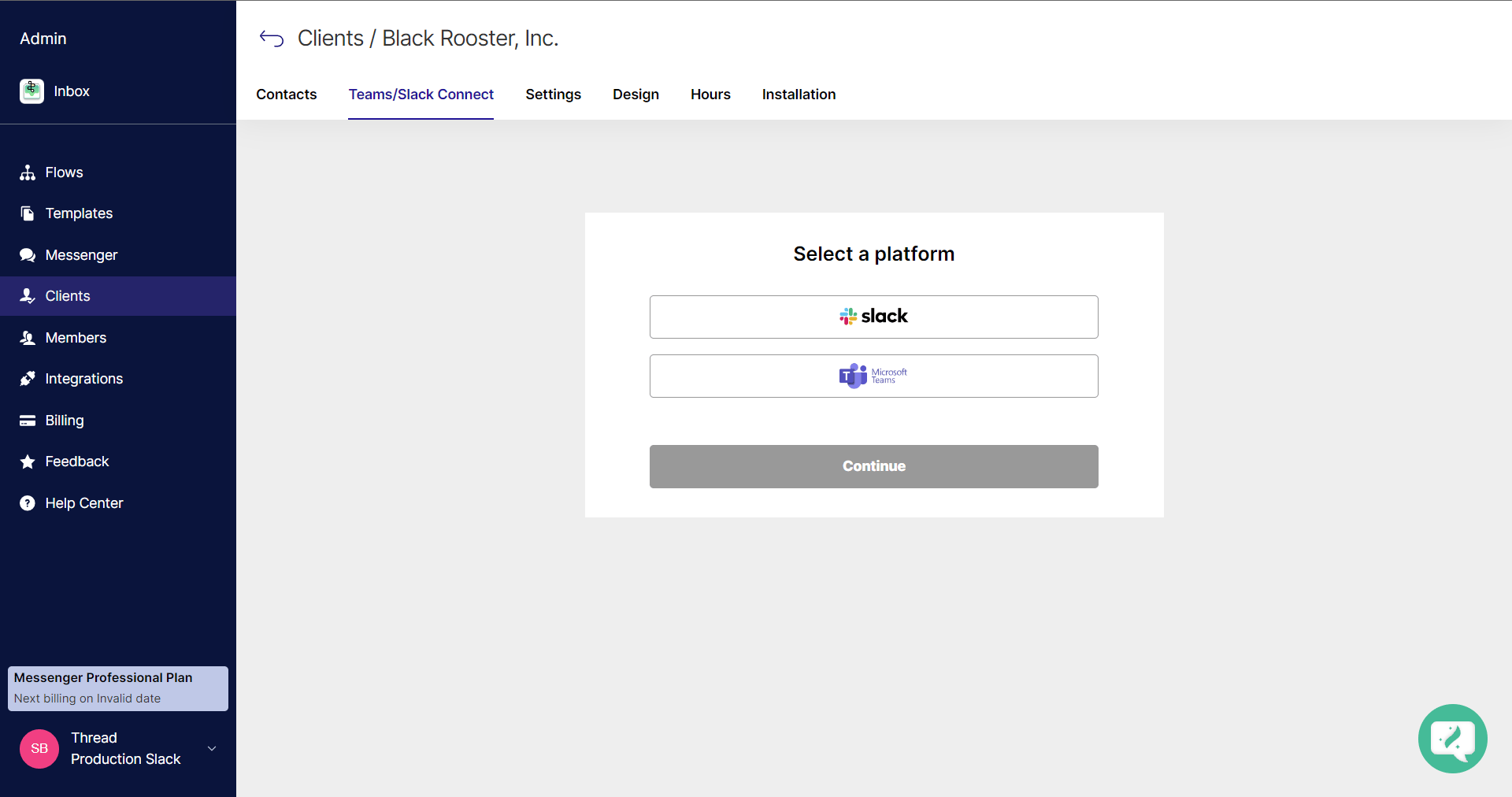
 On the **Teams/Slack Connect** tab, select **Slack** and click **Continue**.
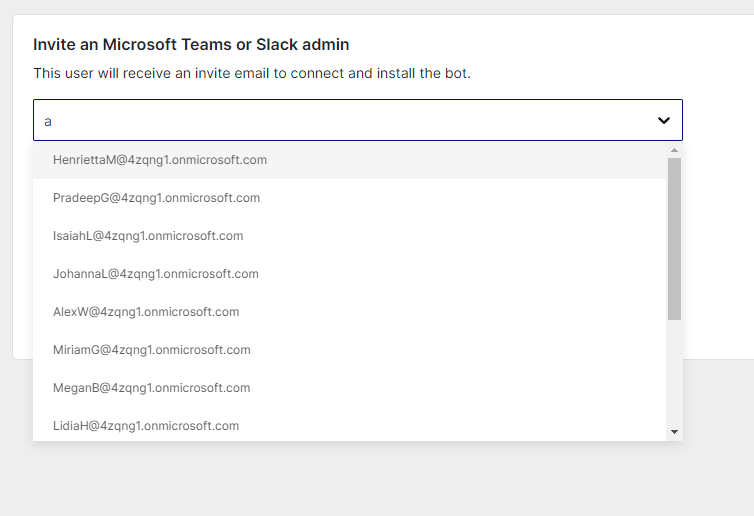
 Two routes:
* **Email invite** — for when you don't have admin access to the customer's Slack. Select the contact with Slack admin rights; they get an email and follow the same steps.
* **Magic link** — for when you do.
Use a **service admin account**, not a personal one. The account that adds the app is added to every channel the app creates and keeps the app functioning — if it's decommissioned, the app breaks.
Two routes:
* **Email invite** — for when you don't have admin access to the customer's Slack. Select the contact with Slack admin rights; they get an email and follow the same steps.
* **Magic link** — for when you do.
Use a **service admin account**, not a personal one. The account that adds the app is added to every channel the app creates and keeps the app functioning — if it's decommissioned, the app breaks.
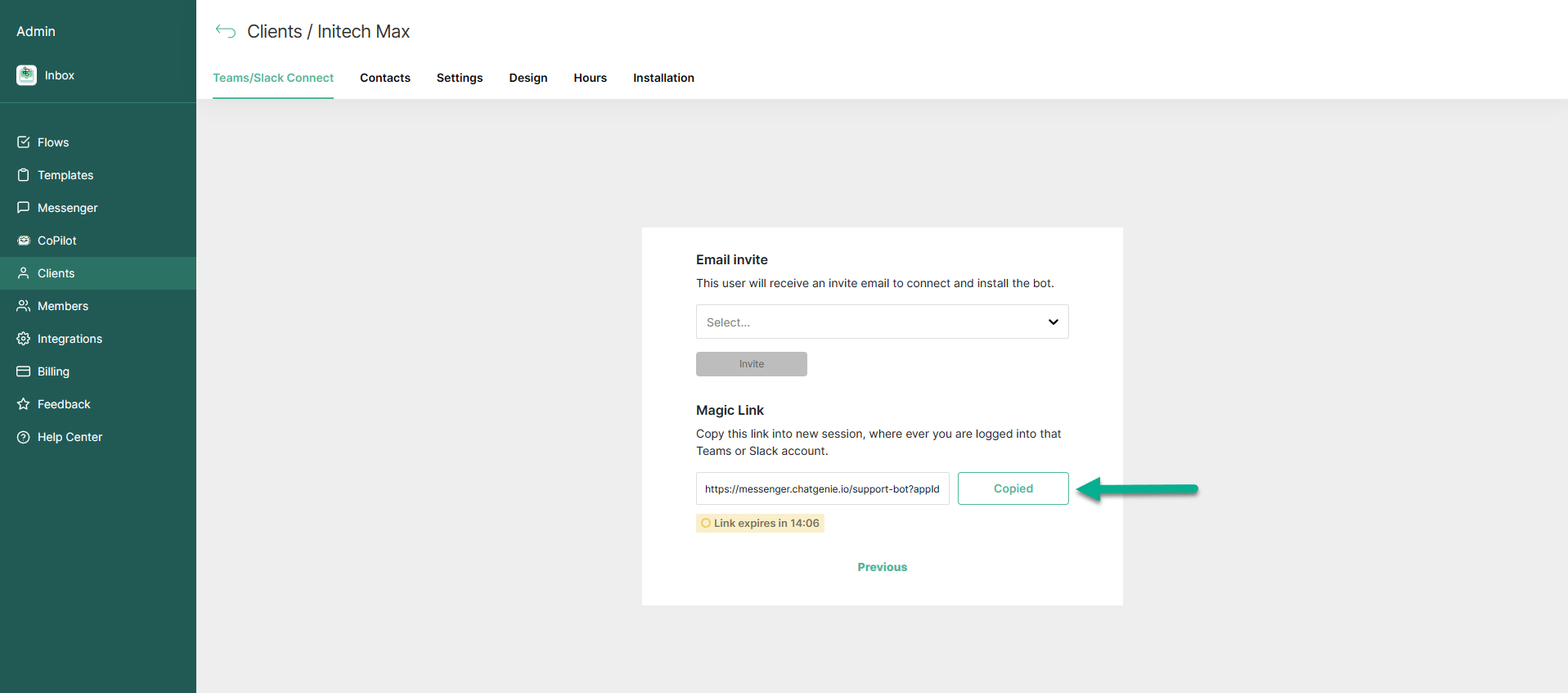
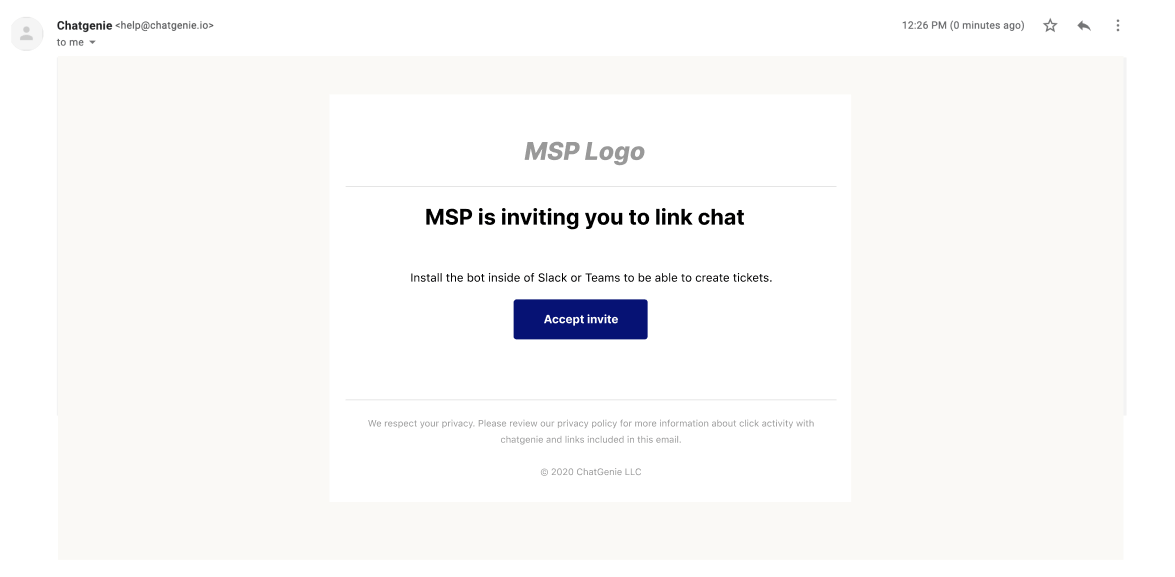 Copy it and paste it into a browser session signed into the target Slack account.
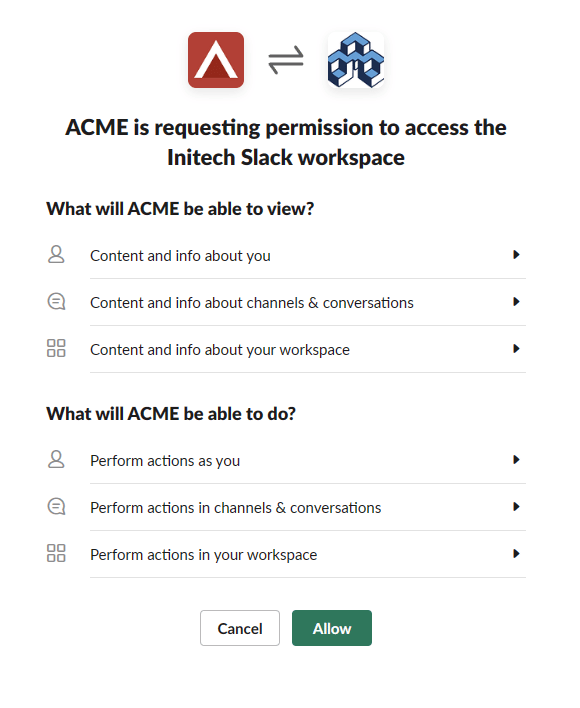
 Check it's the right workspace, then click **Allow**.
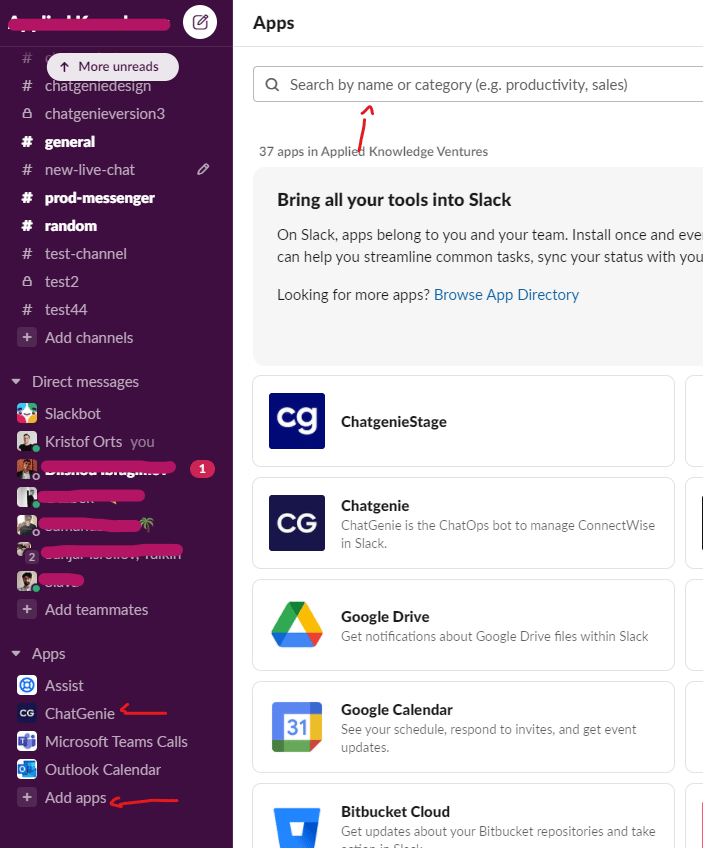
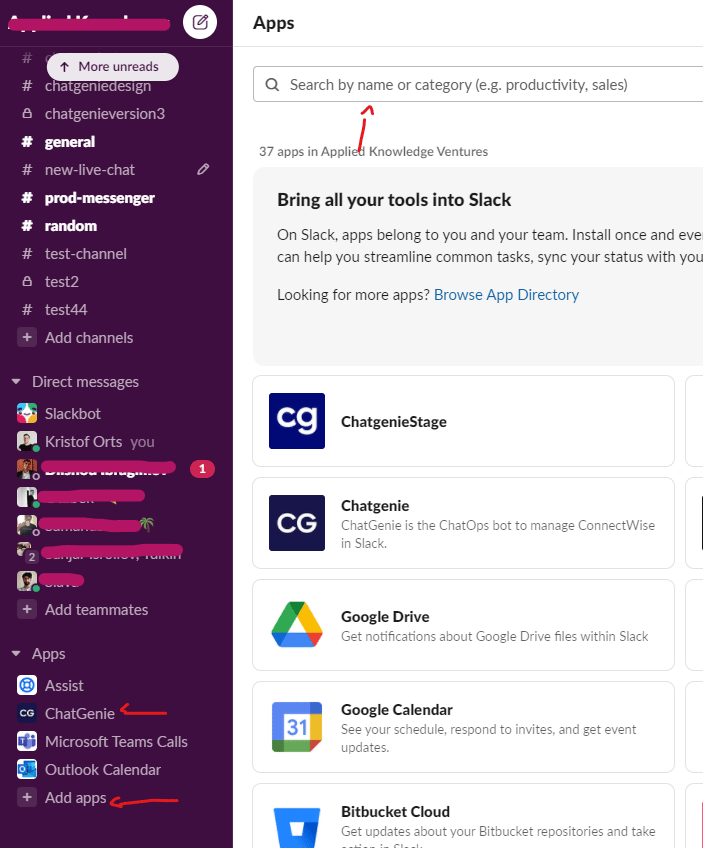
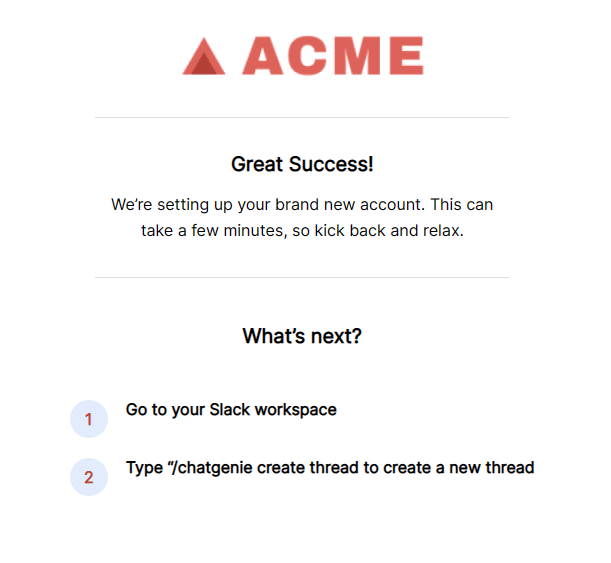 Open `app.slack.com` for that workspace and confirm the app is there.
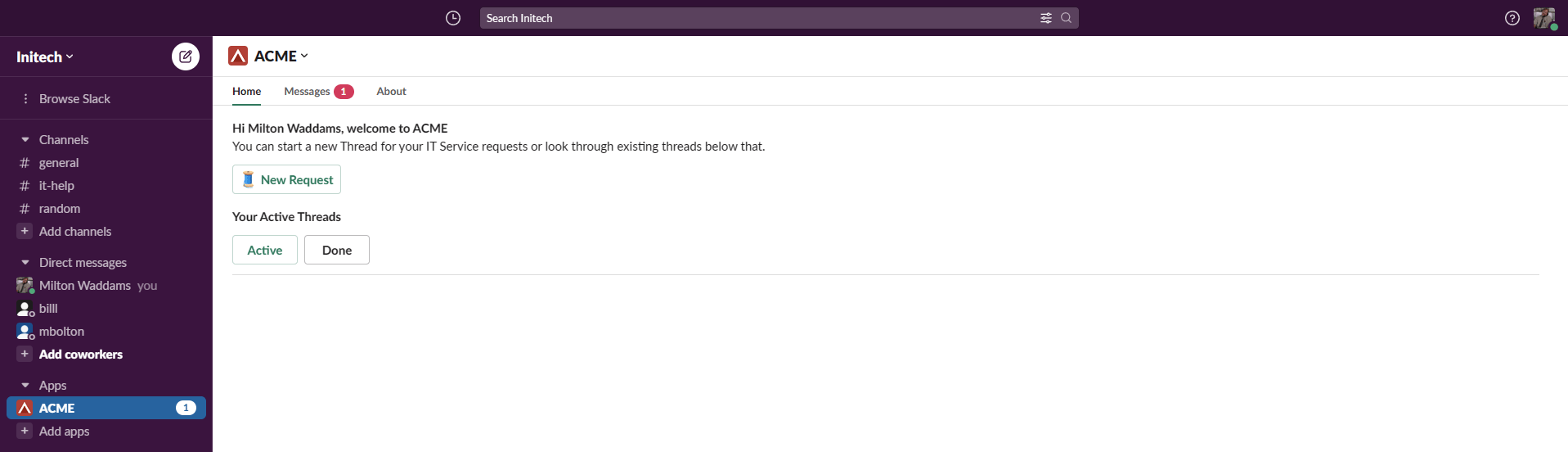 If it isn't listed, go to **Add app** and search for your custom app's name to add it manually.
 ## Roll out the welcome message
You control who gets greeted, so you can pilot before announcing to everyone.
Once the customer accepts the invite, refresh the Admin Panel and reopen the customer — it now
shows **Connected**. Choose **Selected users** and pick who to greet. When you have approval to go
wide, come back and choose **All Users**, then save.
## Roll out the welcome message
You control who gets greeted, so you can pilot before announcing to everyone.
Once the customer accepts the invite, refresh the Admin Panel and reopen the customer — it now
shows **Connected**. Choose **Selected users** and pick who to greet. When you have approval to go
wide, come back and choose **All Users**, then save.
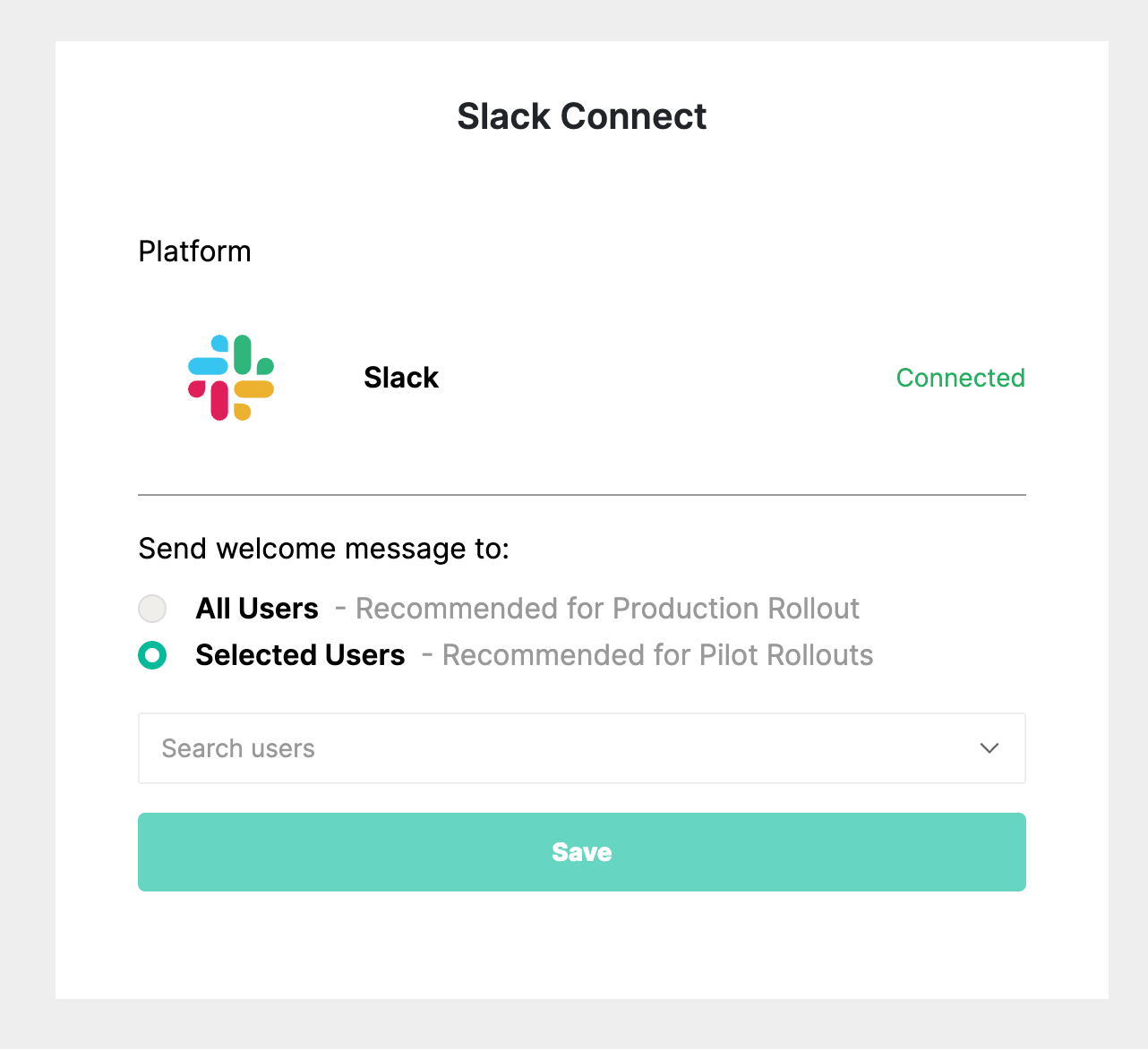 The welcome message only reaches everyone once you switch to **All Users** and save. Leaving it
on **Selected users** is the most common reason a rollout looks like it did nothing.
## What customers get notified about
Customers get a Slack notification when a new thread is created or a thread receives a reply. By
default a person is notified of replies to threads they replied to or were mentioned in.
## Test in a Slack sandbox first
The customer-facing app **can't** be installed in your own company's Slack, so create a free
sandbox workspace and deploy there.
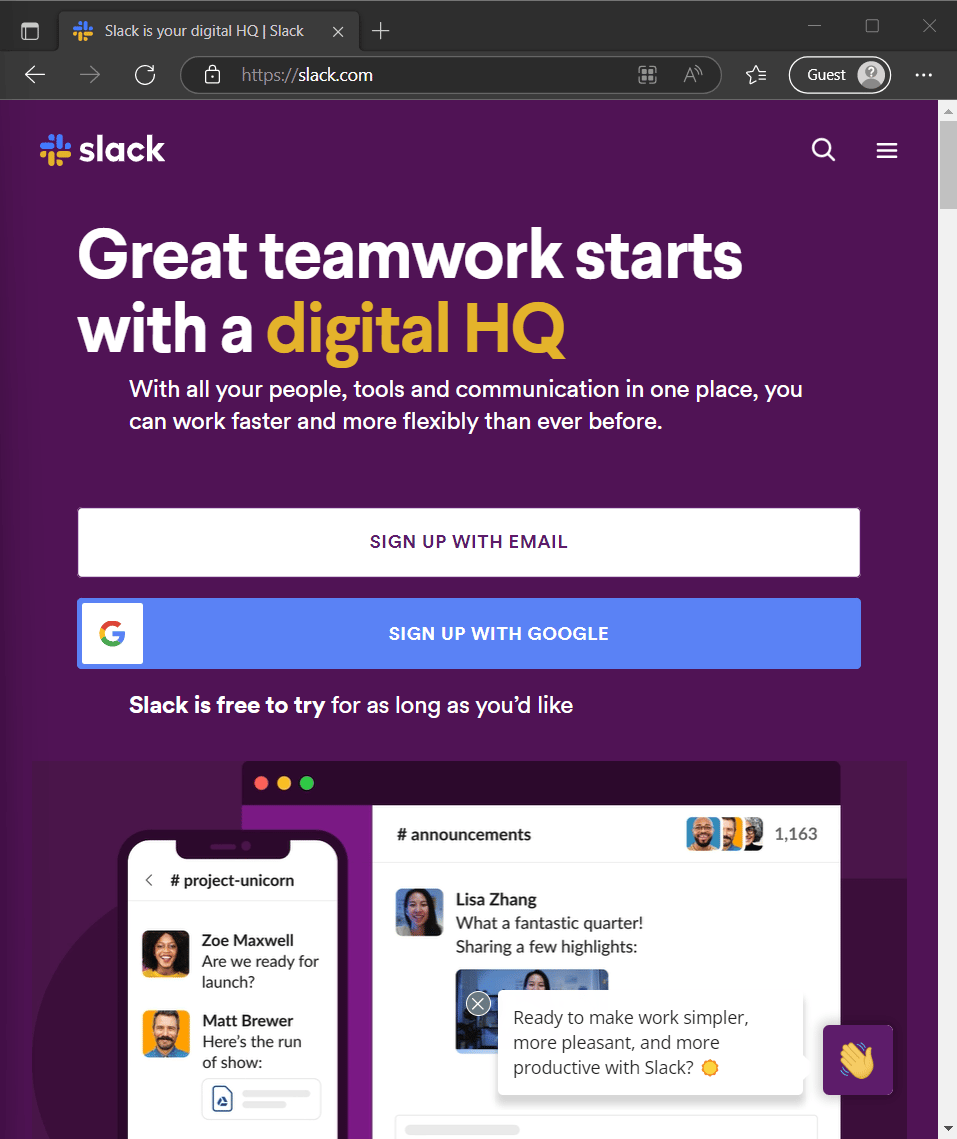
Go to [slack.com](https://slack.com/) and sign up with an email **not** already tied to a Slack account — a throwaway Gmail is ideal.
The welcome message only reaches everyone once you switch to **All Users** and save. Leaving it
on **Selected users** is the most common reason a rollout looks like it did nothing.
## What customers get notified about
Customers get a Slack notification when a new thread is created or a thread receives a reply. By
default a person is notified of replies to threads they replied to or were mentioned in.
## Test in a Slack sandbox first
The customer-facing app **can't** be installed in your own company's Slack, so create a free
sandbox workspace and deploy there.
Go to [slack.com](https://slack.com/) and sign up with an email **not** already tied to a Slack account — a throwaway Gmail is ideal.
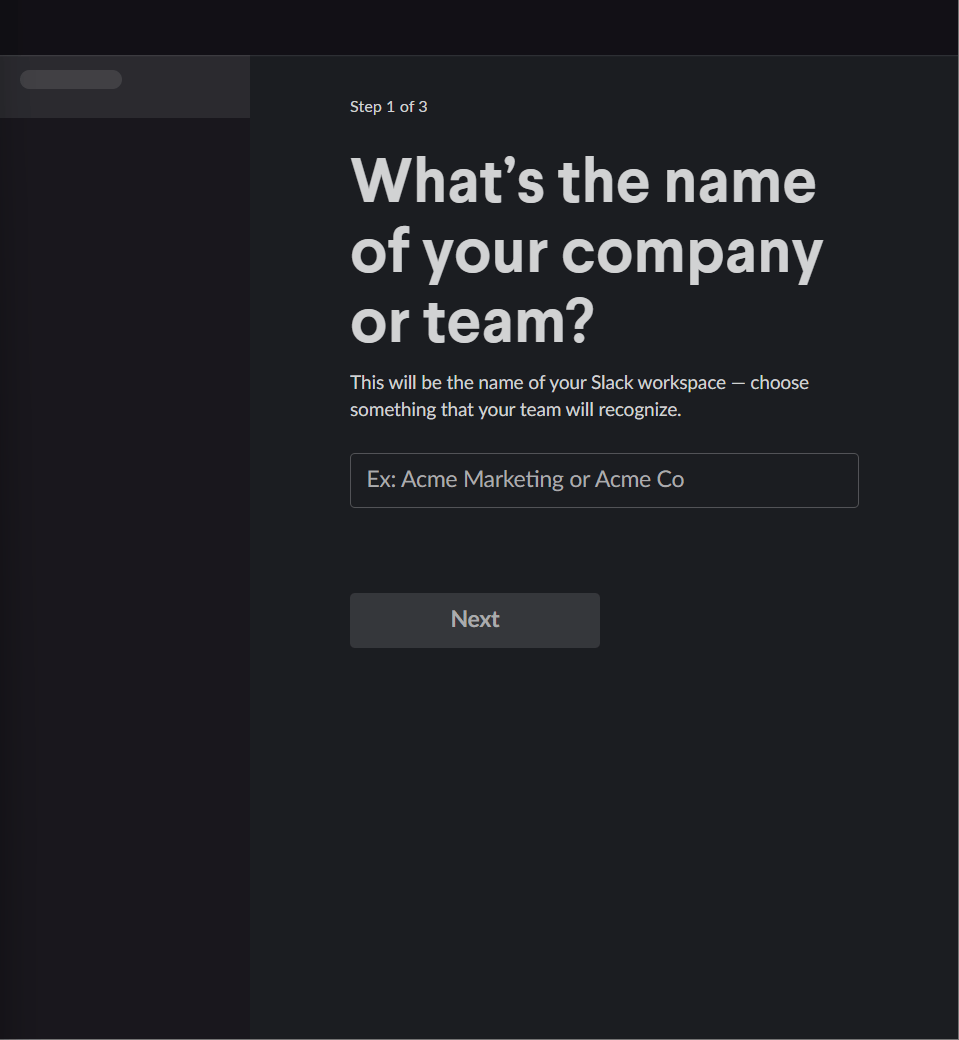
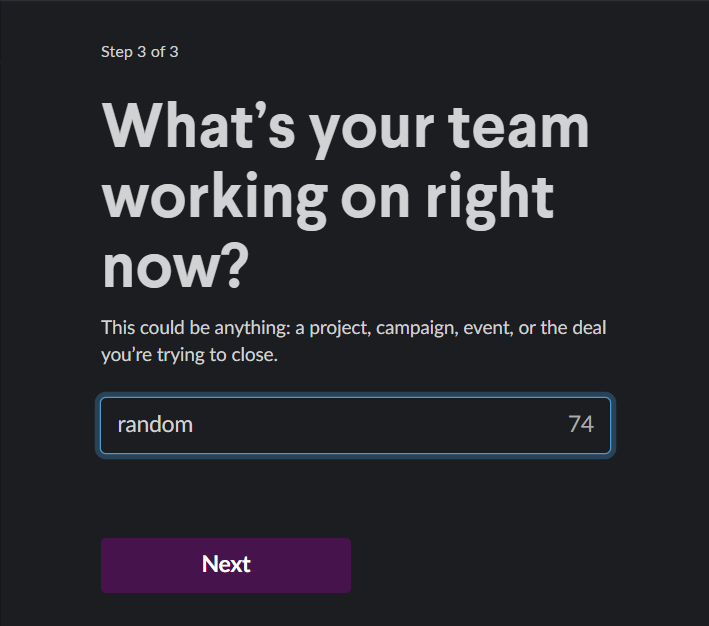
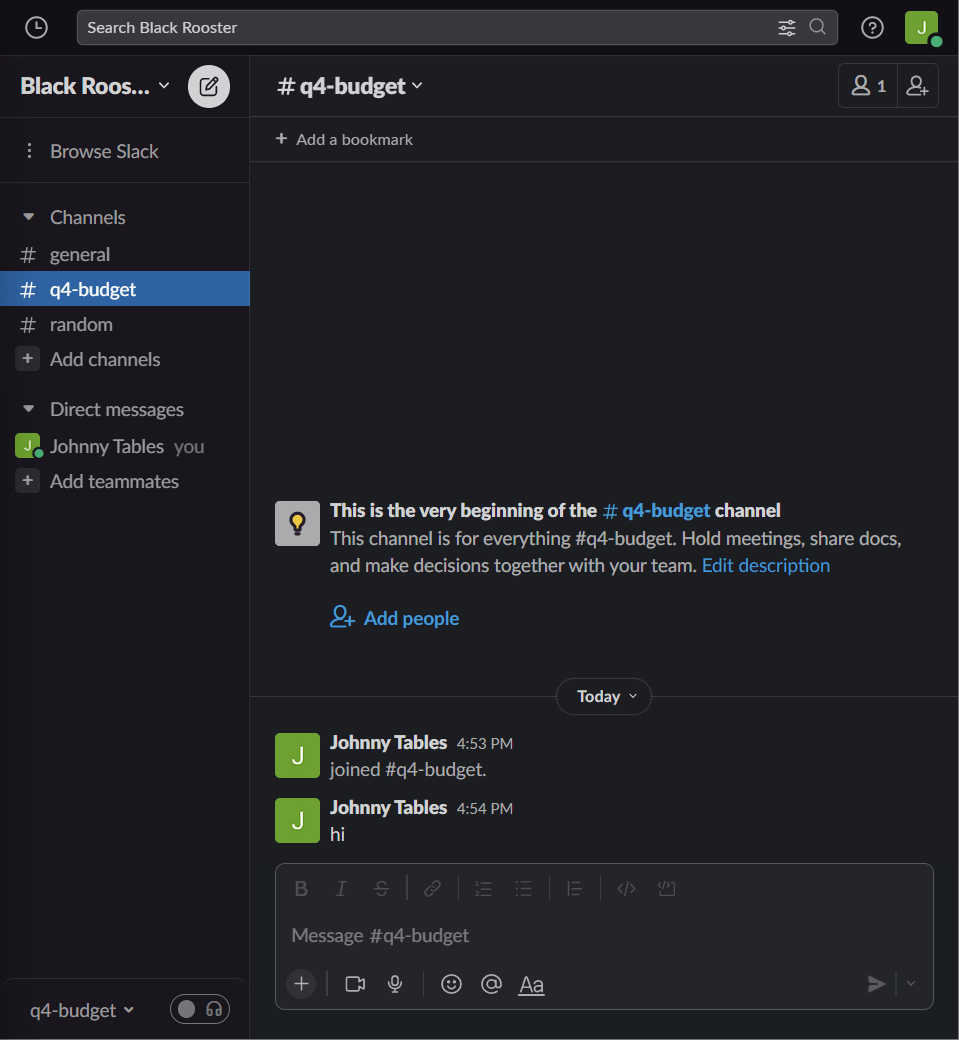
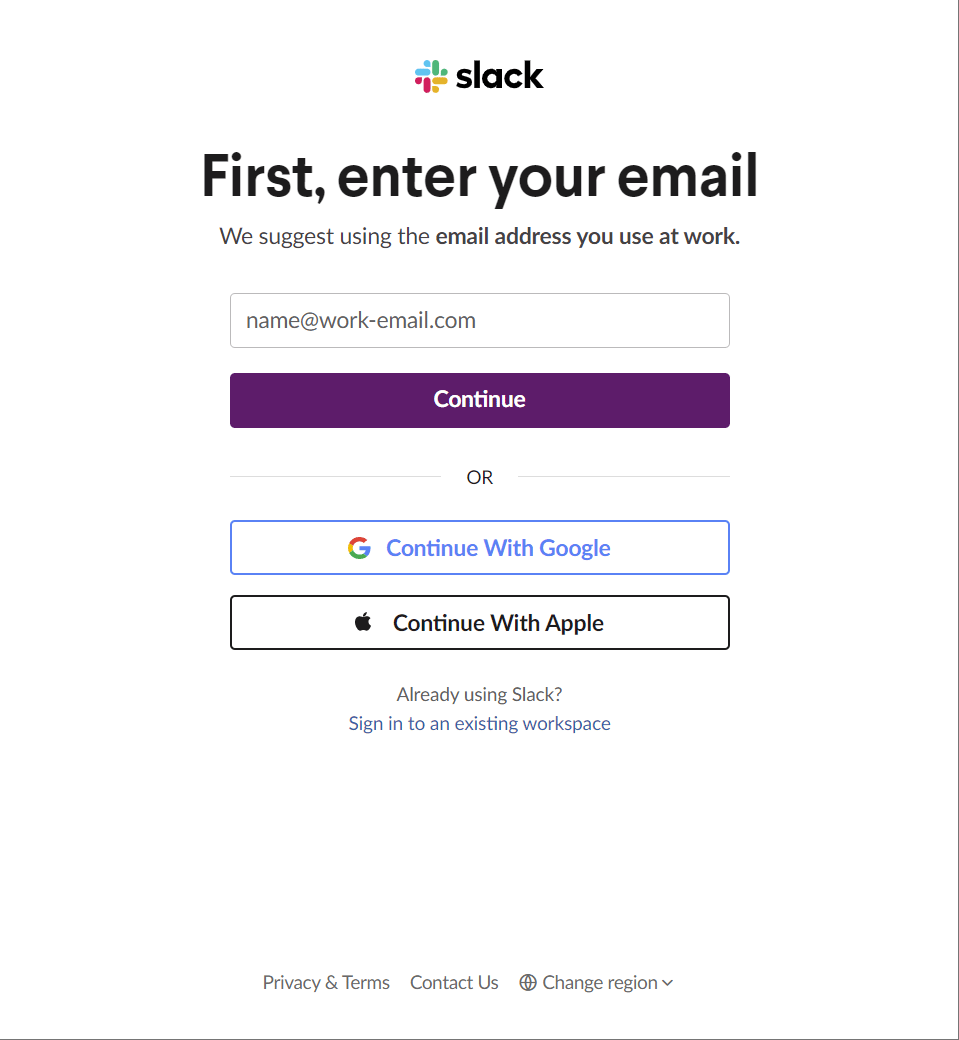 Choose **Create a Workspace**, name your fake company, skip step 2, and put anything in step 3.
 Create a test company and add a contact with an email address. That forces the company to sync into Inbox so you don't have to wait.
Its **Service Bot** field must be empty — you can only deploy one bot per customer.
In the Admin Panel go to **Clients**, select your test client, then the **Teams/Slack Connect** tab. Choose **Slack** and **Continue**.
Create a test company and add a contact with an email address. That forces the company to sync into Inbox so you don't have to wait.
Its **Service Bot** field must be empty — you can only deploy one bot per customer.
In the Admin Panel go to **Clients**, select your test client, then the **Teams/Slack Connect** tab. Choose **Slack** and **Continue**.
 The magic link **expires after 15 minutes**. If it lapses, go back and generate a new one.
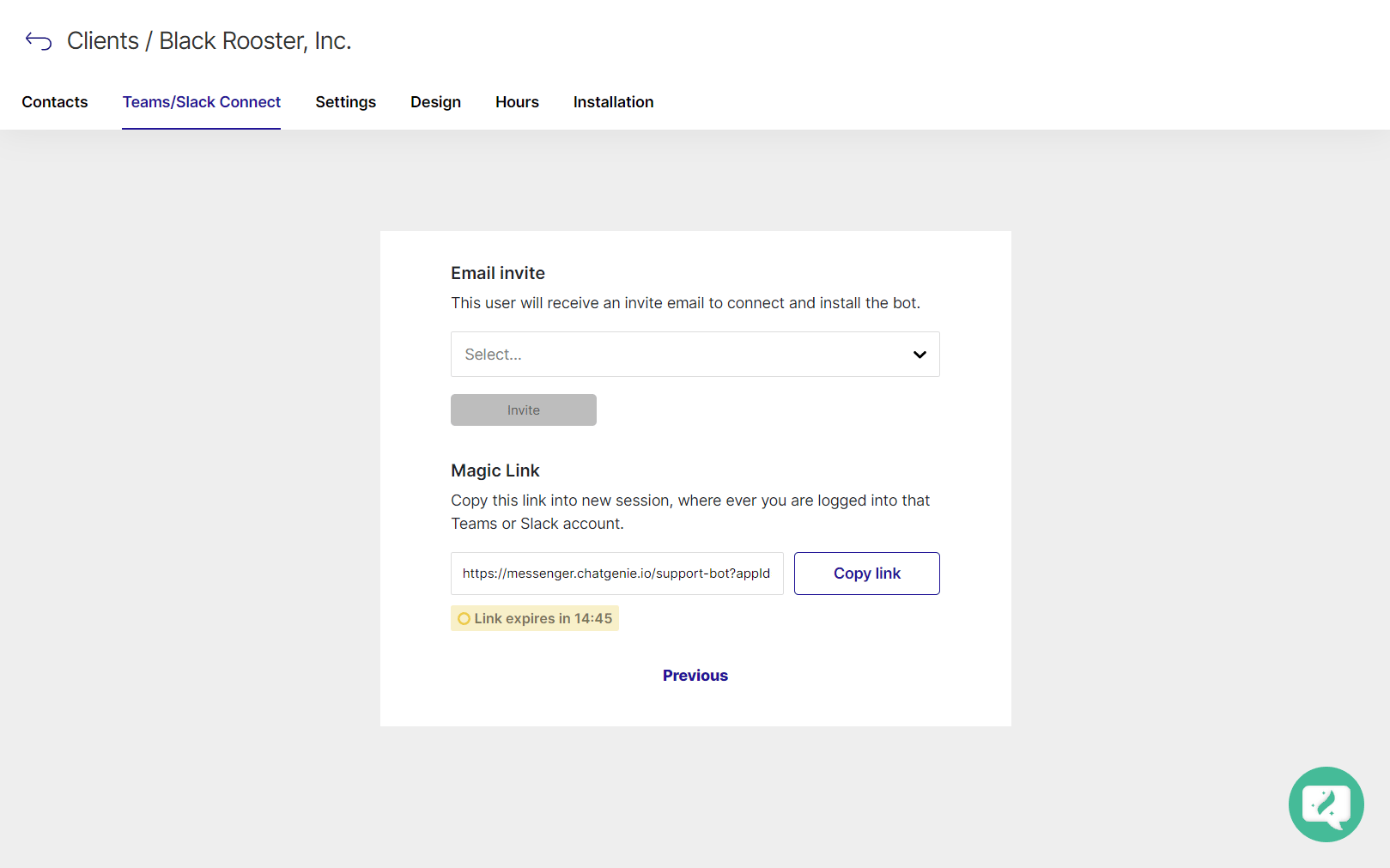 In a guest browser window signed into your sandbox workspace, paste the magic link and click **Allow**.
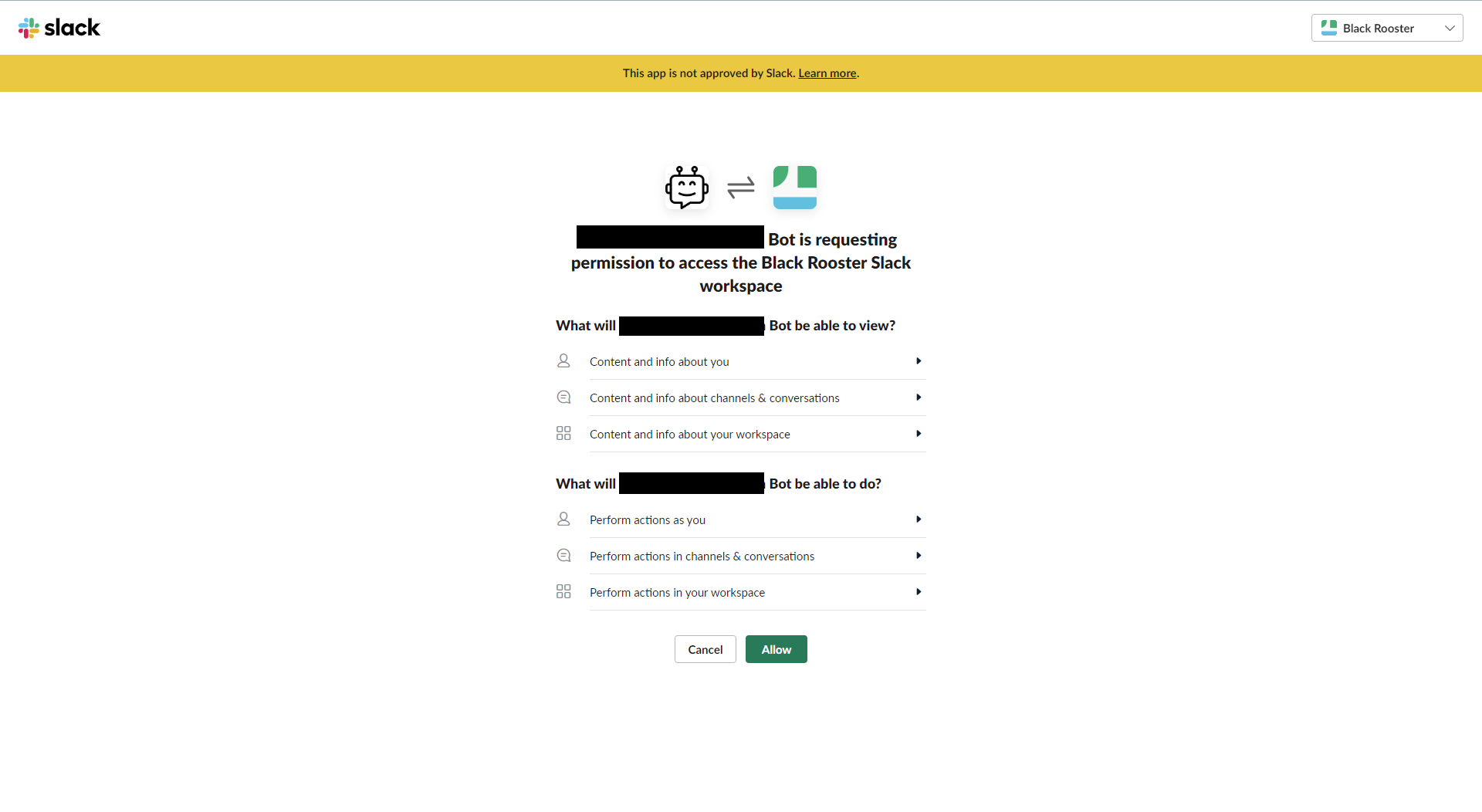
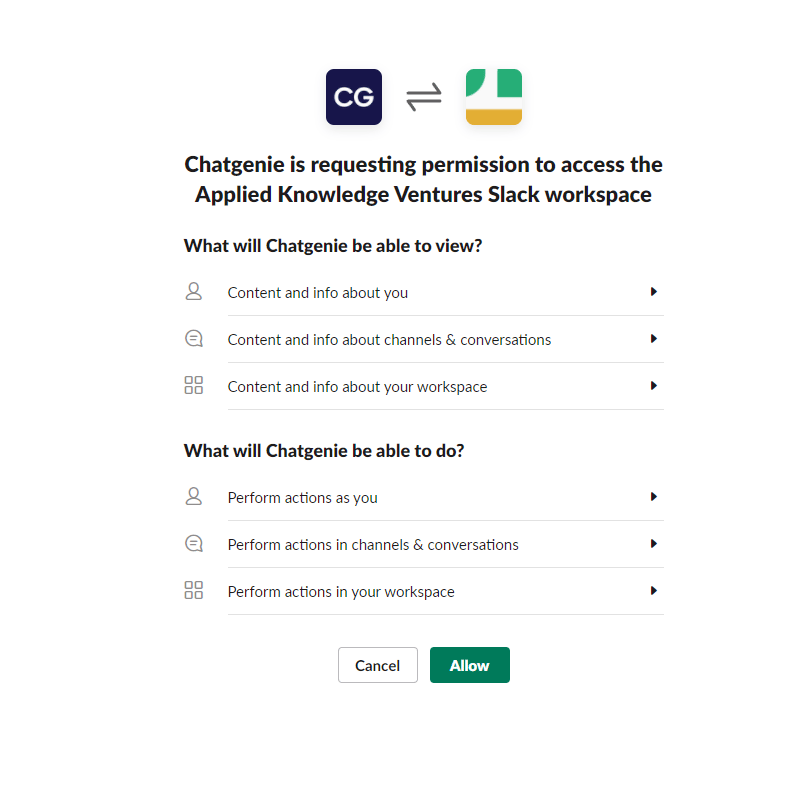
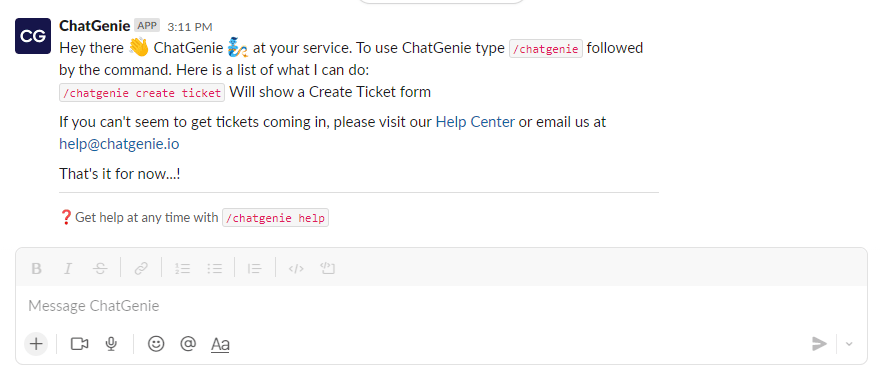
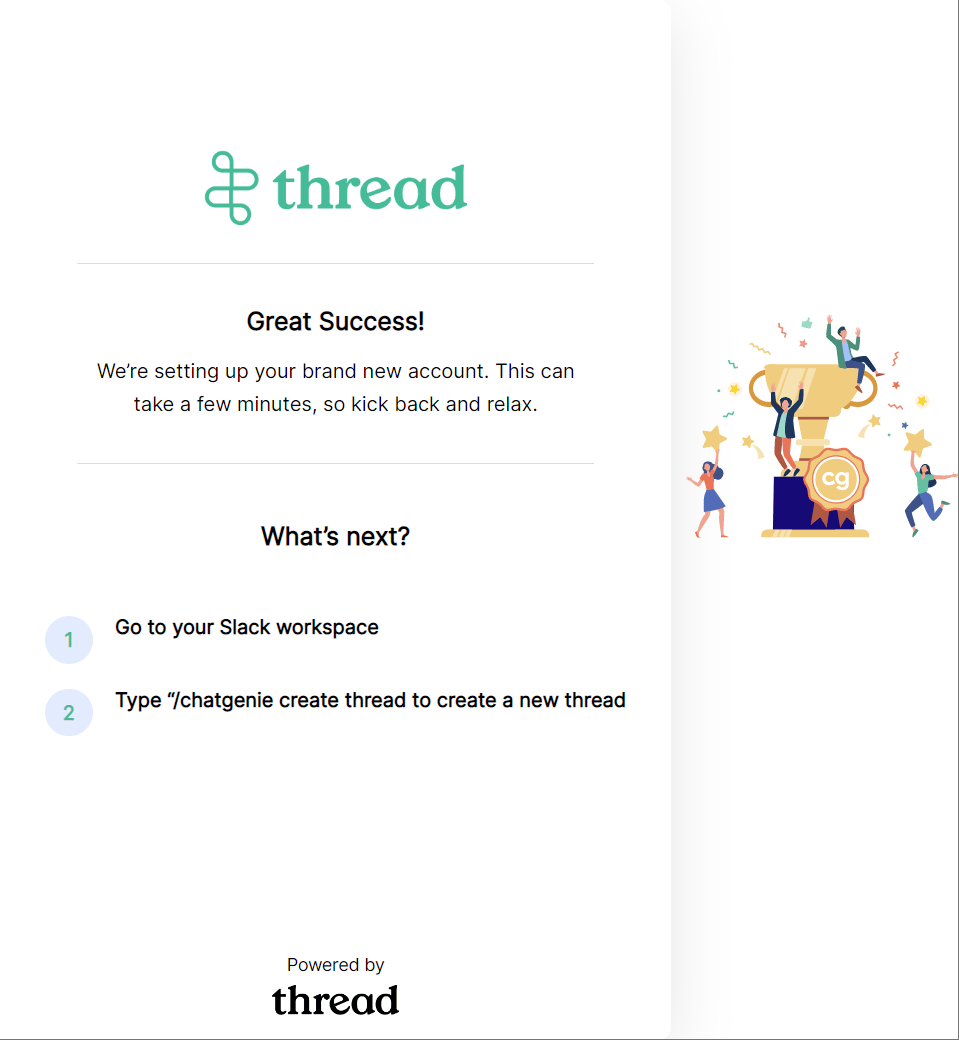 Back in the sandbox, the app should be installed — if not, use **Add app** and search for it. Then create threads and exercise chat and the bot the way a customer would.
 ## Next step
Once you're happy with the experience, work through [Deploy to a customer](#deploy-to-a-customer)
against a real client, then set [which ticket updates post to a channel](/companion-apps/choose-which-ticket-updates-post-to-channel).
## Related topics
- [Design a Custom Teams App for Your Customers](/messenger/create-teams-app.md)
- [Deploy the Teams Service App to a customer](/messenger/deploy-the-teams-service-app.md)
- [How to Use the Slack Companion App for Service Teams](/companion-apps/how-to-use-the-slack-companion-app-for-service-teams.md)
## Next step
Once you're happy with the experience, work through [Deploy to a customer](#deploy-to-a-customer)
against a real client, then set [which ticket updates post to a channel](/companion-apps/choose-which-ticket-updates-post-to-channel).
## Related topics
- [Design a Custom Teams App for Your Customers](/messenger/create-teams-app.md)
- [Deploy the Teams Service App to a customer](/messenger/deploy-the-teams-service-app.md)
- [How to Use the Slack Companion App for Service Teams](/companion-apps/how-to-use-the-slack-companion-app-for-service-teams.md)