> ## Documentation Index
> Fetch the complete documentation index at: https://docs.getthread.com/llms.txt
> Use this file to discover all available pages before exploring further.
# Deploy Messenger on Windows via command line
> Deploy Thread Messenger on Windows with msiexec: retrieve your App ID, choose per-user or system context, the full argument reference, PowerShell examples, and uninstall scripts.
Messenger ships as an **MSI** on Windows, so you can install it from a command prompt or push it
at scale through your RMM, MDM, or other deployment tool.
## Before you start
* Finish [setting up Messenger](/inbox/messenger).
* Know whether you're doing a **partner-level** or **customer-level** deployment — it determines which App ID you use.
Messenger lives in the system tray and starts with Windows by default. Open it from the tray icon.
 ## Retrieve your App ID
You need an App ID so Messenger inherits your branding. Find your partner-level App ID in the
Thread Admin Panel under **Messenger → Installation**.
## Choose an install context
This is the decision that matters most, and it's hard to change later.
| | **Per-user (recommended)** | **System** |
| ------------- | ----------------------------------------------- | -------------------------------------------------------------------- |
| Best for | People on their own machine | Shared machines, terminal servers, or when you want to pin a version |
| Auto-updates | **Yes** — each user stays current automatically | **No** — you must schedule re-installs |
| Maintenance | None | IT keeps it patched |
| Versioning | Each user has their own | One version for the machine |
| Data location | Per user | `%ROAMINGAPPDATA%` |
Use **per-user** unless you have a specific reason not to. It's the only context that
auto-updates, so users always run the latest Messenger.
### Per-user context
Installs silently and skips the sales-versus-service question:
```powershell theme={null}
msiexec /i "https://assets.getthread.com/messenger/downloads/desktop/messenger.msi" APP_ID=YOUR-APP-ID-HERE FLOW=customer INSTALL_TYPE=user msiinstallperuser=1 /qn
```
`INSTALL_TYPE` tells Messenger whether to enable auto-updates. It does **not** control where
Messenger installs — `MSIINSTALLPERUSER` does that.
The installer only adds Messenger if it was never installed for the currently logged-in user.
### MSI system context
```powershell theme={null}
msiexec /i "https://assets.getthread.com/messenger/downloads/desktop/messenger.msi" APP_ID=YOUR-APP-ID-HERE FLOW=customer INSTALL_TYPE=system MSIINSTALLPERUSER="" /qn
```
System-context installs **do not auto-update**. You have to manage scheduled re-installs
yourself and make sure users are on the current version.
## Argument reference
| Argument | What it does |
| ---------------------- | --------------------------------------------------------------------------------------------------------- |
| `APP_ID=YOUR_APP_ID` | **Required.** Your parent or client App ID — this applies your branding. |
| `FLOW=customer` | Skips the first end-user screen that asks whether they want sales or service, giving a support-only flow. |
| `MSIINSTALLPERUSER=""` | Installs at system context instead of the default per-user. Remember: no auto-updates. |
| `STARTUP=disabled` | Stops Messenger auto-starting with Windows. |
| `/qn` | Installs silently. |
| `/norestart` | Prevents a restart. Only needed when uninstalling. |
## PowerShell examples
### Keep system-context installs current
Only per-user installs auto-update, so schedule this for system-context deployments:
```powershell theme={null}
# Kill any running instance
taskkill /f /im Messenger.exe
# Install the latest version
msiexec /i "https://assets.getthread.com/messenger/downloads/desktop/messenger.msi" APP_ID=YOUR-APP-ID-HERE FLOW=customer INSTALL_TYPE=system MSIINSTALLPERUSER="" /qn
```
### Uninstall without a restart
Find the MSI's `IdentifyingNumber`, then uninstall with it — keep the braces:
```powershell theme={null}
Get-WmiObject -class Win32_Product | ? {$_.Name -eq "Messenger"}
```
```powershell theme={null}
taskkill /f /im Messenger.exe ; msiexec /x "{IDENTIFYING_NUMBER}" /qn /norestart
```
## Uninstall Messenger
### From user context
Run these two scripts in order. First, a batch file:
```batch theme={null}
@echo off
echo Killing any running instances of Messenger...
taskkill /F /IM Messenger.exe /T
taskkill /F /IM ChatgenieMessenger.exe /T
echo Uninstalling applications...
wmic product where "Name like 'Chatgenie Messenger%%'" call uninstall /nointeractive
wmic product where "Name like 'Messenger%%'" call uninstall /nointeractive
set "packageName=Messenger*"
powershell.exe -Command "Get-Package -ProviderName Programs -Name '%packageName%' | ForEach-Object { Uninstall-Package -ProviderName Programs -Name $_.Name -Confirm:$false }"
echo Applications were successfully uninstalled.
pause
```
Then a PowerShell script:
```powershell theme={null}
taskkill /f /im Messenger.exe
$updatePath = "$env:LOCALAPPDATA\Programs\Messenger\Uninstall Messenger.exe"
Start-Process -FilePath $updatePath -ArgumentList "/S" -Wait
```
### From system context
```powershell theme={null}
taskkill /f /im Messenger.exe
$appName = "Messenger"
function Get-ProductCode {
param([string]$appName)
$uninstallKey = "HKLM:\SOFTWARE\Microsoft\Windows\CurrentVersion\Uninstall"
$uninstallKeyWow6432 = "HKLM:\SOFTWARE\WOW6432Node\Microsoft\Windows\CurrentVersion\Uninstall"
$appKey = Get-ChildItem $uninstallKey, $uninstallKeyWow6432 |
Get-ItemProperty |
Where-Object {$_.DisplayName -eq $appName}
if ($appKey -ne $null) { return $appKey.PSChildName }
return $null
}
$productCode = Get-ProductCode $appName
if ($productCode -ne $null) {
Start-Process msiexec.exe -ArgumentList "/x $productCode /qn" -Wait
} else {
Write-Host "App not found."
}
```
To remove Messenger from a Mac, see [Deploying Messenger to Mac](/messenger/deploying-messenger-to-mac).
## Customise Messenger's behaviour
### Deep links
Open Messenger from another application:
```powershell theme={null}
# thread-messenger://?open=true (the legacy scheme was chatgenie://?open=true)
Start-Process -FilePath "thread-messenger://?open=true"
```
### Change the desktop icon
```powershell theme={null}
# ================================================
# Customize the values below.
# ================================================
$appId = ""
$chatName = "Thread Messenger" # Renames the shortcut file
$shortcutPath = "C:\Users\Public\Desktop\Messenger.lnk" # Existing shortcut
$newShortcutPath = "C:\Users\Public\Desktop\$chatName.lnk" # Path after renaming
$targetFolder = "C:\PATH\TO\DESTINATION"
$iconUrl = "URL of your ICO file"
$iconName = "icon.ico"
$iconPath = "$targetFolder\$iconName"
# ================================================
# Do not modify the script below this line.
# ================================================
msiexec /i "https://assets.getthread.com/messenger/downloads/desktop/messenger.msi" APP_ID=$appId STARTUP=disabled INSTALL_TYPE=user MSIINSTALLPERUSER="" /qn
Start-Sleep -Seconds 60
if (Test-Path $shortcutPath) {
Rename-Item -Path $shortcutPath -NewName $newShortcutPath
Write-Output "Renamed successfully to '$chatName.lnk'"
} else {
Write-Output "Original file not found: $shortcutPath"
}
if (-not (Test-Path $targetFolder)) {
New-Item -ItemType Directory -Path $targetFolder | Out-Null
}
Invoke-WebRequest -Uri $iconUrl -OutFile $iconPath
$WshShell = New-Object -ComObject WScript.Shell
$shortcut = $WshShell.CreateShortcut($newShortcutPath)
$shortcut.IconLocation = $iconPath
$shortcut.Save()
```
### Auto-startup on Windows 10 and later
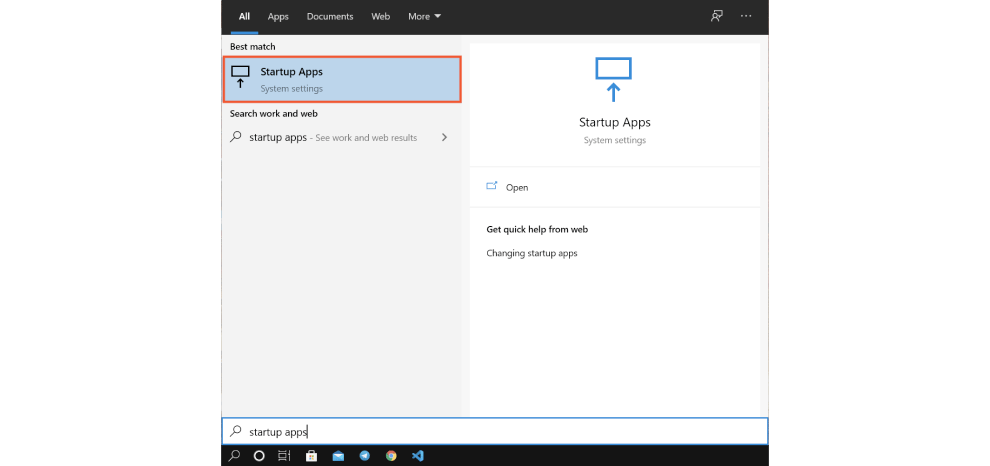
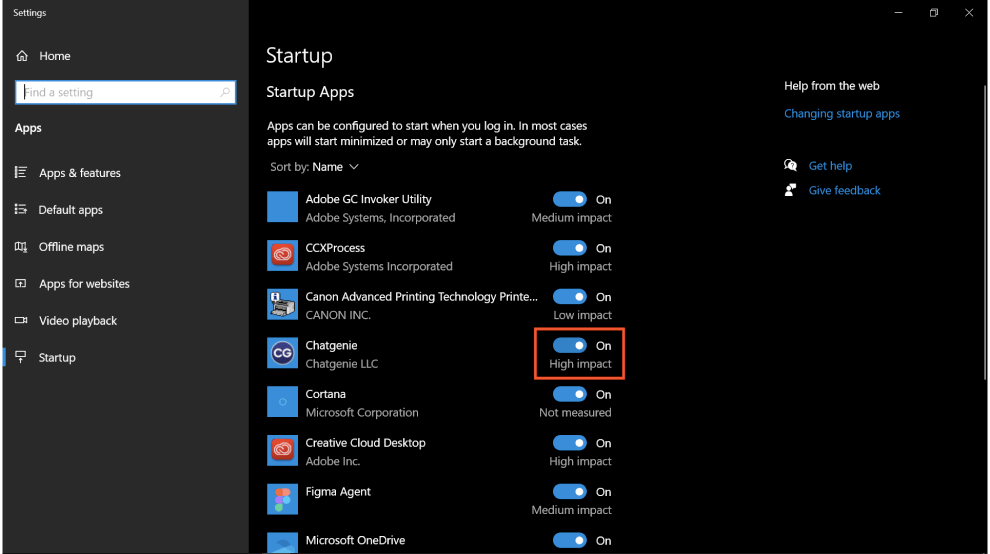
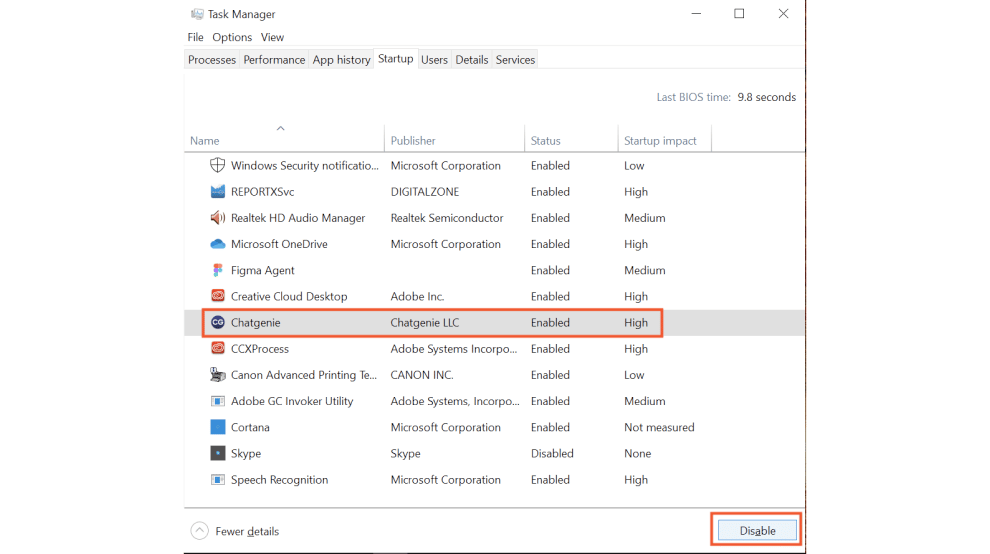
Messenger registers itself as a Windows startup app the first time it's opened. Users can turn
that off from Windows Settings or **Task Manager → Startup**.
## Retrieve your App ID
You need an App ID so Messenger inherits your branding. Find your partner-level App ID in the
Thread Admin Panel under **Messenger → Installation**.
## Choose an install context
This is the decision that matters most, and it's hard to change later.
| | **Per-user (recommended)** | **System** |
| ------------- | ----------------------------------------------- | -------------------------------------------------------------------- |
| Best for | People on their own machine | Shared machines, terminal servers, or when you want to pin a version |
| Auto-updates | **Yes** — each user stays current automatically | **No** — you must schedule re-installs |
| Maintenance | None | IT keeps it patched |
| Versioning | Each user has their own | One version for the machine |
| Data location | Per user | `%ROAMINGAPPDATA%` |
Use **per-user** unless you have a specific reason not to. It's the only context that
auto-updates, so users always run the latest Messenger.
### Per-user context
Installs silently and skips the sales-versus-service question:
```powershell theme={null}
msiexec /i "https://assets.getthread.com/messenger/downloads/desktop/messenger.msi" APP_ID=YOUR-APP-ID-HERE FLOW=customer INSTALL_TYPE=user msiinstallperuser=1 /qn
```
`INSTALL_TYPE` tells Messenger whether to enable auto-updates. It does **not** control where
Messenger installs — `MSIINSTALLPERUSER` does that.
The installer only adds Messenger if it was never installed for the currently logged-in user.
### MSI system context
```powershell theme={null}
msiexec /i "https://assets.getthread.com/messenger/downloads/desktop/messenger.msi" APP_ID=YOUR-APP-ID-HERE FLOW=customer INSTALL_TYPE=system MSIINSTALLPERUSER="" /qn
```
System-context installs **do not auto-update**. You have to manage scheduled re-installs
yourself and make sure users are on the current version.
## Argument reference
| Argument | What it does |
| ---------------------- | --------------------------------------------------------------------------------------------------------- |
| `APP_ID=YOUR_APP_ID` | **Required.** Your parent or client App ID — this applies your branding. |
| `FLOW=customer` | Skips the first end-user screen that asks whether they want sales or service, giving a support-only flow. |
| `MSIINSTALLPERUSER=""` | Installs at system context instead of the default per-user. Remember: no auto-updates. |
| `STARTUP=disabled` | Stops Messenger auto-starting with Windows. |
| `/qn` | Installs silently. |
| `/norestart` | Prevents a restart. Only needed when uninstalling. |
## PowerShell examples
### Keep system-context installs current
Only per-user installs auto-update, so schedule this for system-context deployments:
```powershell theme={null}
# Kill any running instance
taskkill /f /im Messenger.exe
# Install the latest version
msiexec /i "https://assets.getthread.com/messenger/downloads/desktop/messenger.msi" APP_ID=YOUR-APP-ID-HERE FLOW=customer INSTALL_TYPE=system MSIINSTALLPERUSER="" /qn
```
### Uninstall without a restart
Find the MSI's `IdentifyingNumber`, then uninstall with it — keep the braces:
```powershell theme={null}
Get-WmiObject -class Win32_Product | ? {$_.Name -eq "Messenger"}
```
```powershell theme={null}
taskkill /f /im Messenger.exe ; msiexec /x "{IDENTIFYING_NUMBER}" /qn /norestart
```
## Uninstall Messenger
### From user context
Run these two scripts in order. First, a batch file:
```batch theme={null}
@echo off
echo Killing any running instances of Messenger...
taskkill /F /IM Messenger.exe /T
taskkill /F /IM ChatgenieMessenger.exe /T
echo Uninstalling applications...
wmic product where "Name like 'Chatgenie Messenger%%'" call uninstall /nointeractive
wmic product where "Name like 'Messenger%%'" call uninstall /nointeractive
set "packageName=Messenger*"
powershell.exe -Command "Get-Package -ProviderName Programs -Name '%packageName%' | ForEach-Object { Uninstall-Package -ProviderName Programs -Name $_.Name -Confirm:$false }"
echo Applications were successfully uninstalled.
pause
```
Then a PowerShell script:
```powershell theme={null}
taskkill /f /im Messenger.exe
$updatePath = "$env:LOCALAPPDATA\Programs\Messenger\Uninstall Messenger.exe"
Start-Process -FilePath $updatePath -ArgumentList "/S" -Wait
```
### From system context
```powershell theme={null}
taskkill /f /im Messenger.exe
$appName = "Messenger"
function Get-ProductCode {
param([string]$appName)
$uninstallKey = "HKLM:\SOFTWARE\Microsoft\Windows\CurrentVersion\Uninstall"
$uninstallKeyWow6432 = "HKLM:\SOFTWARE\WOW6432Node\Microsoft\Windows\CurrentVersion\Uninstall"
$appKey = Get-ChildItem $uninstallKey, $uninstallKeyWow6432 |
Get-ItemProperty |
Where-Object {$_.DisplayName -eq $appName}
if ($appKey -ne $null) { return $appKey.PSChildName }
return $null
}
$productCode = Get-ProductCode $appName
if ($productCode -ne $null) {
Start-Process msiexec.exe -ArgumentList "/x $productCode /qn" -Wait
} else {
Write-Host "App not found."
}
```
To remove Messenger from a Mac, see [Deploying Messenger to Mac](/messenger/deploying-messenger-to-mac).
## Customise Messenger's behaviour
### Deep links
Open Messenger from another application:
```powershell theme={null}
# thread-messenger://?open=true (the legacy scheme was chatgenie://?open=true)
Start-Process -FilePath "thread-messenger://?open=true"
```
### Change the desktop icon
```powershell theme={null}
# ================================================
# Customize the values below.
# ================================================
$appId = ""
$chatName = "Thread Messenger" # Renames the shortcut file
$shortcutPath = "C:\Users\Public\Desktop\Messenger.lnk" # Existing shortcut
$newShortcutPath = "C:\Users\Public\Desktop\$chatName.lnk" # Path after renaming
$targetFolder = "C:\PATH\TO\DESTINATION"
$iconUrl = "URL of your ICO file"
$iconName = "icon.ico"
$iconPath = "$targetFolder\$iconName"
# ================================================
# Do not modify the script below this line.
# ================================================
msiexec /i "https://assets.getthread.com/messenger/downloads/desktop/messenger.msi" APP_ID=$appId STARTUP=disabled INSTALL_TYPE=user MSIINSTALLPERUSER="" /qn
Start-Sleep -Seconds 60
if (Test-Path $shortcutPath) {
Rename-Item -Path $shortcutPath -NewName $newShortcutPath
Write-Output "Renamed successfully to '$chatName.lnk'"
} else {
Write-Output "Original file not found: $shortcutPath"
}
if (-not (Test-Path $targetFolder)) {
New-Item -ItemType Directory -Path $targetFolder | Out-Null
}
Invoke-WebRequest -Uri $iconUrl -OutFile $iconPath
$WshShell = New-Object -ComObject WScript.Shell
$shortcut = $WshShell.CreateShortcut($newShortcutPath)
$shortcut.IconLocation = $iconPath
$shortcut.Save()
```
### Auto-startup on Windows 10 and later
Messenger registers itself as a Windows startup app the first time it's opened. Users can turn
that off from Windows Settings or **Task Manager → Startup**.
 ## Troubleshooting
Per-user installs keep updates in `C:\Users\\AppData\Local\messenger-updater`, which is expected behaviour. Some tools — ThreatLocker among them — flag this. Add Messenger to the allow list.
They're almost certainly on a system-context install, which doesn't auto-update. Either schedule the re-install script above, or redeploy per-user.
## Related topics
- [Deploying Messenger to Mac](/messenger/deploying-messenger-to-mac.md)
- [How to Deploy Desktop Messenger with SSO](/messenger/how-to-deploy-desktop-messenger-with-sso.md)
- [Deploy the Teams Service App to a customer](/messenger/deploy-the-teams-service-app.md)
## Troubleshooting
Per-user installs keep updates in `C:\Users\\AppData\Local\messenger-updater`, which is expected behaviour. Some tools — ThreatLocker among them — flag this. Add Messenger to the allow list.
They're almost certainly on a system-context install, which doesn't auto-update. Either schedule the re-install script above, or redeploy per-user.
## Related topics
- [Deploying Messenger to Mac](/messenger/deploying-messenger-to-mac.md)
- [How to Deploy Desktop Messenger with SSO](/messenger/how-to-deploy-desktop-messenger-with-sso.md)
- [Deploy the Teams Service App to a customer](/messenger/deploy-the-teams-service-app.md)