> ## Documentation Index
> Fetch the complete documentation index at: https://docs.getthread.com/llms.txt
> Use this file to discover all available pages before exploring further.
# How to Manage Your Inbox Notifications
> Customize Thread Inbox notifications: sound alerts, per-view preferences, push and unread badges, per-thread mute, and Microsoft Teams or Slack alerts.
## Overview
Notifications in Thread Inbox keep you informed on the conversations you care about — without overwhelming you. They're fully customizable, so each user decides how and when they're notified: an audio alert, a push notification, a per-view preference, per-thread mute, or a direct message in your connected chat platform (Microsoft Teams or Slack).
See **Inbox** updates in the [changelog](/changelog/q3-2026).
## Notification types
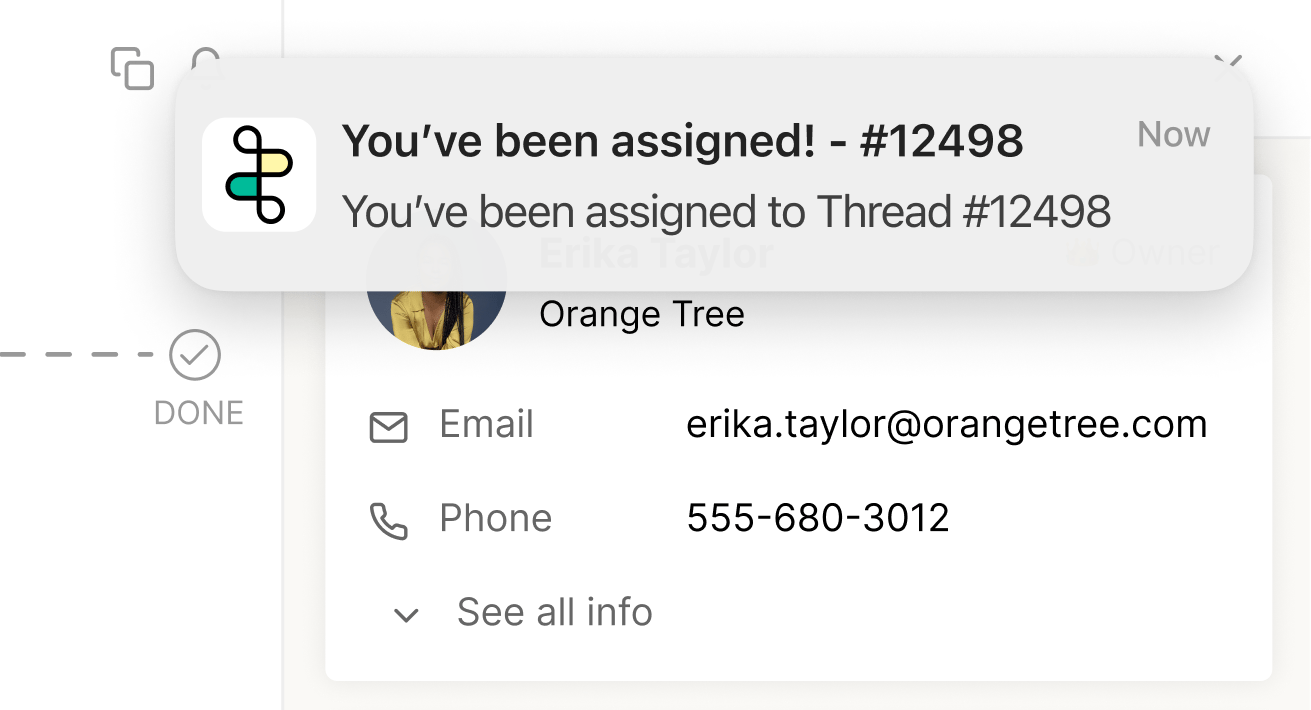
When you have an unread notification from a thread, you'll receive visual and audio alerts that draw your attention to the update.
| Alert | What happens |
| ----------------- | ----------------------------------------------------------------------------------------------------------------------------------------------------------------------------------------------------------------------- |
| Push notification | A push notification through your browser or desktop application. It shows details about the thread and, when clicked, navigates you into that thread. |
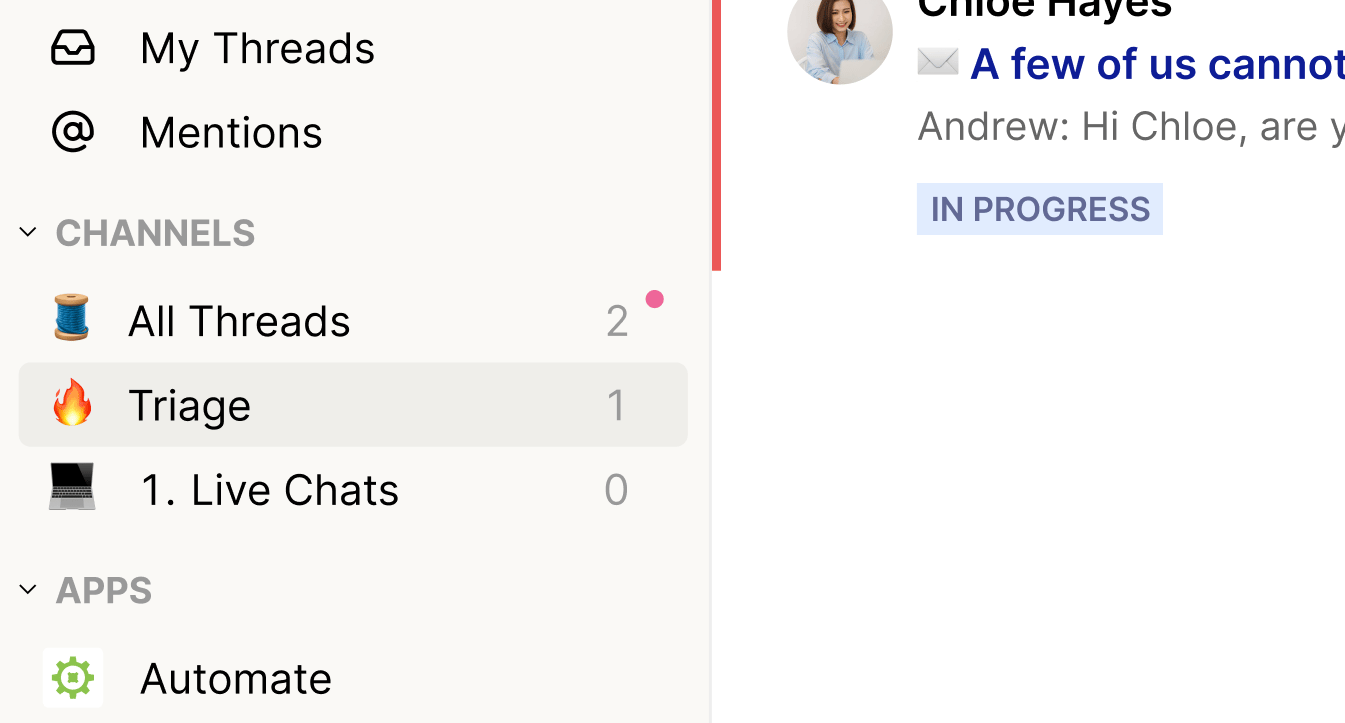
| Unread badge | Unread badges appear next to threads and views with new activity. Opening an unread thread marks it as read and removes the badge. A view shows an unread badge when at least one thread inside it has unread activity. |
| Audio alert | An audio chime plays while Inbox is open when you receive an unread message or a new thread within a view. Customize these under **Preferences → Sounds** (see below). |
## Sound notifications
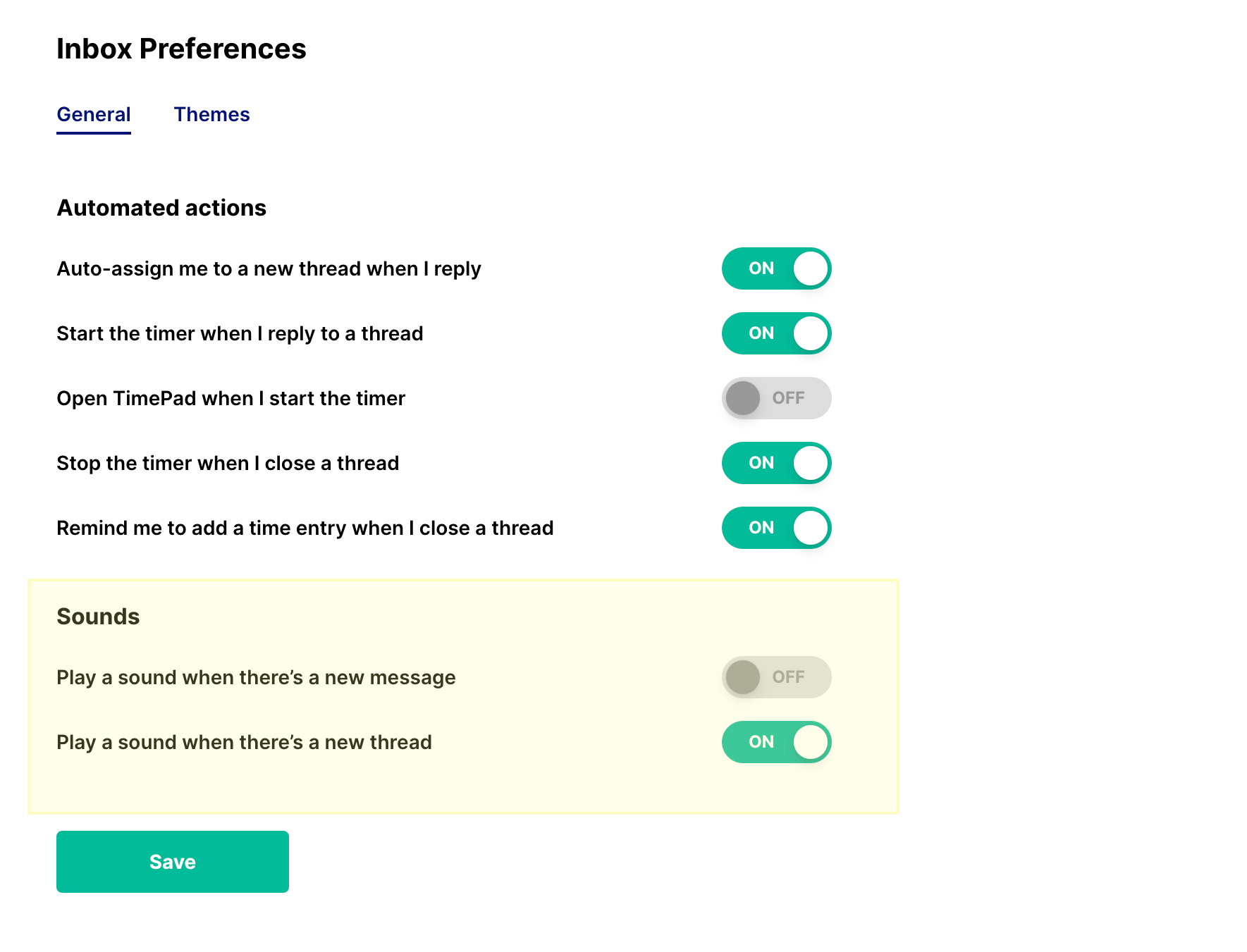
 Manage your notification sounds by clicking your name in the bottom-left corner and selecting **Preferences**. Under the **Sounds** section you'll find two toggles:
* **Play a sound when there's a new message** — plays an audio alert whenever a new message is received in a thread you own.
* **Play a sound when there's a new thread** — plays an alert when a new thread is created and assigned to you.
These settings apply specifically to your **My Inbox** — you'll only hear sounds for threads where you are the thread owner.
## Adjust notifications for a view
View notifications control how you're notified for activity within a specific view. They're configured individually per view, so you can tailor alerts to your focus areas. By default, every view you create or are invited into is set to **Owner**, so you're notified when you're assigned to a thread, when assigned threads receive messages, and when a teammate @mentions you.
Click the breadcrumbs menu (⋯) next to the view name in the left sidebar, then select **Notification Preferences**.
Choose the preference that matches how closely you want to follow the view.
Manage your notification sounds by clicking your name in the bottom-left corner and selecting **Preferences**. Under the **Sounds** section you'll find two toggles:
* **Play a sound when there's a new message** — plays an audio alert whenever a new message is received in a thread you own.
* **Play a sound when there's a new thread** — plays an alert when a new thread is created and assigned to you.
These settings apply specifically to your **My Inbox** — you'll only hear sounds for threads where you are the thread owner.
## Adjust notifications for a view
View notifications control how you're notified for activity within a specific view. They're configured individually per view, so you can tailor alerts to your focus areas. By default, every view you create or are invited into is set to **Owner**, so you're notified when you're assigned to a thread, when assigned threads receive messages, and when a teammate @mentions you.
Click the breadcrumbs menu (⋯) next to the view name in the left sidebar, then select **Notification Preferences**.
Choose the preference that matches how closely you want to follow the view.
 You can change your preference for individual views at any time. Preferences are saved across all your devices and persist across future sessions.
When new-thread notifications are enabled, they appear as a pop-up at the top center of Inbox — a quick visual cue that doesn't disrupt your workflow.
### Notification preference options
You can choose one of four options for each view you've created or joined.
| Preference | Description | Ideal role |
| ------------------------------- | ---------------------------------------------------------------------------------------------------- | ----------------------------------------------------------------------------------------- |
| New threads, owner and mentions | Notified for new threads, activity on threads you own or are a member of, and when you're mentioned. | Dispatchers and service managers who want to review and respond to newly created threads. |
| Owner | Notified for new messages on threads you own or are a member of, and when you're mentioned. | Technicians focused on their assigned threads and collaborations with teammates. |
| @ Mentions | Notified only when you're directly mentioned in a thread. | Managers and teammates who provide support for technicians. |
| Off | Notifications are muted for all threads within that view. | |
## Customize an individual thread
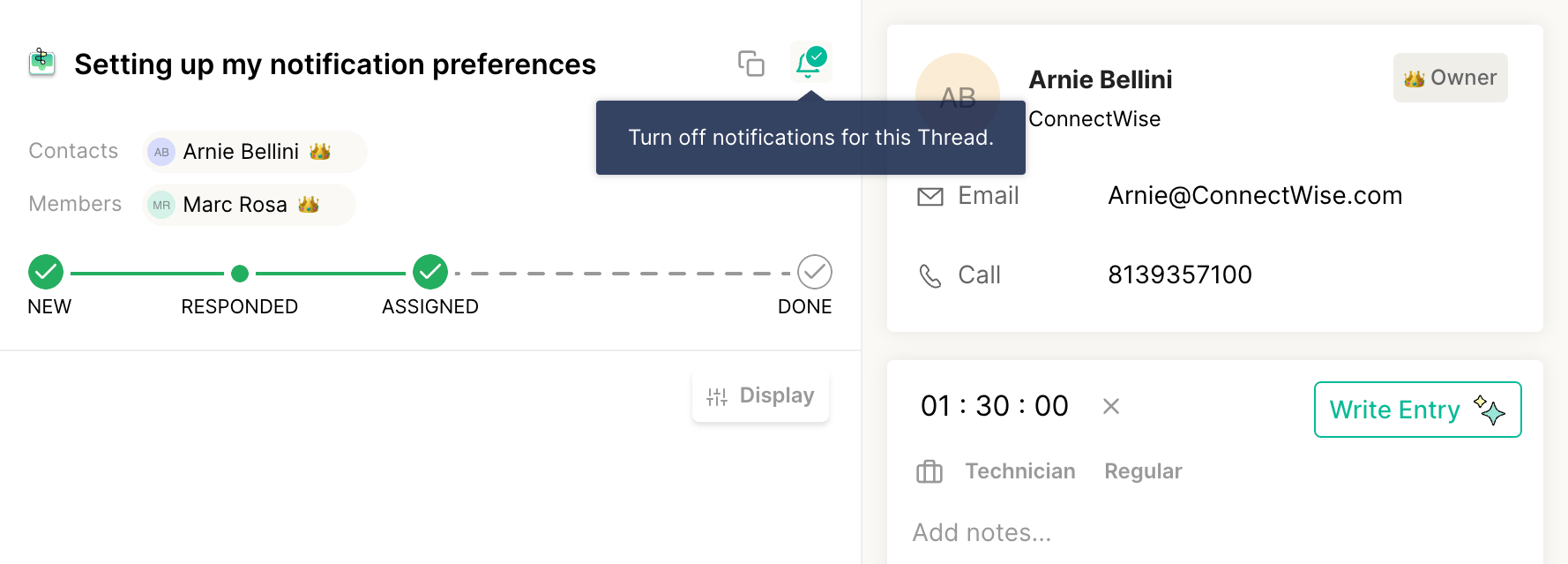
You can fine-tune notifications further by muting or unmuting a specific thread, regardless of its view preference.
In Inbox, open the thread.
In the top-right corner of the main thread container, toggle the bell icon on or off.
You can change your preference for individual views at any time. Preferences are saved across all your devices and persist across future sessions.
When new-thread notifications are enabled, they appear as a pop-up at the top center of Inbox — a quick visual cue that doesn't disrupt your workflow.
### Notification preference options
You can choose one of four options for each view you've created or joined.
| Preference | Description | Ideal role |
| ------------------------------- | ---------------------------------------------------------------------------------------------------- | ----------------------------------------------------------------------------------------- |
| New threads, owner and mentions | Notified for new threads, activity on threads you own or are a member of, and when you're mentioned. | Dispatchers and service managers who want to review and respond to newly created threads. |
| Owner | Notified for new messages on threads you own or are a member of, and when you're mentioned. | Technicians focused on their assigned threads and collaborations with teammates. |
| @ Mentions | Notified only when you're directly mentioned in a thread. | Managers and teammates who provide support for technicians. |
| Off | Notifications are muted for all threads within that view. | |
## Customize an individual thread
You can fine-tune notifications further by muting or unmuting a specific thread, regardless of its view preference.
In Inbox, open the thread.
In the top-right corner of the main thread container, toggle the bell icon on or off.
 ## Chat platform notifications
 Chat platform notifications control whether assigned threads are sent to you as direct messages from the **Thread Companion App** in your connected chat platform (Microsoft Teams or Slack). These settings live in **Thread Admin → Members** and are set per member — only admins can change them.
* **All** — sends every thread assigned to you as a direct message from the Thread bot, whether or not it was routed through a Flow.
* **Flow Only** — you're only messaged about assigned threads that were sent to Teams or Slack via a Flow.
* **None** — disables all assigned-thread direct messages from the Thread bot.
This setting affects only your one-on-one conversation with the Companion App. It does **not** change thread notifications sent through Flows. For how Teams and Slack alerts behave across the Companion App and public channels, see [How Notifications Work for your Team](/notifications/how-will-notifications-work-internally).
## Frequently asked questions
Yes. You'll receive a notification for a thread if at least one view containing it is set to **New threads, owner and mentions**, **Owner**, or **@ Mentions**, and the update matches that preference.
No — you won't receive a notification for a thread that doesn't live in any of your Inbox views. You'll still be able to reach it through the **My Inbox** or **Mentions** section.
## Related topics
- [How Notifications Work for your Team](/notifications/how-will-notifications-work-internally.md)
- [Inbox Navigation: Rail, Side Panel, and Views](/inbox/1-the-channel-viewer.md)
- [Views and Insights in Thread Inbox](/inbox/views-and-insights.md)
Chat platform notifications control whether assigned threads are sent to you as direct messages from the **Thread Companion App** in your connected chat platform (Microsoft Teams or Slack). These settings live in **Thread Admin → Members** and are set per member — only admins can change them.
* **All** — sends every thread assigned to you as a direct message from the Thread bot, whether or not it was routed through a Flow.
* **Flow Only** — you're only messaged about assigned threads that were sent to Teams or Slack via a Flow.
* **None** — disables all assigned-thread direct messages from the Thread bot.
This setting affects only your one-on-one conversation with the Companion App. It does **not** change thread notifications sent through Flows. For how Teams and Slack alerts behave across the Companion App and public channels, see [How Notifications Work for your Team](/notifications/how-will-notifications-work-internally).
## Frequently asked questions
Yes. You'll receive a notification for a thread if at least one view containing it is set to **New threads, owner and mentions**, **Owner**, or **@ Mentions**, and the update matches that preference.
No — you won't receive a notification for a thread that doesn't live in any of your Inbox views. You'll still be able to reach it through the **My Inbox** or **Mentions** section.
## Related topics
- [How Notifications Work for your Team](/notifications/how-will-notifications-work-internally.md)
- [Inbox Navigation: Rail, Side Panel, and Views](/inbox/1-the-channel-viewer.md)
- [Views and Insights in Thread Inbox](/inbox/views-and-insights.md)