Magic Library
Voice AI’s Voice Shield is the main
consumer of Thread Verify today: a verified caller can look up or update a
referenced existing ticket, while an unverified caller’s request is
captured without exposing any ticket details.
Verification methods
Two verification methods are available:- SMS magic link: a one-tap link sent by text. Requires a mobile number on the contact in the connected PSA.
- Microsoft Authenticator: a two-digit number-match push the contact approves in their Authenticator app. Requires the client’s Microsoft 365 tenant to be connected to Thread Verify.
Microsoft Authenticator verification is a limited-availability feature in partner beta. Contact your Thread representative if you’d like to enable it for your workspace. SMS magic link is available to every workspace.
Enable and configure in Admin
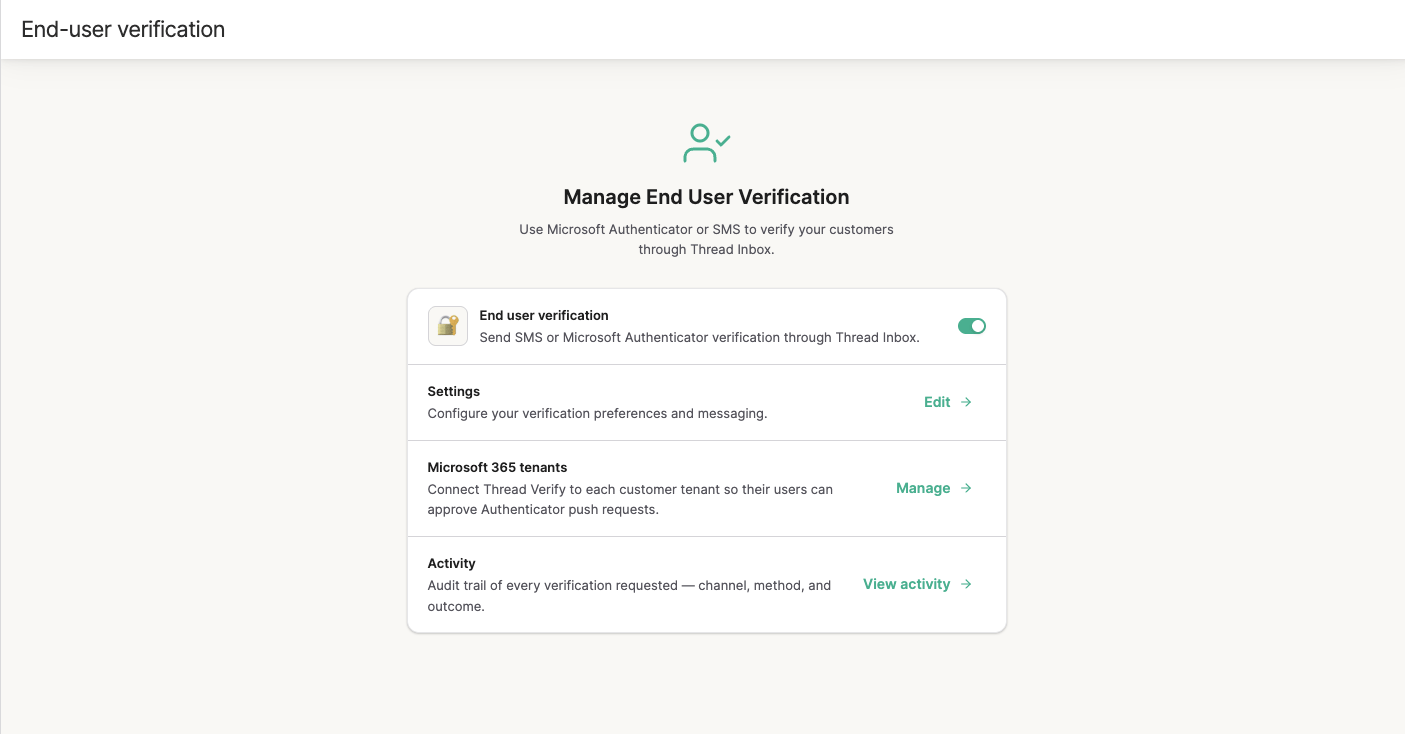
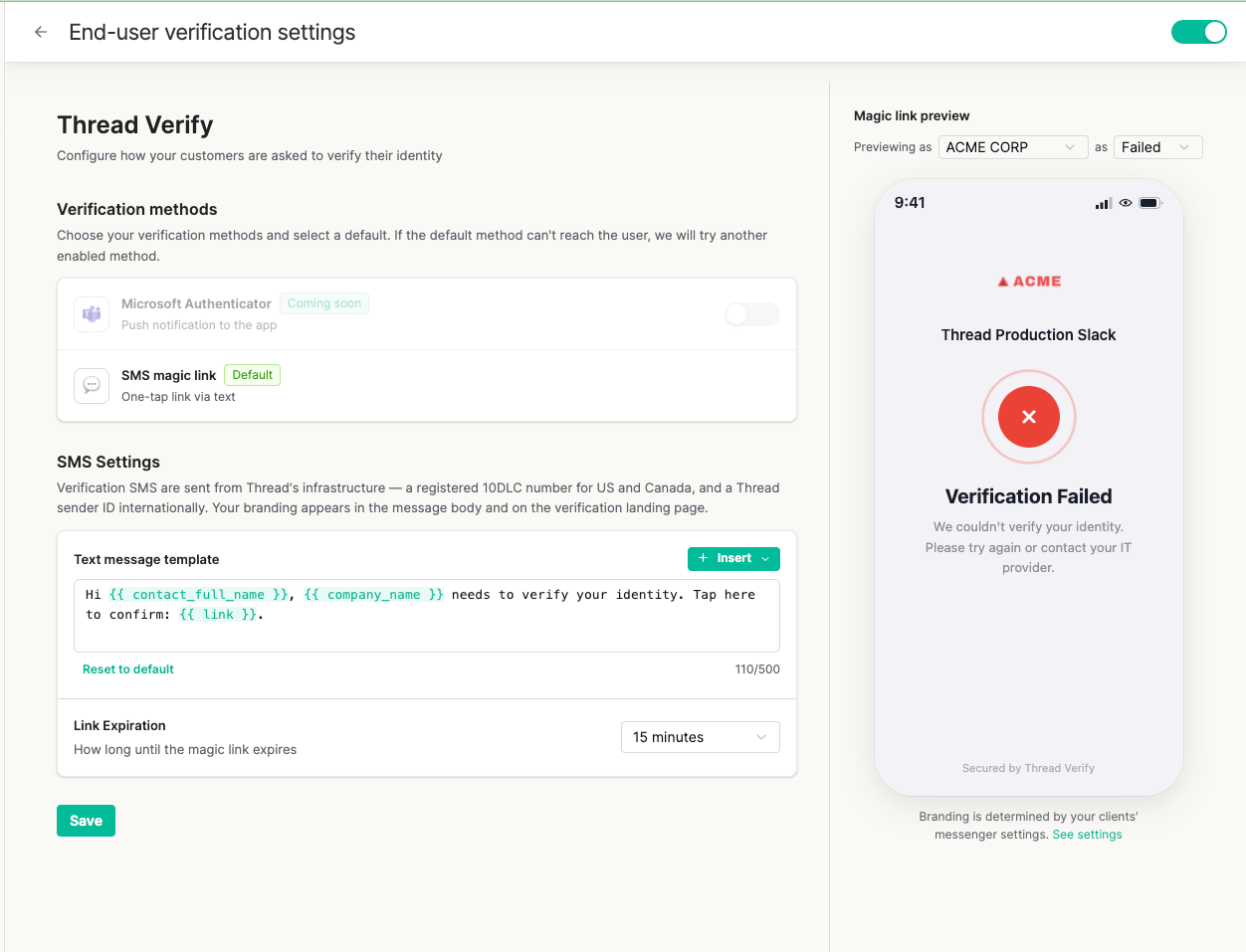
From Admin, open End User Verification to turn the feature on. From here there are three things to manage:- Settings: your verification methods, the default method, SMS messaging, and link expiry.
- Microsoft 365 tenants: connect Thread Verify to each customer tenant. Required for Microsoft Authenticator.
- Activity: the audit trail of every verification requested.
Settings
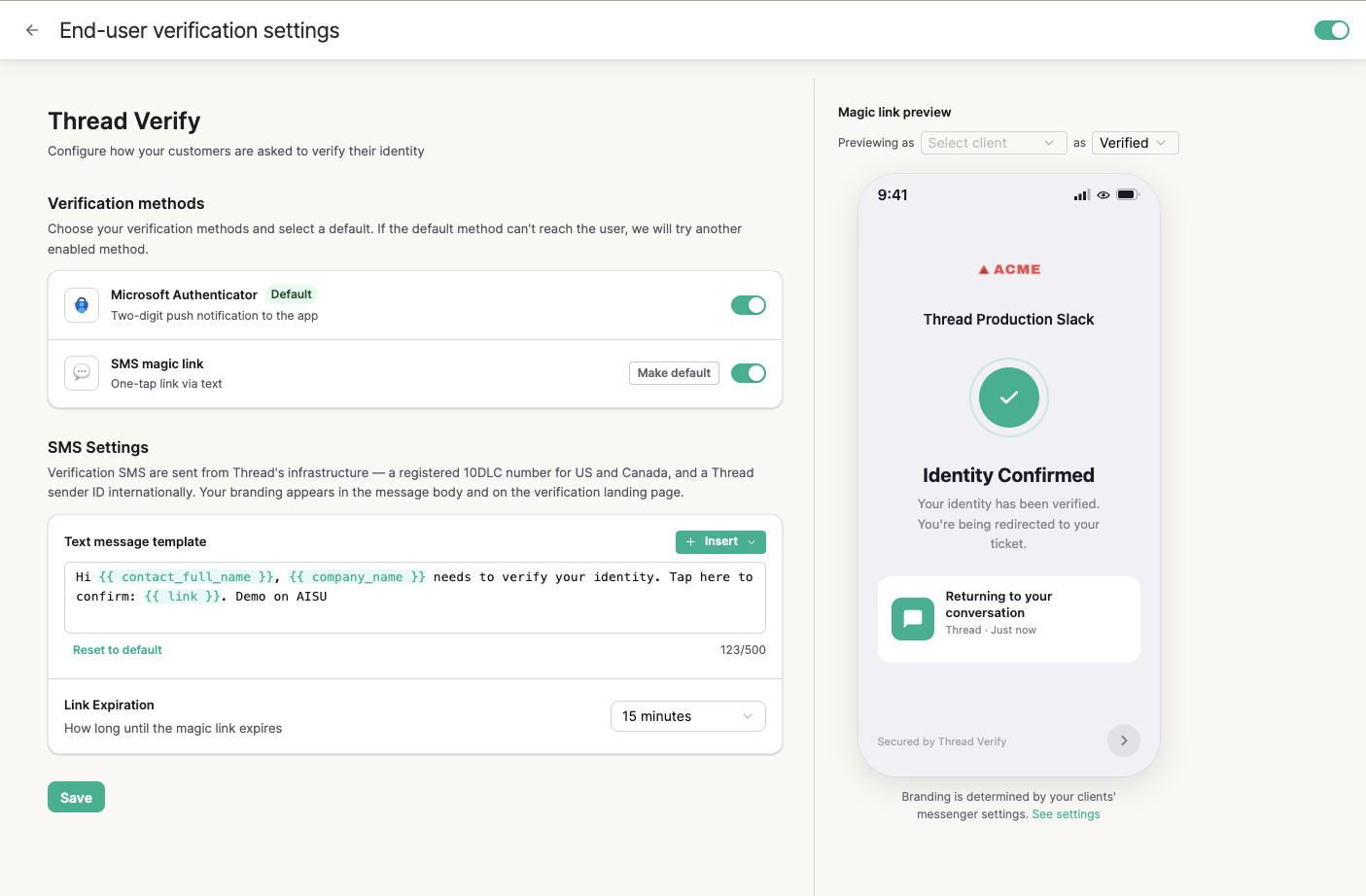
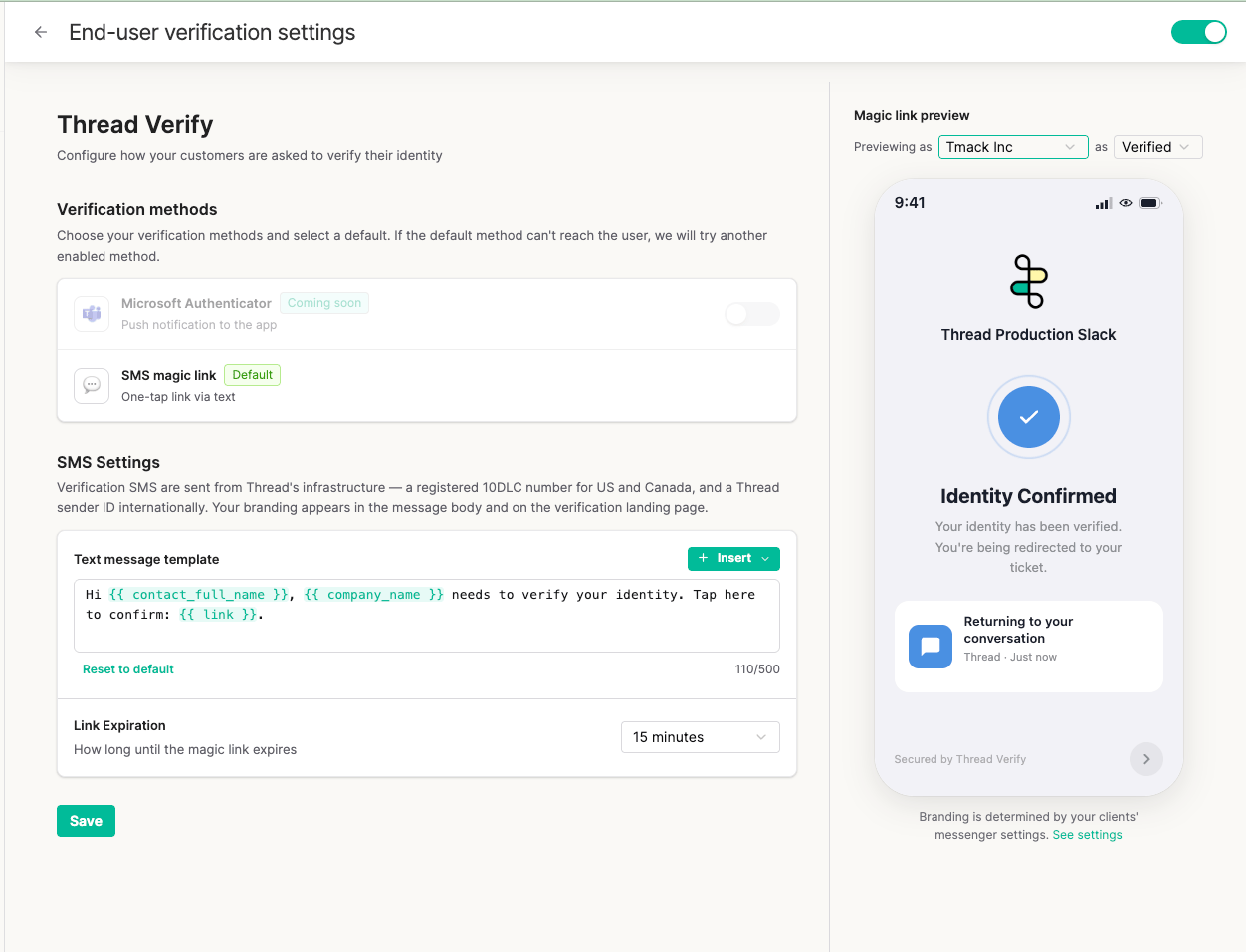
In Settings you can:- Turn each verification method on or off — SMS magic link and Microsoft Authenticator.
- Set the default method that technicians see pre-selected in Inbox, using Make default on the method you want.
- Customize the SMS message that end users receive.
- Set the link expiration time for the magic link.
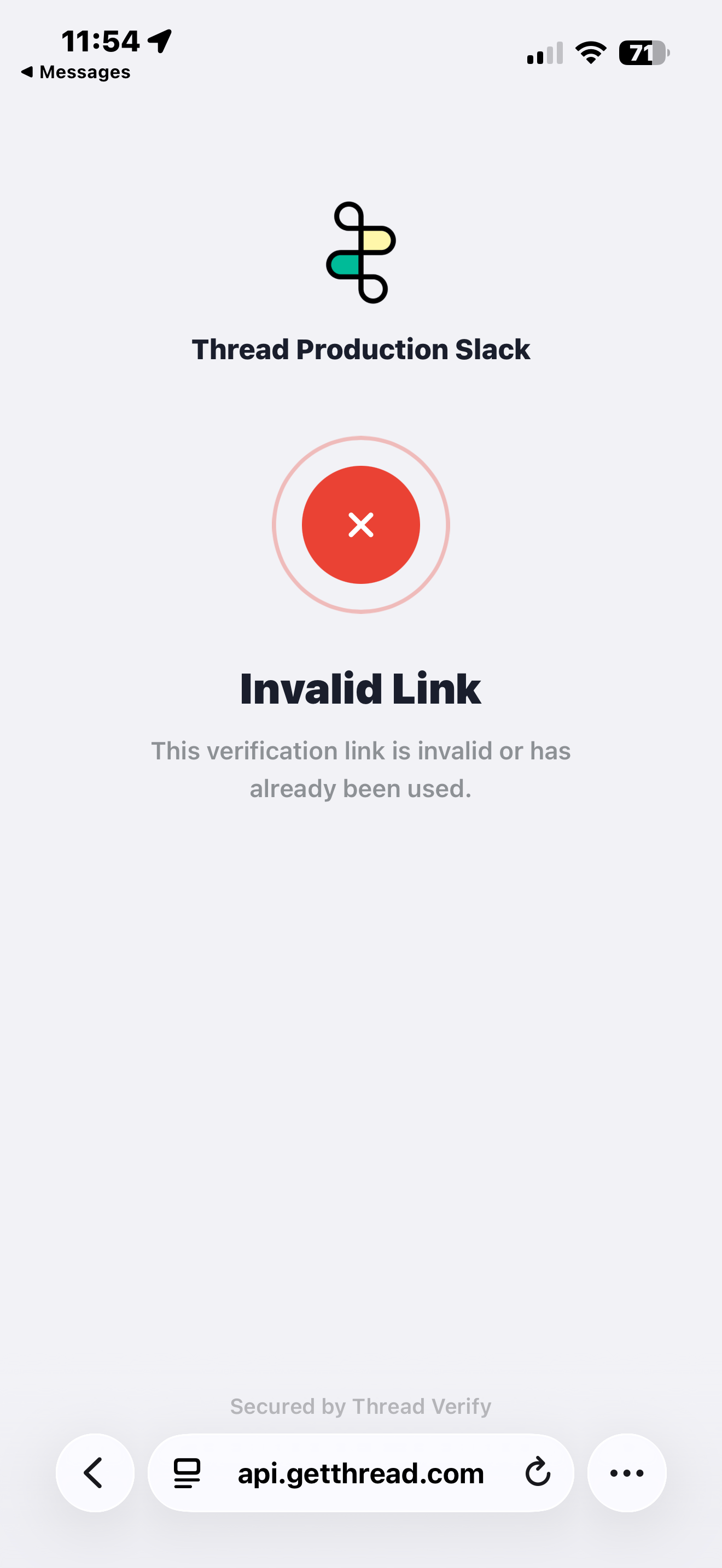
- Preview the verification page that end users see when they click the magic link.
The SMS settings apply to the SMS magic link only. Microsoft Authenticator needs no message configuration, as the challenge is rendered by Microsoft inside the Authenticator app.
Connect Microsoft 365 tenants
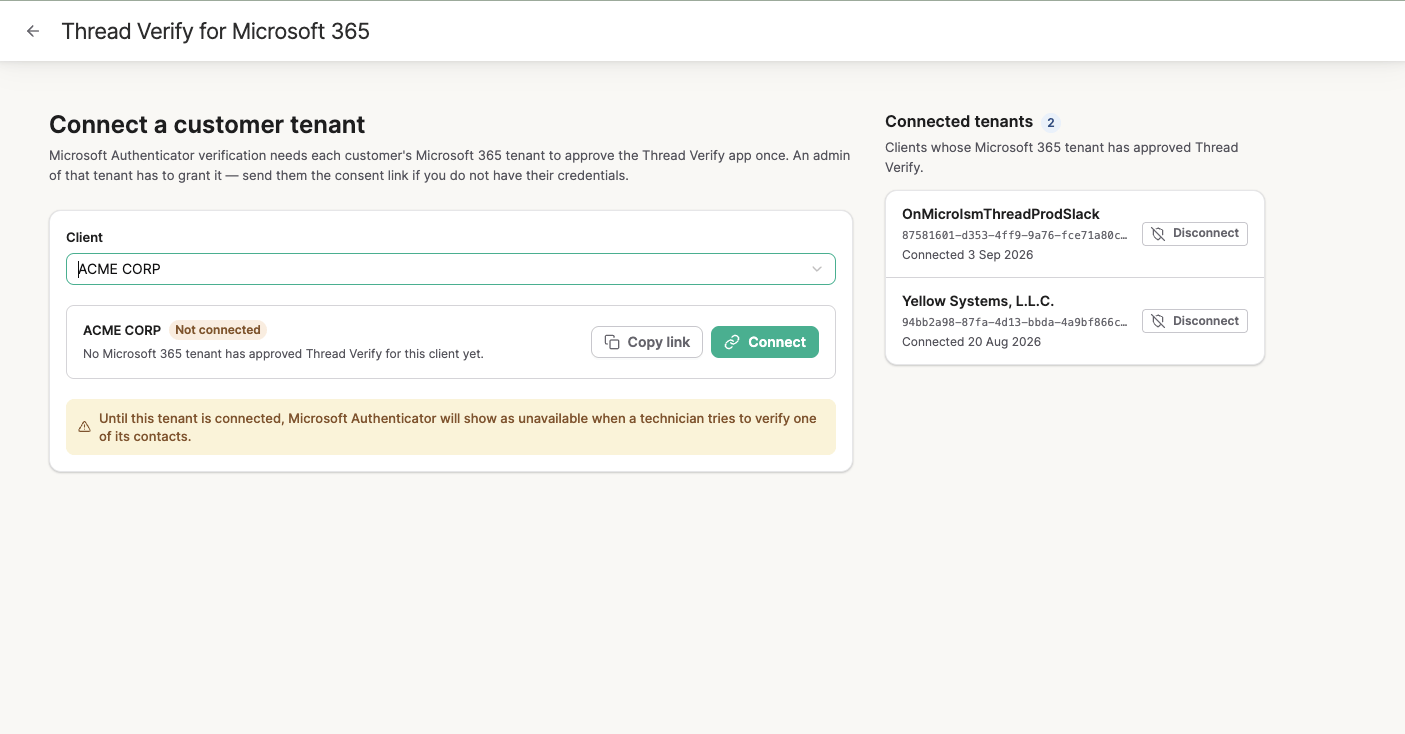
Microsoft Authenticator verification works per client. Each customer’s Microsoft 365 tenant has to approve the Thread Verify app once before that client’s contacts can be verified this way.Prerequisites
Before you connect a client tenant, confirm:- End-user verification is enabled on your workspace.
- The Microsoft Authenticator method is enabled on your workspace. This is the beta toggle that surfaces the Microsoft Authenticator option in Admin and in the technician’s verification modal.
- The client company already has contacts in Thread with email addresses on their Microsoft tenant’s verified domains. Thread checks the consenting tenant’s verified domains against the contact emails it has on file for that client before it accepts the connection, so a client with no contacts on file yet cannot be connected.
- A Global Administrator of the client’s Microsoft 365 tenant is available to grant admin consent. The consent link Thread generates can only be completed by a tenant admin.
Connect a tenant
From End User Verification → Microsoft 365 tenants, select the client and then either:- Connect: if you hold that tenant’s admin credentials, complete the consent flow yourself.
- Copy link: send the consent link to an admin of that tenant to grant it.
Refusal reasons
Thread refuses a consent for one of these reasons. The refusal is logged, the link is not spent, and the tenant admin can retry.tenant_domain_mismatch: none of the consenting tenant’s verified domains match a contact email on the client company. Confirm the tenant admin is signing in against the correct tenant, and that the client has at least one contact whose email is on a domain that tenant has verified.tenant_domain_unverifiable: Thread couldn’t read the tenant’s verified domains from Microsoft Graph. The most common cause is that the Thread Verify app registration is missing theDomain.Read.All(Application) permission. Contact your Thread representative.tenant_already_linked: the consenting tenant is already connected to a different client company in your workspace. A tenant can only be bound to one client at a time; disconnect the existing binding first if this is intentional.invalid_state: the consent link is expired or already spent. Generate a fresh one from the Integrations tab.
Disconnect a tenant
Open the client’s row and choose Disconnect. Thread removes the tenant binding for that client company. Any in-flight push challenges finish out on their existing tenant; new challenges for that client fall back to SMS until a fresh consent is granted. To reconnect the same client later, generate a fresh consent link from End User Verification → Microsoft 365 tenants and have the tenant admin grant consent again. Reconnecting the same tenant restores the connection, and Thread re-syncs the tenant’s users so contacts’ Authenticator registration status is current.Trigger a verification from Inbox
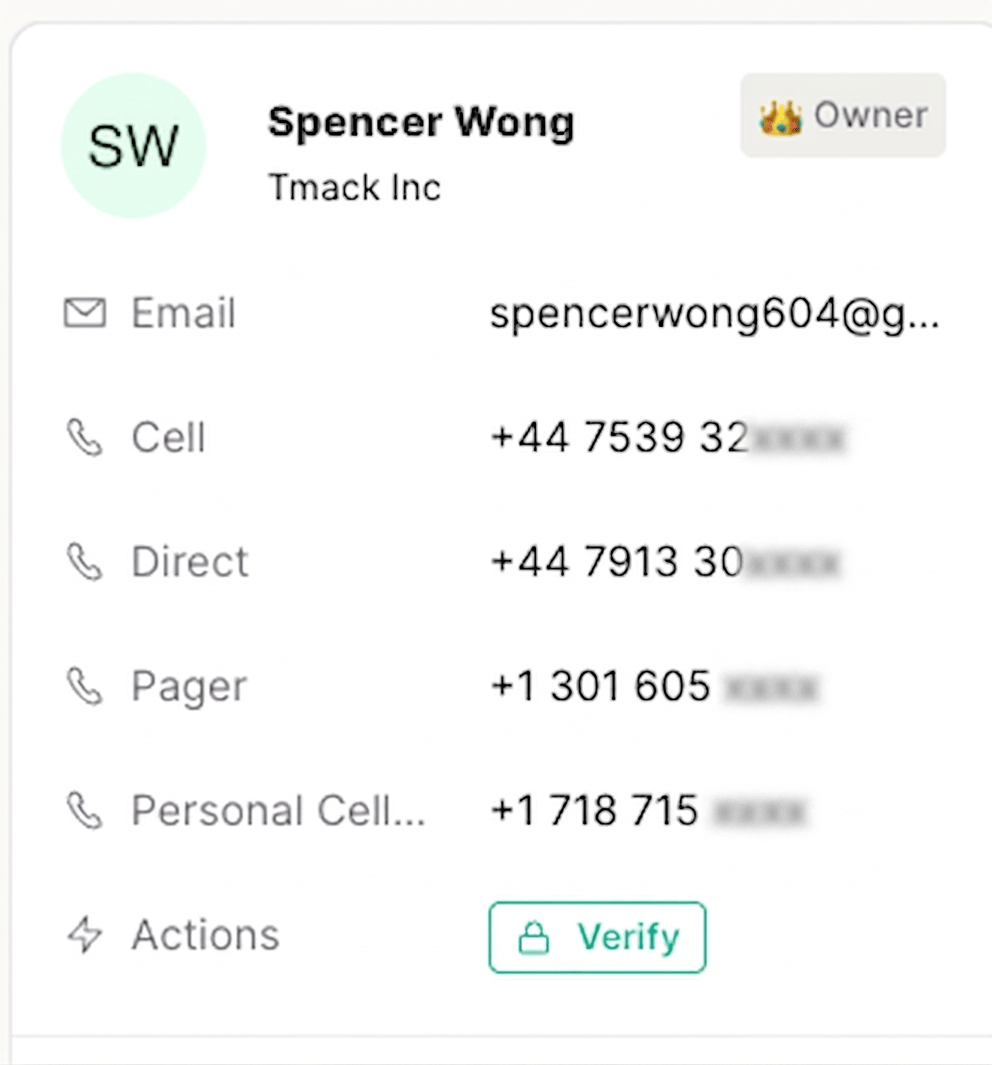
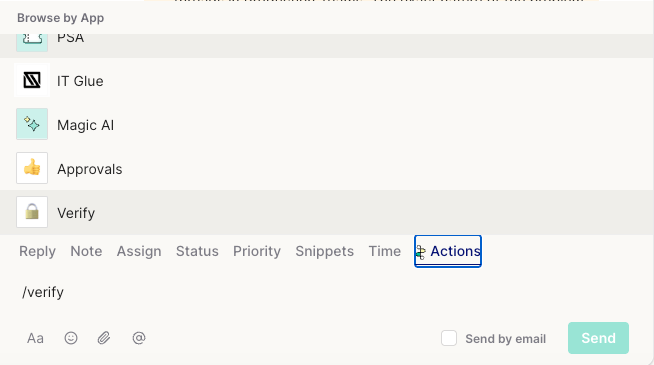
While a technician is working a thread, a verification can be triggered as long as End User Verification is enabled and the contact can be reached by at least one method: a mobile number on the contact in the connected PSA for SMS, or a connected Microsoft 365 tenant for Authenticator. There are three ways to start one:- Select Thread Verify in the contact details panel.
- Use the Actions menu.
- Type the
/verifyshortcut.
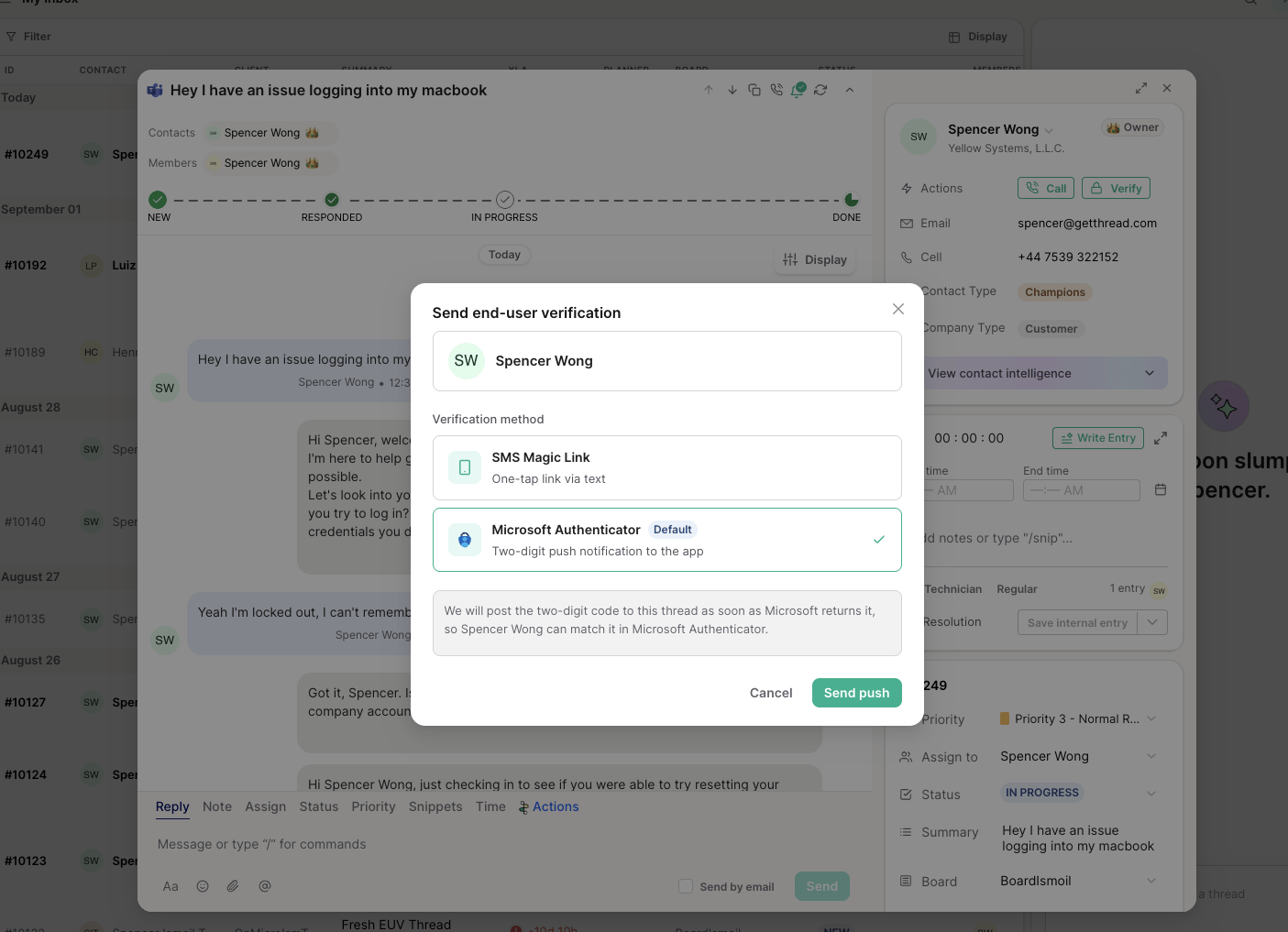
SMS magic link
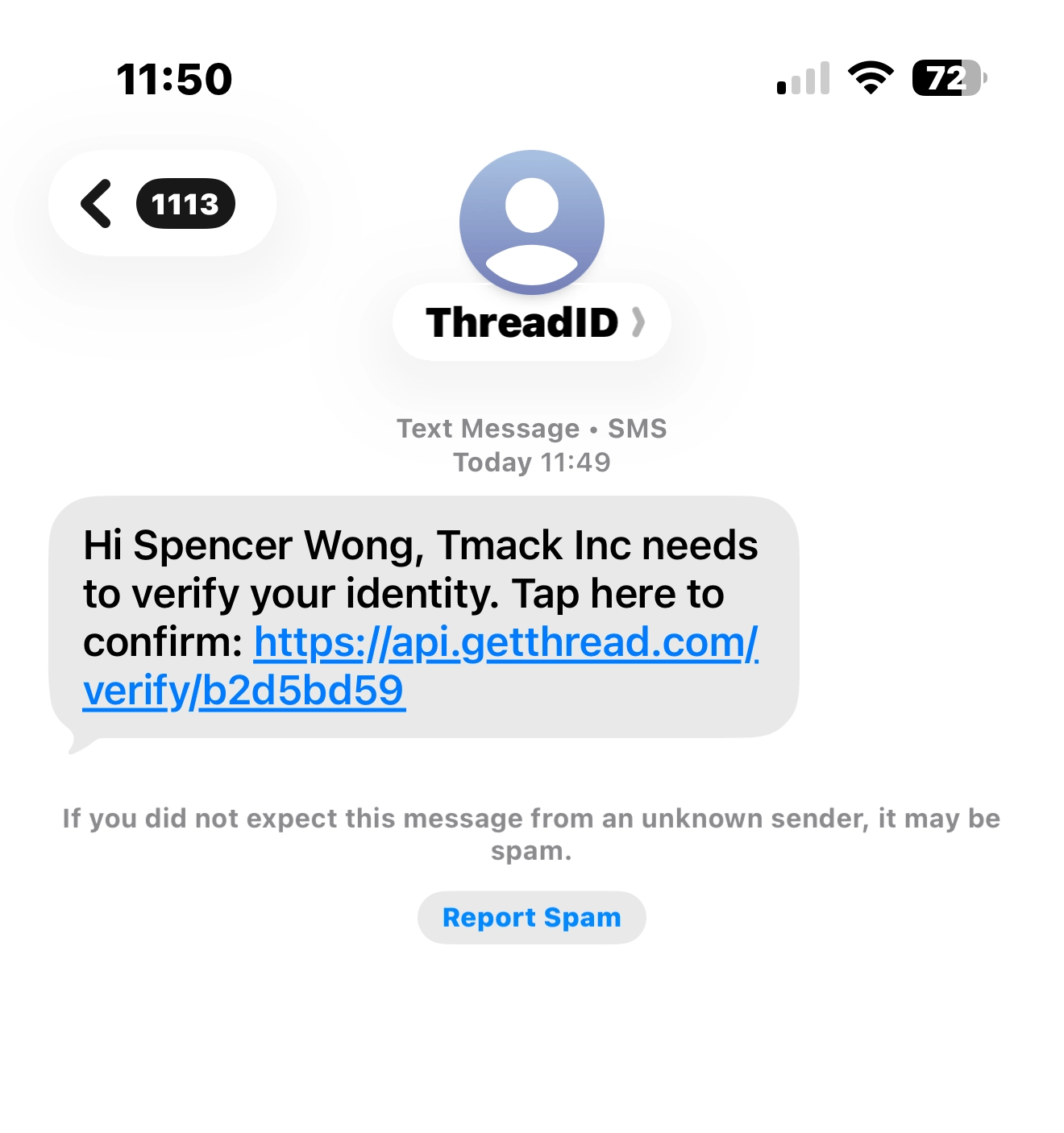
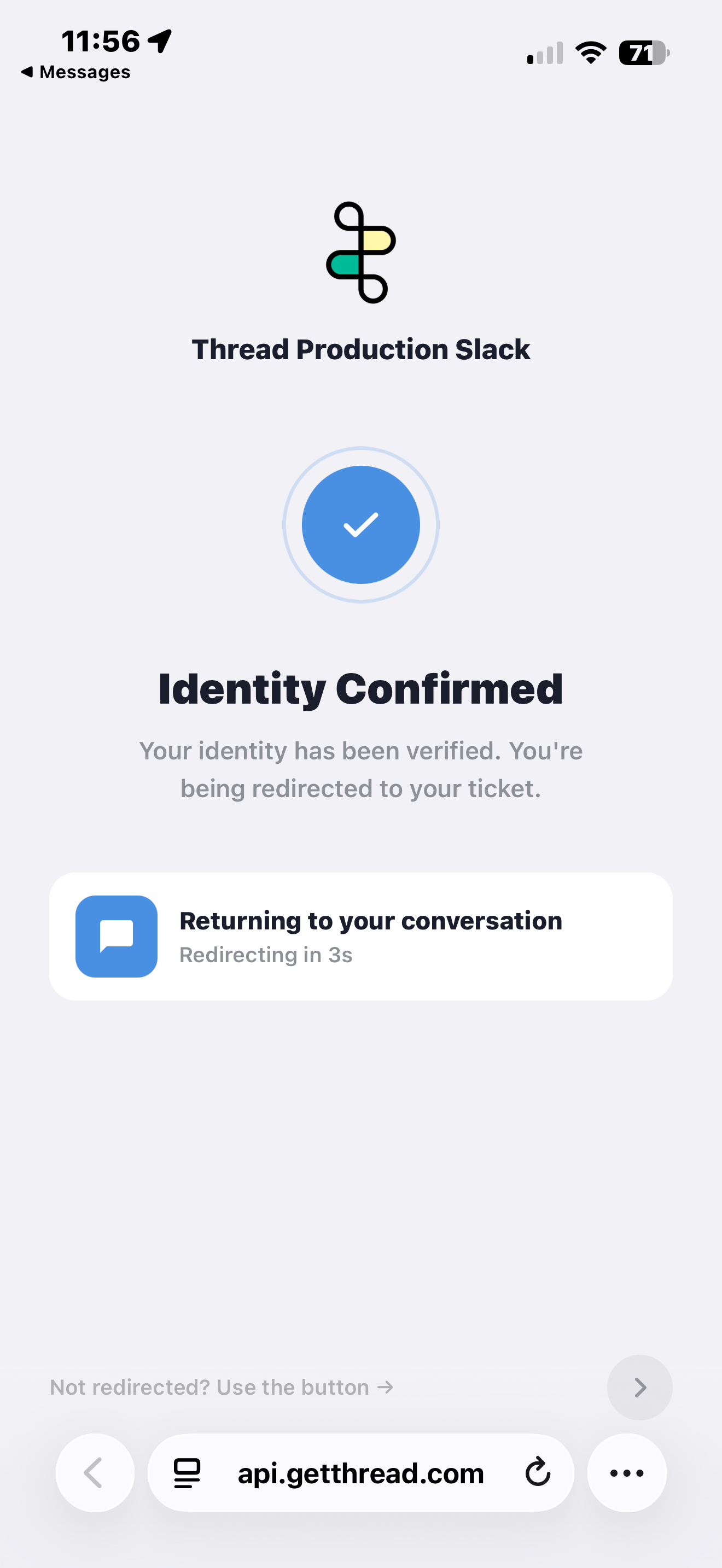
End users receive the SMS from Thread’s 10DLC number in the US and Canada. Most international contacts receive it from our ThreadID alphanumeric sender ID.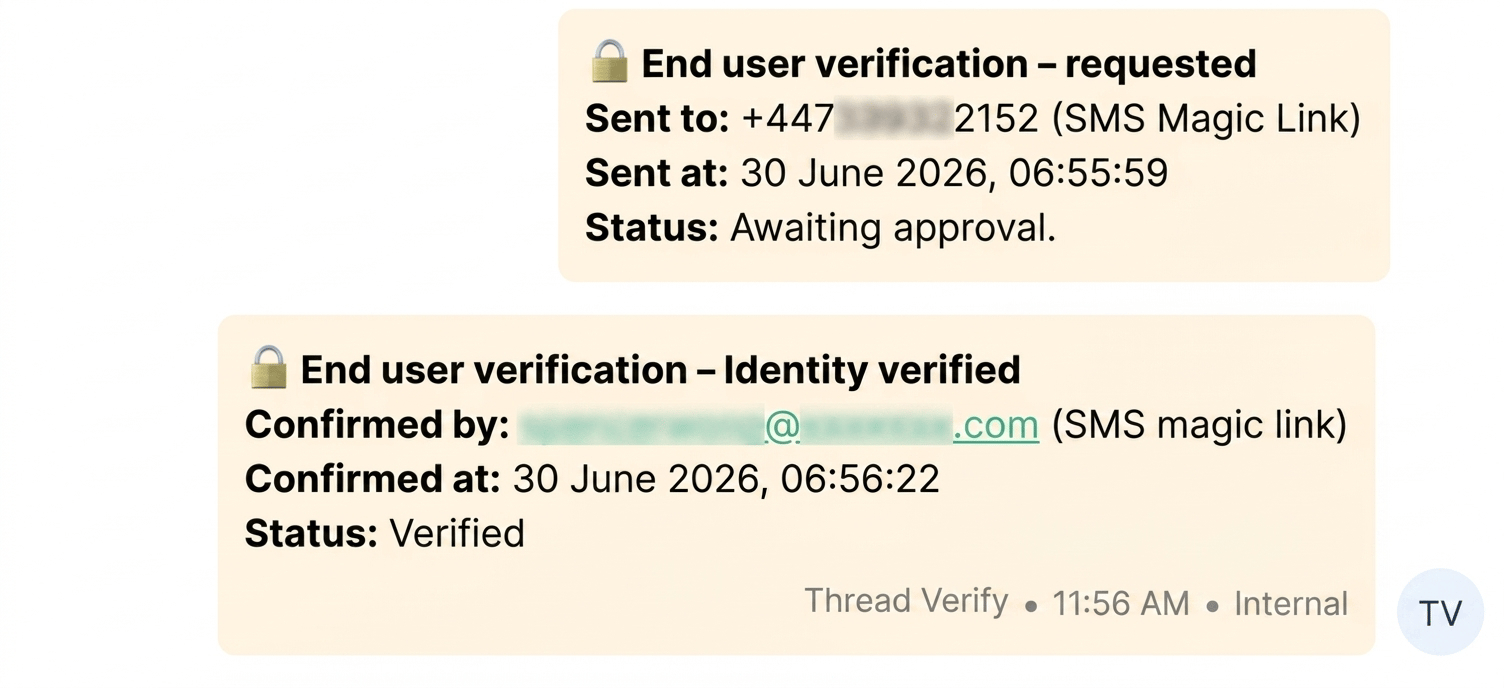
Microsoft Authenticator: the two-digit challenge
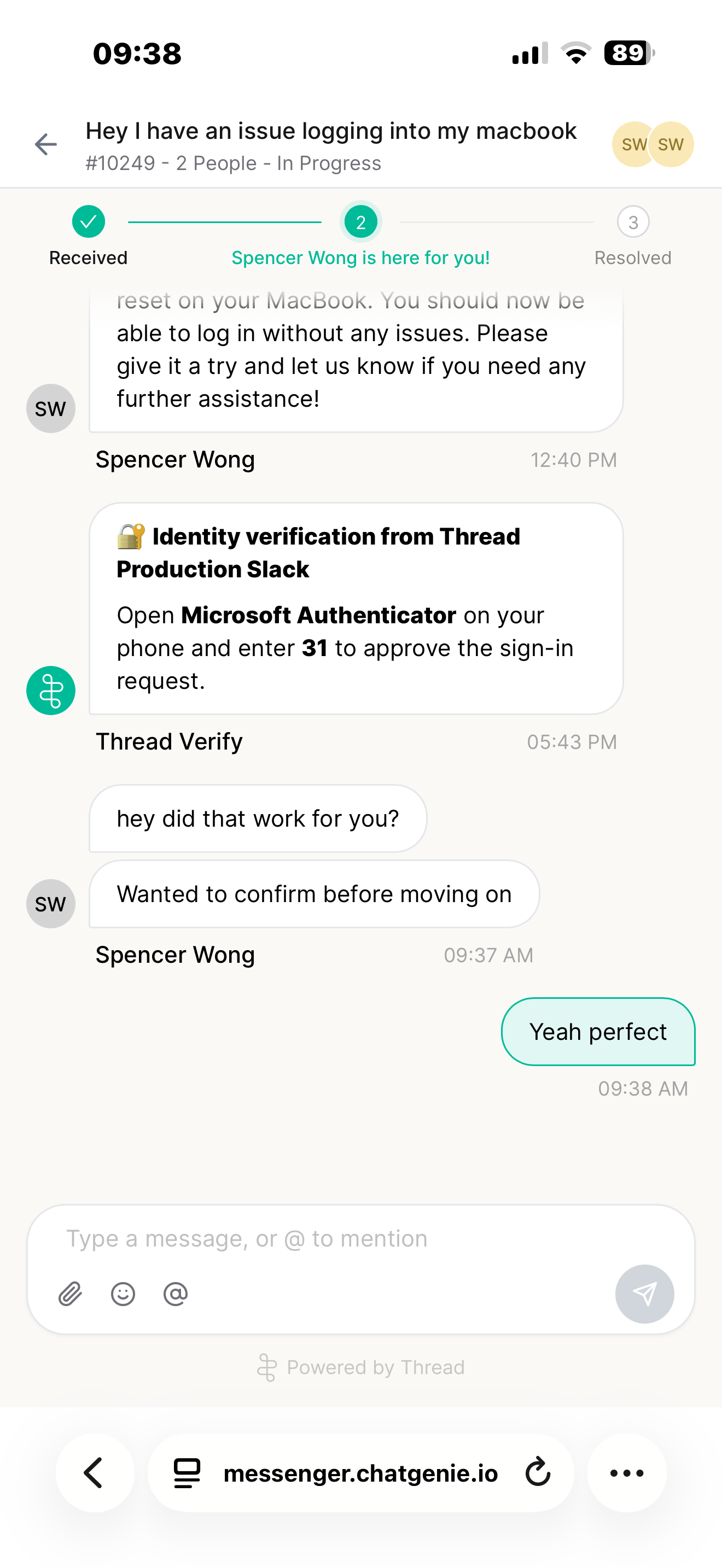
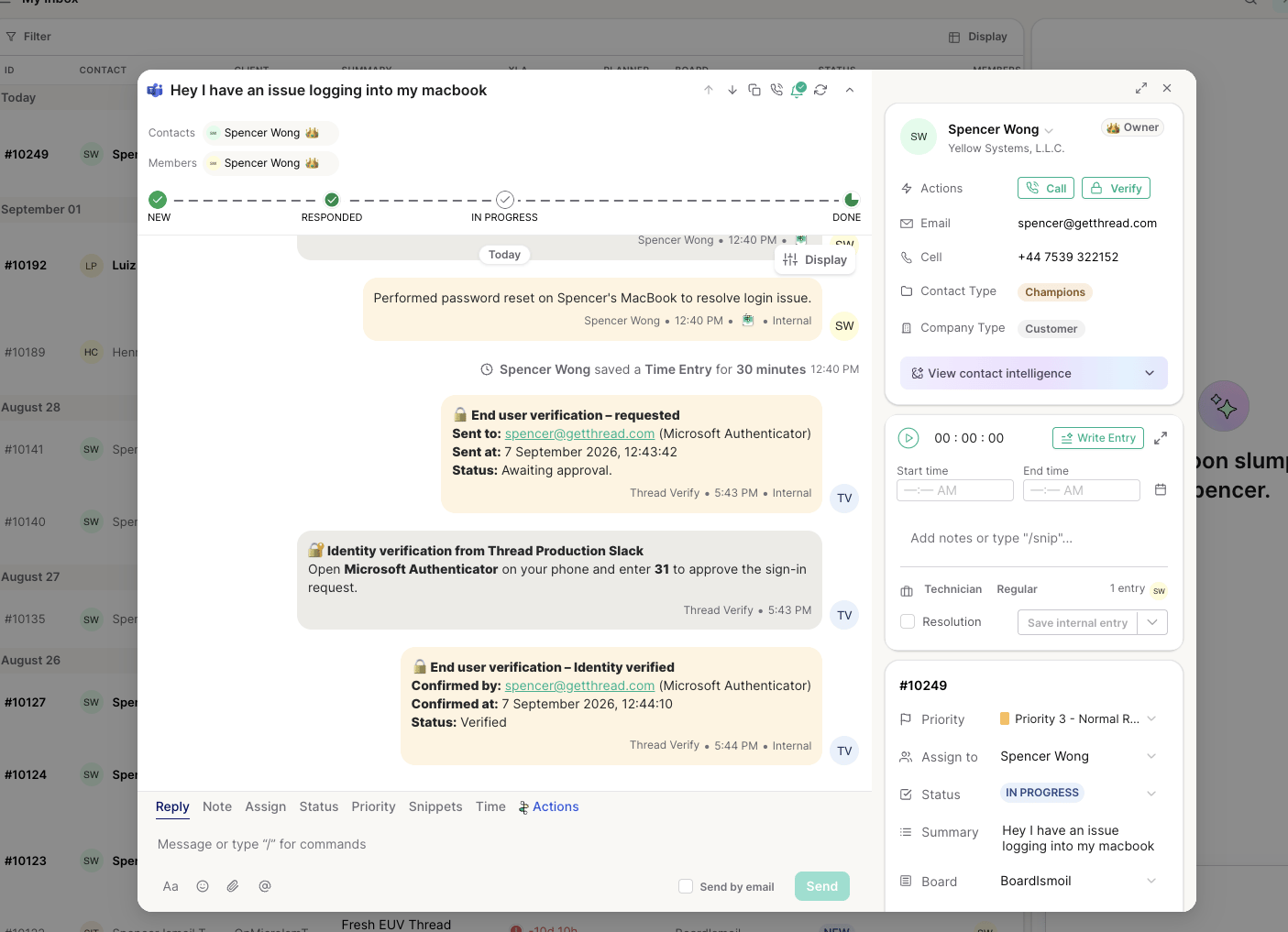
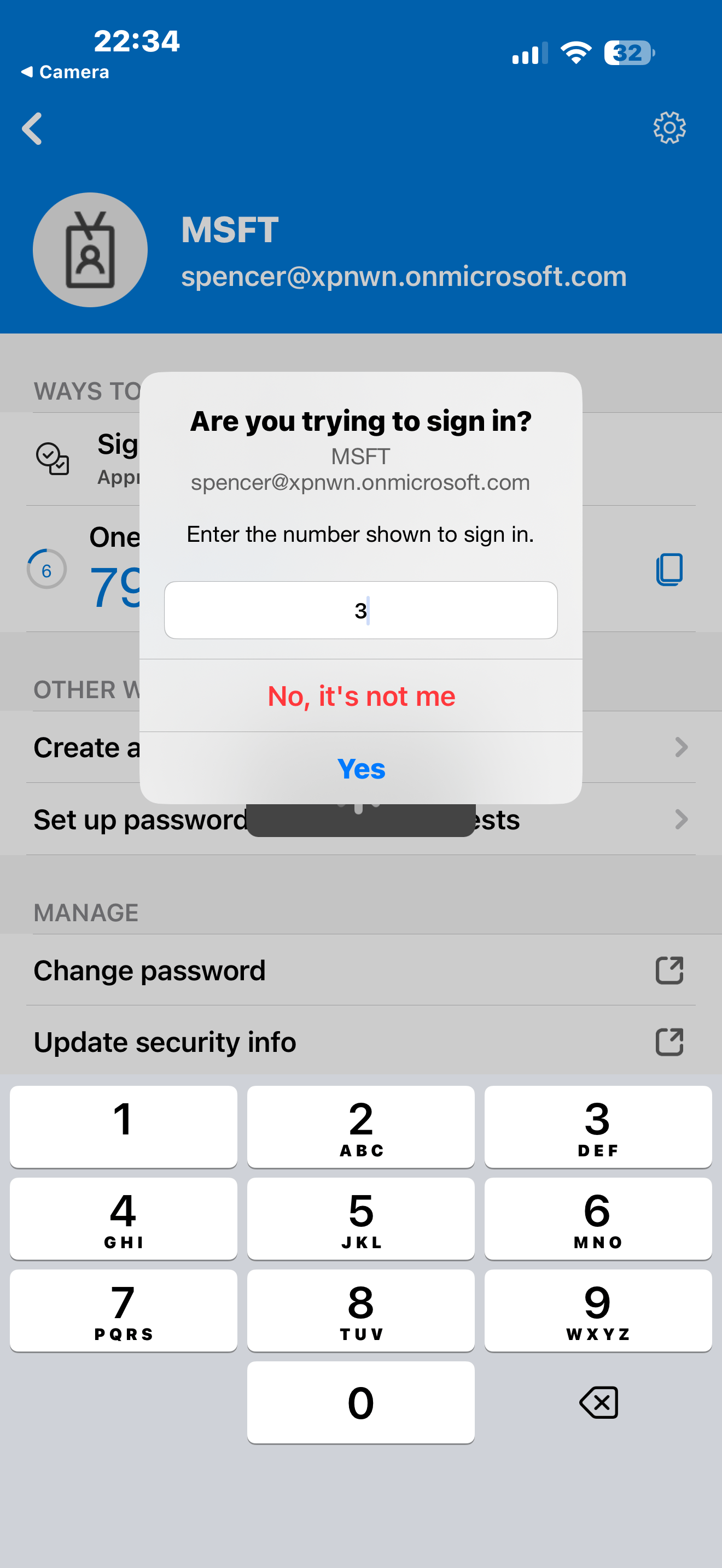
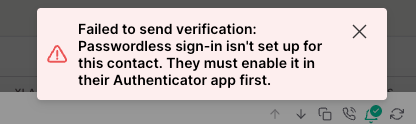
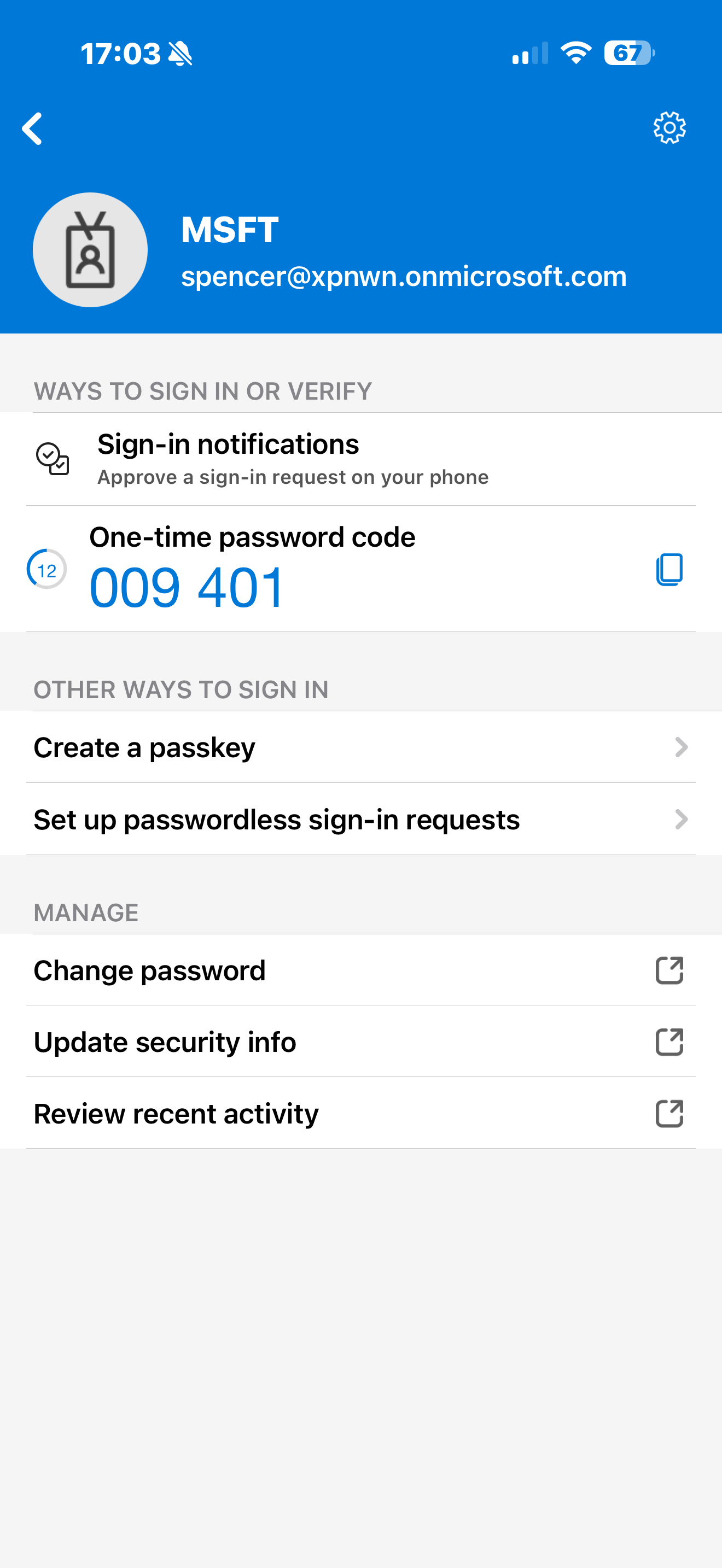
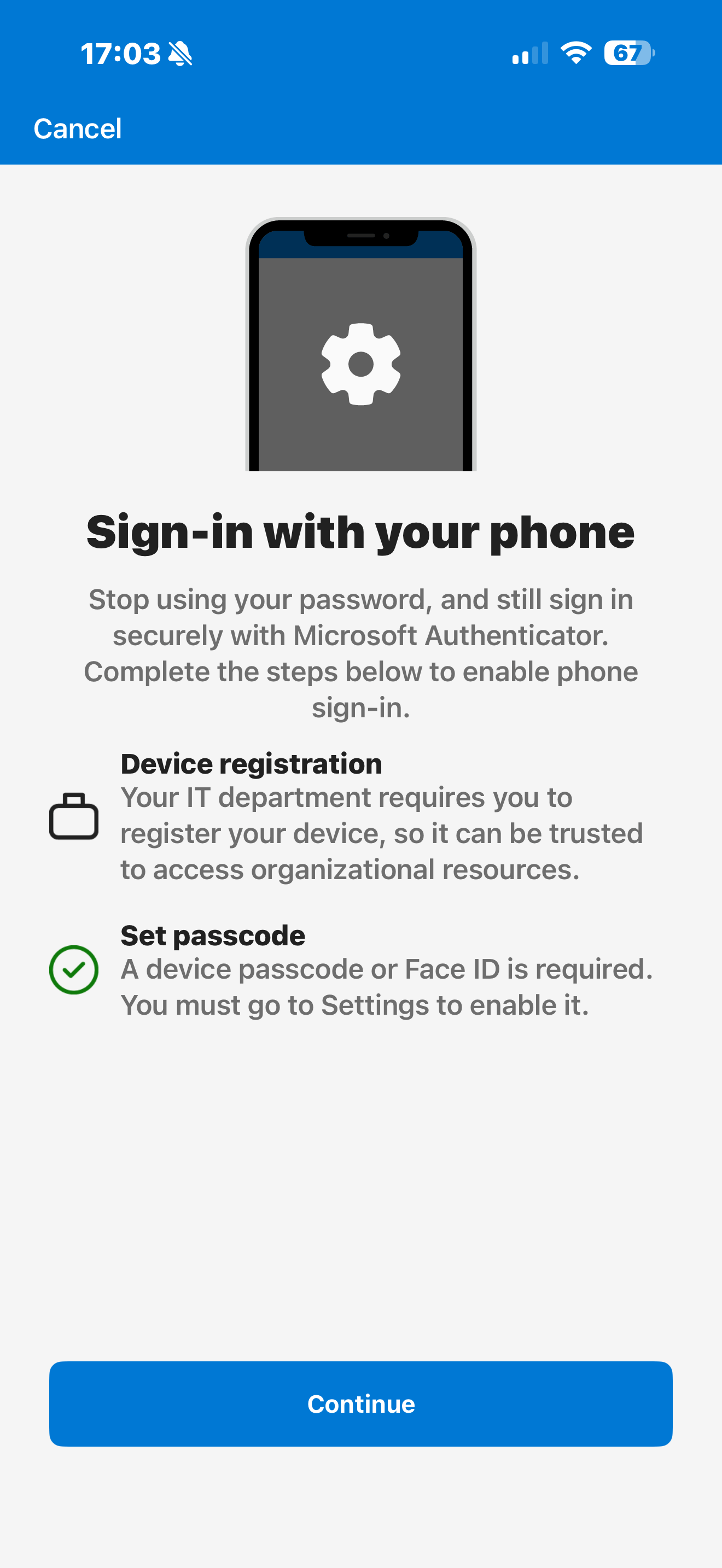
When Authenticator is used, Thread requests the challenge from Microsoft and posts the two-digit code into the thread as soon as Microsoft returns it. The code posts as an external note, so it travels out on whichever channel the thread is on (Messenger, Microsoft Teams, email), and the end user sees the number the same way they see any other reply. The technician can also read the code out to the contact, who enters it in Microsoft Authenticator on their phone to approve the sign-in request. Every other lifecycle event (requested, approved, denied, undelivered, timed out) posts as an internal note. The verification note is updated to Verified once Microsoft confirms the approval. A push challenge lives for a much shorter window than a magic link (about five minutes by default) because Authenticator pushes themselves are short-lived.Contacts must have passwordless sign-in enabled in Microsoft Authenticator before Thread can send them a two-digit push. This is set up by the contact in their own Authenticator app and can’t be enabled on their behalf, so it needs to be in place in advance. Where it isn’t, Microsoft Authenticator is unavailable for that contact, and when attempting to send the two-digit challenge, Thread shows a message saying they haven’t set up passwordless sign-in yet.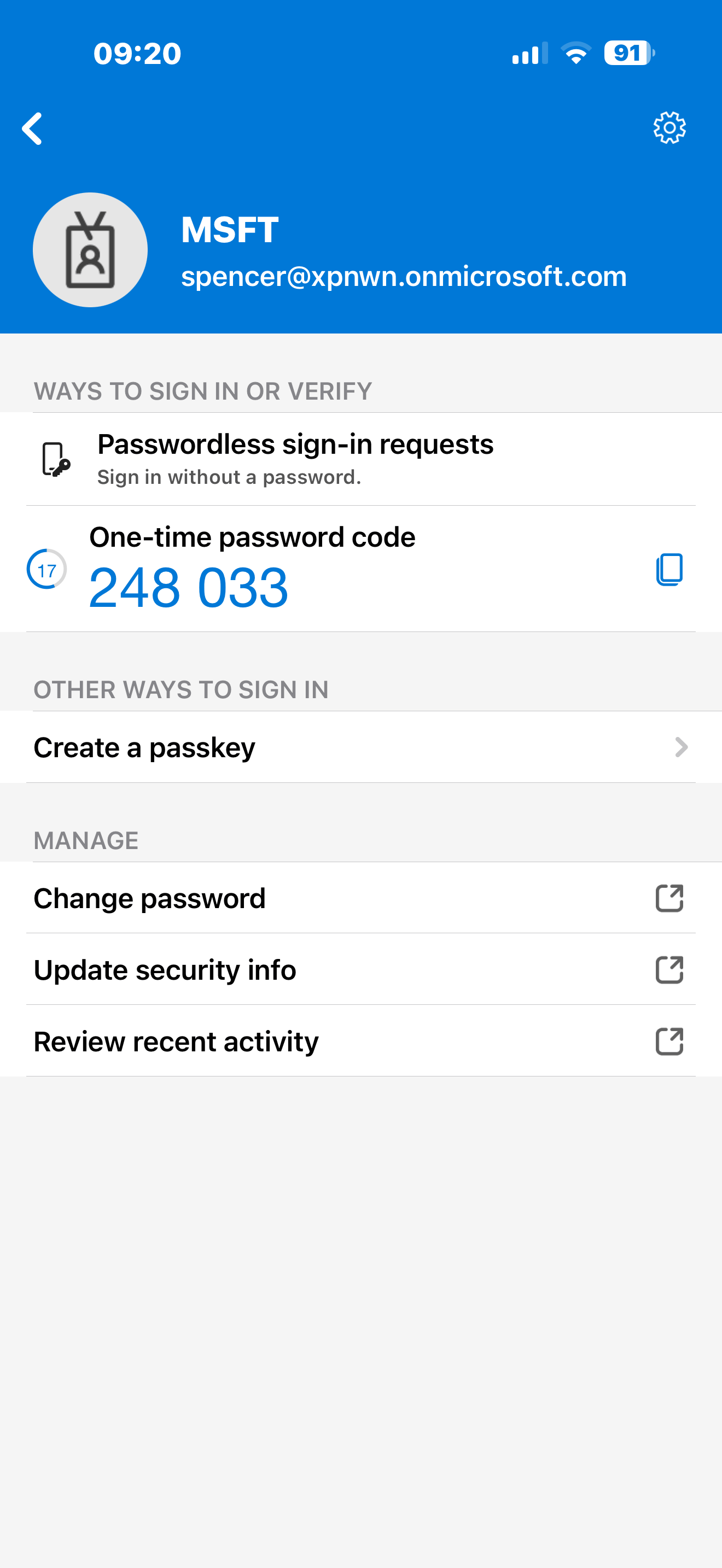
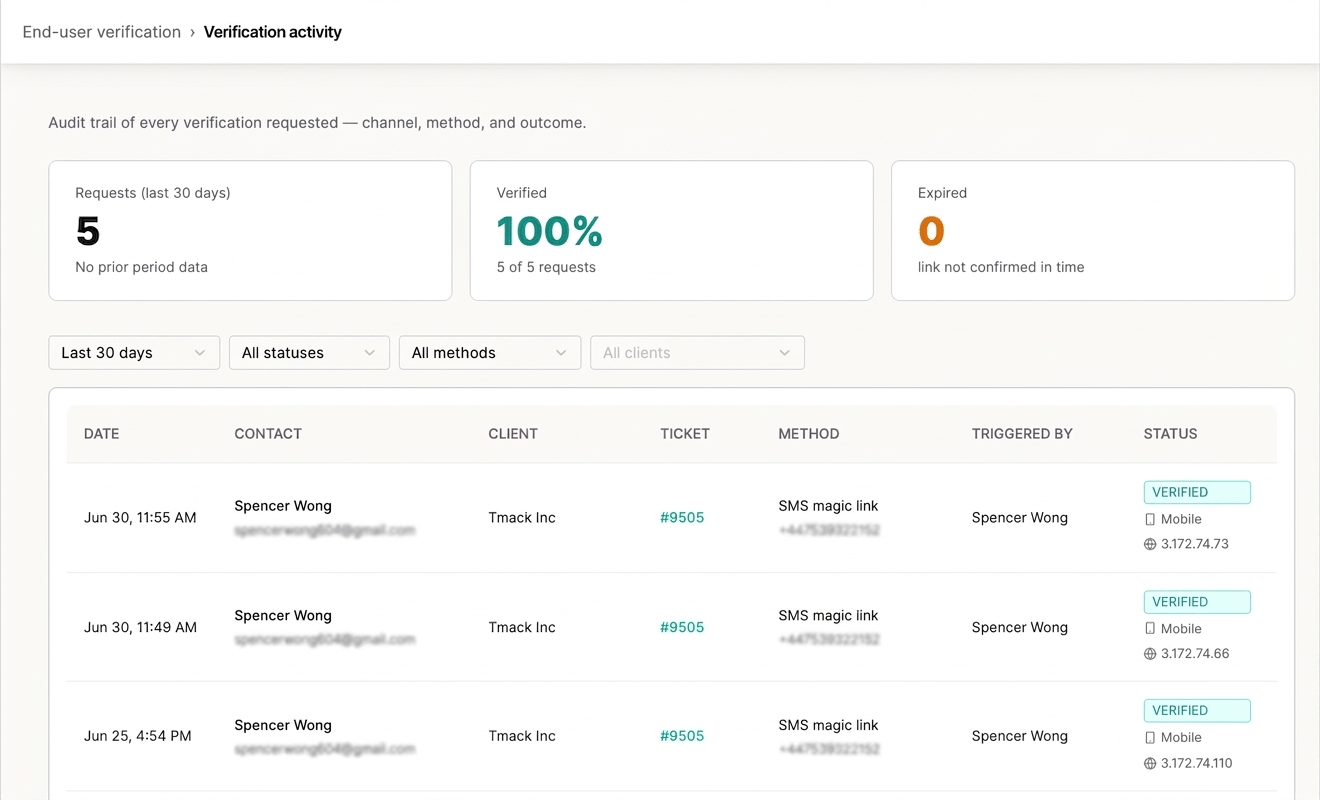
Verification activity
Every challenge is logged in an activity table you can review per ticket, per contact, or across your whole workspace from End User Verification → Activity. Each row captures the date, contact, client, ticket, method, who triggered it, and the outcome, including:- Device and IP of the person completing the challenge
- Contact email associated with the challenge
- Delivery status: including the specific failure reason when an SMS challenge doesn’t go through, or the specific reason Microsoft returned for a denied or undelivered push
- Verification stats summarizing outcomes across challenges