

 Magic Library
How Voice AI Handles Contact Mapping
When a customer calls, Voice AI identifies who’s calling and ensures the ticket is logged under the correct contact and company in your PSA (Professional Services Automation) system. This article explains how the process works and how to troubleshoot contact mapping issues.How Contact Mapping Works
Voice AI uses a two-layer process to identify callers: it first checks the phone number, and if that’s not enough, it can use AI-powered name and company matching. Contact mapping is now controlled per agent. Attendant and Overflow each have their own independent contact mapping settings — Overflow no longer inherits from Attendant. See Per-Agent Contact Mapping below for details.Layer 1: Phone Number Lookup
When a call comes in, Voice AI looks up the caller’s phone number in your PSA.- Single match found: The caller is identified immediately. No conversation is needed, and the ticket is assigned to that contact.
- No match found: The phone number isn’t registered in your PSA. If AI caller identification is enabled, Voice AI moves to Layer 2 to identify the caller by name and company. Otherwise, the ticket is created under a default contact.
- Multiple contacts share the same number: Voice AI cannot determine which contact is calling from the phone number alone. If AI caller identification is enabled, it moves to Layer 2 and asks the caller for their name and company to find the right match. Otherwise, the ticket is created under a default contact.
- Match found but contact is inactive: The phone number belongs to a contact that has been deactivated in your PSA. Contact mapping fails. To fix this, reactivate the contact in your PSA and re-sync in Integrations.
- PSA data not yet synced: The contact and phone number may exist in your PSA, but Voice AI hasn’t ingested them yet. This commonly happens if your PSA wasn’t synced in Integrations before onboarding to Voice. To fix this, perform a re-sync in Settings → Integrations.
Layer 2: AI Identification (Name and Company Matching)
Requires: “Ask for caller’s name and company” must be enabled under Customize Agent behavior → AI caller identification in your agent settings. This setting is configured independently for Attendant and Overflow. Attendant requires Advanced AI mode; Overflow can have AI caller identification enabled even if Attendant is in Minimal Mode. If a call flows from Attendant → Overflow, contact mapping is not asked twice: the handoff is seamless.If the phone number doesn’t find a verified match, Voice AI asks the caller for their name and company, then searches your PSA using accuracy scoring.
- Voice AI asks the caller for their name and company name.
- It searches the PSA for client companies that closely match the provided company name.
- It then searches within that company for contacts that match the caller’s name.
- If a strong match is found for both the contact name and company name, Voice AI asks the caller to confirm:
- Confirmed: the contact is assigned to the call.
- Denied: a default contact is assigned.
- No contacts with a similar name exist in that company
- Multiple contacts have similar names, making it ambiguous
- The caller’s name or company was misheard by speech recognition
- The company has a very large number of contacts
Voice AI searches for contacts within a matched company only — it does not search across all contacts in your PSA.
When the Calling Number Isn’t the Caller’s Number
Phone number lookup (Layer 1) only works when the call arrives carrying the caller’s own number. Two common situations break that assumption:- Calls transferred or forwarded from another phone system. When a call is warm/cold-transferred or forwarded in from an external PBX (for example 8x8, 3CX, or a voicemail-forward), it often arrives with the phone system’s number, not the original caller’s. Layer 1 looks that number up, finds nothing (or the wrong record), and can’t identify the caller automatically. Enabling AI caller identification makes the agent ask for the caller’s name and company (Layer 2) so the call still maps correctly, but it does not restore automatic phone-number matching. Where possible, preserve the original caller ID through your phone system so the caller’s real number reaches Voice AI.
- A shared site or main number stored on one contact. If a shared/site main number (a front-desk or PBX main line) is saved on a single contact record in your PSA, Layer 1 will map every caller from that number to that one contact. Remove shared numbers from individual contact records so Voice AI treats the number as unresolved and asks for the caller’s name and company instead.
The SIP-to-SIP (SIP trunk) beta improves caller ID on the outbound leg to your technician — it does not restore the original caller’s number on the inbound leg, so it is not a fix for contact-mapping failures on transferred calls.
Default Contact Fallback
When Voice AI can’t resolve a caller (an unknown number, a declined confirmation, or no confident name/company match) it falls back to a default contact so the call still produces a ticket. If a caller’s company is identified but the specific contact isn’t, Voice AI uses that company’s default contact before falling back to the global default. Set sensible defaults in your agent settings so unresolved calls are still attributed to the right company wherever possible.Per-Agent Contact Mapping (Attendant vs. Overflow)
Attendant and Overflow now each control contact mapping independently, rather than Overflow inheriting from Attendant.Why this matters
Previously, contact mapping in Overflow was tied to Attendant’s settings. This created a real gap for MSPs running Attendant in Minimal Mode. If a call timed out (no tech available) and routed to Overflow, there was no opportunity to collect caller information. Tickets created through this flow arrived without advanced contact mapping, leaving technicians to manually investigate who called if the number was unknown. Some partners worked around this by adding a custom question, but that only left a note in the ticket — it didn’t actually map the ticket to the correct contact.What’s new
- Attendant and Overflow each control contact mapping independently.
- Partners using Attendant in Minimal Mode can now enable AI caller identification in Overflow, so missed calls that route there still capture caller identity from unknown numbers.
- If a call flows from Attendant → Overflow, contact mapping is not asked twice: the handoff is seamless.
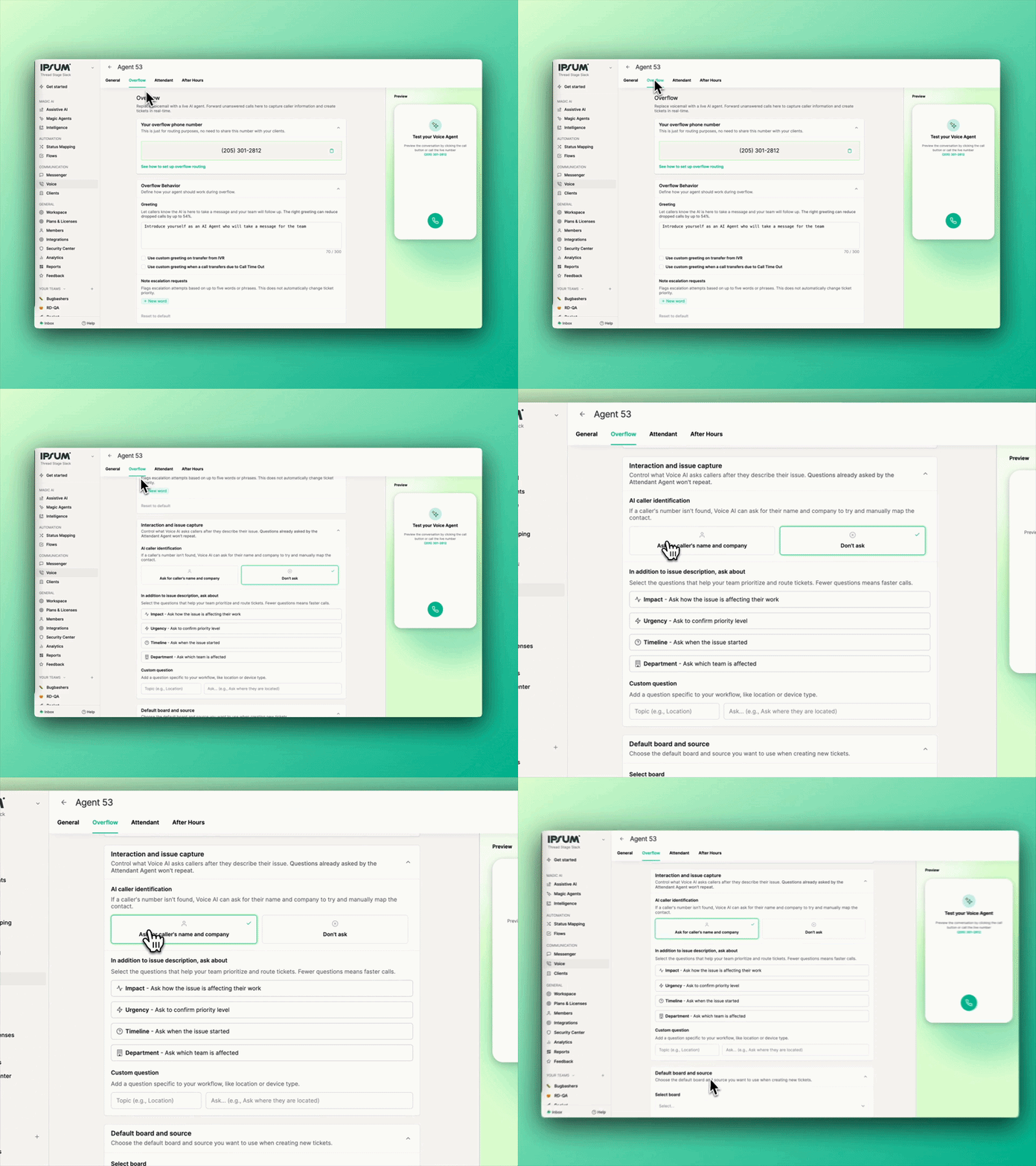
What happens to your current settings
No action is required. Settings have been migrated automatically based on your current configuration:
If you want to take advantage of the new per-agent controls, head into your Overflow settings to update anytime. Otherwise, everything works exactly as it did before.
Ticket Notifications for Unverified Callers
When Voice AI identifies a caller through AI (Layer 2) rather than by phone number, the ticket is flagged to let your team know the caller was not phone-verified:- “Warning: User Not Authenticated”: appears on the ticket to indicate the caller’s identity was not confirmed via phone number lookup.
Failed Contact Mapping Notification
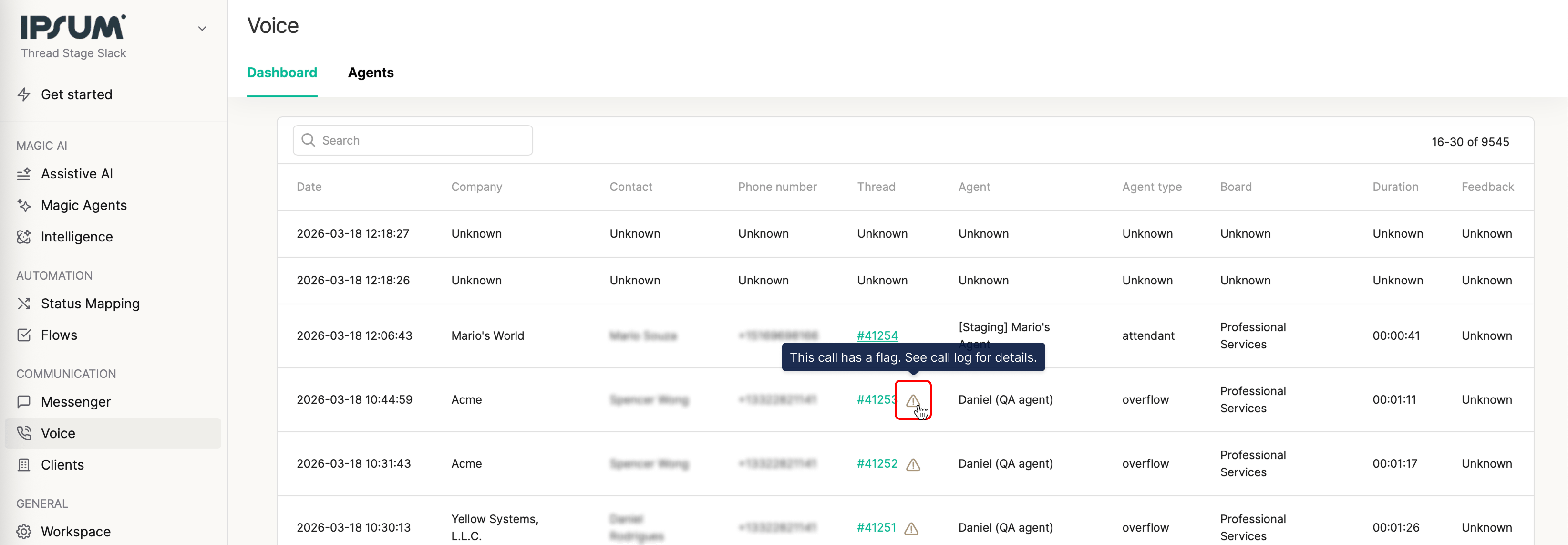
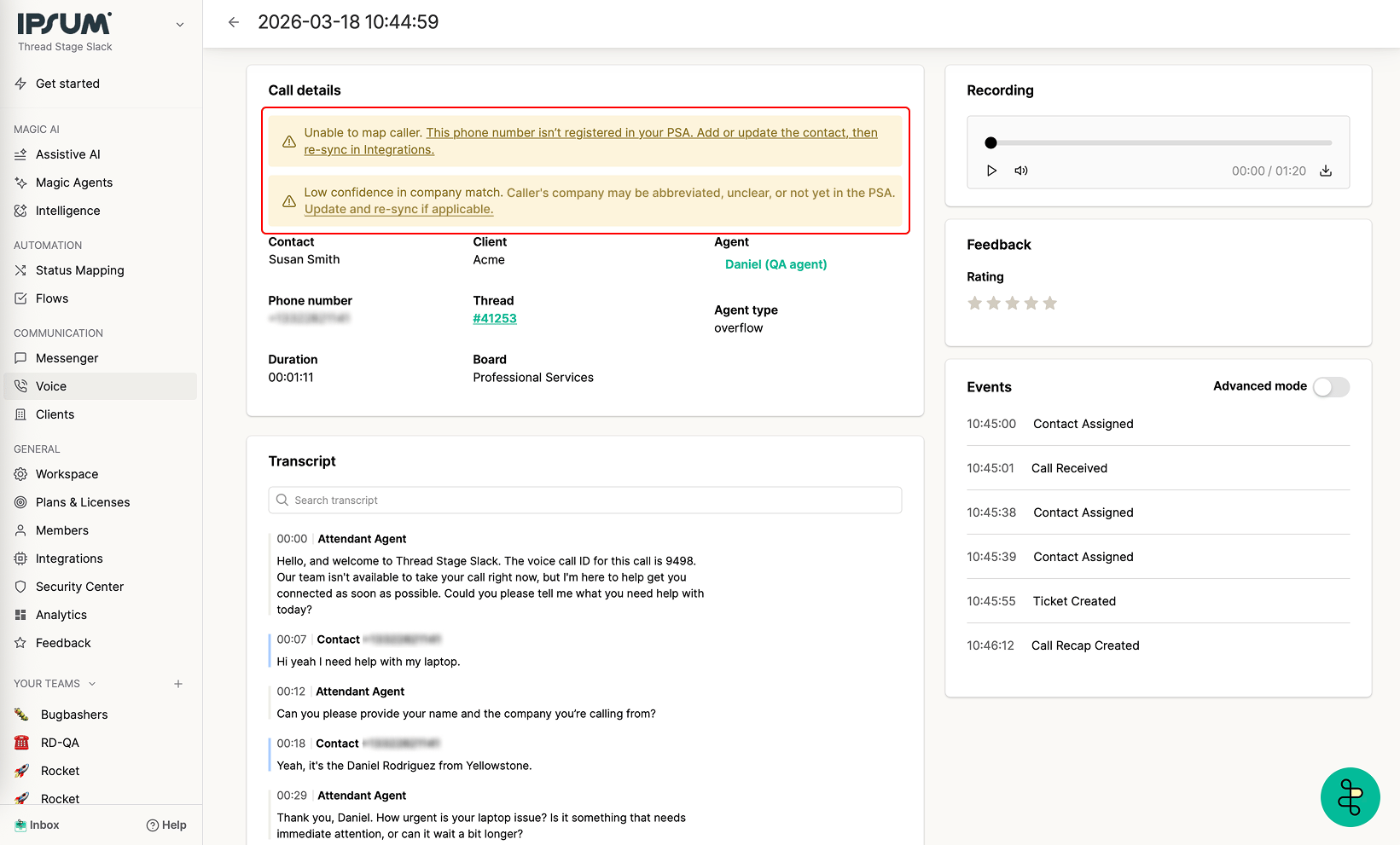
On the Voice dashboard, flagged calls show a warning icon with a tooltip so you can spot issues at a glance. Inside the call detail view, yellow notification banners explain exactly what happened:- “This phone number isn’t registered in your PSA”
- “Low confidence in company match” (caller’s company may be abbreviated or hard to match)
- Contact is inactive in PSA
- PSA data not synced or request timed out
Known Limitations
Voice AI’s contact matching has some known limitations to be aware of:- Nicknames: Voice AI may not match common nicknames to formal names. For example, “Mike” may not match “Michael,” and “Rob” may not match “Robert.” If your contacts commonly go by nicknames, consider adding the nickname as an alternate name in your PSA.
- Company name variations: Differences in company name suffixes (e.g., “Inc” vs. “Corporation” vs. “LLC”) or abbreviations can reduce matching accuracy.
- Large companies: Matching accuracy decreases as the number of contacts in a company grows. Companies with 50+ contacts may see noticeably lower match rates due to increased ambiguity.
- Partial names: Providing only a first name or only a last name reduces the chance of a successful match.
- Speech-to-text errors: Voice AI relies on speech recognition, which can mishear names — especially uncommon or non-English names. If a caller’s name is consistently misheard, updating the PSA contact name to include a phonetic variation can help.
Troubleshooting Contact Mapping Issues
If Voice AI fails to correctly identify a contact, check the following:FAQ
What happens if there's a spelling error in the caller's name or company?
What happens if there's a spelling error in the caller's name or company?
Voice AI uses fuzzy matching and can handle minor spelling differences. However, significant misspellings or very different name forms (like nicknames) may cause a match failure.
What if multiple contacts are found with similar names?
What if multiple contacts are found with similar names?
Voice AI selects the best match based on the highest combined accuracy score for both name and company. If the score doesn’t meet the confidence threshold, no match is made.
What if the contact Voice AI found isn't correct?
What if the contact Voice AI found isn't correct?
Voice AI always asks the caller to confirm before assigning a contact. If the caller says it’s incorrect, a default contact is assigned.
How many times will Voice AI try to find a match?
How many times will Voice AI try to find a match?
Once. Voice AI searches based on the name and company the caller provides. If it doesn’t find a match, a default contact is assigned and the call continues.
Can the caller change the contact after it's been confirmed?
Can the caller change the contact after it's been confirmed?
No. Once a contact has been confirmed, Voice AI does not allow reassignment during the call.
Does Voice AI search all contacts within the MSP?
Does Voice AI search all contacts within the MSP?
No. Voice AI first identifies the client company, then searches for a matching contact within that company only.
What happens if the caller's phone number matches an inactive contact?
What happens if the caller's phone number matches an inactive contact?
The match is not used. Voice AI treats inactive contacts as if they don’t exist. Reactivate the contact in your PSA and re-sync to fix this.
Are Attendant and Overflow contact mapping settings linked?
Are Attendant and Overflow contact mapping settings linked?
No — they’re now configured independently. You can enable AI caller identification in Overflow even if Attendant is in Minimal Mode. If a call hands off from Attendant to Overflow, the caller is not asked for their information twice.
Can unverified callers update existing tickets?
Can unverified callers update existing tickets?
No. Callers who are matched only by name and company (not verified by phone number) can only create new tickets. To update an existing ticket, the caller must be verified through Phone Number Lookup (Layer 1). To enable this, make sure the caller’s phone number is registered in your PSA and synced in Integrations.