

 Magic Library
All configurations are applied at the board, queue, or team level, depending on your ticketing system.
1. Define status groups (recommended first step)
Status Mappings can be configured by going to Thread Admin Panel -> Click on Status Automation On The Right Side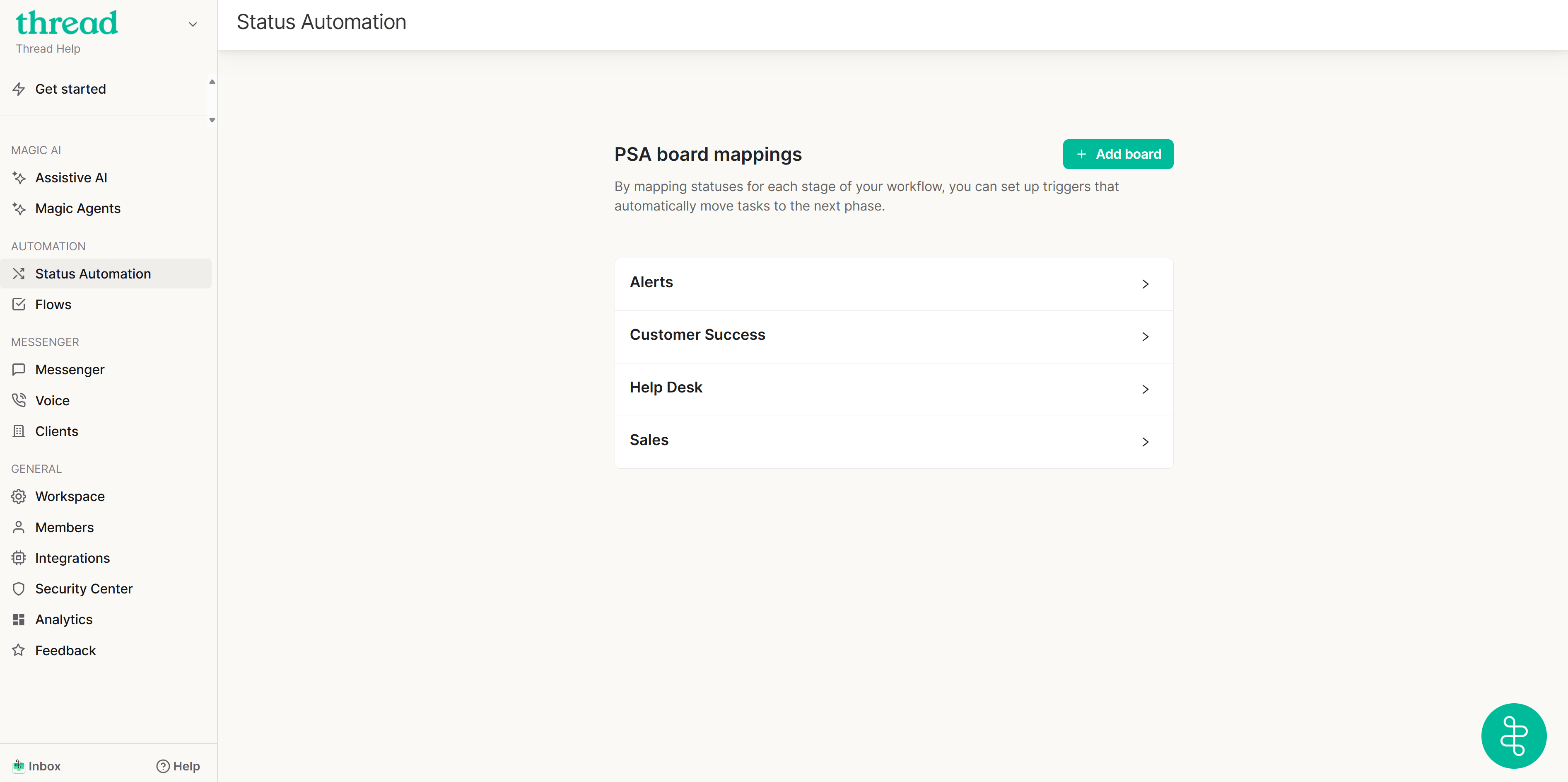
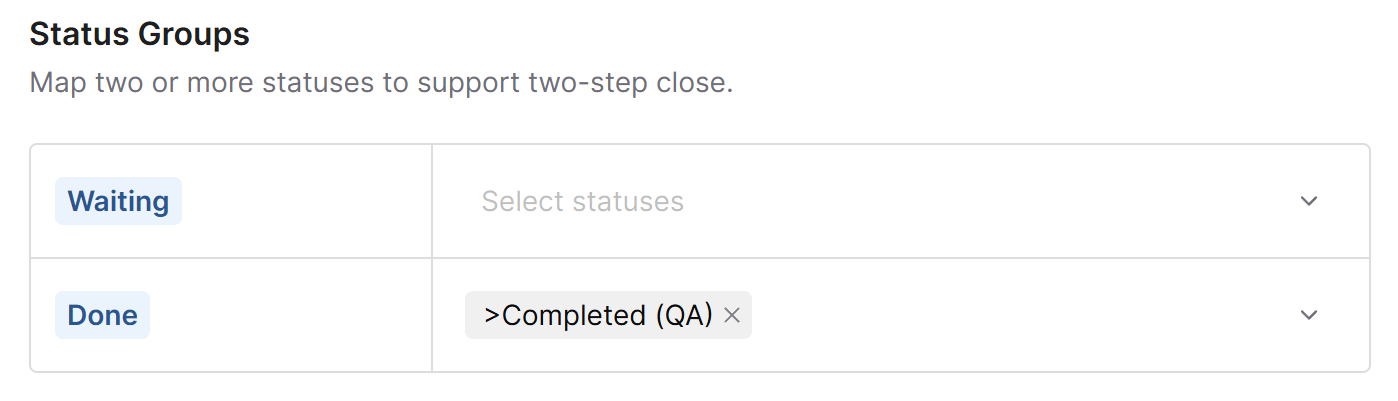
How Thread interprets Done states
A ticket is DONE if the status is either:- Marked as a closed status in your PSA
- Added to the Board status mappings field
Done (Recommended)
The “Done” group should include all statuses that you want to consider a Done State in Thread but aren’t considered a Closed State in your PSA such as:Completed (QA)- Marked for review
Waiting (Optional)
The “Waiting” group includes statuses that indicate active work on a ticket. Common examples are:Waiting on Customer
When you click Save, what happens?
Whenever you save a board whose Done group has one or more statuses mapped to it, Thread first checks how many active threads on that board are currently sitting in those statuses. If any are found, a confirmation modal appears before anything is saved.The confirmation modal
The modal is titled with the total, for example “12 active threads are using the statuses you mapped to Done”, and lists a per-status breakdown so you can see where those threads live (for example,Closed - Needs QA — 8 active threads).
You have three choices:
- Cancel. Nothing is saved. Your mapping changes stay on the page so you can adjust them.
- Keep them open. The mapping is saved, but the matching threads stay active in the Inbox for a technician to finish. Thread shows “Mapping saved. X active threads left open.”
- Close X threads. The mapping is saved and Thread starts a background job that closes each matching thread.
While threads are being closed
Closing runs as a background job, not as part of the save request. While it runs:- A progress strip appears at the top of the Status Automation page: “Closing X threads…”.
- The rest of the page is locked (both mouse and keyboard) until the job finishes, so you can’t kick off a second save on top of a running one.
- If you reload the page or navigate back, Thread reattaches to the running job and the strip reappears. Another admin’s in-flight job on the same workspace is picked up the same way, with copy that makes clear the job wasn’t started by you.
- “X threads closed and mapping saved.” The job you started completed successfully.
- “X threads closed.” A job that was already running (started by another admin or by an earlier session) completed while you had the page open.
- “Closing threads failed. Please try again or contact support.” The job failed. If you started it from this page, a Try Again action is included in the toast.
- “Mapping saved, but another backfill was already running, so your Done threads were not closed.” You clicked Close threads, but a different backfill was already running on the workspace, so yours didn’t run. Includes a Try Again action.
- “Still closing threads in Done. Refresh the page to check whether it finished.” Thread stopped tracking the job (for example, after a long stall). The job may still be running server-side; reload to reattach.
The Done cleanup flow only runs on save when statuses are mapped to the Done group. Changes to the Waiting group don’t trigger it, and deleting a Status Group doesn’t trigger it either.
2. (Optional) Configure status change mappings
With Status Groups configured, you can optionally set up automatic transitions triggered by specific thread activity. These mappings reduce manual status updates and ensure consistency across workflows.Note statuses configured in Thread are visible to end-users in the Messenger chat application. Select clear and appropriate status names that reflect progress or resolution accurately from the customer’s perspective.
When a contact replies after the first agent reply
Automatically moves the thread to a mapped status to resume visibility and SLA response tracking, such as:Waiting for TechnicianUpdated
When a contact replies to a closed thread
Reopens the thread and sets it to a visible status, ensuring it re-enters active workflows, such as:ReopenedNew
When a TimePad Entry Has a Resolution Flag
Moves the thread to a resolved status when TimePad marks the issue as resolved, such as:ResolvedCompletedClosed
When a contact replies to threads in the “Waiting” group
Ensures the thread stays in a visible, active state when customer engagement resumes, such as:In ProgressWith CustomerWaiting on Customer
When an approval is requested
Transitions the thread to a pending status the moment an approval request is sent, so it’s easy to spot threads awaiting a decision, such as:Awaiting ApprovalPending Approval
When an approval is finished (approved, declined, or canceled)
Updates the status once the approval resolves (whether it was approved, declined, or canceled) aiding in visibility and closure, such as:ApprovedDeclinedCancelled
3. (Optional) Magic Agent automation mapping
If your team uses Magic Agents, you can also automate status updates based on agent activity:When Magic Agent begins working on a thread
Sets the thread to a triage or intake status, such as:TriageInitial Review
When Magic Agent completes automation work and exits a thread
Moves the thread to a ready-for-review or next-step status, such as:Ready for DispatchAwaiting Assignment
When a contact confirms resolution while the Magic Agent is engaged
Automatically marks the thread as closed, such as:ClosedConfirmed ResolvedCompleted
4. Saving changes
Be sure to click Save at the bottom of the board configuration page after making any updates. Changes are not applied until saved.5. Best practices
- Configure Status Groups before enabling any other automations.
- Review configuration per board or queue to reflect the specific structure of your ticketing system.
- Ensure that Magic Agent logic is clearly tied to appropriate status transitions to avoid workflow ambiguity.