

 Magic Library
Open global search
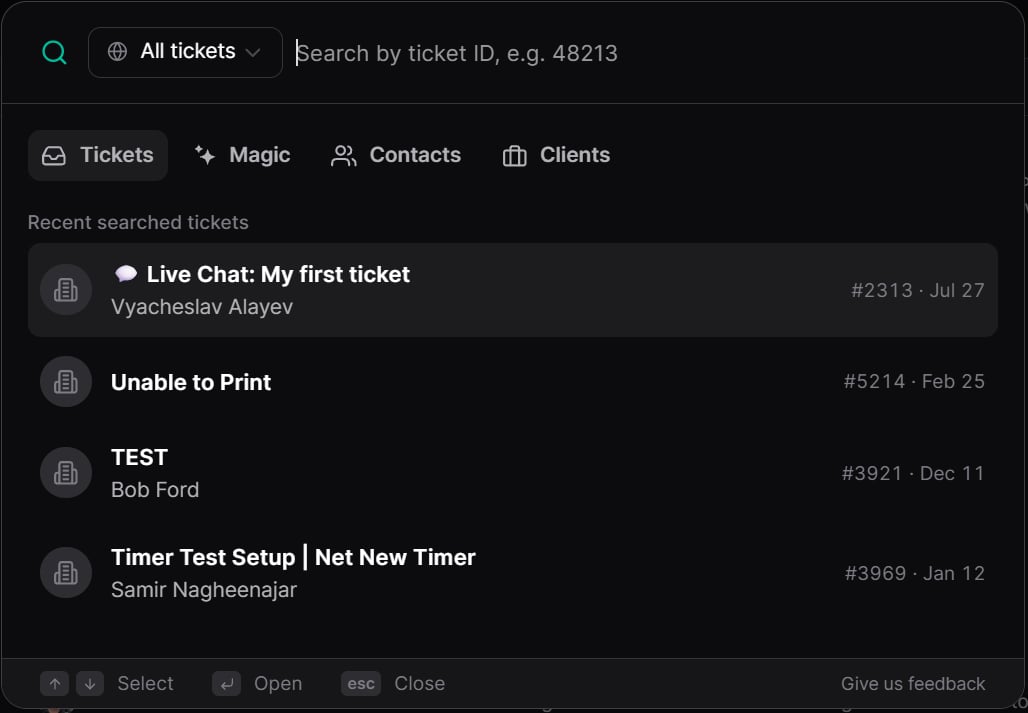
Click the Search box in the page header, or press Ctrl + K on Windows or ⌘ + K on Mac. A search window opens on top of the page you’re on, so you don’t lose your place. Press Esc to close it and return to where you were. The window opens on the tab that matches the page you’re on. If you open it from Inbox, it starts on Tickets. If you open it from the Magic or Clients pages, it starts on Magic or Clients. You can switch tabs at any time.What you can search
The window has one tab for each kind of item.Workspaces that have a Configurations page instead of a Clients page see a Configurations tab, which searches configurations by name.
Find a ticket by its number
1
Open global search
Click the Search box or press Ctrl/⌘ + K. Make sure the Tickets tab and the All tickets scope are selected.
2
Type or paste the ticket number
A leading
# is optional, so #48213 and 48213 find the same ticket.3
Open the ticket
The ticket opens automatically. If you’d rather choose from the results, use the arrow keys and press Enter.
Search inside a view or channel
When you open global search from a view or channel, the Tickets tab can also search inside that view. Use the scope menu next to the search box to switch between All tickets and the current view. Inside a view or channel, you can search by ticket title, contact name, or client.Find a Magic chat
On the Magic tab, type part of the chat’s name to find your earlier Super Magic chats and flow chats. Select a result to reopen the chat. This tab searches your own chats. It doesn’t search other people’s chats.Find a contact
On the Contacts tab, type the contact’s name. If your workspace has many contacts with the same first name, narrow the results to one client first so you land on the right person.Find a client
On the Clients tab, type the client’s name and select it to open that client.Recent searches
Before you type anything, the Tickets tab lists the tickets you searched for recently, with the ticket title, contact, ticket number, and date. Select one to reopen it. Recent searches are saved per workspace, so you see the tickets you looked up in the workspace you’re currently in.Use the keyboard
Global search works fully from the keyboard:If you can’t find what you’re looking for
- No results appear. Check the spelling, then check that you’re on the right tab. A client name won’t appear on the Tickets tab, and a ticket won’t appear on the Contacts tab.
- A ticket number isn’t found. Check the number for typos, and confirm the ticket belongs to your workspace.
- Results look limited when searching inside a view. Switch the scope from the current view to All tickets to search your whole workspace.
- The search box doesn’t appear. Contact your Thread admin or Customer Success Manager.
Give feedback
Select Give us feedback at the bottom of the search window to tell us what worked and what didn’t.Related pages
Inside a view
Display modes, ticket states, filters, and sorting.
Navigating a thread
Keyboard shortcuts and working inside a ticket.