

 Magic Library
How to Add Pods to Your Service Ticket View in ConnectWise
Each technician who wants to access the Pods must set them up in their service ticket view in ConnectWise.
1
Open a service ticket
Open a Service Ticket in ConnectWise PSA.
2
Open the gear menu
Click the gear icon () in the top-left corner.
3
Select Pod Configuration
Select Pod Configuration.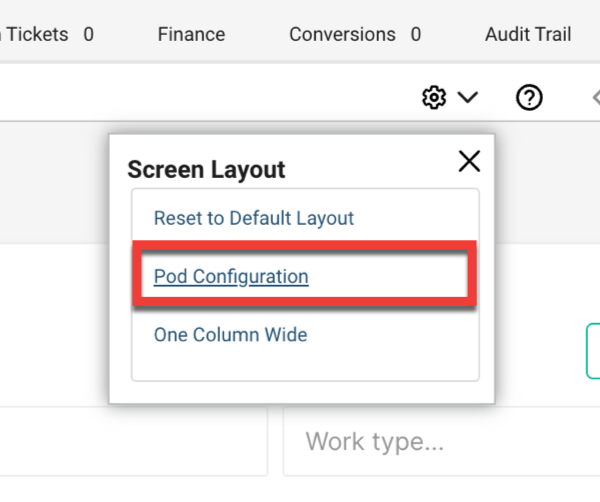
4
Select the Thread pods
From the available pods, select Thread Auto Time Entries and Thread Real-Time Notes.
5
Move pods to the Displayed column
Move these to the Displayed column.
6
Save
Click Save.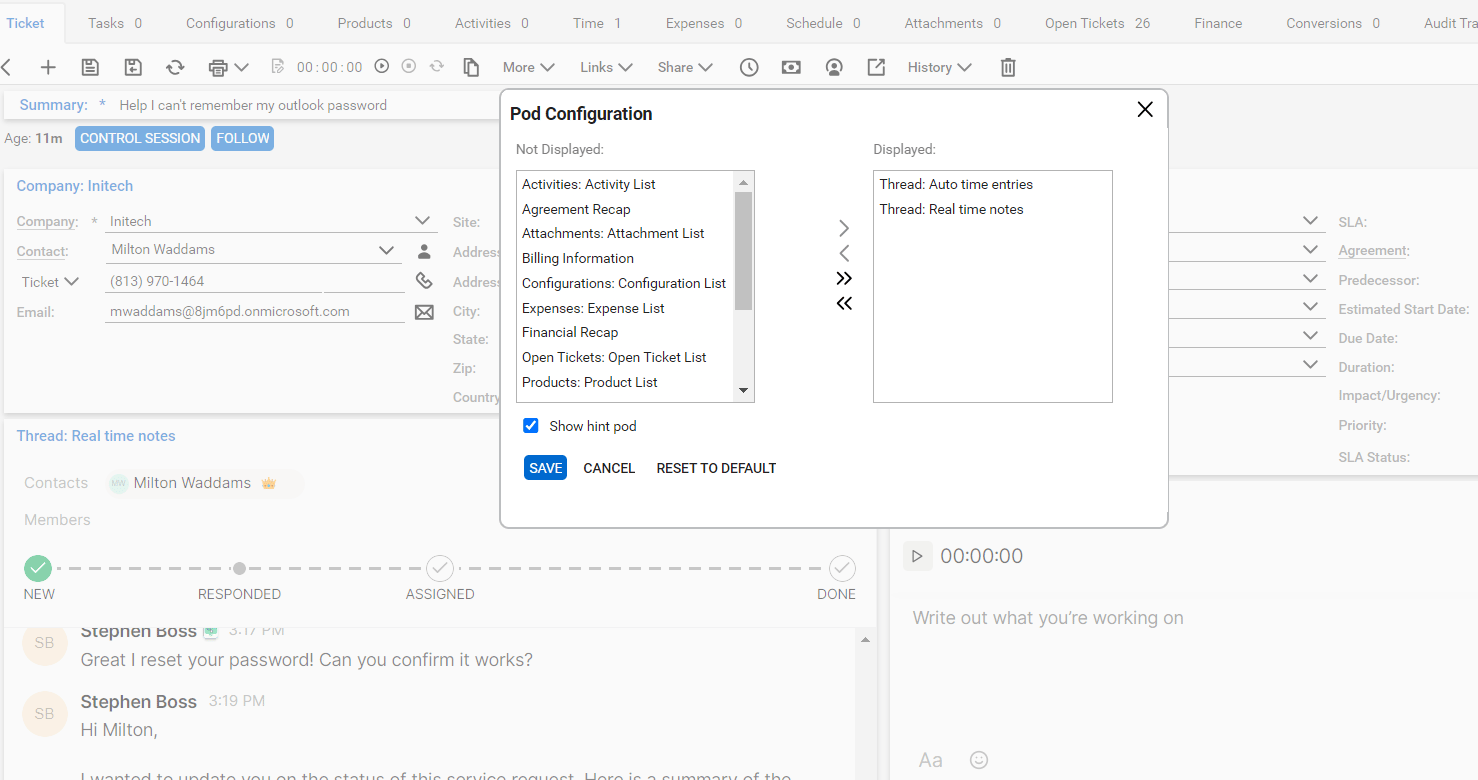
7
Position the pods
Customize the location of the pods by dragging and dropping them where you prefer within the service ticket view.
Limits imposed by PSA
- Max ticket summary length 100 chars
- Max note length Max number of member/contact participants
- PSA webhook processing is throttling without losing data
- PSA sync jobs can process slower when reaching rate limits
Troubleshooting
What if I don’t see the option to add the pods to my service ticket view? If the pods aren’t showing up in your service ticket view, follow these troubleshooting steps:1
Log in as an Administrator
- Navigate to System -> Setup Tables.
- Search for the Manage Hosted API table and open it.
2
Check for existing entries
- If you see the entries for the pods, you’re all set! Click on each pod and review the Location Restrictions.
- If a location restriction is set and you’re not assigned to that location, you’ll need to add your location to make the pods visible.
3
If pods are missing
- It’s possible that Thread did not have the necessary permissions to create the pods during your setup. To fix this, follow the next steps to review your permissions.
4
Verify permissions
- Navigate to System -> Security Roles and search for the security role assigned to the Thread API user.
- Edit the security role settings for the Thread API user.
- Go to System -> Table Setup, then click Customize.
- In the pop-up modal, make sure to Allow the following permissions:
- General / Manage Hosted API.
5
Verify user security-role permissions
A recent ConnectWise update requires System / Manage Hosted API set to All on the security role of every user who needs to see the pods, not just the Thread API user’s role. If a technician can’t see the pods after adding them to their service ticket view, edit the security role assigned to that user and set System / Manage Hosted API to All.
6
Save your changes
- After updating permissions, save the settings.
7
Contact Support (if needed)
- If the pods still aren’t showing up, reach out to our support team and ask them to enable the pods for your workspace.
- Email: help@getthread.com
- Chat: https://help.getthread.com