

 Magic Library
Before you start
- Finish setting up Messenger.
- Know whether you’re doing a partner-level or customer-level deployment — it determines which App ID you use.

Retrieve your App ID
You need an App ID so Messenger inherits your branding. Find your partner-level App ID in the Thread Admin Panel under Messenger → Installation.Choose an install context
This is the decision that matters most, and it’s hard to change later.Per-user context
Installs silently and skips the sales-versus-service question:INSTALL_TYPE tells Messenger whether to enable auto-updates. It does not control where
Messenger installs — MSIINSTALLPERUSER does that.MSI system context
Argument reference
PowerShell examples
Keep system-context installs current
Only per-user installs auto-update, so schedule this for system-context deployments:Uninstall without a restart
Find the MSI’sIdentifyingNumber, then uninstall with it — keep the braces:
Uninstall Messenger
From user context
Run these two scripts in order. First, a batch file:From system context
Customise Messenger’s behaviour
Deep links
Open Messenger from another application:Change the desktop icon
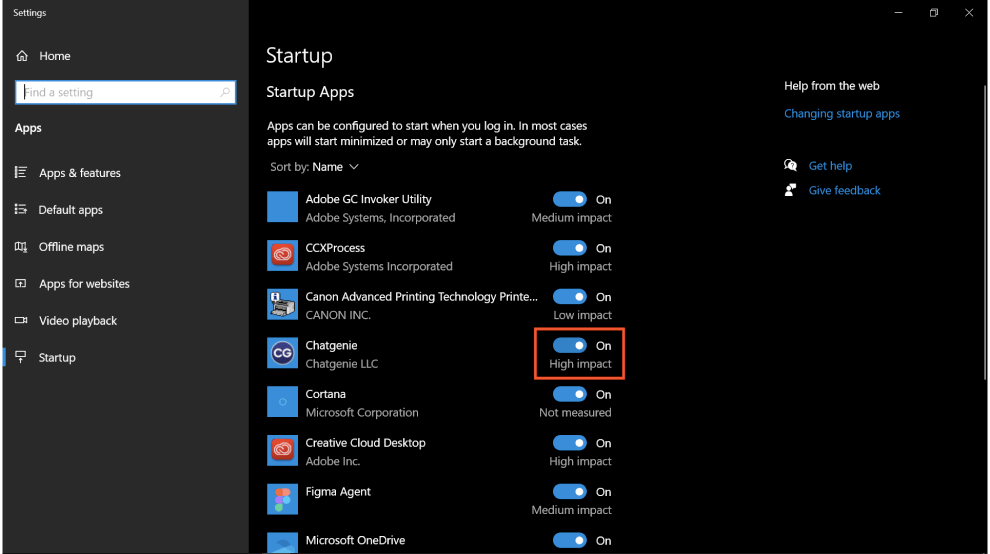
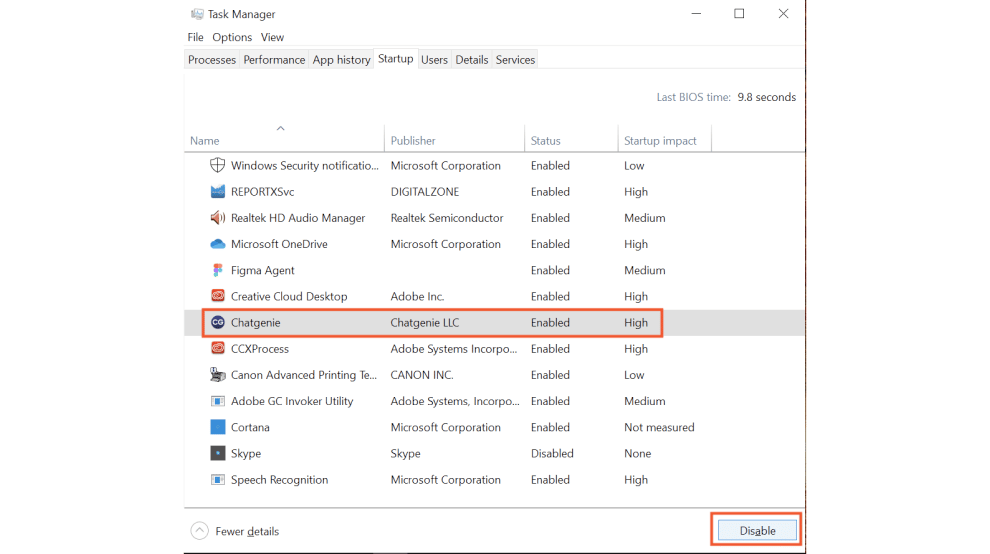
Auto-startup on Windows 10 and later
Messenger registers itself as a Windows startup app the first time it’s opened. Users can turn that off from Windows Settings or Task Manager → Startup.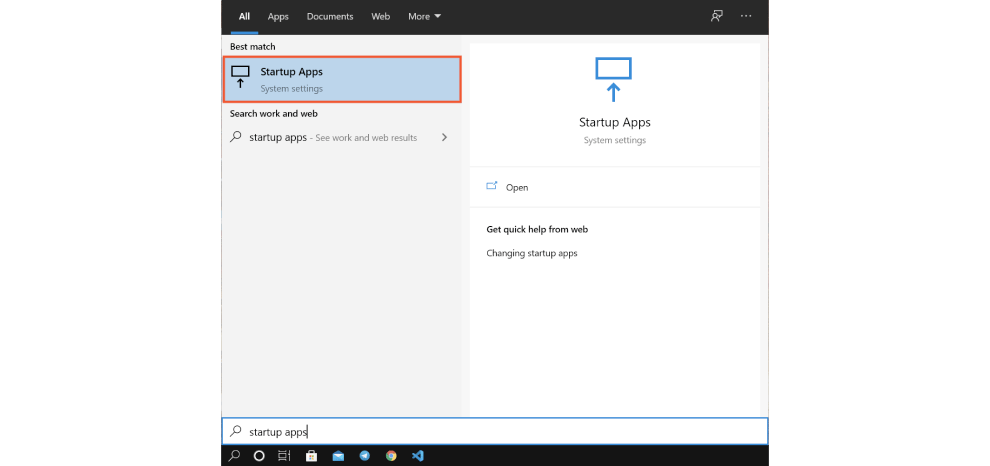
Troubleshooting
Antivirus is blocking or quarantining Messenger
Antivirus is blocking or quarantining Messenger
Per-user installs keep updates in
C:\Users\<username>\AppData\Local\messenger-updater, which is expected behaviour. Some tools (ThreatLocker among them) flag this. Add Messenger to the allow list.Users aren't getting new versions
Users aren't getting new versions
They’re almost certainly on a system-context install, which doesn’t auto-update. Either schedule the re-install script above, or redeploy per-user.