

 Magic Library
Phase 2: Overflow & After Hours
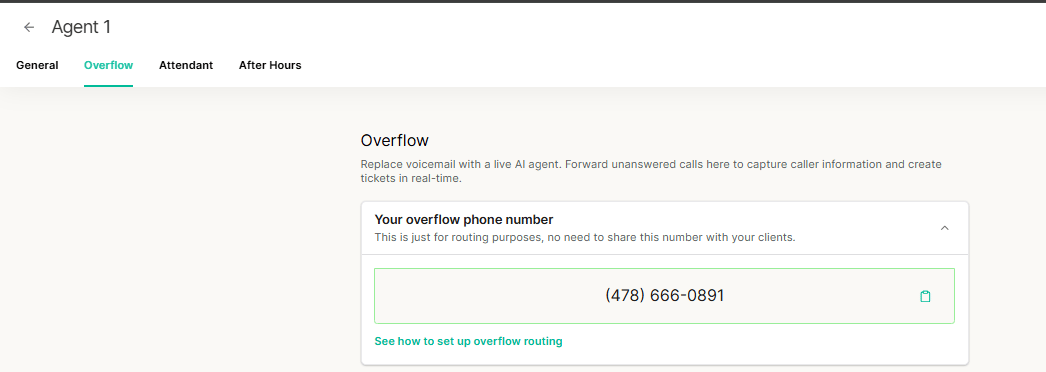
- After Hours Coverage: Forward your calls to the Overflow number after work hours and on holidays (controlled by Microsoft hours).
- Front Desk Overflow: Use overflow as a front desk where technicians take no calls; they simply call back based on the ticket. This allows you to understand and prioritize responses at your own pace, saving dispatchers and techs time.
How to Get a Number
1
Go to the Overflow tab
Go to the Overflow tab.
2
Request a number
Click Request Number, select your country, and confirm.

Customize the Agent
Greeting
Customize your greeting so that your callers understand what to expect. We have found a key reason that callers might get frustrated is a lack of understanding of how this agent fits into your process.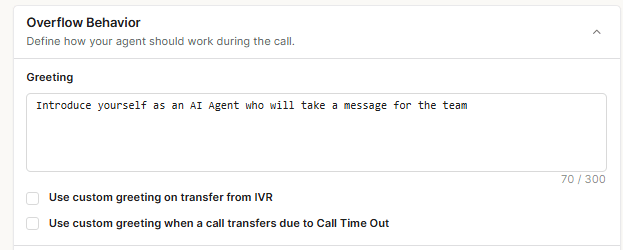
Important:Do not ask what the issue is in the greeting, the agent does that by itself. Putting it here will double the question.
Note Escalation Requests
Overflow doesn’t escalate calls, but it can note escalation words in the ticket. This does not automatically change ticket priority.Additional Questions
The voice agent will automatically ask the caller what their issue is, but you can customize any additional questions you want to ask. We don’t recommend adding more than 2-3 questions as the call can get quite lengthy and callers can get frustrated.Choose a Default Board and Source
Set your default board and source. Ideally, you have created a unique Source in your PSA called “Voice AI” (or similar) as covered in Phase 1. Click Save!Set Up After Hours (Optional)
1
Go to the After Hours tab
Go to the After Hours tab.
2
Confirm hours sync
This syncs with your Messenger Hours.
3
Add a closed-hours greeting
Provide a custom greeting for when your business is closed. The agent will then use the Overflow agent settings for handling the call.
Test Your Agent
Before connecting to your phone system, thoroughly test your agent:
1
Call the agent number
Call the agent phone number provided.
2
Complete about 5 test calls
Complete approximately 5 test calls to ensure the agent is working properly.
3
Review transcripts and tickets
Review each call’s transcript and ticket creation.
4
Note unexpected behavior
Note any unexpected behavior to review with your CSM.
5
Proceed to phone system setup
When you are confident in your agent’s performance, you can proceed to set up the number within your phone system.
Expected Call Flow:
- Caller dials the Overflow number.
- AI greets the caller with your custom greeting.
- AI asks what they need help with.
- AI asks any additional custom questions you configured.
- AI confirms the information and thanks the caller.
- Call ends and ticket is automatically created in your PSA.
How To Configure Your VoIP/PBX
This step determines when the AI picks up the phone. Configure your phone system to forward calls to the Thread Overflow number you received above.Common Setup:
1
Log into your VoIP provider
Log into your VoIP provider.
2
Locate your ring group or call queue
Locate your Main Ring Group or Call Queue.
3
Find the no-answer settings
Find the settings for “If no answer,” “Busy,” or “Max wait time reached.”
4
Set the destination
Set the destination to the Thread Overflow Number (obtained in the “Get a Number” step).
5
Point after-hours logic here too
Ensure your “After Hours” logic also points to this number.
The common setup above applies to every phone system: find the no-answer or after-hours rule and set its destination to your Thread number. For where that setting lives in RingCentral, Microsoft Teams, 8x8, Zoom, Cisco, Mitel, 3CX and others, see the phone system forwarding directory, and Forward your phone system to Voice AI for which number belongs where.
Routing Gotchas
A few phone-system patterns cause avoidable problems — check these before you go live:- Don’t create a double-ticket loop. If your Attendant already rolls unanswered calls to Overflow (via Use Overflow when no one is available in Attendant settings), do not also point your PBX ring-group “no answer” rollover back at a Thread Voice number. Doing both sends the unanswered call back in as a brand-new inbound call that Thread can’t tell is the same call: producing two tickets and, in some cases, two agents on the line. Let the Attendant’s own overflow handle the rollover.
- There’s no “answer but skip the AI” toggle for business hours. Voice AI doesn’t have a setting to pick up a call during business hours without running the AI. Control this at the phone-system level: route to your team during business hours and forward to the Thread number only after hours.
- Microsoft Teams overflow needs Pay-As-You-Go. If a Microsoft Teams Call Queue or Auto Attendant redirects to your Thread number, the resource account needs Pay-As-You-Go / Communication Credits — since November 1, 2025 Microsoft no longer allows outbound PSTN from resource accounts on Calling Plan licenses, and the redirect silently fails without it. See Microsoft Teams Pay-As-You-Go resource account calling.
Next
Phase 3: The Auto-Attendant (Walk → Run)
Deploy the Auto-Attendant in stages, from silent testing to advanced mode.