

 Magic Library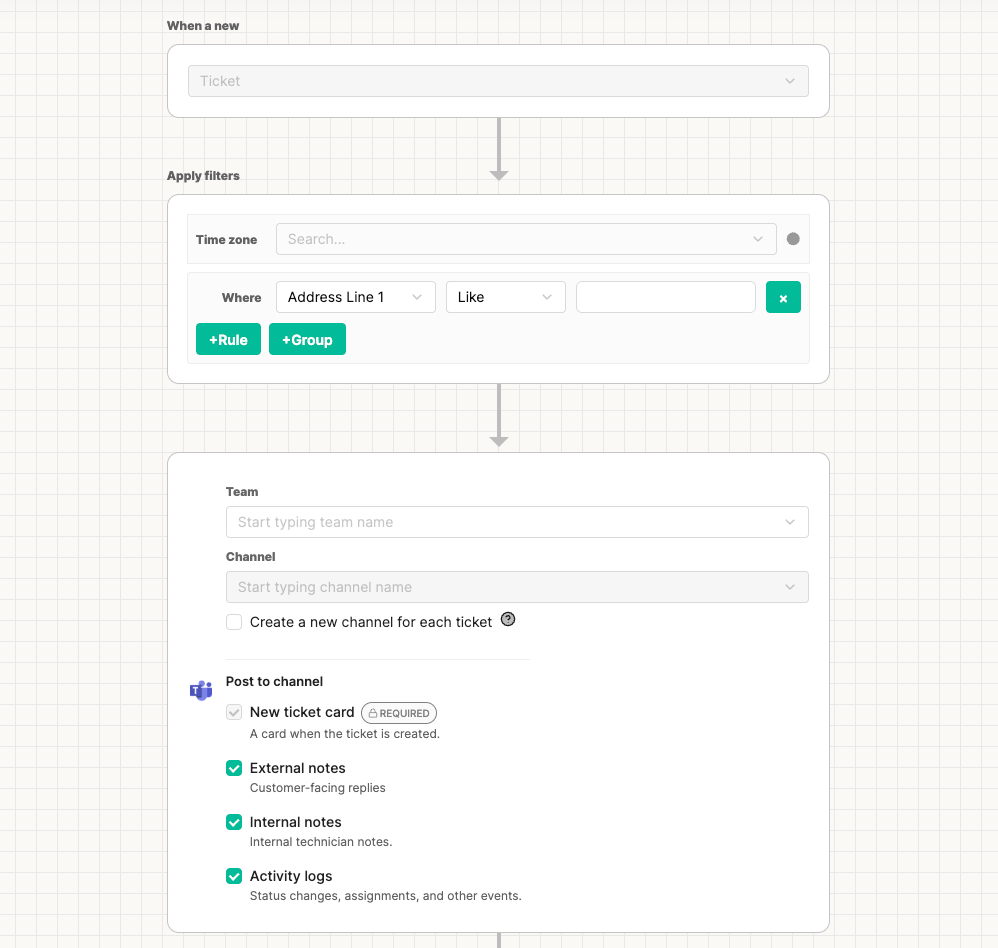
Before you begin
- You need permission to edit flows in the admin app.
- The flow must already be configured to post to a channel (Slack or Microsoft Teams companion app).
- Existing flows keep their current behavior — all update types are enabled by default, so nothing changes until you turn something off.
Post to channel settings
Open the flow in Configure Flow. In the channel section you’ll see a Post to channel block with four options:
The New ticket card is required so the channel always has an anchor card to reply to. The other three toggles are independent — turn any combination on or off.
Configure the settings
1
Open the flow
Go to Flows and open the flow you want to change.
2
Find the channel section
Scroll to the channel section for the flow.
3
Set the Post to channel toggles
Under Post to channel, toggle External notes, Internal notes, and Activity logs to match how you want the channel to behave.
4
Save
Select Save to apply your changes.
What updates look like in the channel
When enabled, updates appear alongside the ticket card in your Slack or Teams channel — external and internal notes render as replies to the card, and activity log entries show status, assignment, and other event changes.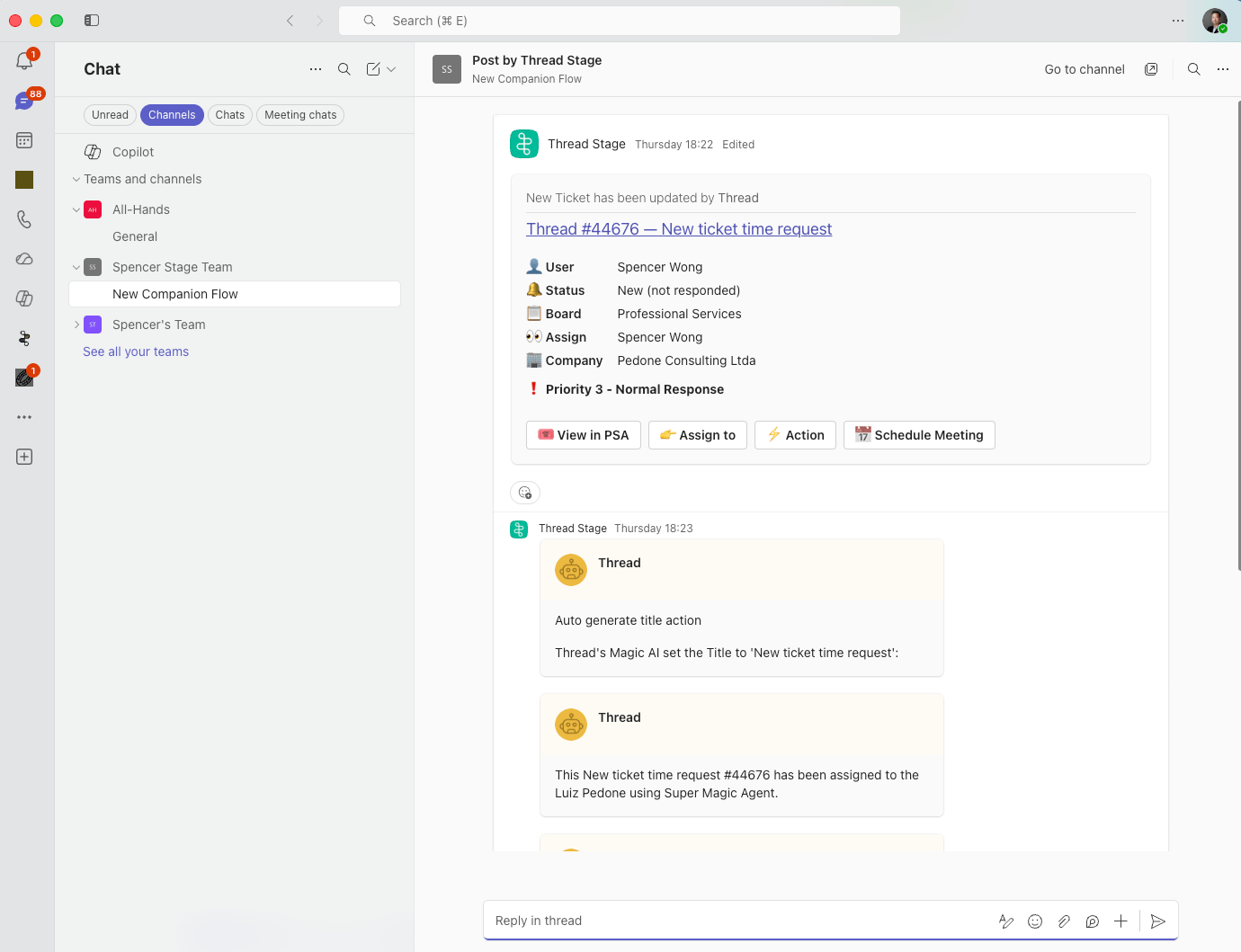
Common setups
- Customer-facing channel: turn off Internal notes and Activity logs so only the new ticket card and external replies are posted.
- Technician war-room channel: leave all three on for a full audit trail of every reply, note, and status change.
- Status-only channel: turn off External notes and Internal notes and keep Activity logs on to see assignments, status transitions, and other events without any note content.