Inside the View
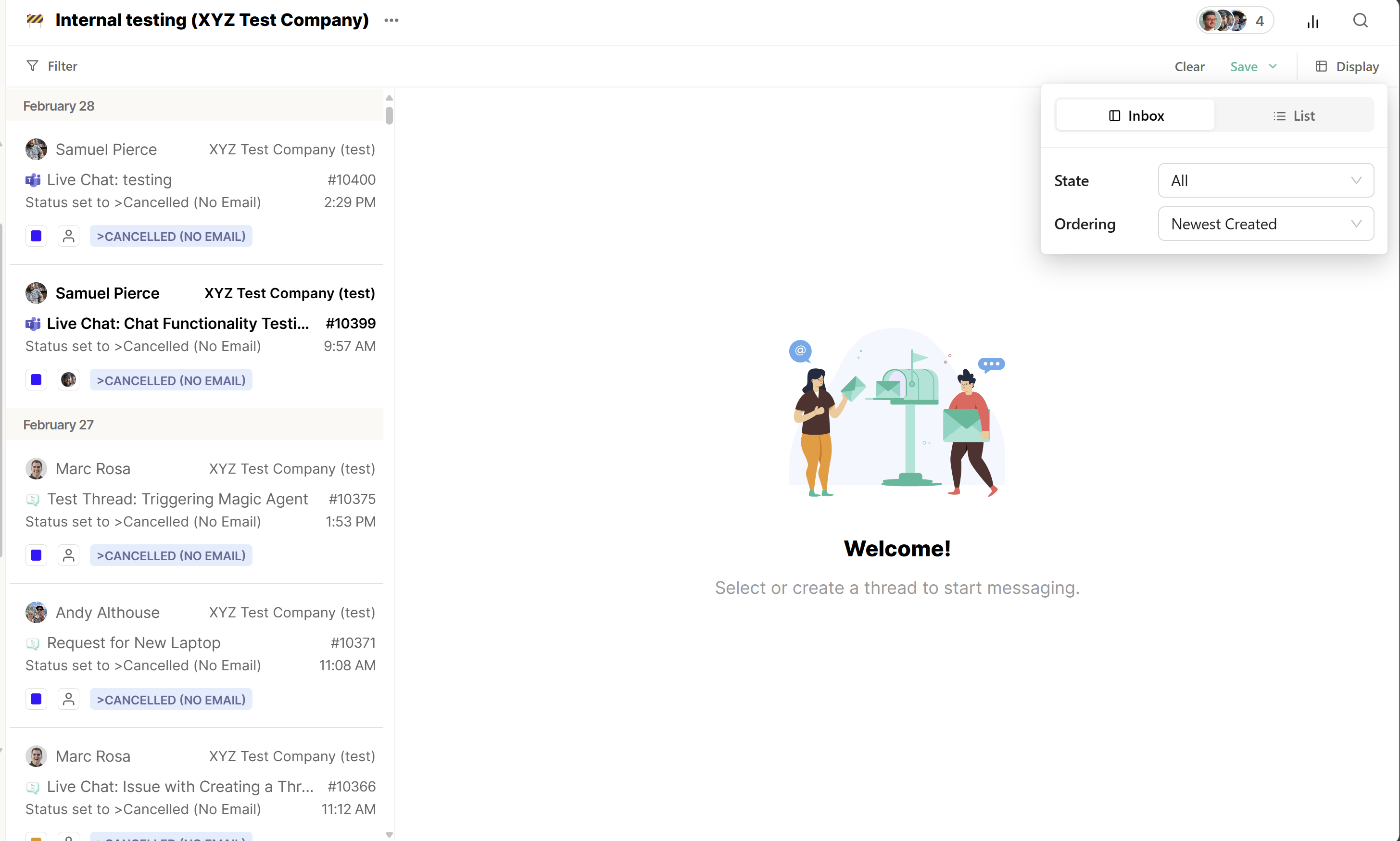
Every View opens with a Display menu (top-right) that controls three things: the display
mode (Inbox or List), the thread State it shows, and how threads are grouped and
sorted.
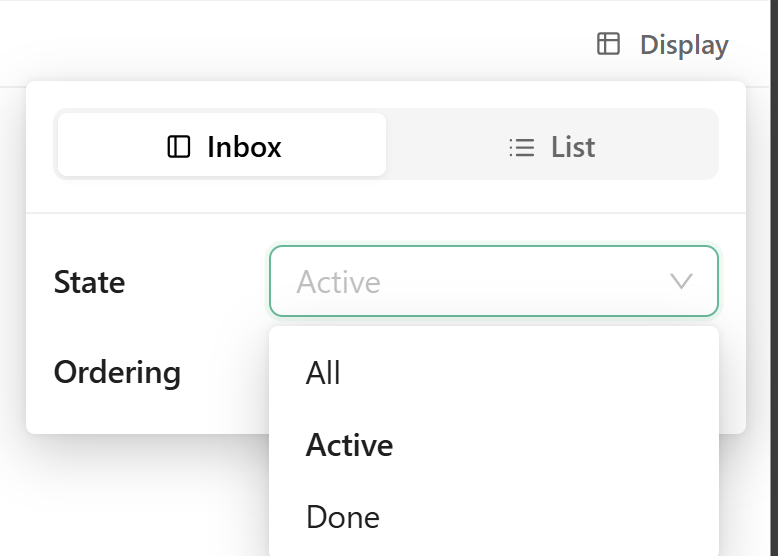
State filters which threads appear:
- All: every thread that matches the View, regardless of state
- Active — threads in an open state (this includes any live Messenger, Slack, or Teams
conversations)
- Done: threads whose status your PSA treats as closed
Grouping organizes the list by Date, or — where Experience Level Agreements are enabled —
by XLA risk (List mode only).
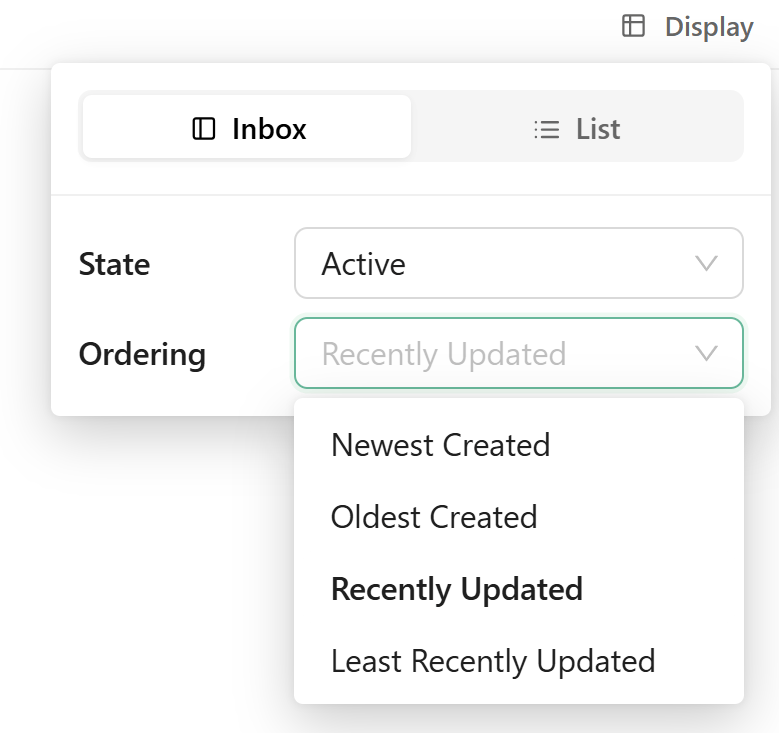
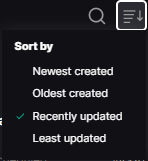
Sort by sets the order threads populate in: Newest Created, Oldest Created,
Recently Updated, or Least Recently Updated.
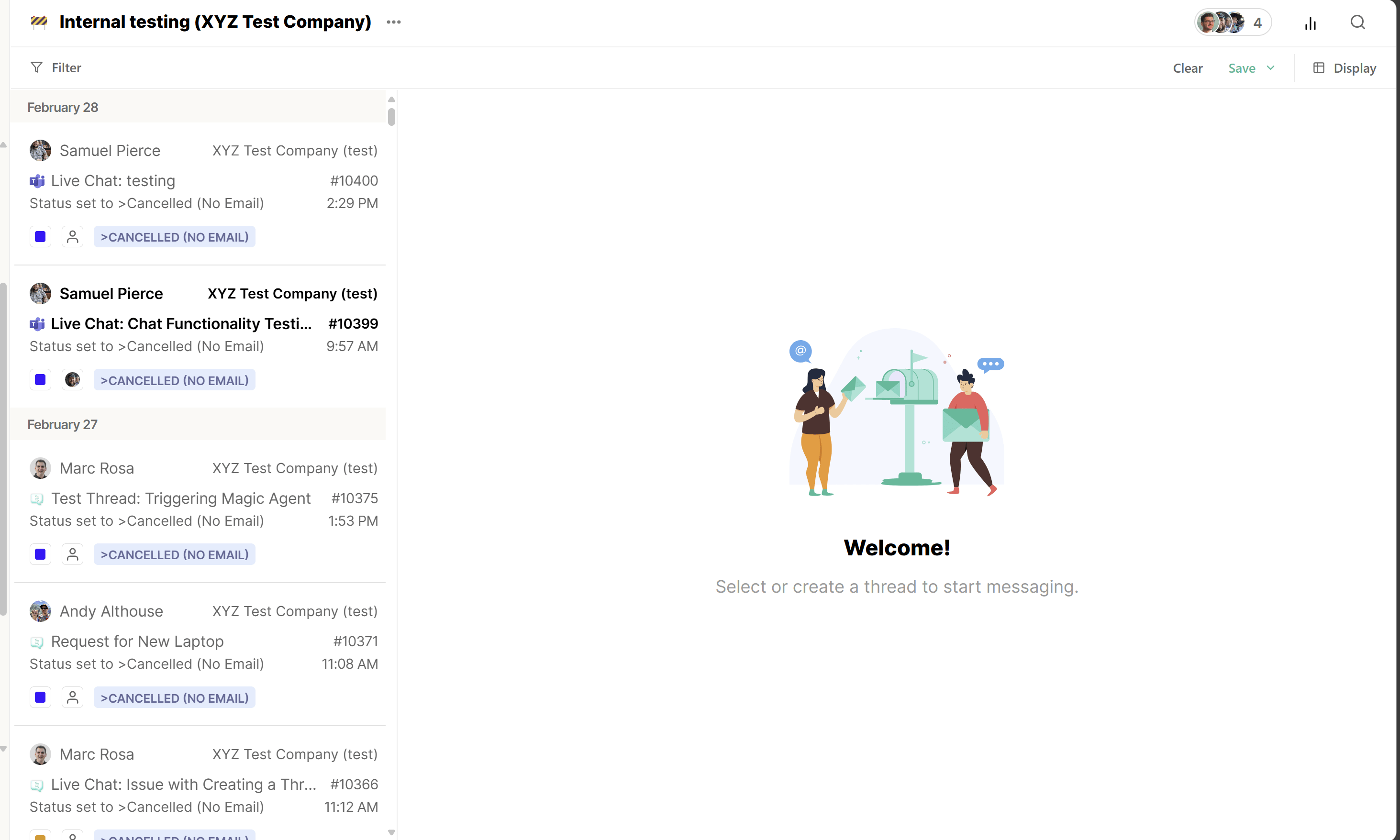
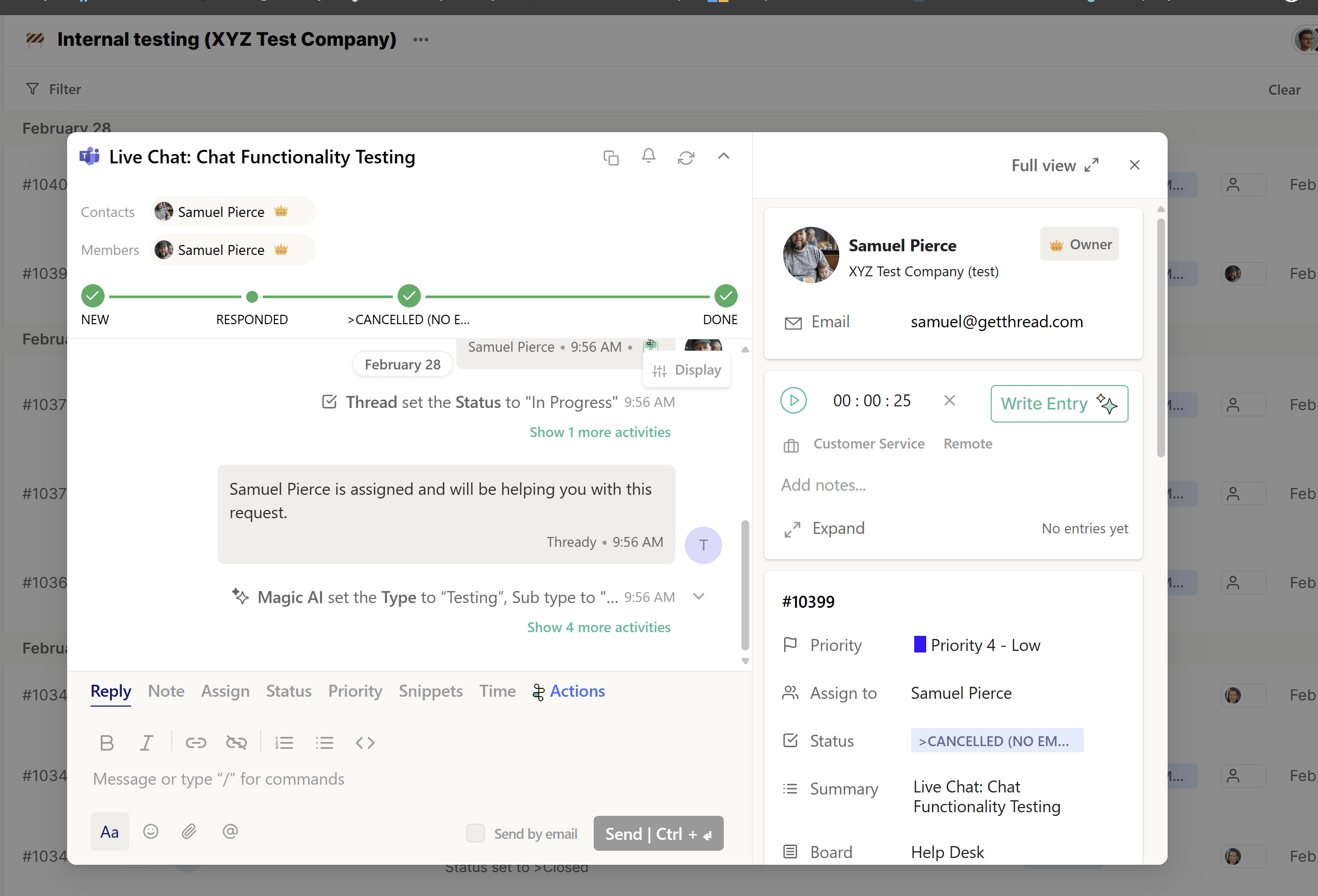
First we will cover Inbox view mode. Inbox mode is the traditional layout you have come to know and love from thread. The column on the left hand side lists all of your tickets ordered in the method set in the display portion. If the ticket is highlighted it means it is unread. If you see a blue dot, it means the last reply came from the contact.
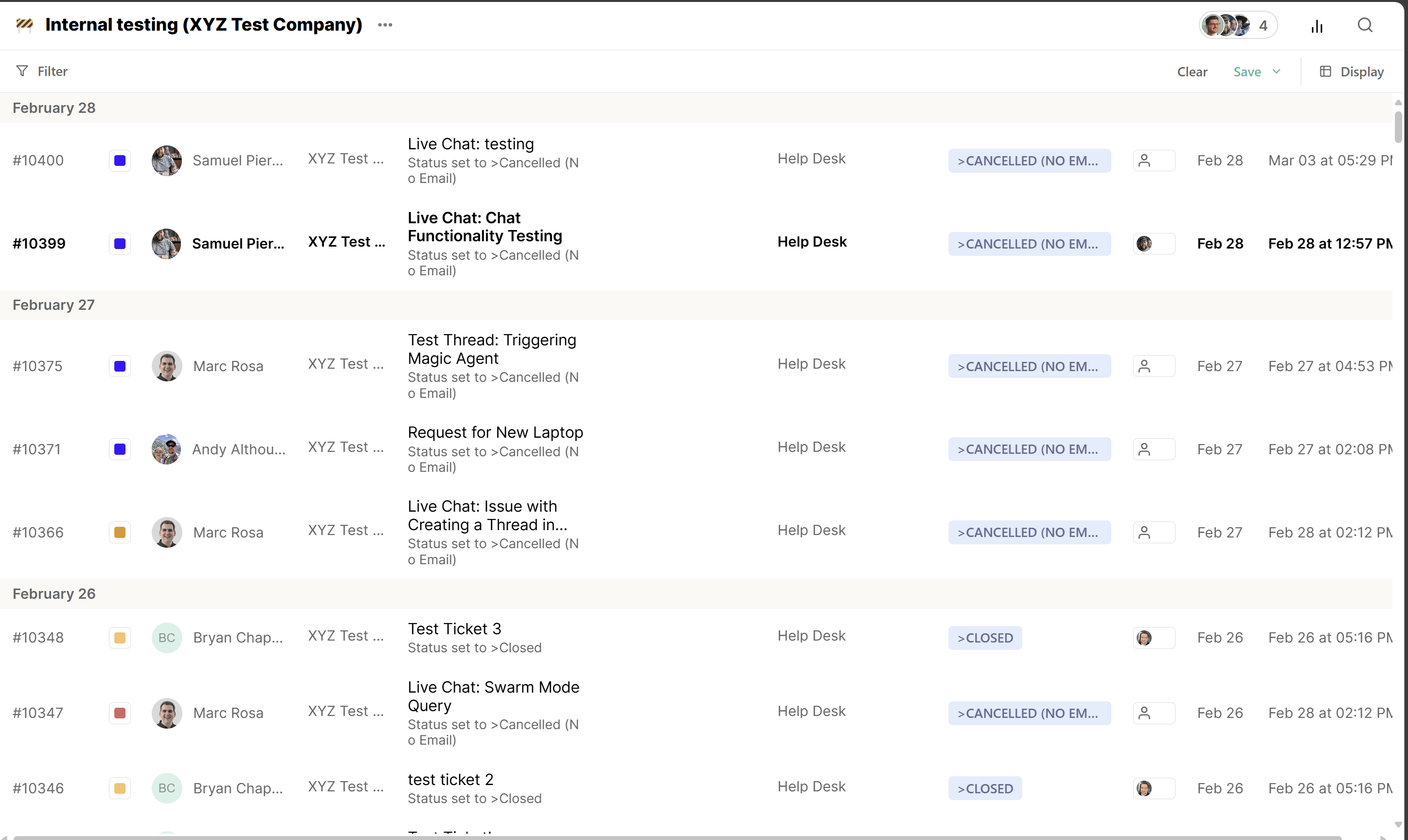
List view:
List view provides a traditional table view of all of your tickets. The bolding of unread
tickets and the blue dot are still present. In List mode you can show or hide columns and
drag to reorder them from the Display menu’s Display properties section; your column
layout persists across sessions and devices.
Each time you click on a View, you are able to view all threads inside that view. Pretty straight forward right? Here are a few key things that you must know:
Active vs. Done
Note that you will mostly be working out of the “Active Column”
-
Waiting Client Response
-
Waiting Engineering
-
New
-
Waiting Team
-
Product Backlog
-
In-Progress
-
On-Hold
Done - Threads that have a status that is considered “closed” in the PSA will appear in this column.
Statuses like this would include names like:
The Filter
Filters let you narrow a View down to just the threads you want to see right now.
One thing to note is that once you select a filter, it will still apply as you navigate across different views or refresh the page. Once you apply a filter, it will remain applied for that session unless you change it (Newton’s 1st law of inbox filters)
The search bar
The search bar is an important function of this section. You are able to search for threads by Company name, contact name, thread #, or summary content. 

 Magic Library