

 Magic Library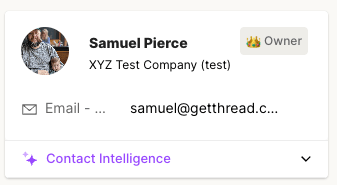
Key Actions
- View and edit contact, status, and priority details
- Log time and add notes using TimePad
- Super Magic for insights or sentiment analysis
- Schedule follow-ups and manage Planner items
- Review configurations linked to the thread
- Quickly access recent threads from the same contact
Contact Card
The Contact Card displays key information about the person associated with the thread. Here you can view:- The contact’s name, email address, and company
- Contact Intelligence, which can be expanded to show insights gathered via Thread AI
Contact Intelligence is available where enabled, with an AI Pro license.
TimePad
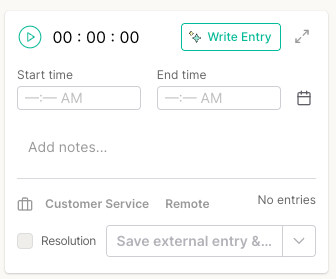
The TimePad is where you log the time you spend on a thread and capture any related notes. You can:- Start and stop a timer, or manually enter start and end times
- Add internal notes or customer-facing entries
- Save external entries directly to your PSA
- Generate notes automatically using Magic AI
Thread Information
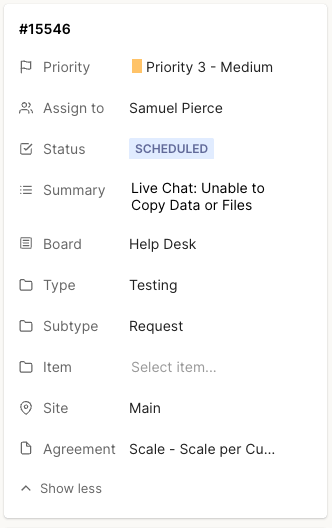
The Thread Information section displays all of the core ticket details synced from your PSA. This includes:- Thread number (linked directly to the ticket in your PSA)
- Priority, assignee, and status
- Summary of the request
- Board, type, subtype, item, and site
- Agreement selection
Sentiment
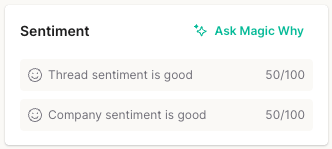
The Sentiment panel provides AI-powered insight into tone and satisfaction, helping you understand how your customer feels at a glance. You’ll see:- Thread sentiment: a rating of this specific thread’s tone, scored out of 100
- Company sentiment: the average sentiment score (out of 100) across all threads for that customer
- An Ask Super Magic button that asks AI why a thread received its sentiment score
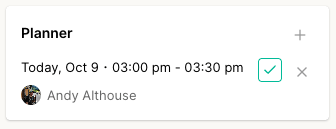
Planner
The Planner is where you can view or schedule events connected to the thread. If no plans are set, you can create one directly from this panel: keeping your workflow organized and time-sensitive actions in one place.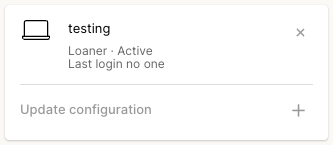
Configurations
The Configurations section lists any assets or systems tied to the thread. Use it to:- View existing configurations linked to the ticket
- Add new ones directly from the sidebar
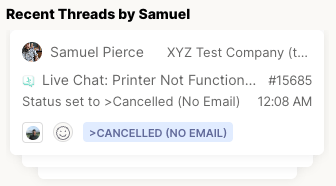
Recent Threads
The Recent Threads section gives you quick visibility into other threads from the same contact. You can:- Review the contact’s most recent tickets
- Quickly open and review closed or ongoing issues
- Identify patterns or recurring problems
Depending on your enabled features, the Control Panel may include additional cards — such as
Voice AI call history or Runbooks: alongside the ones above.