

 Magic Library
Create the thread
1
Open New thread
Click + (New thread) at the bottom of the left rail, or press Ctrl+N.
2
Pick the client (optional)
In the Contact field, click All clients, type part of the client’s name and pick it. Each client shows how many contacts it has. Search then only returns that client’s contacts. Skip this step to search every client.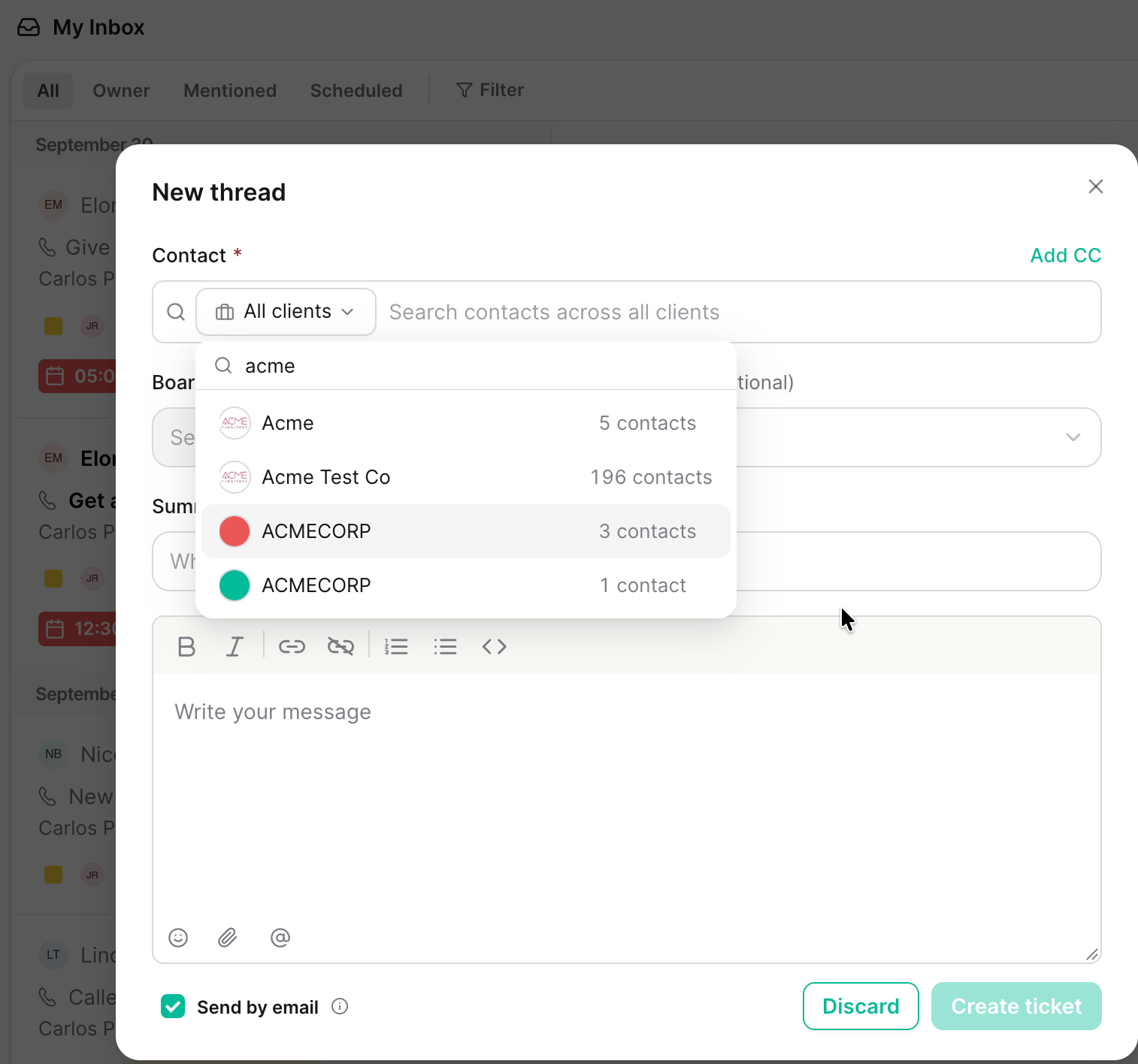
3
Pick the contact
Search by name or email and pick the person you’re helping. The first contact you add becomes the ticket owner.
4
Add more contacts (optional)
Add anyone else who should be on the ticket. Extra contacts must work at the same client as the first one, so the search switches to that client.
5
Choose the board
Pick the Board (Queue on Autotask, Team on HaloPSA). The list loads after you pick a contact, because it comes from the contact’s client. Source is optional.
6
Write the summary and first message
Enter a Summary, then write the first message. It supports formatting, emoji, files and @mentions of teammates.
7
Create the ticket
Leave Send by email on to email the first message to the contacts. Click Create ticket, or press Ctrl+Enter (Cmd+Enter on Mac).
What to know before you send
- Files arrive as a second message right after the first one. With Send by email on, the contacts get the files in a second email.
- @mentions notify the teammates you mention, the same as in a reply. Contacts can’t be mentioned until the ticket exists.
- Send by email is on by default. Hover the info icon next to it to see who the first message goes to.
- Closing the window with anything filled in asks you to confirm with Discard this thread?, so you don’t lose work by accident.
- CCs (ConnectWise and HaloPSA): click Add CC next to Contact to copy email addresses that aren’t contacts, such as a vendor. Press Enter or a comma after each address. See CC people who aren’t contacts.
If the contact isn’t listed
The search shows active contacts synced from your PSA. If the person you need isn’t there, add them as a contact in your PSA first. Once your PSA syncs, they appear in the search.Related
- Navigating a thread covers contacts, members and replies on a ticket once it’s open.
- Inbox navigation covers the left rail and Views.
- CC people who aren’t contacts covers adding and removing CCs on a ticket.