

 Magic Library
Team Home is part of the Auto-dispatch Partner Beta. Contact your Thread representative if you’d like to join the beta.
- Home: an Overview section of at-a-glance tiles above a Members section that lists the team roster with live auto-dispatch data (presence dots, active-thread counts, and per-member availability toggles you can flip on someone’s behalf).
- Insights: the same slice charts and tables you get from a View’s Insights panel, scoped to one of the team’s Views. Read-only, so nothing you click reassigns or reroutes a thread. The Insights tab only appears in workspaces where Inbox Insights is enabled.
Who sees Team Home
Team Admin scope is set per team. See Team Admin role.
Open Team Home
1
Open a team in the left rail
In Inbox, expand the team in the left rail whose home page you want to view.
2
Select Home
Select Home under the team name. Team Home opens on the Home tab, with the Overview tiles at the top and the Members section below them.
3
Switch tabs
Use the Home and Insights pill tabs at the top of the page to move between the roster view and the read-only View insights. Insights only appears when Inbox Insights is enabled for your workspace.
Overview
The Overview section sits above Members on the Home tab and shows at-a-glance tiles for the team. Which tiles appear depends on whether the team has an auto-dispatch profile and, if so, which dispatch mode it uses.- Team members — total count of active members on the team. Always shown.
- Available for dispatch — count of members whose availability toggle is on and who aren’t excluded from the profile. Shown only when the team’s profile uses Auto-assign (push) mode.
- Live chats — total number of open live chat threads (Messenger, Teams, or Slack) currently assigned to team members. Shown when the workspace has a Messenger support board configured.
- Set up auto-dispatch — a CTA tile that opens the auto-dispatch admin in a new tab. Shown when the team has no auto-dispatch profile attached yet, in place of the dispatch tile.
- Set up messenger — a CTA tile that opens messenger settings in a new tab. Shown in place of the Live chats tile when the workspace has no Messenger support board.
Members
The Members list shows every active member of the team, with a role badge, a search box, and (for teams in an active auto-dispatch profile) dispatch data for each member. Members are sorted by name.Grid and table view
Use the grid and table toggle in the Members header to switch layouts. Grid is the default.- Grid view shows each member as a card with their avatar and presence dot, name, role badge, dispatch stat (Active threads or Pulled last 24h, depending on mode), a Live chats count, and the Available for dispatch toggle for push teams. Cards paginate at 12 per page.
- Table view shows the same fields as columns, one member per row, including a Live chats column. The table paginates at 10 per page.
Auto-assign (push) teams
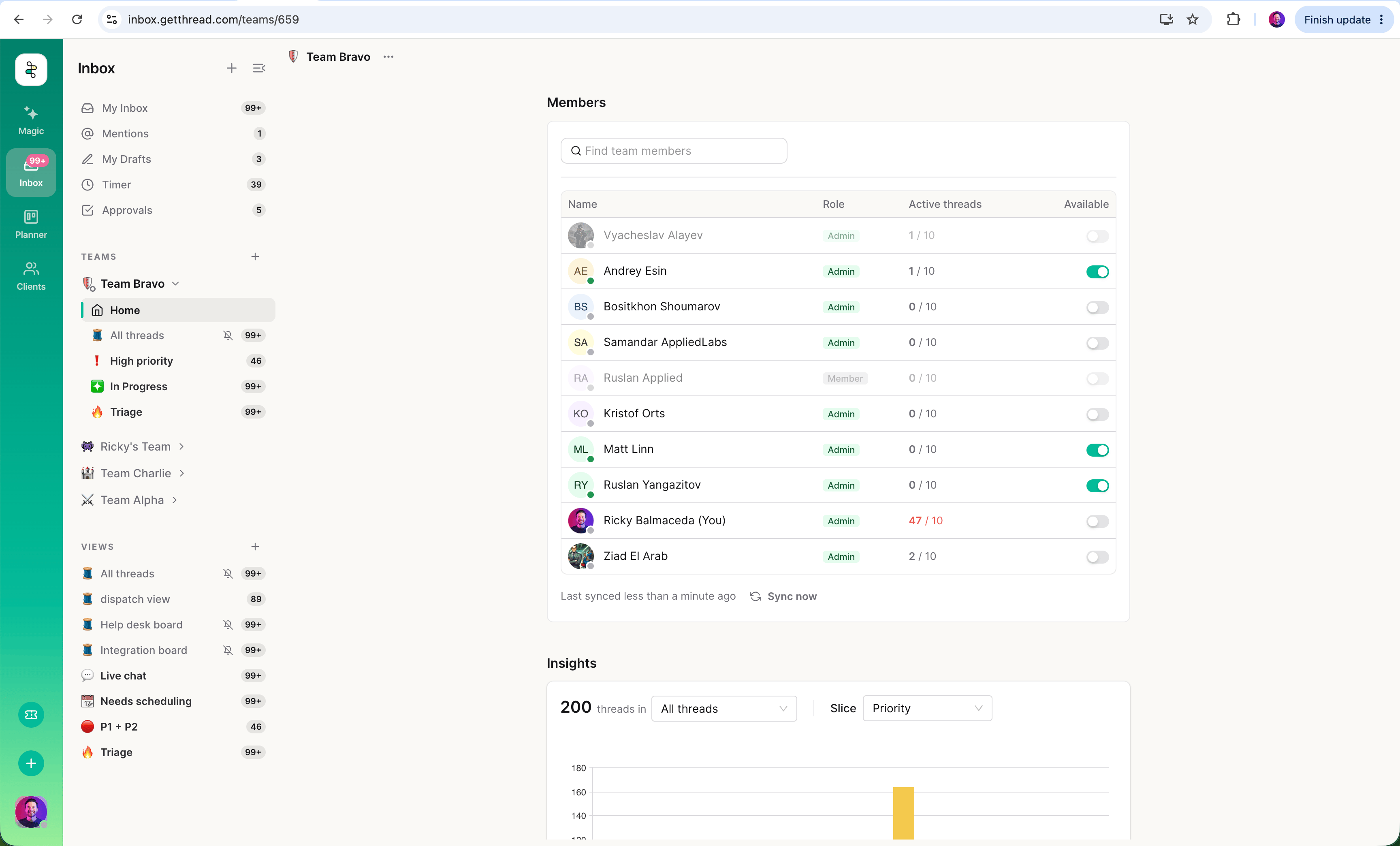
For teams whose profile uses Auto-assign, the Members list adds:- Presence dot on each avatar — green if the member is available for this team’s dispatch, grey if offline. This is the same presence signal you see next to avatars in the left rail.
- Active threads: the member’s current active count over the profile’s Max threads limit (for example,
3 / 10). The active count is semibold, and turns red when the member is at or over capacity. The math matches the push dispatcher exactly, so the number you see here is the number Auto-assign is using to decide who gets the next thread. - Available for dispatch: a toggle you can flip on the member’s behalf to make them available or unavailable for Auto-assign. See Who can toggle another member’s availability for the rules.
- Excluded members render faded, with the toggle disabled and an Excluded from auto-dispatch tooltip on hover. Excluded members are set in the profile — see Auto-dispatch profiles.
Next thread (pull) teams
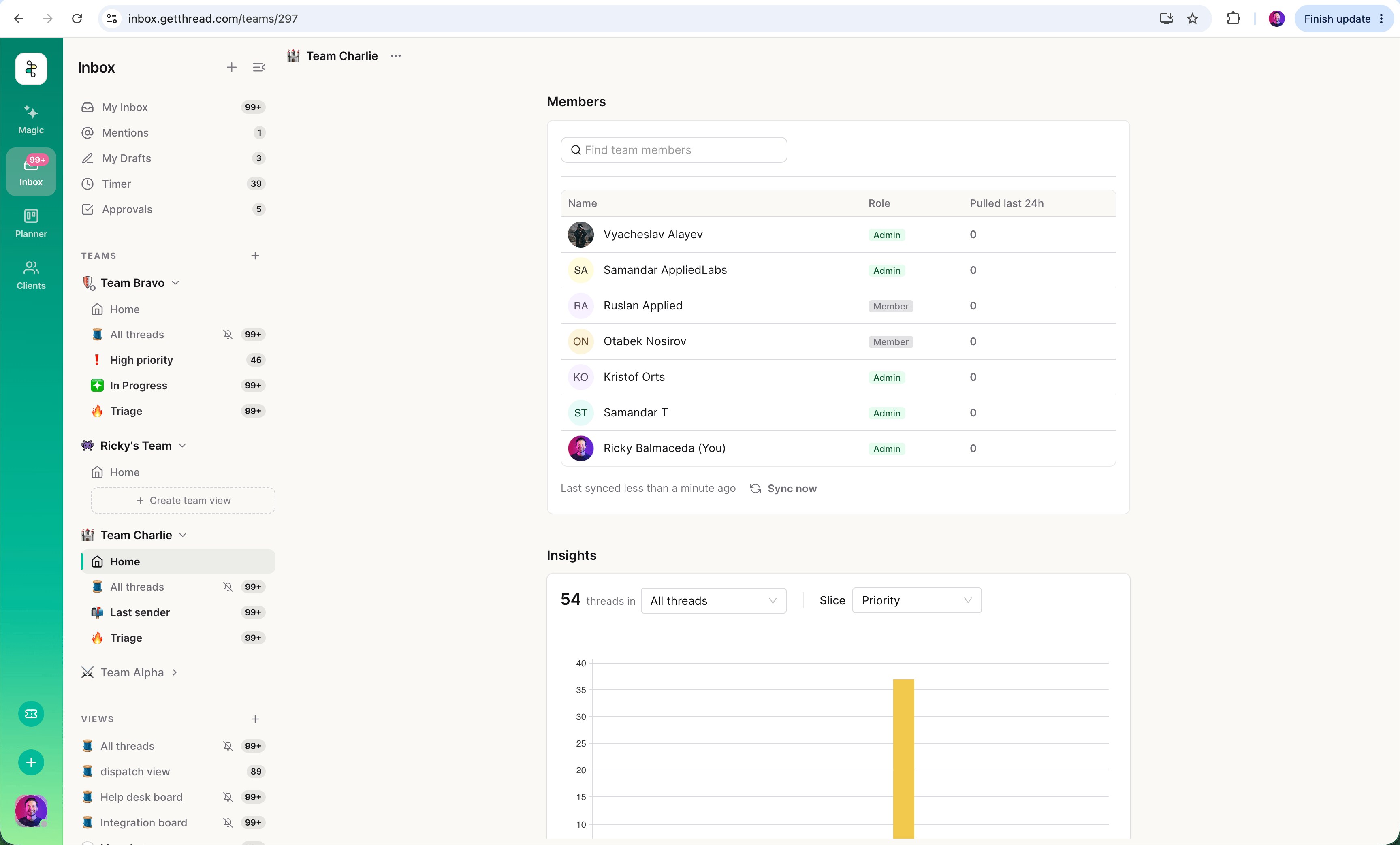
For teams whose profile uses Next thread (self-serve), the Members list shows a single dispatch stat and no availability toggle:- Pulled last 24h: how many threads each technician has pulled in the last 24 hours.
Live chats
Live chats counts open live chat threads (Messenger, Teams, or Slack) currently assigned to each member, separately from the push or pull dispatch stat. It appears as a column in the table view, a row on each grid card, and as a workspace-wide total tile in the Overview. Live chats only appear when the workspace has a Messenger support board configured. Without one, the per-member field shows- and the Overview tile becomes a Set up messenger CTA that opens messenger settings in a new tab.
Sync now
The Members list refreshes automatically every few minutes. A footer under the list shows Last synced N minutes ago and a Sync now button you can hit at any time to refetch immediately. Sync now is disabled while a member’s Available toggle is still flipping; a mid-toggle refetch would clobber the optimistic state.Who can toggle another member’s availability
Flipping the Available for dispatch toggle in the Members list changes another member’s push-dispatch availability on their behalf. Thread authorizes the change with a team-manage policy:
An unauthorized attempt returns a 403 and the toggle snaps back, no availability change is recorded. Members can always toggle their own availability from the account menu regardless of role; the Team Home path is only for changing someone else’s.
The Available for dispatch toggle in the Members list and the Available for dispatch control in each technician’s account menu drive the same server-side state. When you flip it here, Inbox optimistically updates both surfaces and invalidates the caches feeding them, so the technician’s own avatar dot and account-menu switch update the next time their client polls. When they flip their own switch, your Members entry updates on the next sync. See Set your availability for auto-dispatch for the account-menu control.
Teams without an auto-dispatch profile
If the team isn’t part of any enabled auto-dispatch profile yet, Team Home still opens, and the Members list still shows the roster — just without the dispatch stats or availability toggle. The Overview section replaces its dispatch tile with a Set up auto-dispatch CTA tile, and a dismissible Get started banner at the top of the Members section links to the auto-dispatch admin so you can create or attach a profile:Let auto-dispatch handle thread assignments for this team. Get startedDismiss the banner from its
× control if you’d rather run the team without auto-dispatch. It reappears the next time the team is loaded until a profile is attached.
Action when no tech is eligible
Auto-assign profiles let you choose what happens when a thread is ready to dispatch but no technician is available. You pick the behavior in the profile’s Technician assignment section, under Action when no tech is eligible.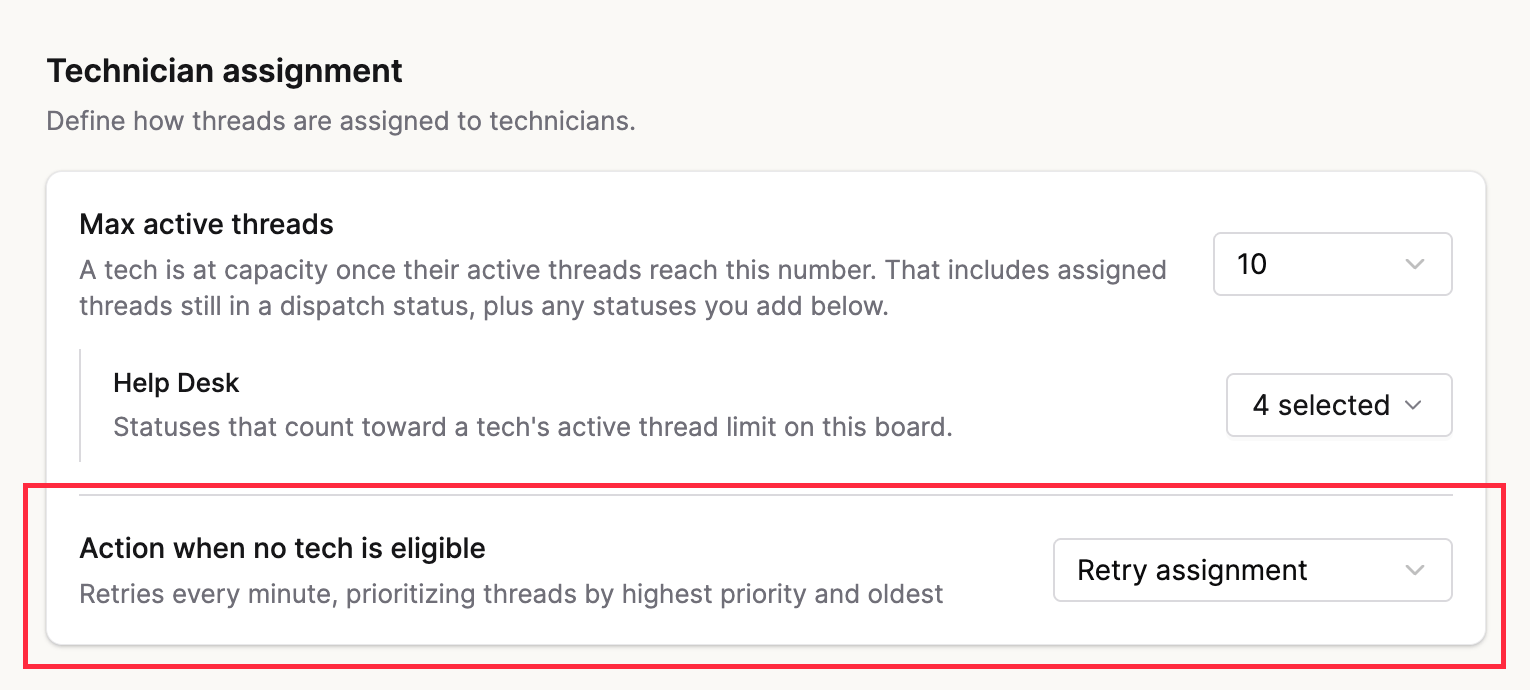
- Retry assignment (default) — Auto-assign holds the thread and re-checks every minute. As soon as a tech becomes available, the highest-priority waiting thread is dispatched first; ties are broken by oldest thread. The thread stays in its current status and no internal note is added until a tech is successfully assigned.
- Apply a status change: Auto-assign moves the thread to a status you pick per board instead of waiting. Use this if you’d rather have unassigned threads drop into a dispatcher queue than sit in retry.
FAQ
Why is a member's Available toggle disabled?
Why is a member's Available toggle disabled?
Either the member is excluded from the team’s auto-dispatch profile (hover the card or row for the Excluded from auto-dispatch tooltip), or you don’t have permission to change their availability. Workspace admins can toggle any member; team admins can toggle only members of teams they team-admin.
Why does the Active threads count sometimes look different from what I see on the board?
Why does the Active threads count sometimes look different from what I see on the board?
The count uses the same capacity math as the push dispatcher — it counts threads assigned to the member that sit in a status the profile counts toward Max threads. Statuses outside that set aren’t included even if the thread is technically open. See Technician assignment in Auto-dispatch profiles.
Can I click into an Insights chart on Team Home to see the threads?
Can I click into an Insights chart on Team Home to see the threads?
No — Insights on Team Home is read-only. Open the underlying View (from the left rail or the View picker in the Insights header) to drill into threads and act on them.
How often does Retry assignment check for available techs?
How often does Retry assignment check for available techs?
Every minute. When a tech becomes available, Auto-assign dispatches the highest-priority, oldest waiting thread first.
What happens to threads while they're waiting in Retry?
What happens to threads while they're waiting in Retry?
Nothing changes on the thread itself. It stays in its current status and Thread does not add an internal note until a tech is successfully assigned.
Do I still need a Fallback status?
Do I still need a Fallback status?
No. A fallback status is off by default and only applies if you switch Action when no tech is eligible to Apply a status change. Retry assignment covers the no-available-tech case without one.