

 Magic Library
Boards & Categories Sync Management
Concept
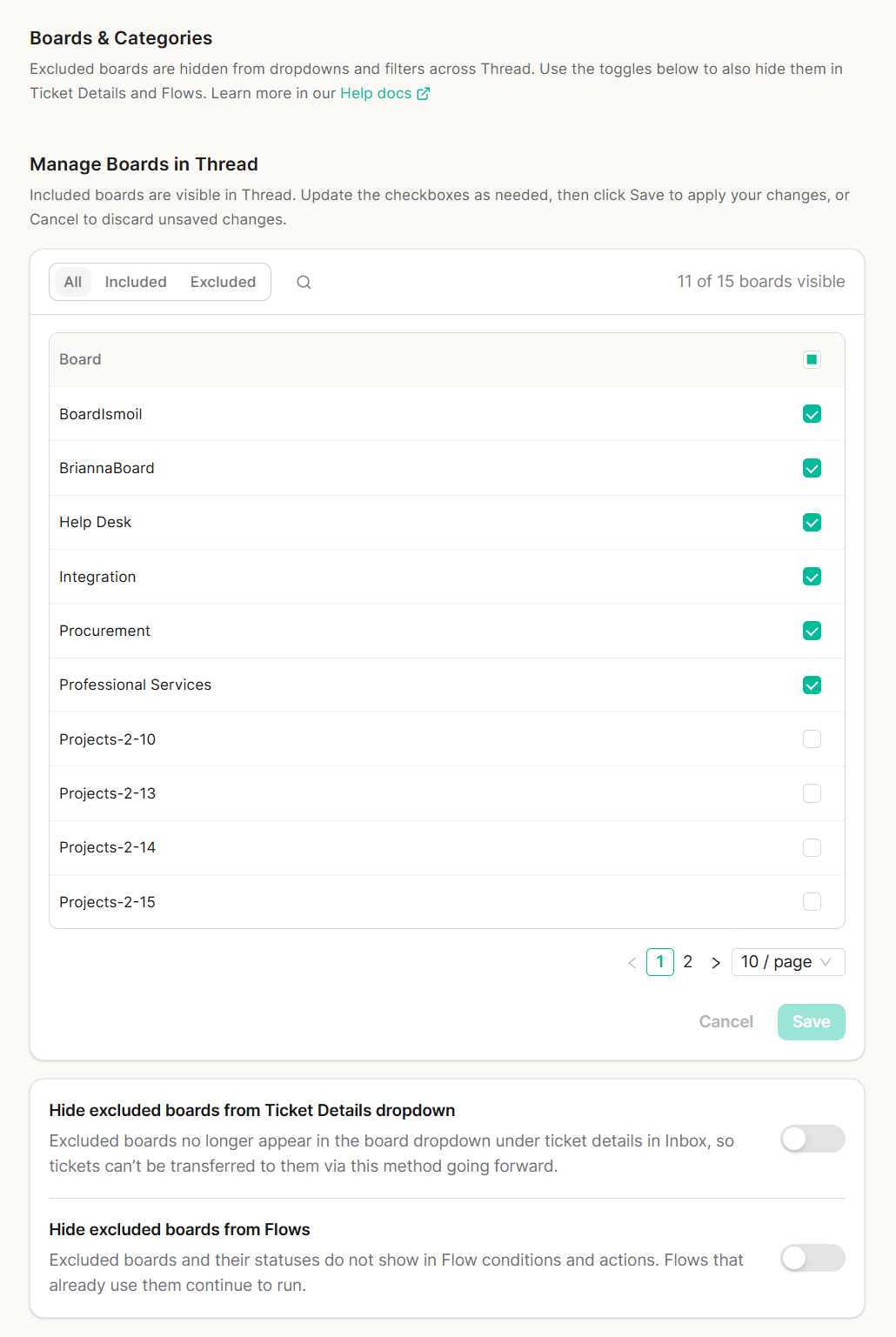
Every PSA board connected to Thread has a checkbox that controls whether that board is synced and visible across the platform. When a checkbox is unchecked, Thread stops syncing that board, hides it from all dropdowns and filters, and silently drops any inbound webhook events for tickets on that board. When checkbox is checked, syncing resumes, the board reappears throughout the interface, and new ticket updates begin flowing in again.
Important: Excluding a board does not update existing filters automatically. If the board was referenced in Assistive AI managed access rules or any explicit filter, those must be cleaned up manually.
Exclude boards that aren’t relevant to your team’s workflow so agents only see actionable tickets in Thread. Re-including a board restores visibility with no permanent data loss.
How To
Enable or Disable a Board1
Open Manage Sync for Boards & Categories
Navigate to Integrations → PSA → PSA Sync → Manage Sync for Boards & Categories.
2
Locate the board
Locate the board using the Filter boards search bar, or scroll through the paginated list.
3
Check or Uncheck boxes
- Green Checkmark: Board is synced and visible in Thread.
- No Checkmark: Board is excluded from sync and hidden from dropdowns and filters. For Partners using Autotask, do not exclude the Merged Ticket Queue as it will cause merged tickets to be orphaned
4
Click Save
Click Save
5
Refresh to update Views
Refresh (F5) Inbox Web or re-login Inbox Desktop for Views to update. All users need to refresh or re-login to the platform for view filters to update
1
Open your PSA
Open your PSA.
2
Select ALL tickets on the re-included board
Select ALL tickets on the re-included board.
3
Save them
Save them (a bulk save triggers Thread to pick up each ticket).
4
Confirm visibility in Thread
All threads will now be visible in Thread immediately.
1
Go to the Boards & Categories settings page
Go to the Boards & Categories settings page.
2
Click Force Sync
Click the Force Sync button to pull the latest data immediately.
3
Confirm the sync completed
Check the Last synced timestamp beneath the button to confirm the sync completed.