

 Magic Library
Functionality Overview
- If a contact is associated with two or more configurations in your ticketing system, the end-user will receive an automatic bot question within Messenger after a thread is created, provided the request involves a configuration item or asset.
- Thread limits the results to the most recently engaged configurations, ranking the list based on the latest logins we have records of.
- Contacts will not see this prompt if only one configuration is tied to them, which is typical for customers who issue a single piece of hardware, like a laptop, to employees.
Example Scenario
If a user submits a request to Messenger chat asking for help troubleshooting their workstation and has more than one configuration or asset assigned to them in their ticketing system, the bot will automatically ask which configuration item the request pertains to. The user can then select a configuration or asset from the chat window or click “None of the above,” and the configuration item will automatically be updated for the technician in Thread.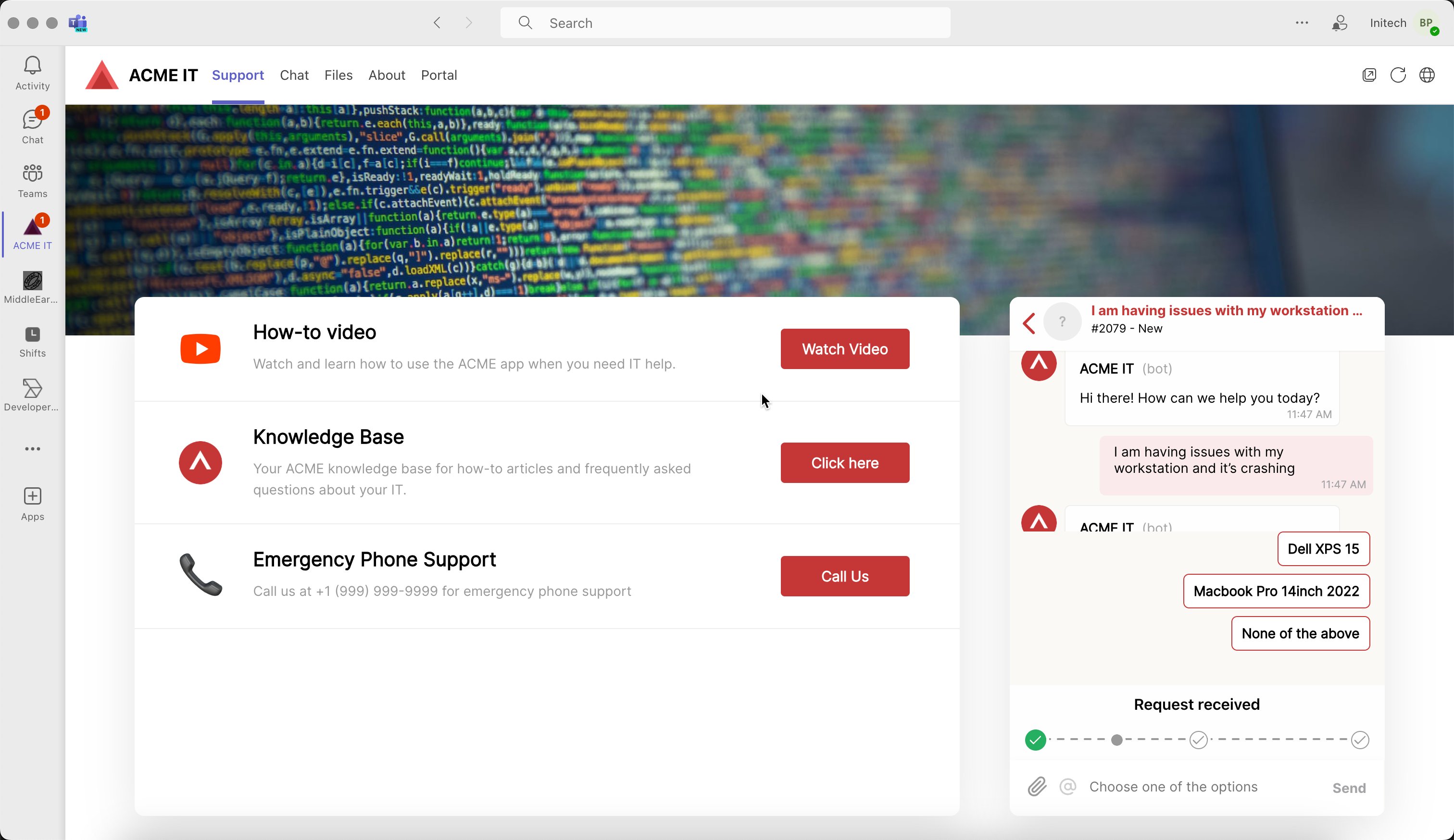
Override settings for a single client
Thread uses an App ID as a per-company identifier, and settings cascade through it:- Your partner App ID inherits the Messenger settings, design and hours you define at Admin Panel → Messenger.
- Every client App ID inherits those partner-level settings unless an override is set on that client. Set one, and any Messenger deployed with that client’s App ID uses it instead.
1
Open the client
Go to Admin Panel → Clients, search for the client, and open it.
2
Override the settings you need
On the Settings tab, tick Override parent settings, then change what differs: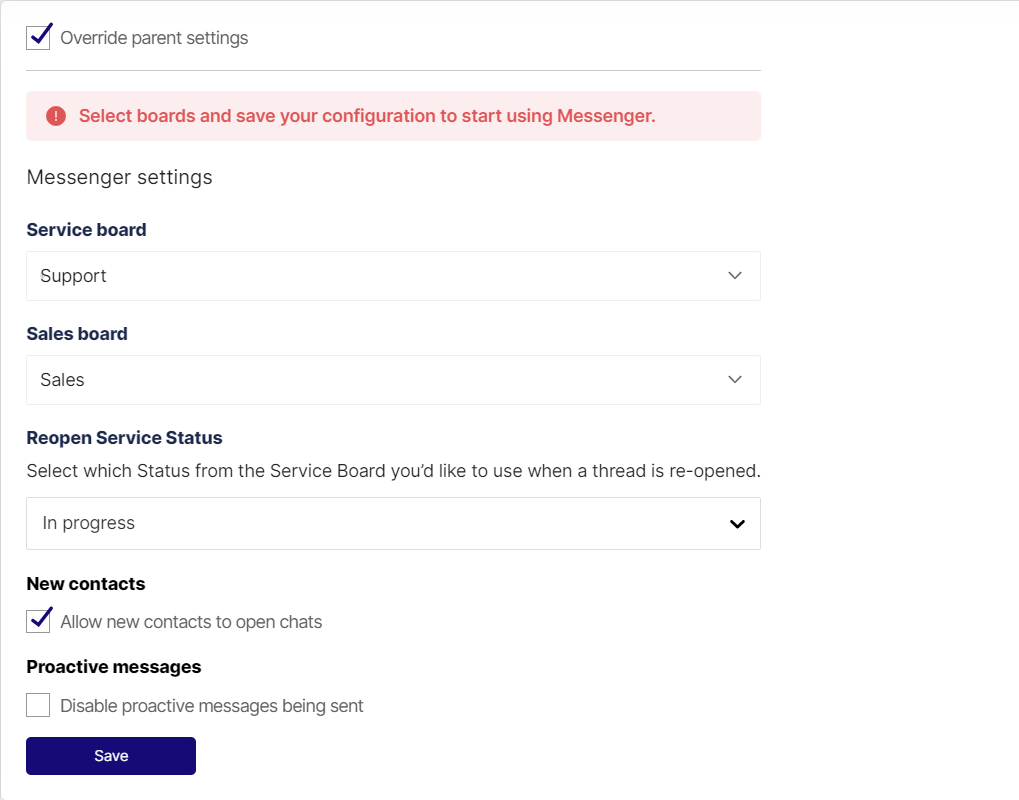
3
Override design and hours if needed
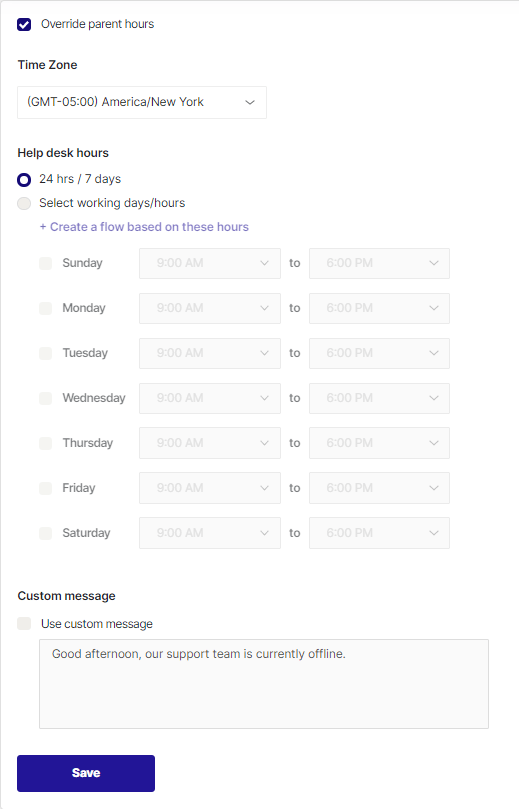
The Design and Hours tabs work the same way — override on the client, or leave them to inherit.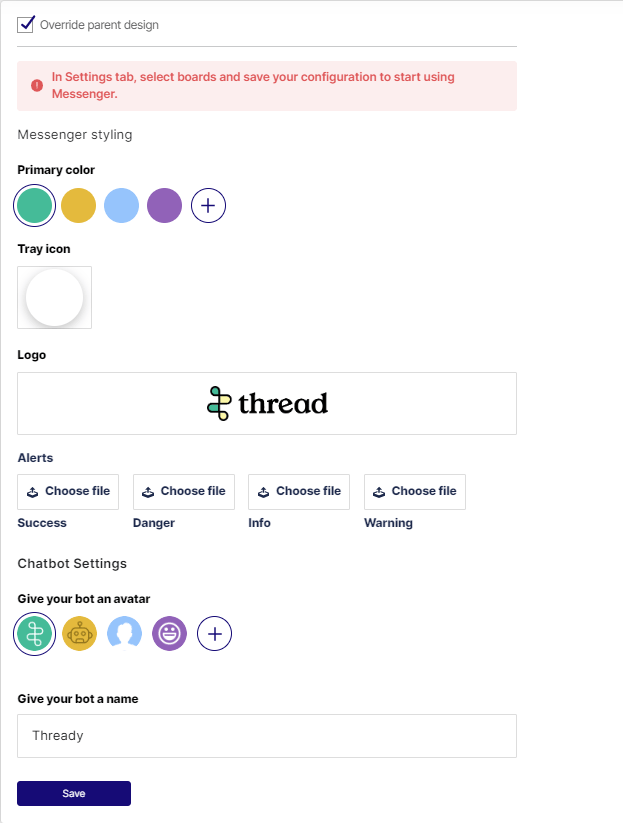
Let new contacts open chats
By default Messenger only lets contacts that already exist in your PSA start a chat, which validates that whoever opens a request belongs to that company. You can relax that per client.1
Open the client's Settings tab
Admin Panel → Clients → the client → Settings, then tick Override Parent Settings.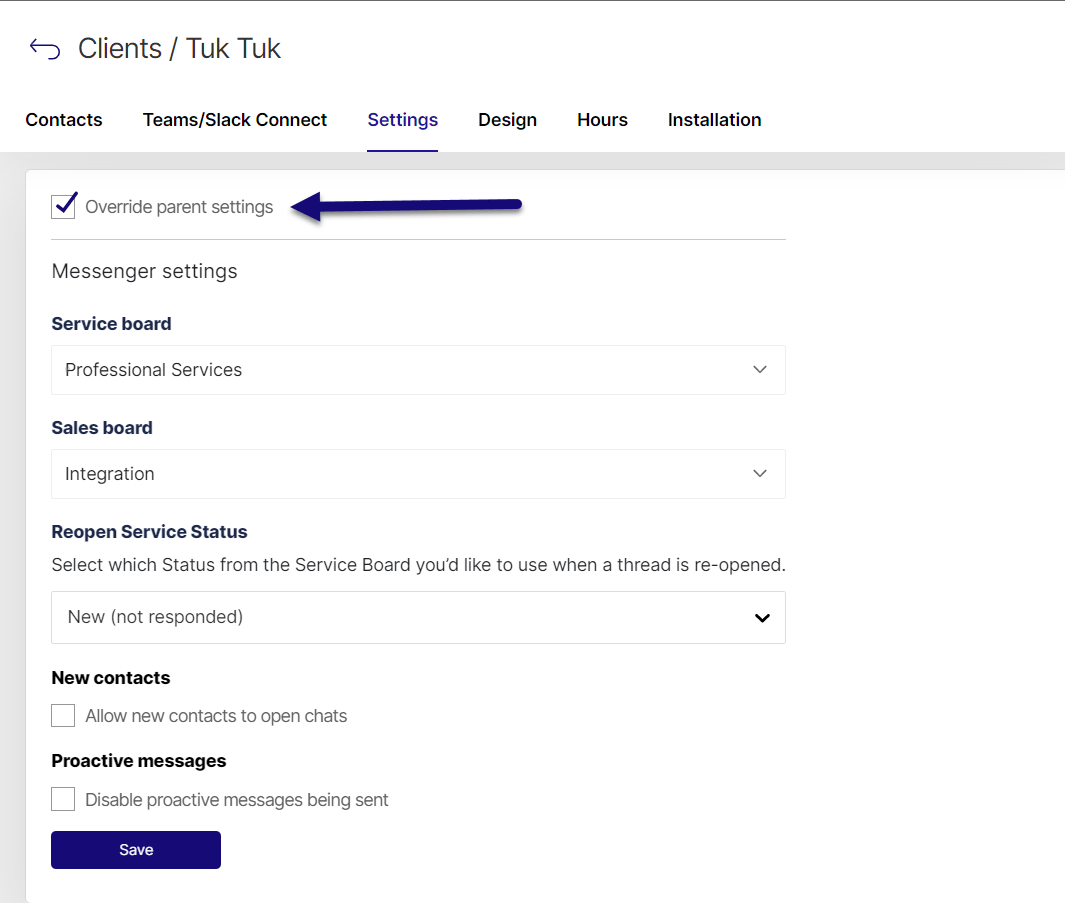
2
Tick Allow new contacts to open chats
Adjust anything else you want to differ for this client first, then tick the box and Save.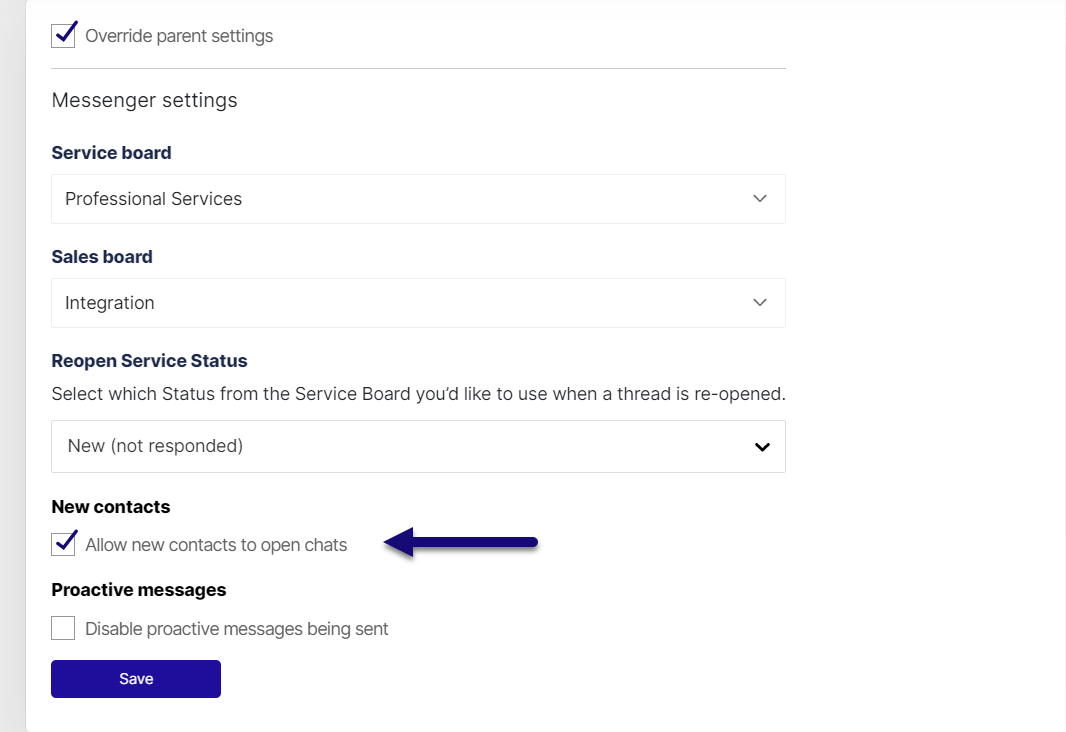
3
Deploy with the client-level App ID
Messenger will then let any user authenticate with any email, create a contact under that company, and let them raise a service chat.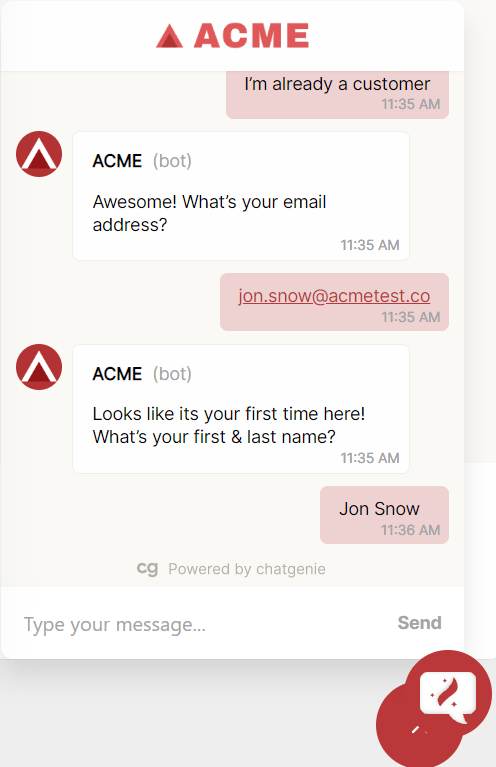
Thread creates a new contact when the email address doesn’t already exist in your PSA. It does
not currently merge or update duplicate contacts, so expect to tidy those up in the PSA.
Disable a client’s Messenger access
When you offboard a client from Messenger:1
Open the Companies tab
Go to Admin Panel → Clients and find the client on the Companies tab.
2
Set Messenger to Disabled
In that client’s Messenger column, switch it to Disabled. They can no longer start new Messenger chats.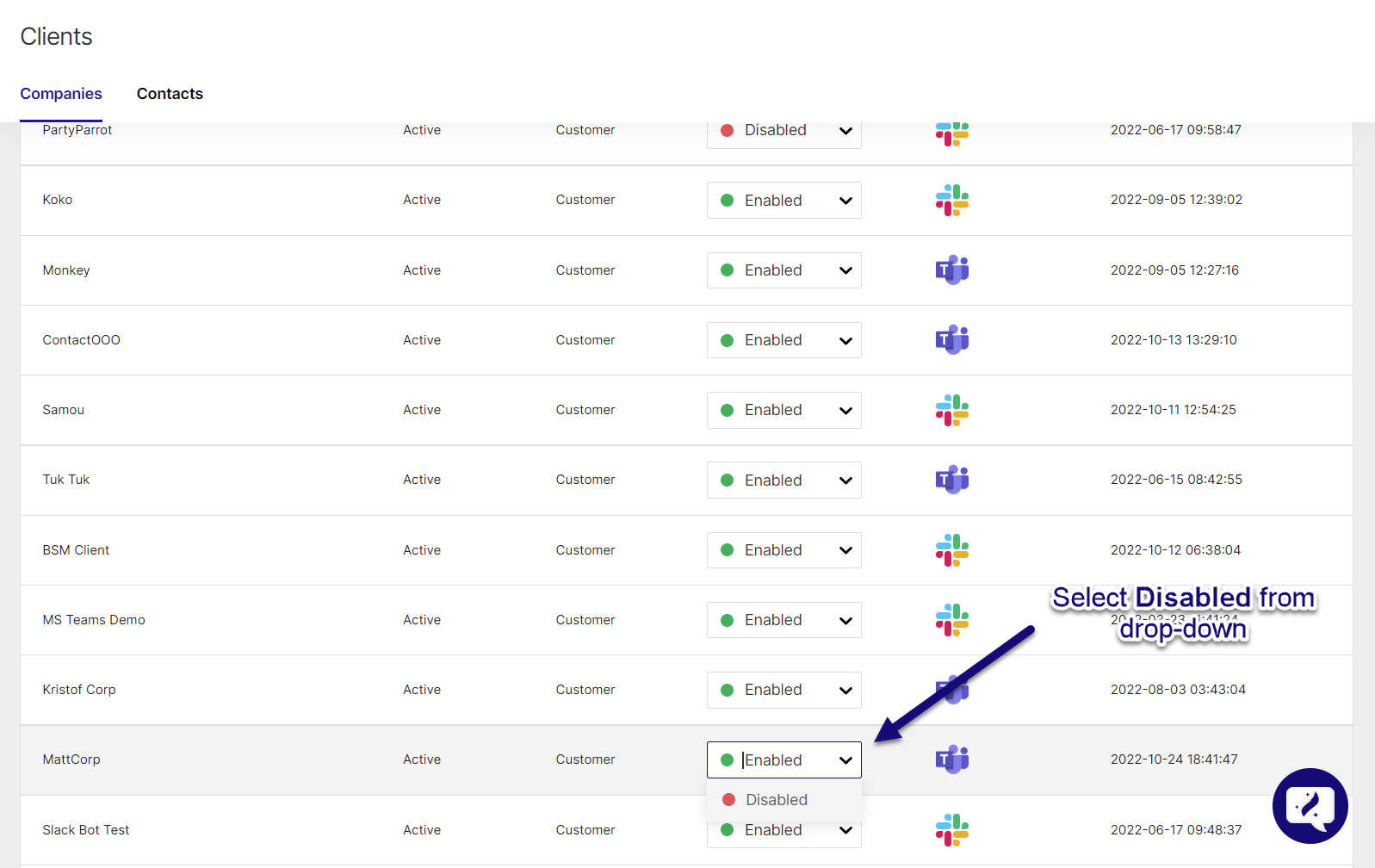
Skills that use this
Get more out of Messenger chat with Super Magic skills.Chat to Ticket Conversion
Turn a chat into a clean, complete ticket.
Live Chat Etiquette
Keep chat replies fast, clear, and on-brand.
Messenger Deployment Audit
Check where Messenger is deployed and where it isn’t.
Browse chat skills
Every Voice & Messenger skill.