

 Magic Library
Microsoft Teams App Permissions
Concept
Thread installs a single enterprise application in Microsoft Entra ID to power all Teams and SSO functionality. Admin consent is required once during onboarding. Thread uses Delegated permissions during initial setup and Application permissions for ongoing operations, ensuring users are never prompted for permissions after the initial configuration.Overview
Thread integrates deeply with Microsoft 365 through two connected applications that provide a seamless experience between Teams and Thread Inbox:- Service App: Installed in your clients’ Teams environment, allowing end-users to chat with your service team and submit tickets.
- Companion App: Installed in your internal Teams environment, allowing technicians to receive notifications and manage workflows.
Why Thread Needs Permissions
Thread uses Microsoft Graph to perform secure, automated actions. These permissions are required to:- Install the Thread Teams app for users.
- Enable secure Microsoft SSO for technicians and clients.
- Power file sharing, message routing, and chat-based workflows.
- Ensure the integration stays active without being tied to a specific individual’s admin account.
Types of Permissions
- Delegated Permissions: Used primarily during onboarding to bootstrap tenant-level setup and upload the app to your catalog. These act “as the admin” during the initial configuration.
- Application Permissions: Used for ongoing operations. These allow Thread to run Teams actions and access Microsoft Graph independently, ensuring stability even if the original admin account is deactivated.
- Microsoft Single Sign-On (SSO): Thread uses your Microsoft 365 identity for secure login. It only requests permissions already granted to the enterprise app to ensure a seamless experience.
Permissions Reference Table
Each permission below is requested through Microsoft Graph using the principle of least privilege.Thread requests the read-only
Files.Read.All and Sites.Read.All scopes rather than their ReadWrite equivalents, in line with least privilege.Resource-specific consent
In addition to the tenant-wide Graph permissions above, the Teams app declares two resource-specific consent (RSC) permissions in its app manifest. RSC is scoped to the individual team or chat the app is added to, rather than the whole tenant:Troubleshooting: “You don’t have permissions to add Thread to this team”
1
Check the team's app permissions
In the Microsoft 365 admin center go to Admin → Teams → Manage teams, select your team and click Edit. Scroll to the permissions and make sure adding, editing and removing apps is ticked.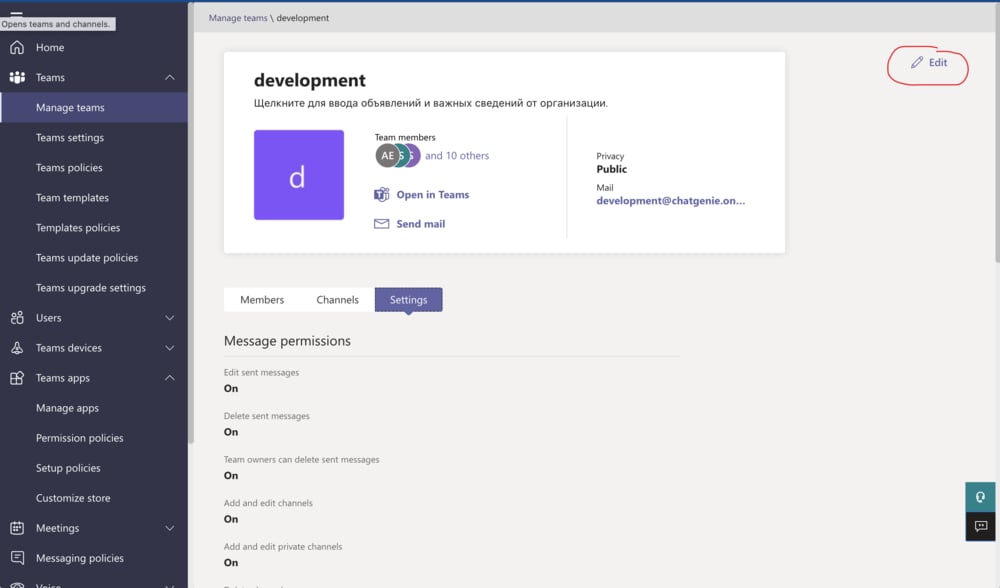
2
Check the setup policy allows custom apps
Go to Teams apps → Setup policies and confirm Upload custom apps is switched on for the team owner.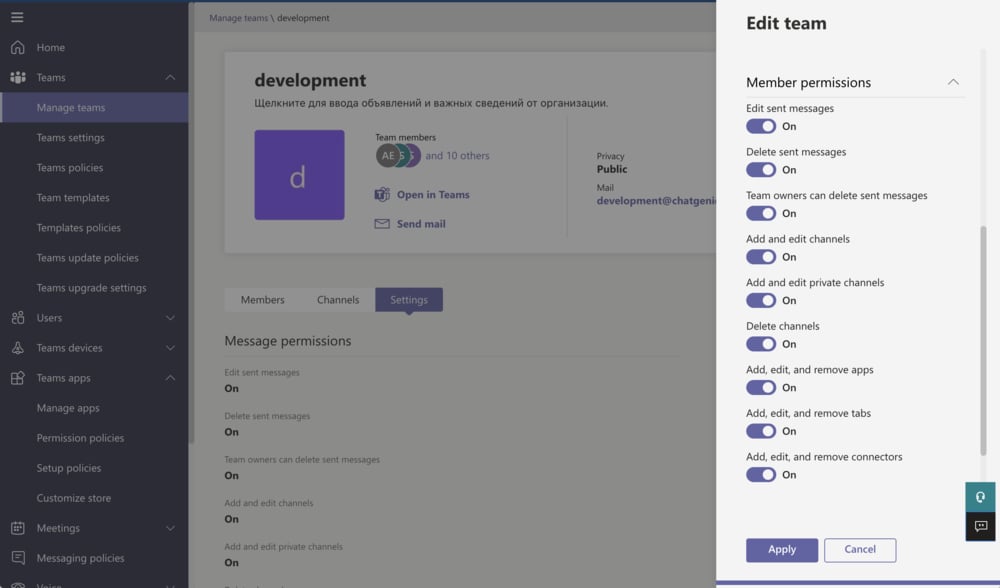
3
Wait for it to propagate
Microsoft 365 takes 30 to 60 minutes to apply this. Wait, then walk through the steps again.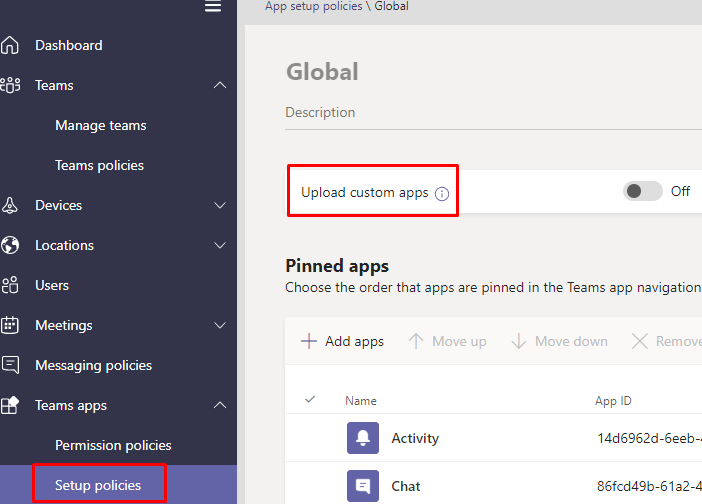
If you’re deploying to a customer’s tenant rather than your own, see
deploying the Teams Service App, which covers the
other errors specific to that flow.