

 Magic Library
- You are a workspace admin to change who can connect. Team admins can open the page, see the apps connected by members on their teams, and revoke them, but they can’t change the setting.
- The MCP keys tab is available on AI Pro. On AI Essentials, the page shows the Connected apps tab only, and connected apps can read but not make changes.
Open the Thread MCP page
- Open Admin → Thread MCP.
- Select the Connected apps tab.
- Access: who can connect apps, plus the connector URL with a Copy button.
- Connected apps: every AI app a member has connected, including apps that have never made a call.
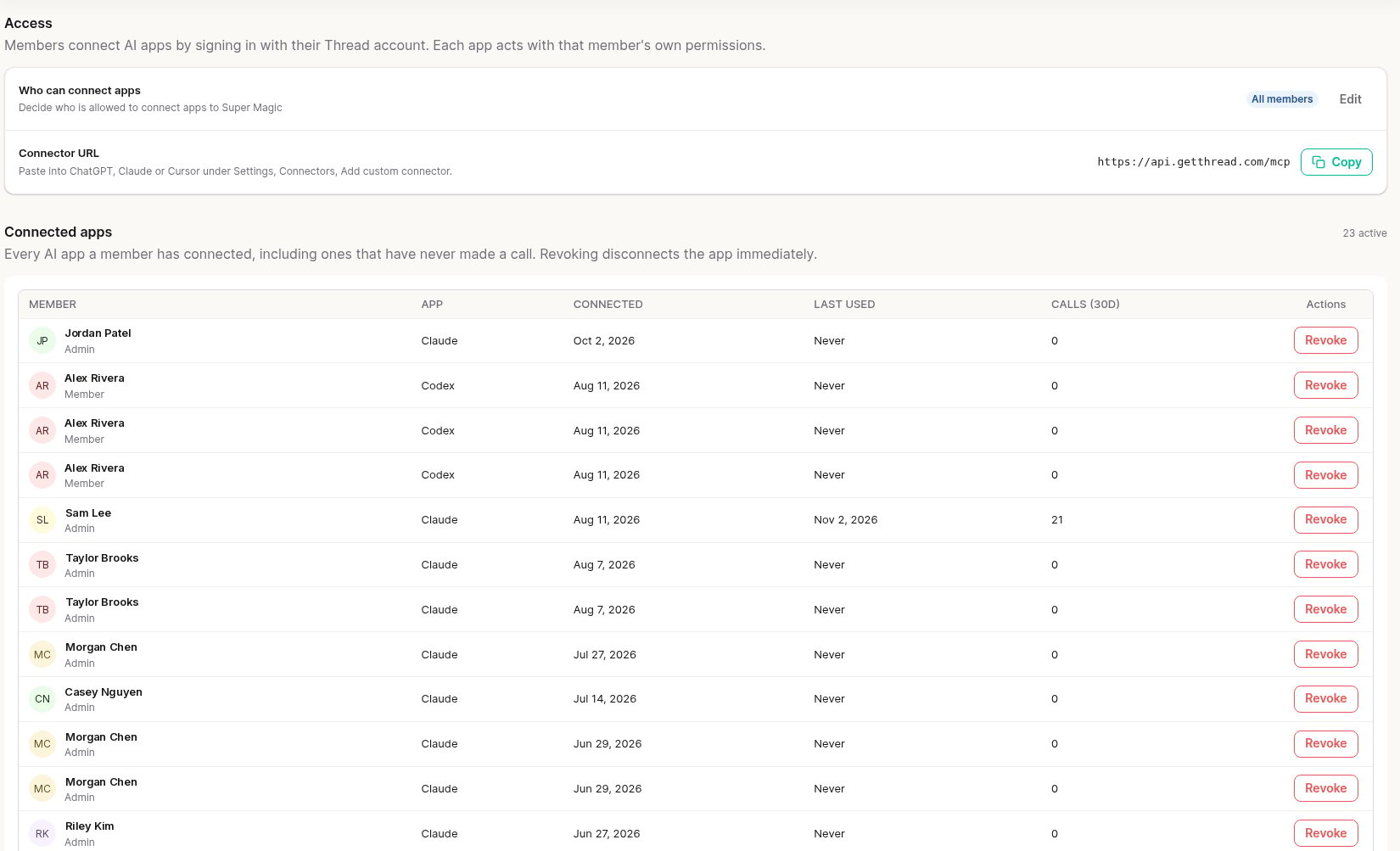
The Connected apps tab: who can connect, the connector URL, and every connected app.
Choose who can connect apps
- Next to Who can connect apps, select Edit.
- Pick one option:
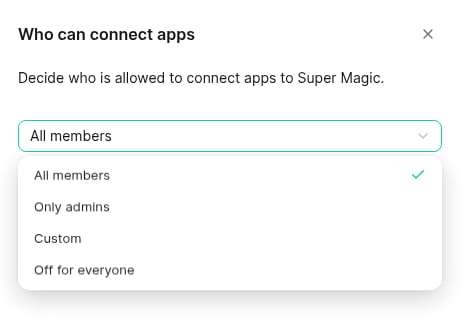
Choose who can connect apps.
- Select Save.
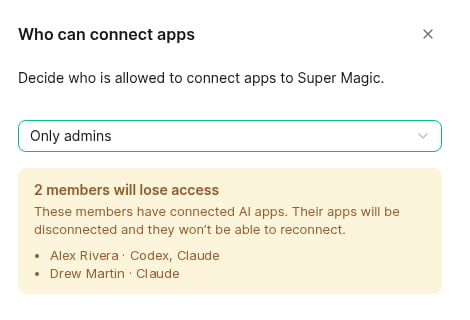
If a change would cut someone off, Thread lists who will lose access before you save.
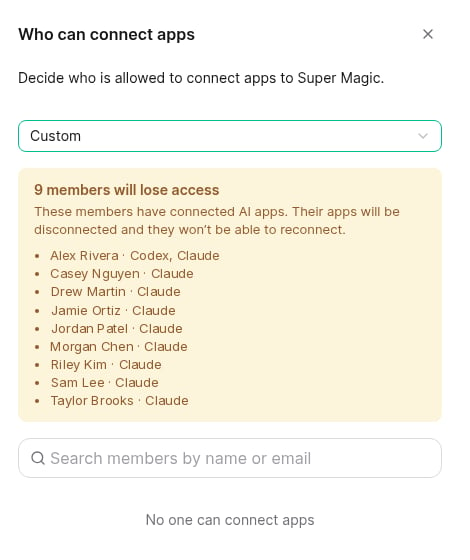
With Custom, add the members who can connect. The warning updates as you choose.
- Apps connected by members who are no longer allowed stop working right away. Thread checks access on every call, so an app that is already connected stops on its next request.
- They can’t connect a new app, and nobody can create an MCP automation key for them, including an admin.
- In Inbox, under Magic → Connectors, they see Connecting AI apps is turned off for your account instead of the connector URL.
- Loosening the setting later doesn’t bring anything back. Revoked apps stay revoked, so members connect again and admins issue new keys.
Review connected apps
The Connected apps table lists one row per member and app:
Workspace admins see every connection in the workspace. Team admins see connections for members on their teams.
Revoke an app
- Find the member and app in the Connected apps table.
- Select Revoke, then confirm.
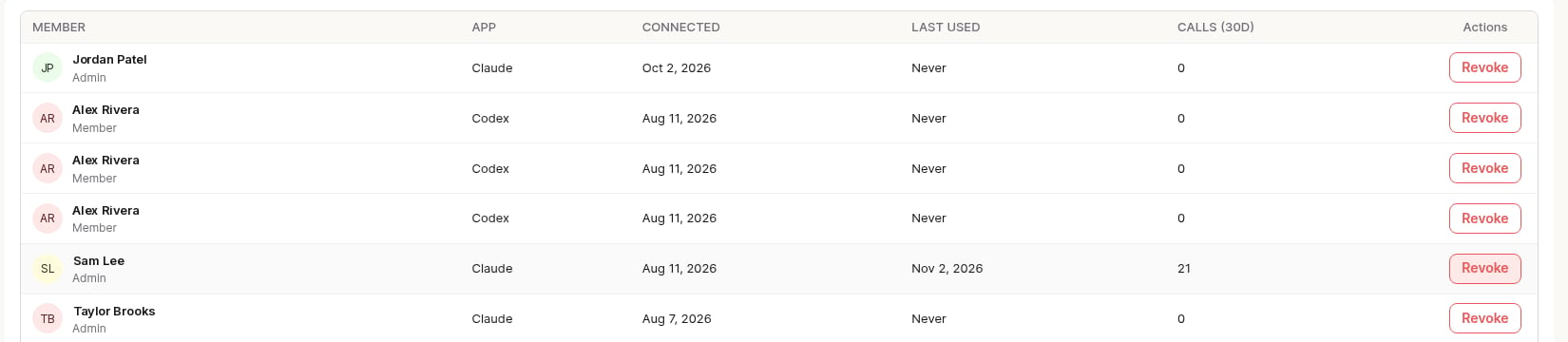
Revoke disconnects one app immediately.
MCP automation keys follow the same setting
Automation keys for n8n, CI and scripts live on the MCP keys tab of the same page. Keys follow the Who can connect apps setting: when a member loses access, their keys are revoked along with their apps, including keys an admin issued for them. See Issue MCP automation keys for team members.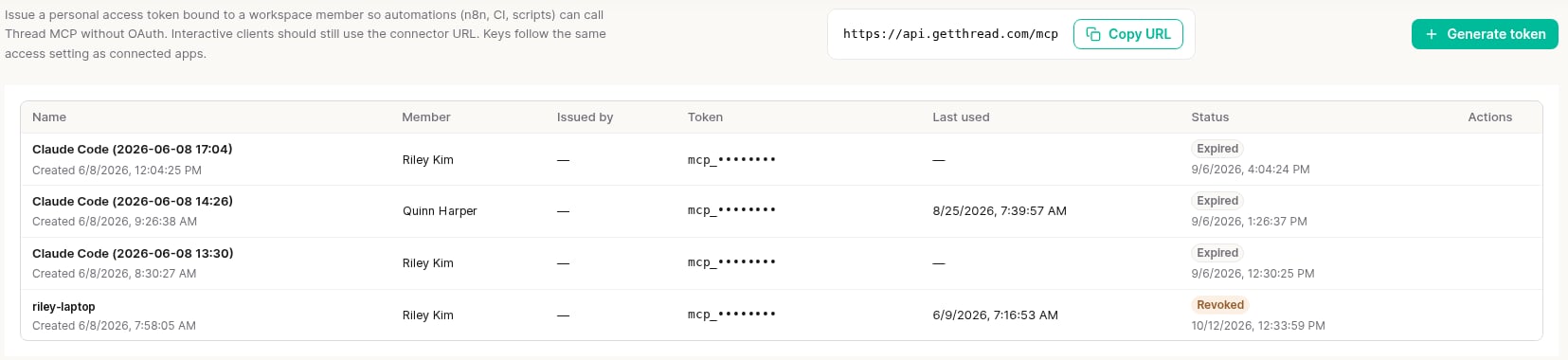
The MCP keys tab. Token values are masked.
Things this setting doesn’t change
- What a connected app can do. An app can only see and do what its member can in Thread. To limit what members can do, use write access and tool toggles in Super Magic settings, and Access Groups to limit which clients they see. See Super Magic Admin Guide: Setup, Access & Safety.
- Super Magic in Inbox. Turning Super Magic off doesn’t block Thread MCP, and this setting doesn’t affect Super Magic chat.