

 Magic Library
- Super Magic settings (
/dashboard/magic/agents/super-agent/settings) — Admin app → Magic → Magic Agents → Super Magic → Settings. Control member access, per-tool write toggles, and see which integrations feed Super Magic. - Integrations (
/dashboard/integrations) — Admin app → Integrations. Connect, disconnect, and enable Super Magic access for each individual integration.
Turn Super Magic on or off
At the top of the settings page, use the Enable Super Magic toggle. When disabled, Super Magic is hidden from all members in Inbox. Nothing else on this page matters until this is on.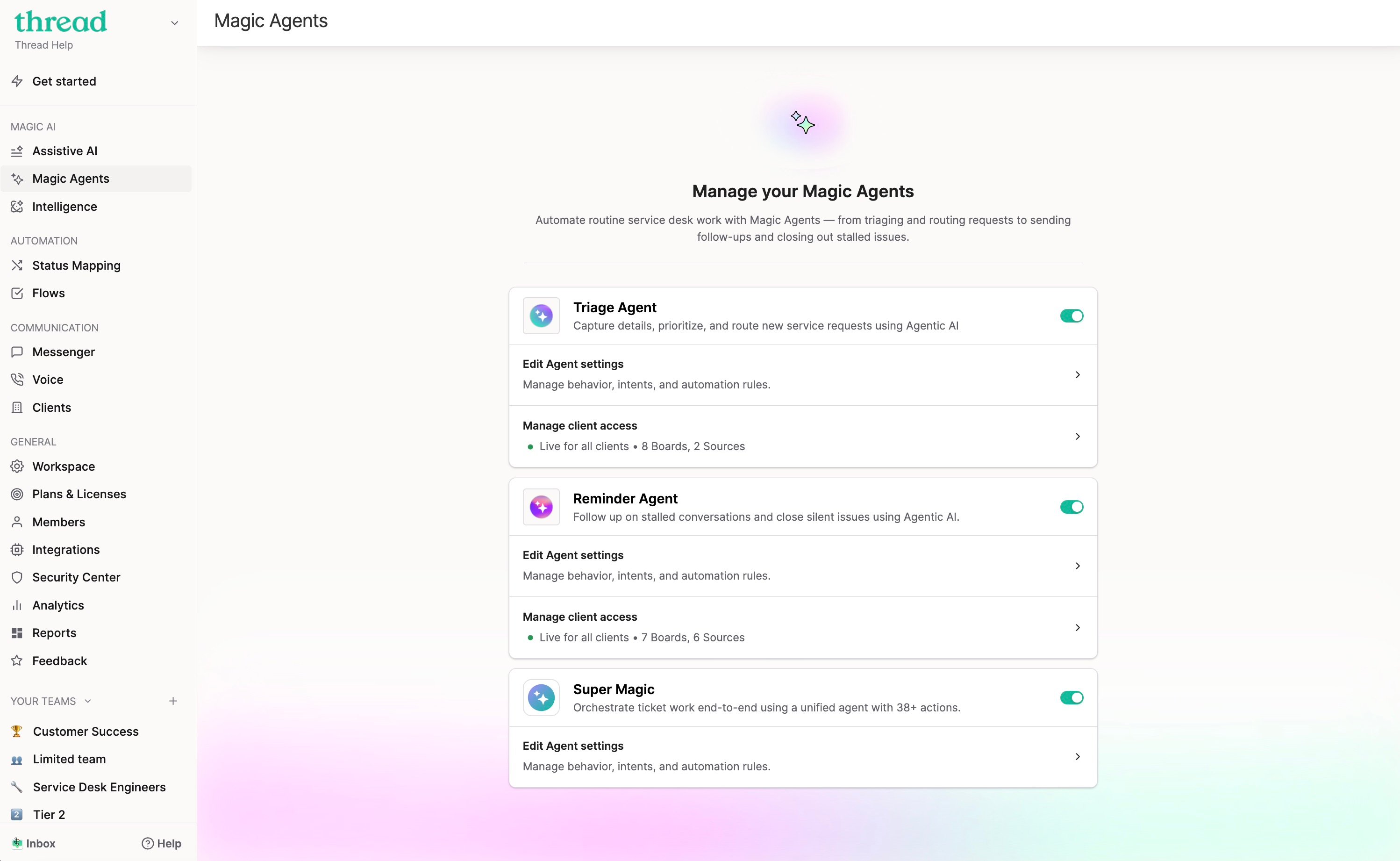
Control who can do what
Super Magic separates reading from acting. This is the heart of the access model:Read access — always on, for every active member
Members can search tickets, look up KB and docs, and ask questions. Read access is always available to every active member and cannot be restricted. Read actions never change anything in your PSA.Write access — you choose
Write actions are the ones that change things: creating or updating tickets, sending notes and approvals, logging time, and modifying flows and intents. Under Member access → Write access, pick one of:
If you choose Custom, a member picker appears — search and add the specific members who should have write access. You can remove a member from the list at any time.
Per-tool write toggles
Below access levels, the Tools card lists every action Super Magic can take as collapsible Read and Write cards:- Read card — always on for all members (shown with a lock). Expand it to see every read action.
- Write card — expand it to see every write action, each with its own on/off toggle. Turning a toggle off removes that action for everyone, regardless of write access level.
Good to know: one action is PSA-specific. Bundling and merging tickets (the Merge / Bundle Tickets toggle) is only available on ConnectWise workspaces.
How Super Magic stays safe
This is the section to share with whoever reviews security at your company:- Every write action requires explicit confirmation. Before Super Magic changes anything, the member sees a Confirm action card showing exactly what will happen, the action, a plain-language description, and every detail (which ticket, which status, which contact). Nothing runs until they click Confirm. Read actions never need confirmation because they never change anything.
- Super Magic acts as the individual member, never as a faceless service account. When a technician confirms an action, the ticket history shows that technician did it. Accountability is preserved end to end.
- Connector access uses each member’s own credentials. For NinjaOne, every member signs in with their own NinjaOne account, so Super Magic can only do what that member is allowed to do in NinjaOne — your NinjaOne role assignments keep working. The same applies to connectors like Linear, Notion, and Zapier: each member connects their own account.
- Access is layered. A member can only use a write action if all of these are true: they pass the write access level → the specific tool’s toggle is on → (for admin-only tools) they’re an admin → (for integration tools) the integration is connected and its Super Magic access is enabled.
- External access is token-scoped. If your workspace uses Thread MCP access, every external connection is authorized by the member signing in with their Thread account and acts with that member’s exact permissions.
Integrations and Connectors — what’s the difference?
External tools that extend what Super Magic can reach live on the Integrations page. They come in two flavors:- Integrations are connected once for the whole workspace by an admin, with company-level credentials: TimeZest, IT Glue, Hudu, Liongard (limited release), ImmyBot (limited release). Unconfigured tools show a Configure → CTA; connected tools show an On/Off status with an options menu (Edit, Connect, or Disconnect).
- Connectors are enabled by an admin, but each member signs in individually with their own account: Linear, Notion, Zapier. Connectors sit at the bottom of the Integrations page with an Enable/Disable option. Enabling a connector makes it available: members then connect their own accounts from the Connectors page in Inbox.
- NinjaOne is both (Limited release): you configure the workspace connection once from the Integrations page, and each member signs in with their own NinjaOne account. See Connect NinjaOne to Super Magic for the full guide.
Turning Super Magic access on or off for an integration
Once an integration is connected, open its detail page from Integrations. Below the setup card you’ll see a Super Magic access card. Toggle it on to expose that integration’s tools to Super Magic, or off to hide them (disabling asks for confirmation). Disconnecting the integration from the Integrations list also turns its Super Magic access off automatically. The Super Magic settings page shows a read-only Connected to Super Magic list so you can see at a glance which integrations are feeding Super Magic. Use the Configure link on that card to jump back to the Integrations page.External agent access (Thread MCP)
Members can connect external AI clients (Claude Desktop, ChatGPT, Claude Code, Cursor, and others) to Thread itself, so those clients can search and act on tickets with the member’s exact Super Magic permissions. Connecting is a one-click sign-in with their Thread account (no tokens to manage), and removing the connector in the AI client ends the access. Details live in the Thread MCP Server: Developer Guide.Skill and Flow prompt length
Skill instructions and Flow agent prompts are capped at 3,000 characters. Anything saved before the cap keeps running exactly as it did: nothing is re-checked when a Flow fires. The limit only bites on save, so a member editing a long skill hits an error where they didn’t before. That is the support call to expect, and the fix is to shorten the instructions, not to raise anything in settings. The Skill Authoring Coach counts a draft and shows where to cut. Building with Super Magic covers the approach: cut the restated rationale first, then name a base skill instead of repeating a shared contract.Troubleshooting: “Why can’t a member see or use a tool?”
Work down this list, the first “no” is your answer:- Is the member active in Thread? Check Thread Admin → Members. In the Slack and Teams Companion Apps, Super Magic only responds to active members. Guest users, pending members, and deleted members get no reply, and Thread ignores their clicks on Super Magic buttons. Technicians synced from your PSA stay pending until an admin activates them, unless auto-add members is turned on.
- Is it a write action, and does the member pass the write access level? All members / Admins only / Custom list — check which level is set on the Super Magic settings page and whether the member qualifies.
- Is the specific tool’s toggle on? Super Magic settings → Tools → expand the Write card.
- Is it an admin-only tool? Intents and flows are admin-only, always. The member must be a workspace admin.
- Is it an integration tool, and is the integration both connected AND has Super Magic access enabled? Open the integration’s detail page from Integrations and check the Super Magic access card. A connected integration with Super Magic access off (or vice versa) exposes nothing.
- Does the tool need the member’s own sign-in? NinjaOne and connectors (Linear, Notion, Zapier) require each member to connect their own account from the Connectors page. The workspace being configured isn’t enough.
- Is it PSA-specific? Bundling and merging tickets only appear on ConnectWise workspaces.