Magic Library
When to use it
Create a Voice On-Call flow when you want to notify technicians about tickets that match your use case, when they might not otherwise be looking at Thread or the PSA. This can be used to replace after hours call services or separate pager alert systems. Common uses:- After-hours priority tickets that a shared on-call rotation should answer.
- Critical alerts from monitoring tools where you want a phone tree to cascade.
- SLA-risk tickets where a spoken page is more likely to break through than a chat message.
Prerequisites
Before you add the action to a Flow, confirm:- Voice AI is enabled and you have at least one outbound agent with a provisioned phone. See Voice AI outbound calling setup.
- The outbound agent has at least one verified caller ID number. Unverified numbers cannot place a page.
- Each technician you want in the phone tree has a reachable phone number, either on their Thread member profile or one you’ll enter directly on the action.
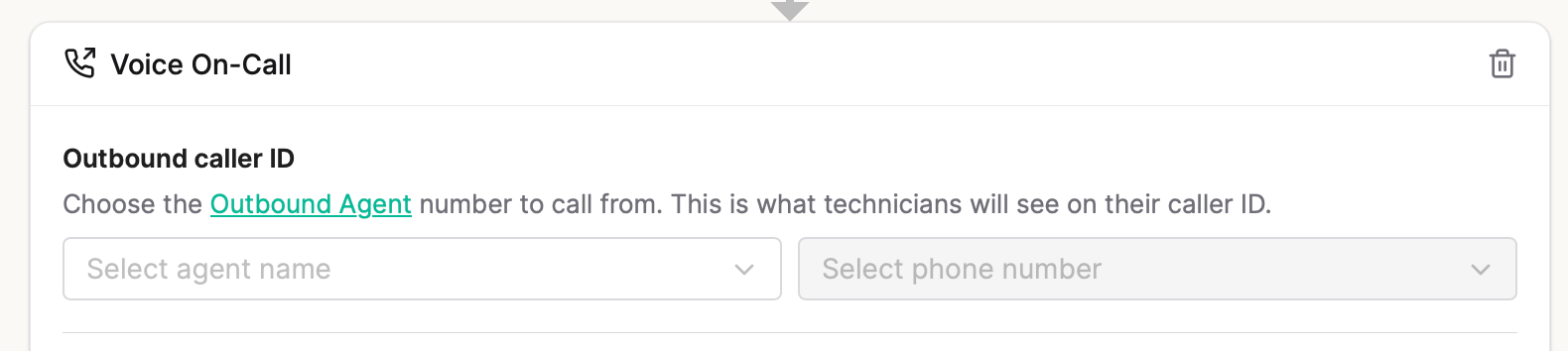
The number that calls your techs is your verified Outbound caller ID. They should make sure this number is unblocked by any spam filters they might have on their device, or saved as a contact.
Add the action to a Flow
1
Open the Flow you want to page from
In Inbox, open Admin and go to Flows. Create a new flow and using the parameters that you would like to trigger a Call to your call tree. See tips at the bottom of this page.Example: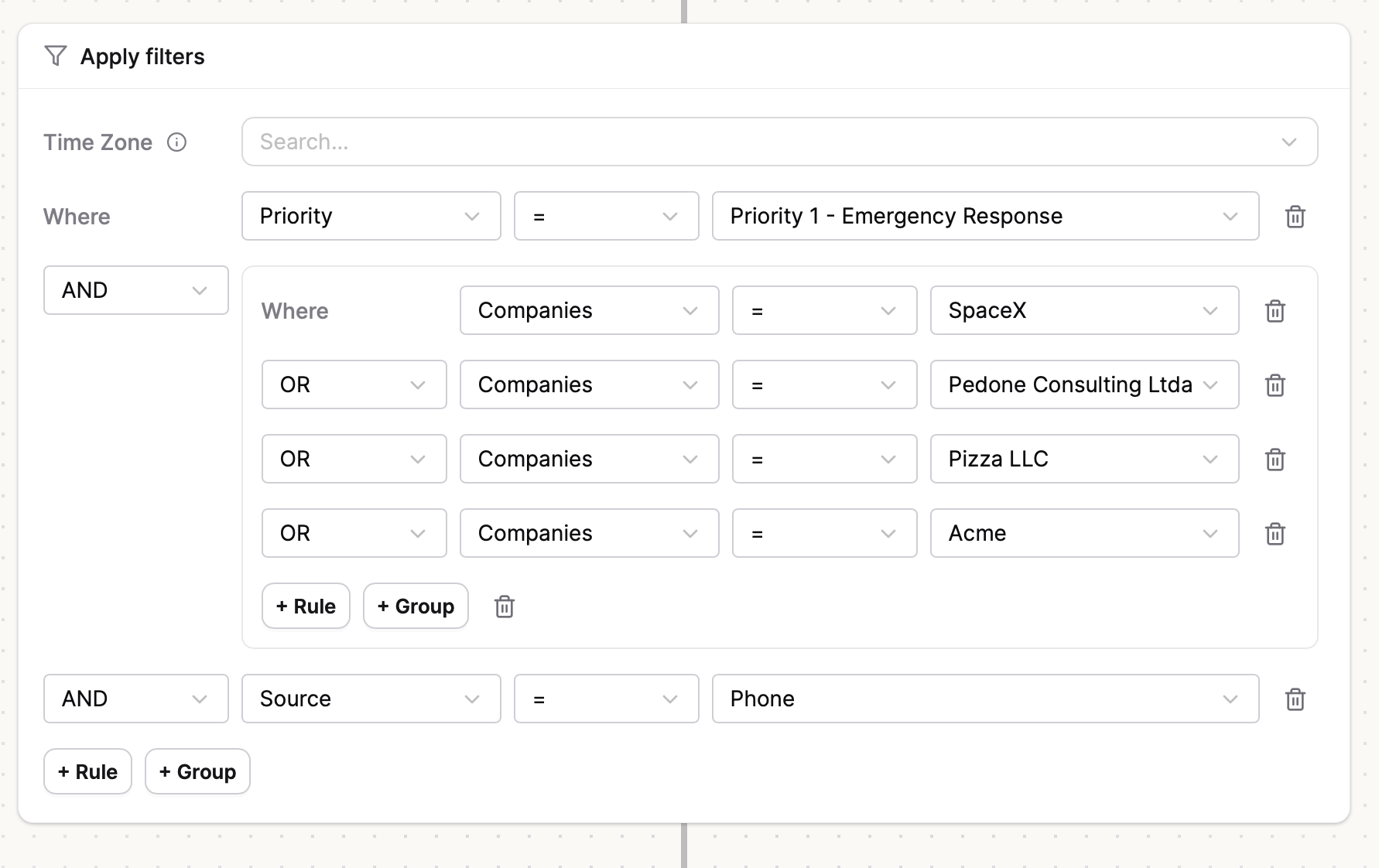
2
Add the Voice On-Call action
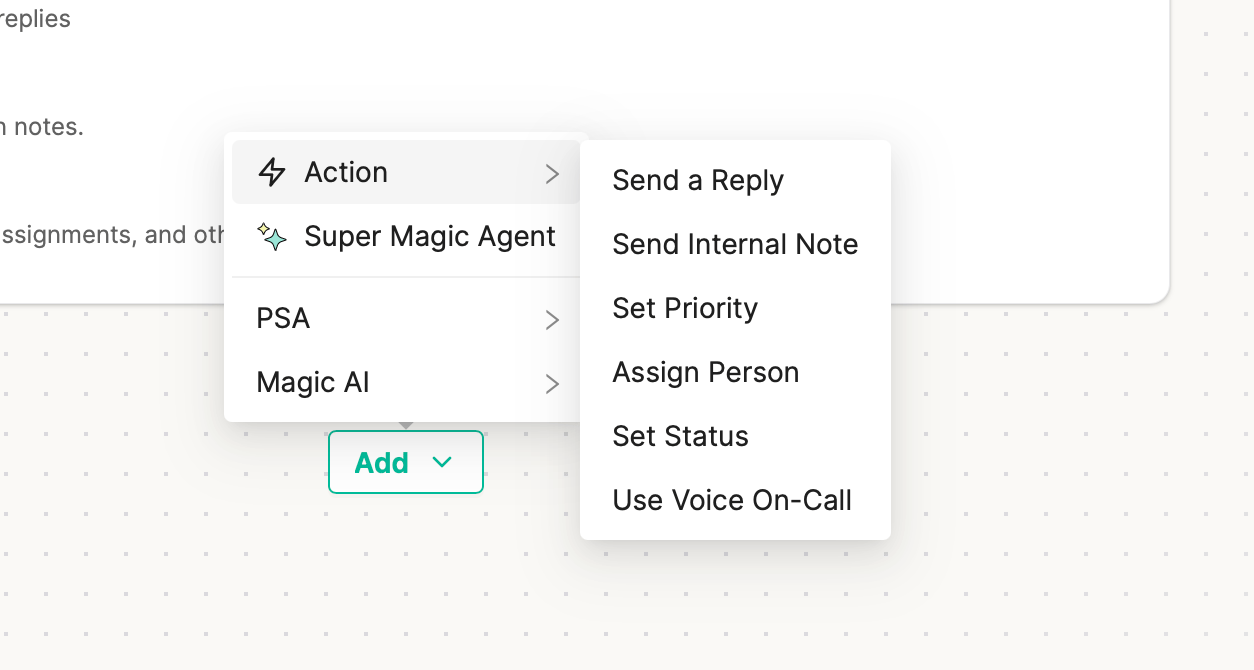
In the Flow’s action list, add Voice On-Call. The action sits under the Actions button and works for ConnectWise, Autotask, and HaloPSA tickets.
3
Pick the outbound agent and caller ID
4
Write the spoken message
In Message, write what Voice AI should say when the technician answers. Keep it short and specific. You can drop in merge tokens so each page is tailored to the ticket:
{{Ticket Number}}{{Contact Name}}{{Company}}{{Summary}}{{Board}}{{Priority}}
5
Build the phone tree
Add the people or numbers to ring, in order. For each entry:
- Choose a Thread member to attach the page to that technician, or enter a custom number for a shared line that calls multiple people.
- Enter the phone number to dial. Double check that the number is right if you pick a member, so the exact number that rings is the one you configured.
- Pick the country dial code (for example,
+1) if the number isn’t already in international+E.164format. - Optionally set Attempts per entry to ring the same number more than once before advancing (defaults to
3). - Set a Label shown in the ticket’s audit trail (for example,
George M. or Technician 1). - OPTIONAL: For each number, choose who the ticket gets assigned to when the call is accepted.
6
Set retry, caps, and end-of-tree behavior
Tune how long the loop keeps going:
- If using one phone number, you can set the call to ∞ to keep calling that number.
- If using multiple numbers, the last number in the call tree can be set to ∞ to keep calling that last number.
- Retry interval: how long Thread waits between calls. Minimum
2 min; defaults to5min. - Maximum total attempts: the maximum number of attempts we can make on a ticket is 50, so set up your tree to be less than 50 calls total or risk that the later parts of your tree won’t get called.
- Maximum duration: The call tree will stop ringing after the call is accepted, the call tree parameters end, or 24 hrs. Whatever happens first.
- End of tree: what to do after the last person in the tree doesn’t answer:
Restart— go back to the top and cascade again. The attempt and duration caps still end the loop.Stop— end the escalation.
7
Optionally set a status on acceptance or not answered
Under On acceptance, pick a Ticket status if you want Thread to move the ticket the moment a technician presses the accept key. Leave it blank to keep the ticket’s status unchanged.Under If no one answers…change status to, pick a Ticket status if you want Thread to move the ticket if no one acknowledges the page. Leave it blank to keep the ticket’s status unchanged.
8
Save the Flow
Save the Flow. Thread validates the action at save time and returns a clear message if anything is missing (for example, an unverified caller ID or an empty phone tree).
Common setups:
- Call one on-call number until it’s answered or the safety limit is reached.
- One person is on call OR the number you use is a ring group (in this case we won’t be able to determine who specifically answered the call).
- Call multiple numbers in a cascade, with the last number being called until it gets answered or the safety limit is reached.
- Call multiple numbers in a cascade, and have it start at the beginning if no one answers.
- Call multiple numbers in a cascade, with the last number being a call center number that has to answer.
How the page call works
When a ticket matches the Flow, Voice AI dials the first entry in the phone tree from the caller ID you selected. The technician hears your spoken message, then chooses on the keypad:- Press
1to accept the page. - Press
2to hear the message again.
1 and 2; they aren’t configurable on the action.
When a technician accepts:
- The escalation stops immediately.
- Thread assigns the ticket to the accepting technician if the phone tree entry was tied to a Thread member.
- Thread moves the ticket to the status you picked on acceptance, if you set one.
- Voice AI speaks your acknowledgement message, if you set one.
1. When the cascade reaches the end of the tree, Thread follows the End of tree setting.
The loop always ends. Whichever caps you set, Thread stops calling once Maximum total attempts (50) or Maximum duration (24hrs) is reached, even when End of tree is set to Restart.
What stops an active page
Any of these ends the escalation without further calls:- A technician presses
1to accept the page. - A technician uses the /Voice end call escalation command on the ticket.
- The attempt or duration cap is reached.
- The cascade finishes with End of tree set to
Stop.
Track escalations from the ticket
Every escalation writes internal notes to the ticket as it runs, so the audit trail lives in the same place as the rest of the work:- The page started, with the outbound agent, caller ID, and phone tree used.
- Acceptance, human stop, cap hit, or cascade end — whichever ended the loop.
- The accepting technician’s name when someone presses accept.
- If no one answers their portion of the call tree, how many calls they received.
Setting up your Flow parameters
Voice On-Call is mainly going to be used for after hours tickets, however you can set it up for any parameters you’d like.Common parameter combinations for Voice On-Call:
- Time/days: Set up multiple flows for each day/times that you have different on call schedules.
- Priority: Alert based on high or emergent priorities.
- Categories or Summary: Trigger based off of key words or phrases.
- Contact/Client: Trigger for specific people (note: Voice will only trigger in these cases if the number calling is known in the PSA).
- Status: Status is a good way to trigger escalation based on other flows if needed.
Examples
- Time: From 6PM to 9AM + Priority: Priority 1 Issues
- Day: Saturday AND Sunday + Priority: Priority 1 Issues
- Time: From 6PM to 9AM + Company A + Company B
Using Super Magic to Make Voice On-call Flows
You can use Super Magic to help you create an On-Call flow by describing your schedule or uploading an image.PTO and Absences
Instead of making a new call tree every time someone is out or deleting their number temporarily, just toggle them off while they are out using the “active” toggle.