

 Magic Library
Outbound Calling
Concept
Outbound calling in Thread lets your technicians place calls to customers directly from Inbox, with a verified business caller ID displayed regardless of which device or number the tech is actually calling from.Value
Once outbound is set up, every call your team places carries a consistent, recognizable business identity to the customer, and every call is automatically recorded, transcribed, and tied to the right ticket:- Consistent business identity: every call shows your verified caller ID, not a personal cell or a random extension.
- Flexible for any phone setup: works for MSPs whose techs have direct numbers, extensions under a DID, or use personal devices. Customers always see your main verified caller ID.
- Recorded and transcribed automatically: every outbound call lands in the ticket as a transcript, accessible from both the Admin dashboard and the right-hand sidebar of Inbox.
- Supercharged by Super Magic: techs can query the live transcript mid-call to pull up docs, and ask Super Magic to summarize the call and write a TimePad entry the moment they hang up.
How it works
At a high level, outbound calling takes three moves:- An admin adds an outbound agent and verifies the caller ID number(s) customers will see.
- A technician places a call from the ticket; Thread rings the tech’s own device, then connects the customer with the verified caller ID displayed.
- The call is recorded, transcribed, and attached to the ticket automatically.
How to
Before you start
1
Add an agent (Admin)
In Thread, go to Admin and add a new outbound agent.Most MSPs only need one agent. Outbound agents have limited settings — multiple agents only make sense if you need different compliance messaging by region, or want to divide call data by office.When configuring:
- Enter an agent name.
- Choose the agent Language (see below).
- Decide whether to include a compliance message at the start of each call.
- Adjust Speech speed and Speech volume for the auto-play consent message (see below).
- OPTIONAL-Add custom pronunciations for the consent message (e.g., your MSP’s name) so it’s spoken correctly.
- Thread transcribes outbound calls in the configured language.
- The consent message Preview audio button plays in the selected language. It no longer follows the recording storage country.
- Language and voice are independent. You can pair any language with any voice.
- Existing agents keep their current behavior. Thread set each agent’s language from the voice it was already using.
- If your account doesn’t have international language support, the dropdown only shows English.
- Speech speed: 0.6x to 1.5x. Defaults to 1.3x, which matches the pacing existing outbound agents have always used, so no agent sounds different until you move the slider.
- Speech volume: 0.5x to 2.0x. Defaults to 1.0x.
- These sliders apply only to the auto-play consent message the customer hears at the start of the call. Outbound-lite has no conversational AI, so the technician-facing system lines (please-wait, member confirmation, dial-failed, contact-unreachable) always play at 1.0x and are not affected.
- The Preview audio button reflects the speed and volume you’ve set accurately. On live calls, PSTN carriers normalize audio levels, so the volume a customer actually hears may not exactly match the slider — same behavior the inbound agent has.
- Values are stored even when the consent message is disabled, so re-enabling the message restores your last choice instead of resetting to the defaults.
2
Add and verify a caller ID number
Go to Outbound Numbers, click Add Number, then:
- Enter the phone number and extension (if applicable).
- Add a label.
- Click Add Number.
- Thread places a verification call to that number — answer it and enter the code Thread provides on your dial pad.
- Verification status is shown on the numbers table; you can resend the verification if needed.
- If your DID routes through a Thread Inbound agent, the number validates automatically, the verification window closes itself when complete (may take a few moments).
- A number cannot be used as caller ID until verified.
- Outbound calling cannot be activated until at least one caller ID is verified.
3
Set your default calling preferences (first call only)
The first time a technician places an outbound call from Inbox, they’ll see a setup popup. These preferences can be changed anytime from the Preferences section of Inbox.
- Select the agent and caller ID: this is the number the customer will see, regardless of what number the tech is calling from. If your Technicians use an Extension and are not receiving the call, they may need to edit their extension to add “w’s” to add a half second to the extension trigger as noted in the tool-tip. NOTE: Customers will not see the Agent’s name, only the Caller ID.
-
Select the number the tech wants to be reached at:
- Thread automatically pulls the tech’s number from the PSA as an option, OR
- Select “Use a different number” to enter any phone number and extension. We strongly recommend that partners run a PSA sync before placing your first call to ensure that you are pulling the correct extensions for both members and contacts.
4
Place a call
From inside Inbox, start a call from either the contact panel or the top of the conversation area.In the call popup: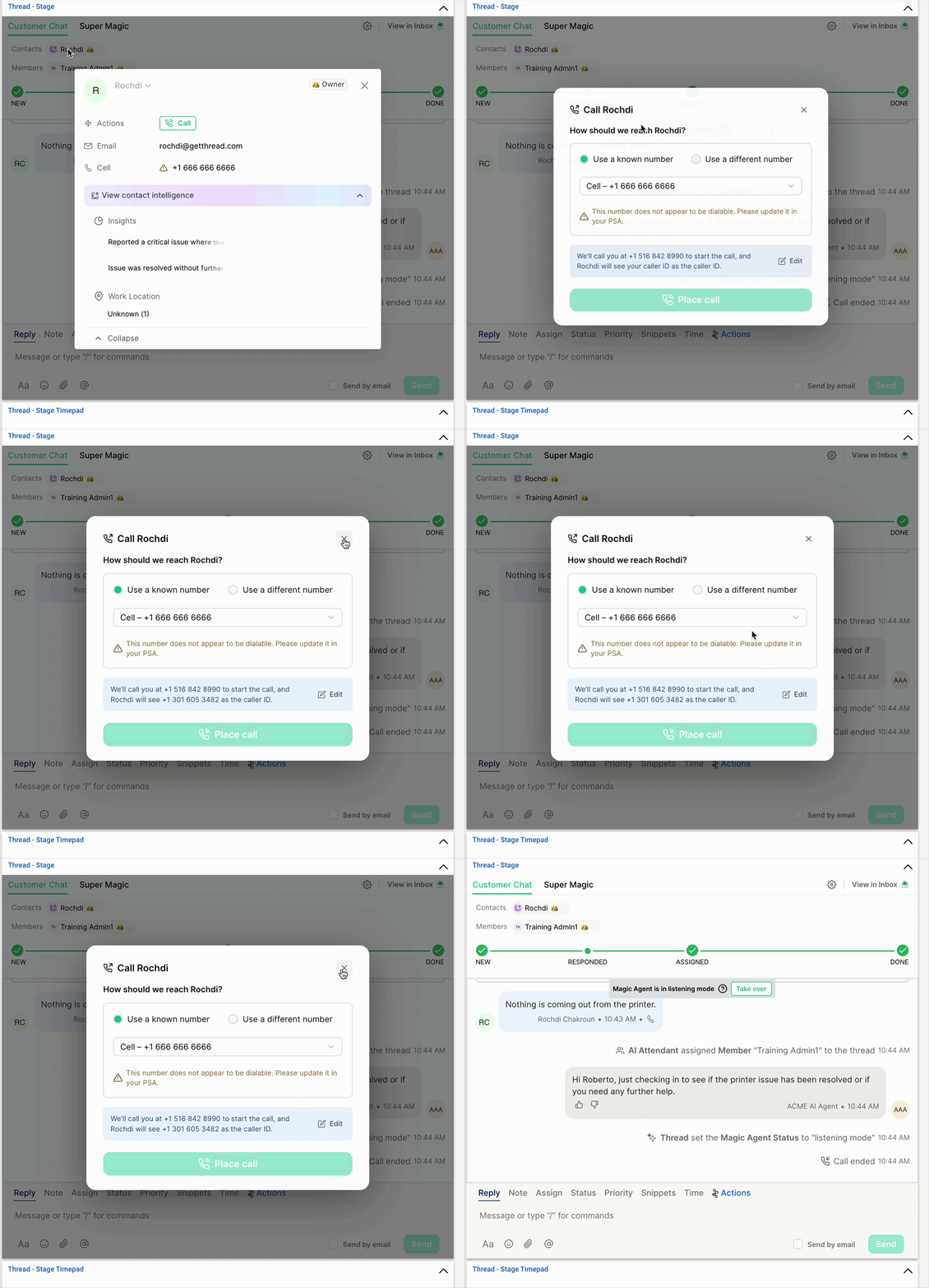
-
Select the number the customer should be reached at — Thread pulls the default PSA contact number, or you can enter a different number and extension.
-
Troubleshooting tip: If the call isn’t connecting through an extension, try adding a couple of
ws before the extension (e.g.,www90) to insert pause delays. As a best practice, Technicians should confirm the correct number to reach them at. Depending on your PSA Hygiene, phone number configuration, and or customer preference, the number listed may not be the preferred number for the customer. Note: if the number is not dialable, you will see a warning icon with additional details next to the phone number.
-
Troubleshooting tip: If the call isn’t connecting through an extension, try adding a couple of
- Edit your caller ID or the number you’ll be reached at for this call if needed. (To change them permanently, go to Preferences in Inbox.)
- Click Place Call. The Technician will then press 1 or say “Start the call” to connect. TimePad will automatically start and stop when the call is initiated and when it ends.
5
During the call
While the call is live, technicians have a few controls inside Inbox:
- Pause and resume the transcript to keep sensitive information (passwords, payment details, etc.) out of the record.
- End the call from Inbox if needed — also useful if a call appears stuck “in progress” long after it actually ended.
6
After the call
Every outbound call is recorded and transcribed into the ticket automatically. You’ll find the transcript in three places:
- The Admin dashboard, marked as outbound.
- The right-hand sidebar of Inbox, the same place inbound call transcripts live.
- The Conversation Area in the ticket.
7
Use Super Magic with the call
Super Magic has access to the live call transcript, both during and after the call.
- During the call: ask Super Magic questions and have it reference the transcript to surface relevant documentation.
- After the call: ask Super Magic to summarize the steps taken, reference the call time, and write an entry to TimePad. Call notes that used to take minutes take seconds.
Notes and limitations
FAQ
Do I need more than one outbound agent?
Do I need more than one outbound agent?
Probably not. One agent covers most MSPs. Add more only if you need different compliance messaging per region, or want to segment call data by office.
Does my tech's real number show to the customer?
Does my tech's real number show to the customer?
No. The customer always sees the verified caller ID you’ve configured, regardless of what device or number the tech is actually calling from.
What if a number won't verify by phone call?
What if a number won't verify by phone call?
If the DID routes through a Thread Inbound agent, verification happens automatically — give it a few moments. Otherwise, make sure you have direct access to answer that line, and use the resend verification option from the numbers table if needed. If your Technicians use an Extension and are not receiving the call, they may need to edit their extension to add “w’s” to add a half second to the extension trigger as noted in the tool-tip.
A call extension isn't connecting — what do I do?
A call extension isn't connecting — what do I do?
Add a couple of
ws before the extension digits (e.g., www90). The ws insert pauses that give the receiving system time to register the extension.Where do I find the call transcript afterward?
Where do I find the call transcript afterward?
In the Admin dashboard (marked as outbound) and in the right-hand sidebar of Inbox on the related thread.
Can I turn outbound off temporarily?
Can I turn outbound off temporarily?
Yes. Outbound agents and calling can be toggled on and off at any time from Admin.