Magic Library
Automagically is currently in a closed beta.
This is different from approving a pending execution, which is a technician approving a pre-filled run from the Triage Agent. This article is about approving the runbook itself.
Approving from the Approvals page
1
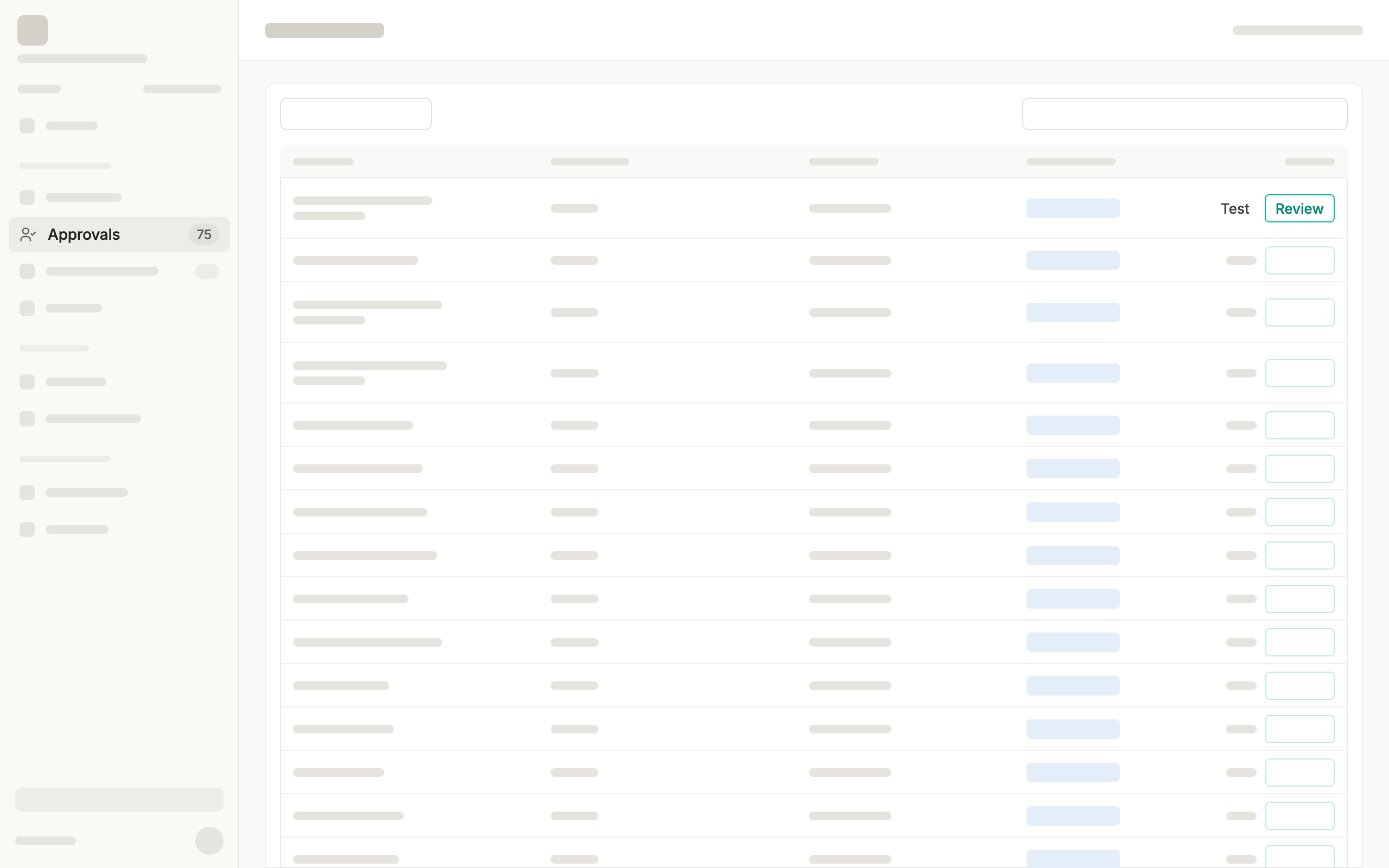
Open a runbook waiting for approval
Navigate to the Approvals page. The badge shows how many runbooks are waiting for review.
2
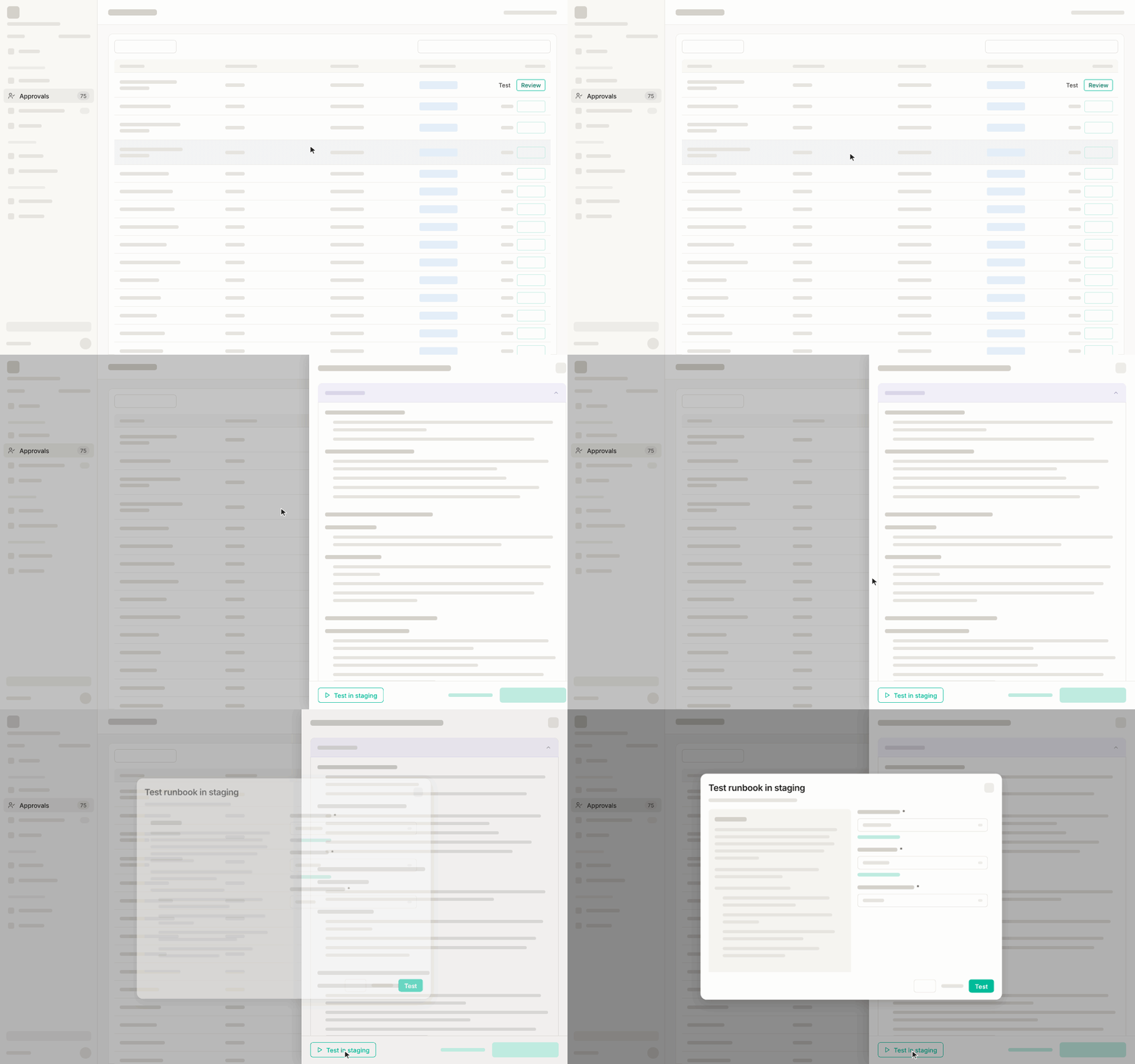
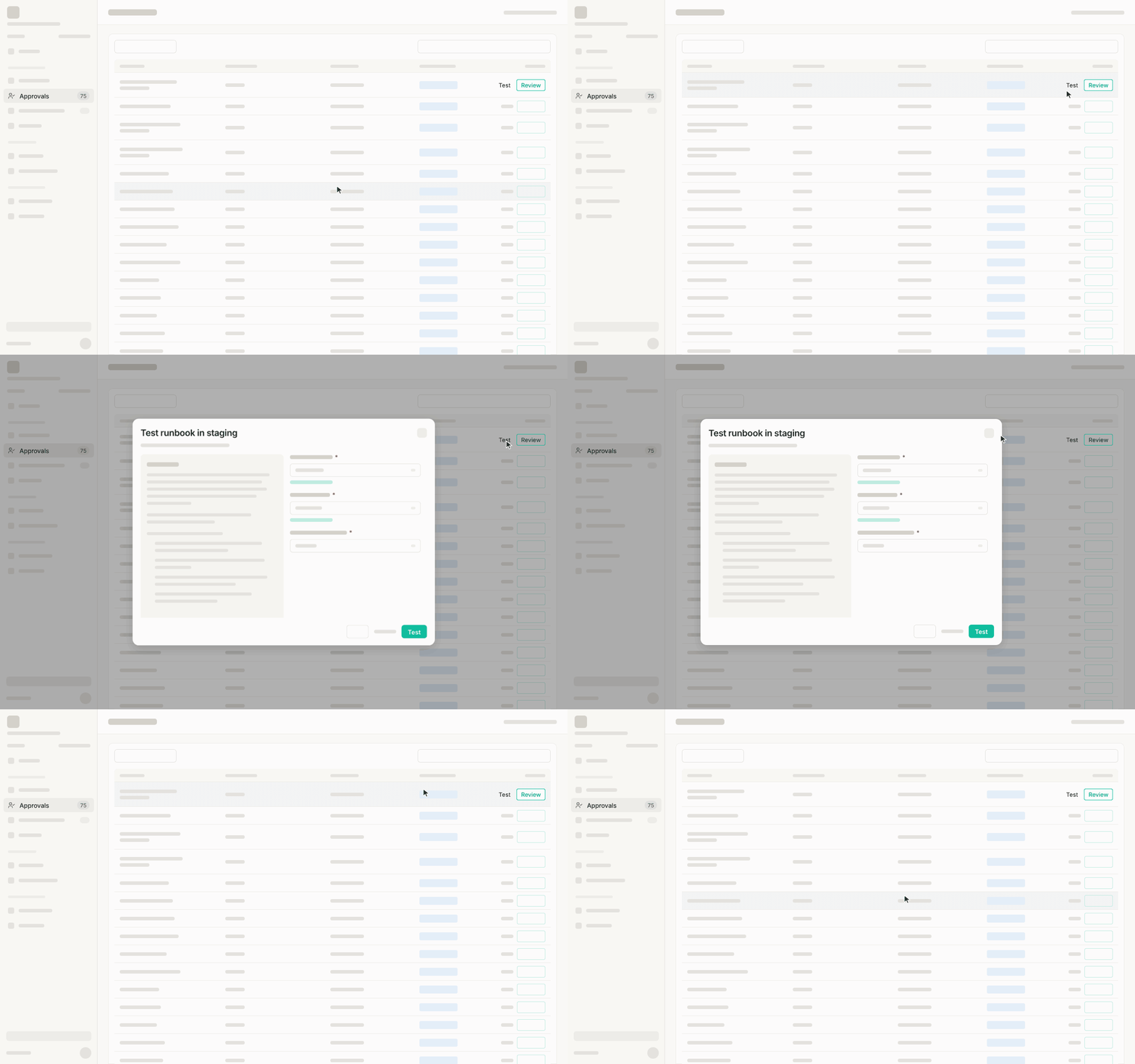
Test the new runbook in staging
Testing runs against your staging tenant, so you don’t need to select a client or a ticket.There are two ways to test the runbook:
-
From inside the review changes panel.
-
Directly from the runbook table.
3
Review and approve (or reject)
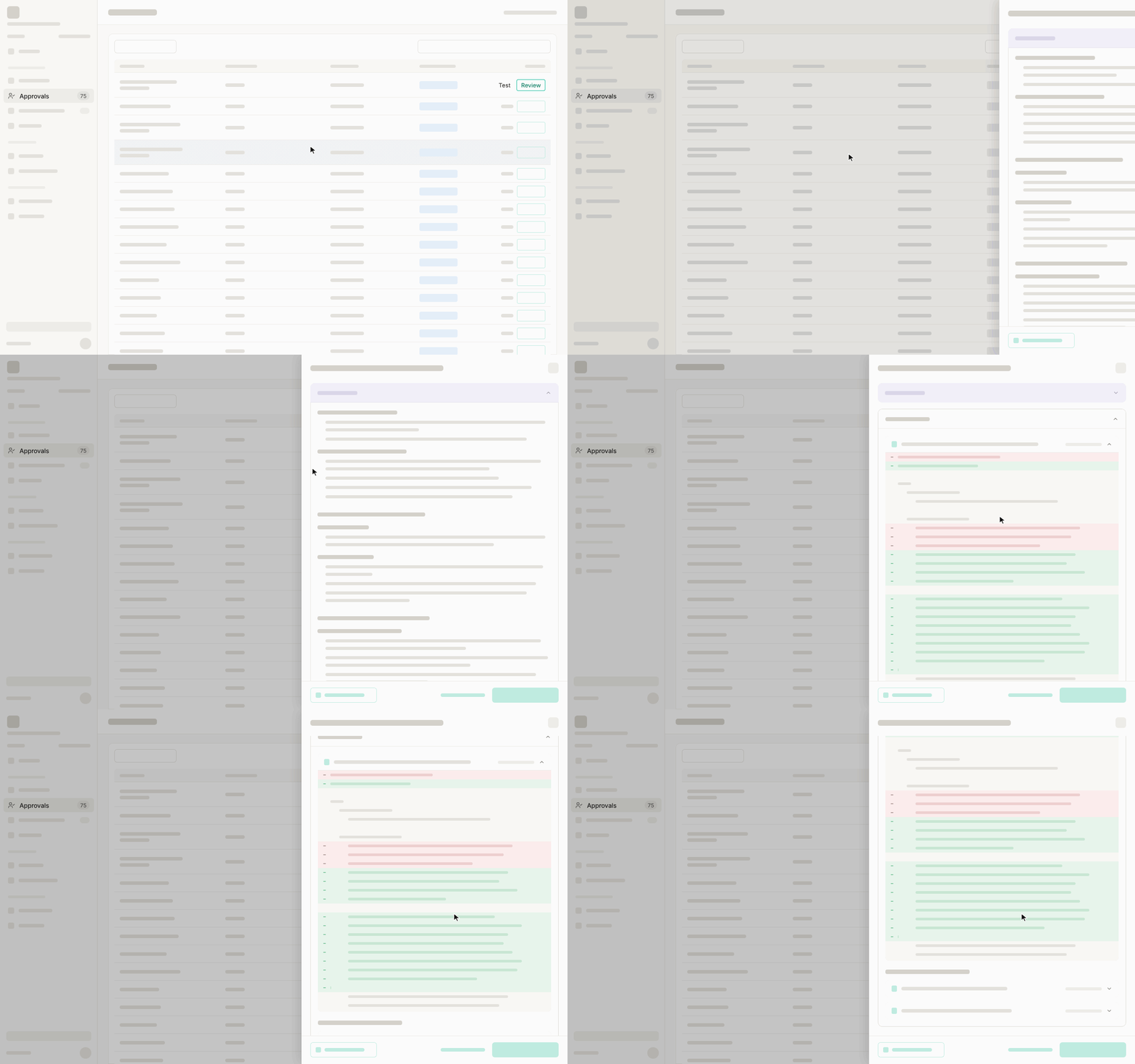
Review the changes in the review panel:
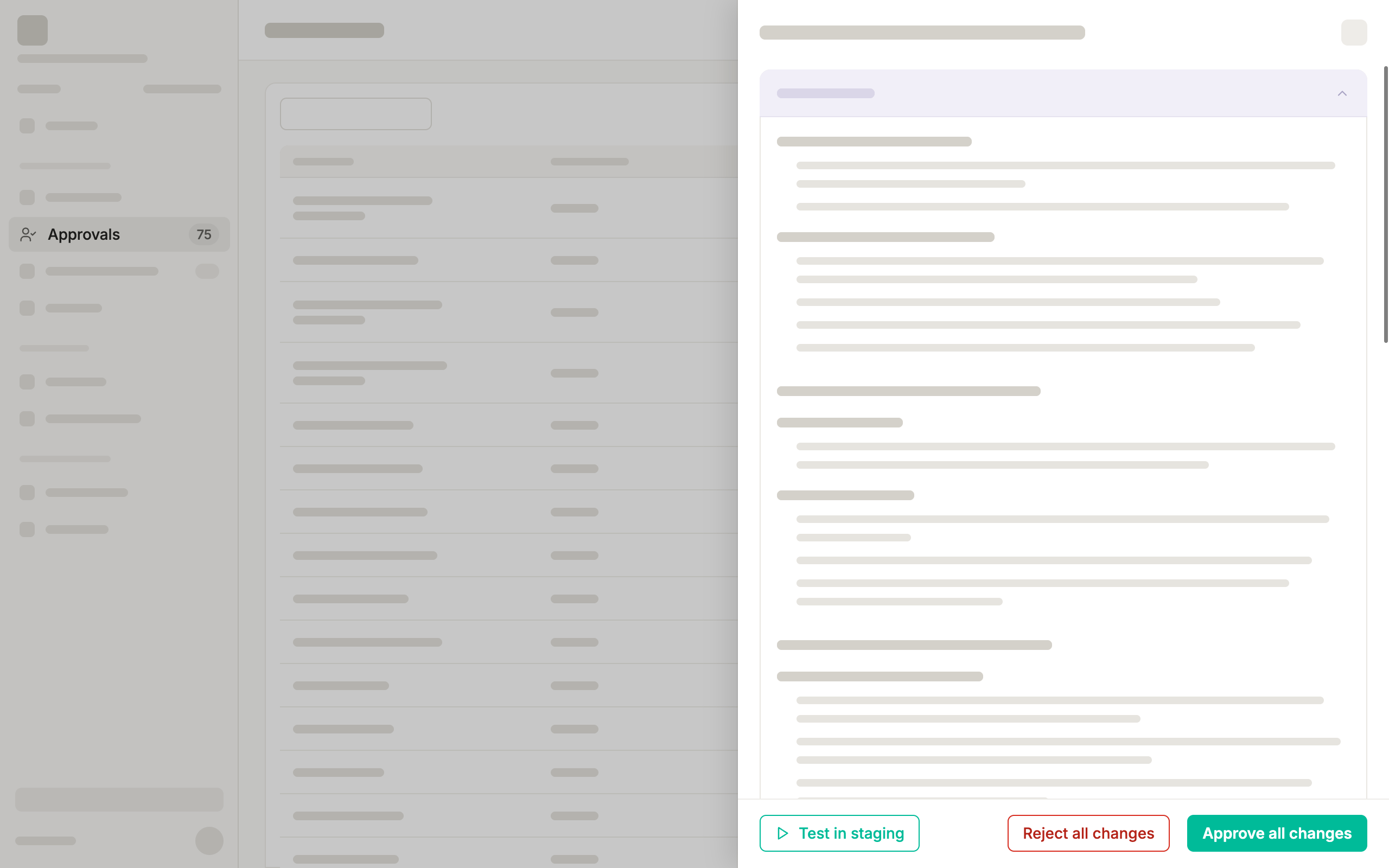
- AI summary: a plain language explanation of what changed, so you can understand it quickly without reading the code.
- Code diff: the exact lines added, removed, or modified compared to the current version, for a closer look.
Approving from the Runbooks page
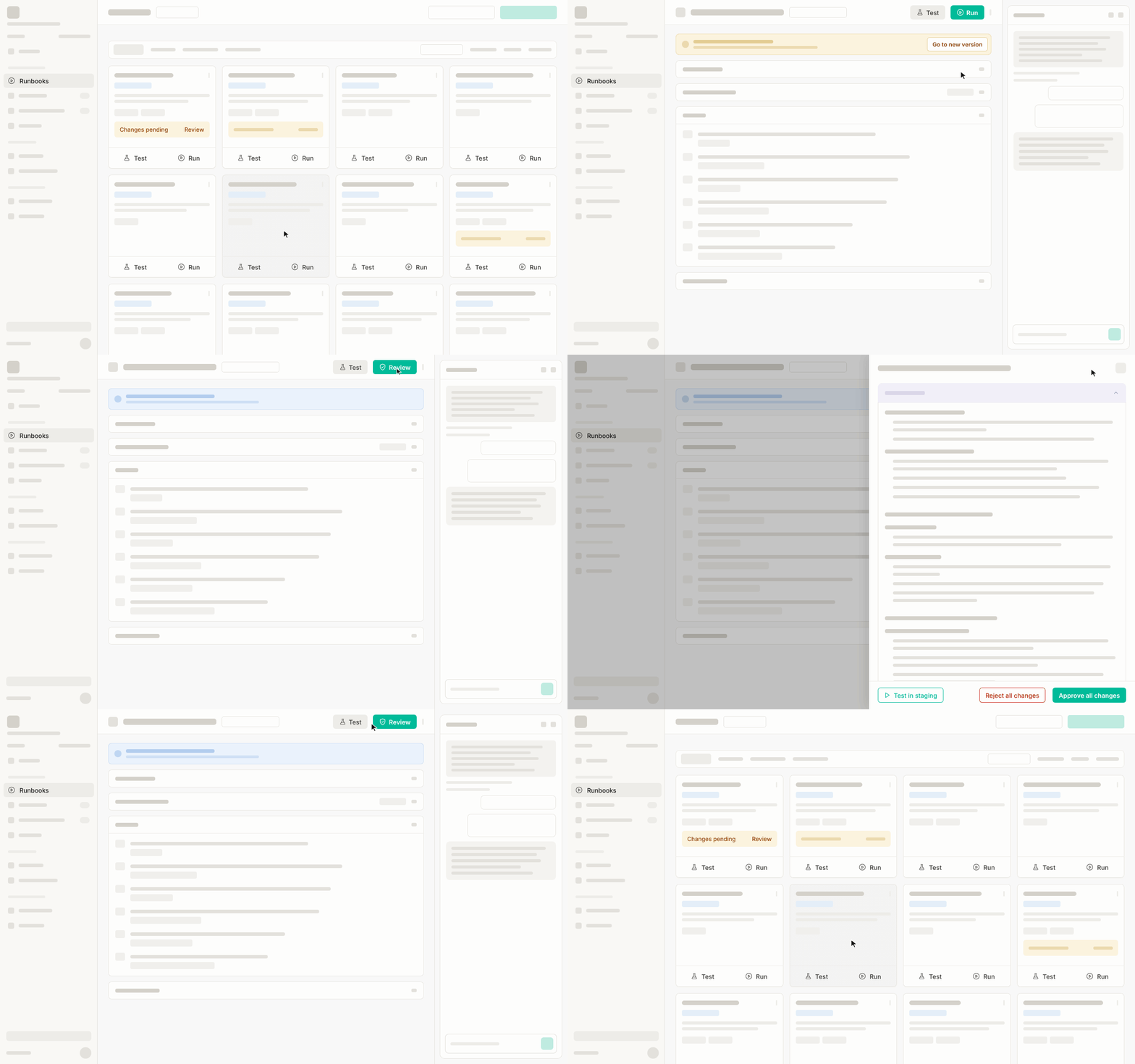
You can approve runbook changes directly from the Runbooks page, either from their tile on the Runbooks page, or from the runbook details page. Navigate to the Runbooks page and find an active runbook with a “review changes” banner, or a brand new runbook in the Needs approval tab.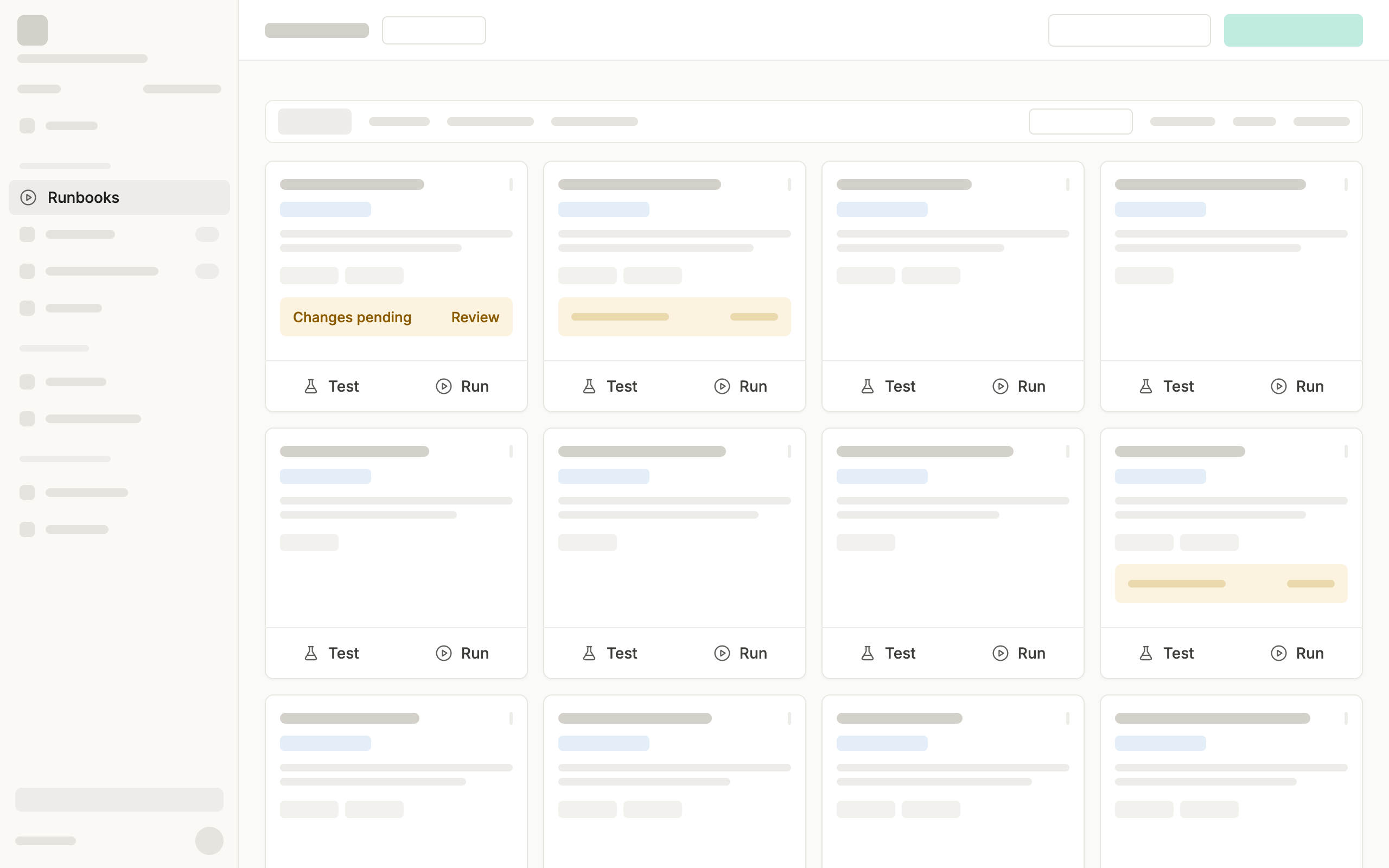
From the runbook tile
Click Review on the banner and continue the review process from there: test the runbook in staging, review the changes, and approve or reject it, as described in the previous section.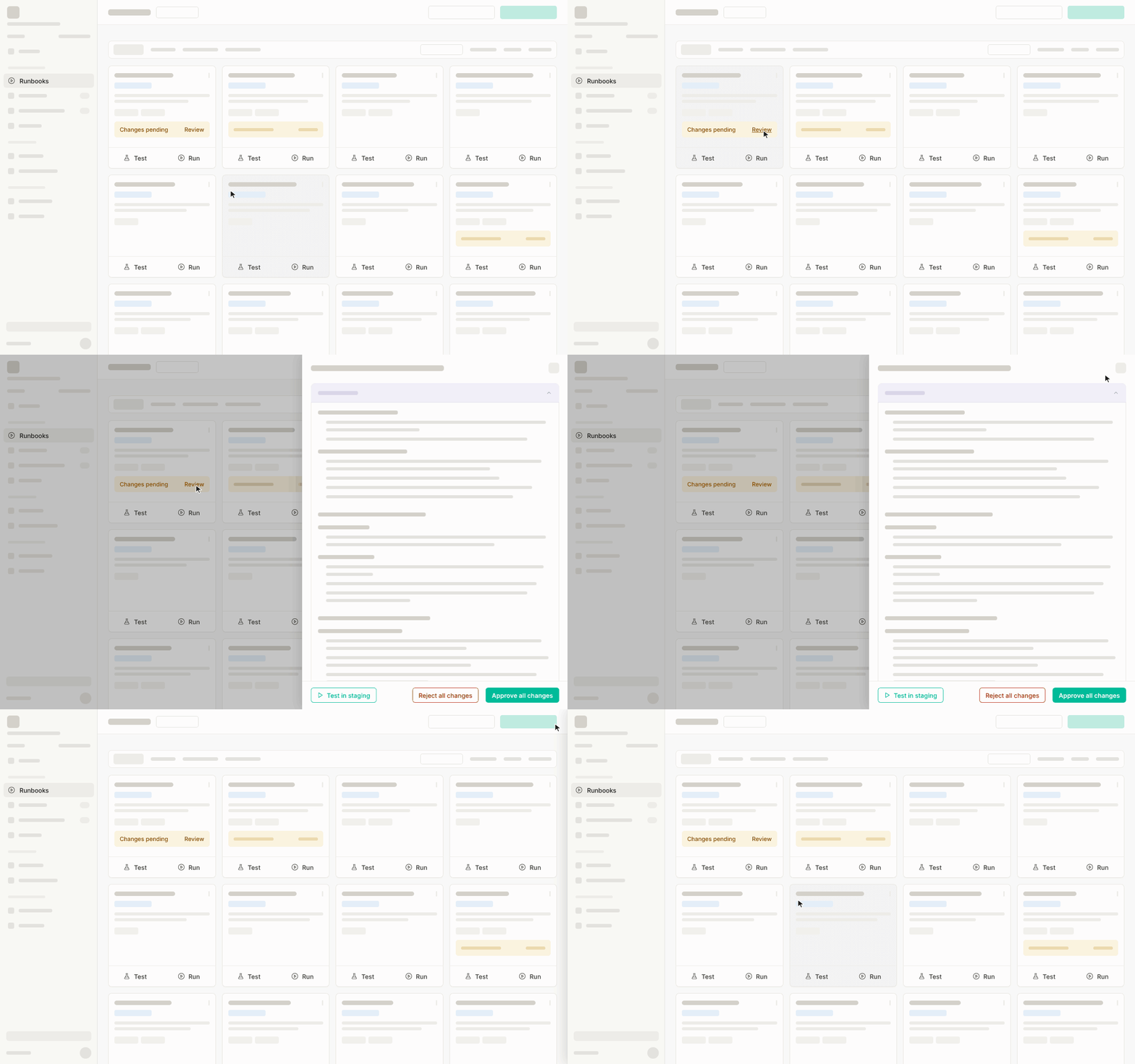
From the runbook details page
Open the runbook to go to its details page. If a new version is waiting for approval, a banner appears at the top of the page.