What is Automagically
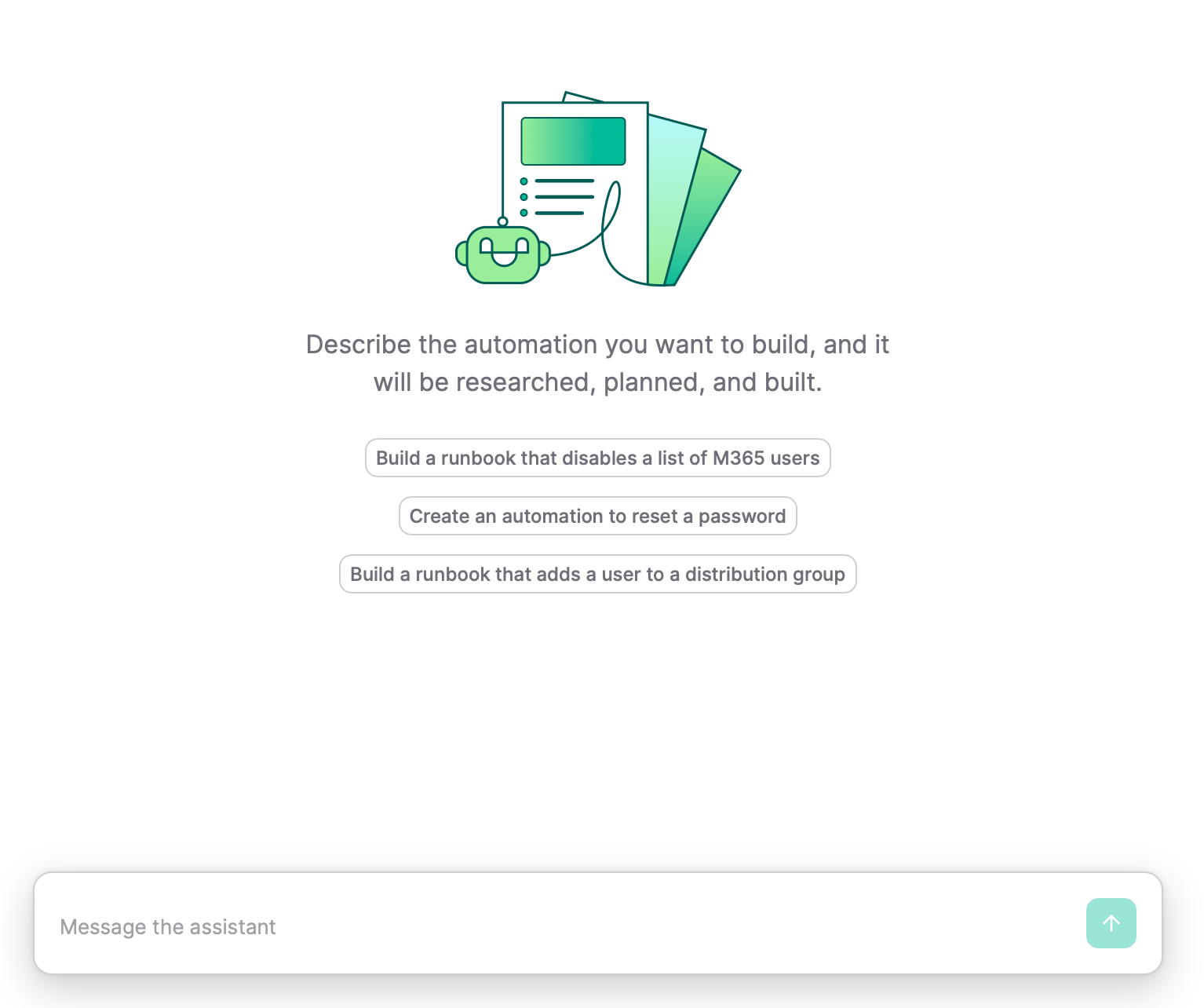
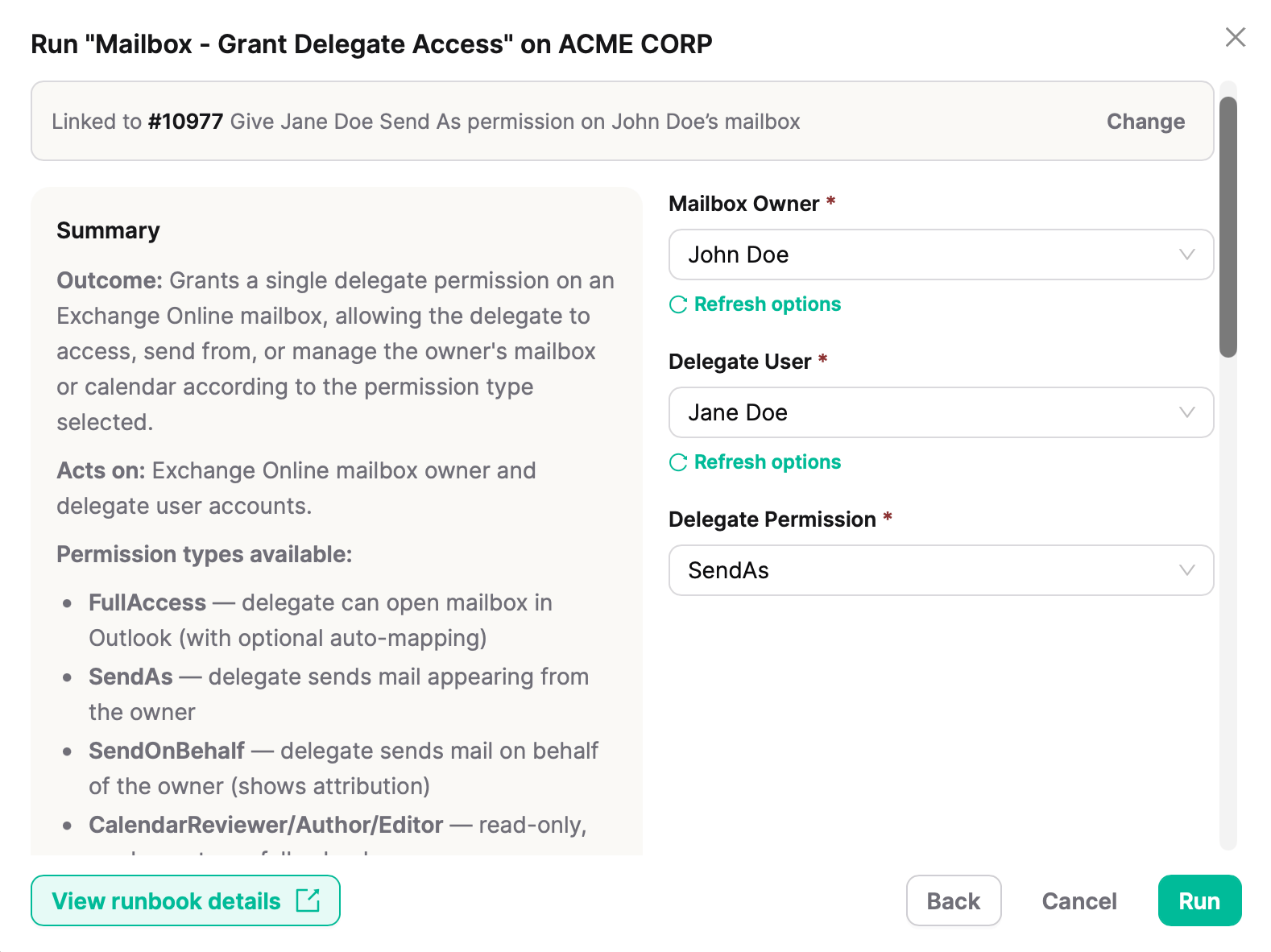
Automagically is an IT automation agent that works for you. You open a chat, describe what you want in plain English, and it gives you a production-ready runbook that you can run right away against your clients’ environments. Automagically enables you to resolve IT requests end to end — in minutes, not hours. The same tasks you do manually every day, done in one click. Once a runbook is available, executing it is as simple as selecting the right client, filling in the inputs, and clicking Run.How to log in
Automagically is available at https://control.automagically.tech. Log in with your Thread credentials, no separate account is needed. If you don’t have access after logging in, contact your admin to confirm you’ve been onboarded.Understanding the Navigation
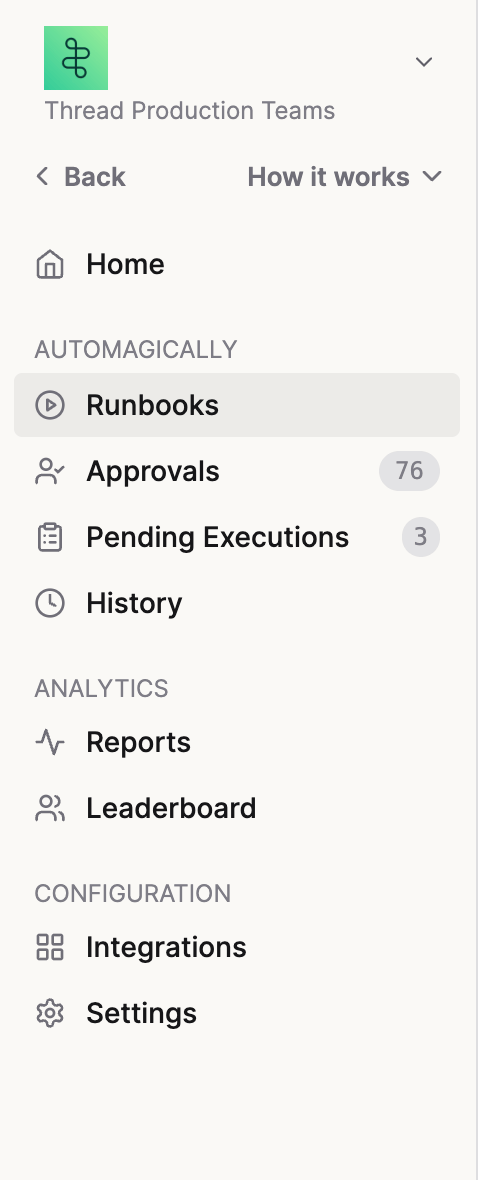
The main navigation items you’ll use are the client selector, Runbooks, and History. Audit Log and Workspace are also available to managers and above. Client selector: at the top of the left panel, two dropdowns let you select your organization and the client environment you’re working in. Always select the correct client before running a runbook. Runbooks: where you create, manage, and run automations. Browse all available runbooks, create custom views to organize them, or create a new one by describing what you need in plain English. The agent handles the rest. History: a log of all runbook executions. Use this to review past results, verify what ran against a client, or retrieve output details. Audit Log and Workspace: available to managers and above. Audit Log tracks all activity across the workspace. Workspace is where clients, packages, and runbook settings are configured.Admin: NinjaOne bootstrap script
If your workspace runs on-prem runbooks through NinjaOne, an admin has to pick a bootstrap script for the workspace before any on-prem runbook can dispatch. The bootstrap script is the NinjaOne automation-library script that Automagically launches on a device. It fetches the runbook, runs it, and reports the result back. This setting is per workspace. Until it is set, on-prem runbook dispatch fails with “No NinjaOne bootstrap script is configured for this workspace”.Set the bootstrap script
Only admins with the Automagically integration-manage permission see this panel.- In Automagically, open Workspace → Integrations → NinjaOne.
- On the mapping page, find the Bootstrap script panel.
- Open the picker to search your NinjaOne automation library, or paste a script id directly.
- Confirm the change. On-prem runbooks use the new script from their next run.
What the picker shows
The picker filters the NinjaOne automation library to scripts Automagically can actually launch, so most built-in NinjaOne entries do not appear. The panel surfaces three states depending on what your NinjaOne connection can see:- Listable — your NinjaOne account can read the automation library. The dropdown lists active custom scripts only. Built-in NinjaOne actions like Reboot, Enable SSH, or Disable Firewall are filtered out and cannot be selected, even if you paste their id by hand. Very large libraries are capped at 25 entries; use search to narrow the list, or paste the script id.
- Unlistable — your NinjaOne account is connected but does not have permission to read the automation library. Reconnect NinjaOne with an account that can list automation scripts, then reopen the picker.
- Disconnected — NinjaOne is not connected for this workspace. Reconnect it from the integration page, then set the script.