Magic Library
Automagically is currently in a closed beta.
Where results show up
The full result lives in Automagically. Open it from the History page or the View details link in the banner that shows up after running in the platform. A summary of the result is also shared where you are working:- In the ticket: runs started on a ticket post a short summary as an internal note, so you and your teammates can see what happened without leaving the ticket.
- In Super Magic: runs started from Super Magic show a summary in the chat, along with suggested next steps.
Interpreting results
Every run produces a result page, no matter how you started it. You can find them in the History page.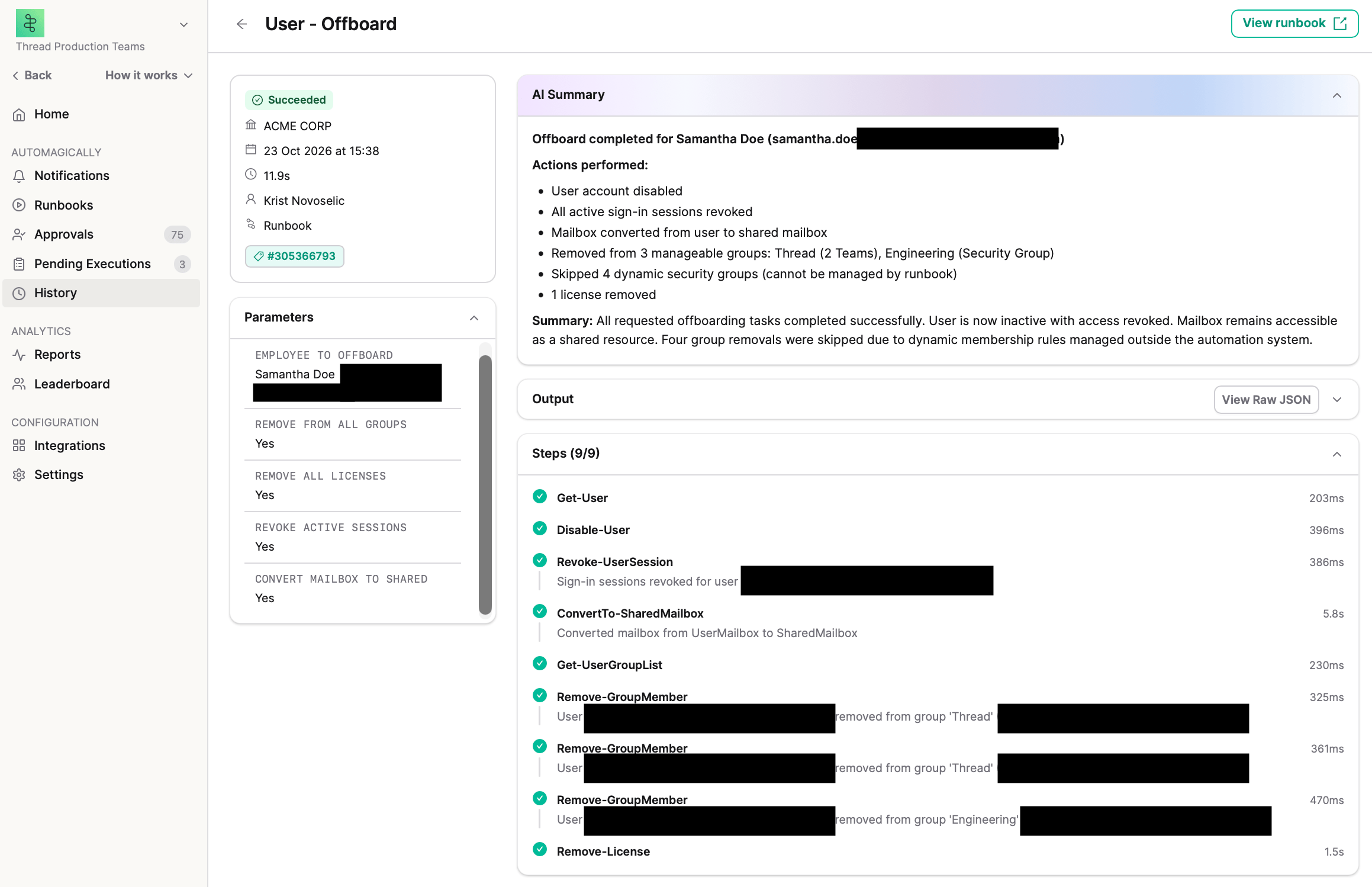
What a result shows
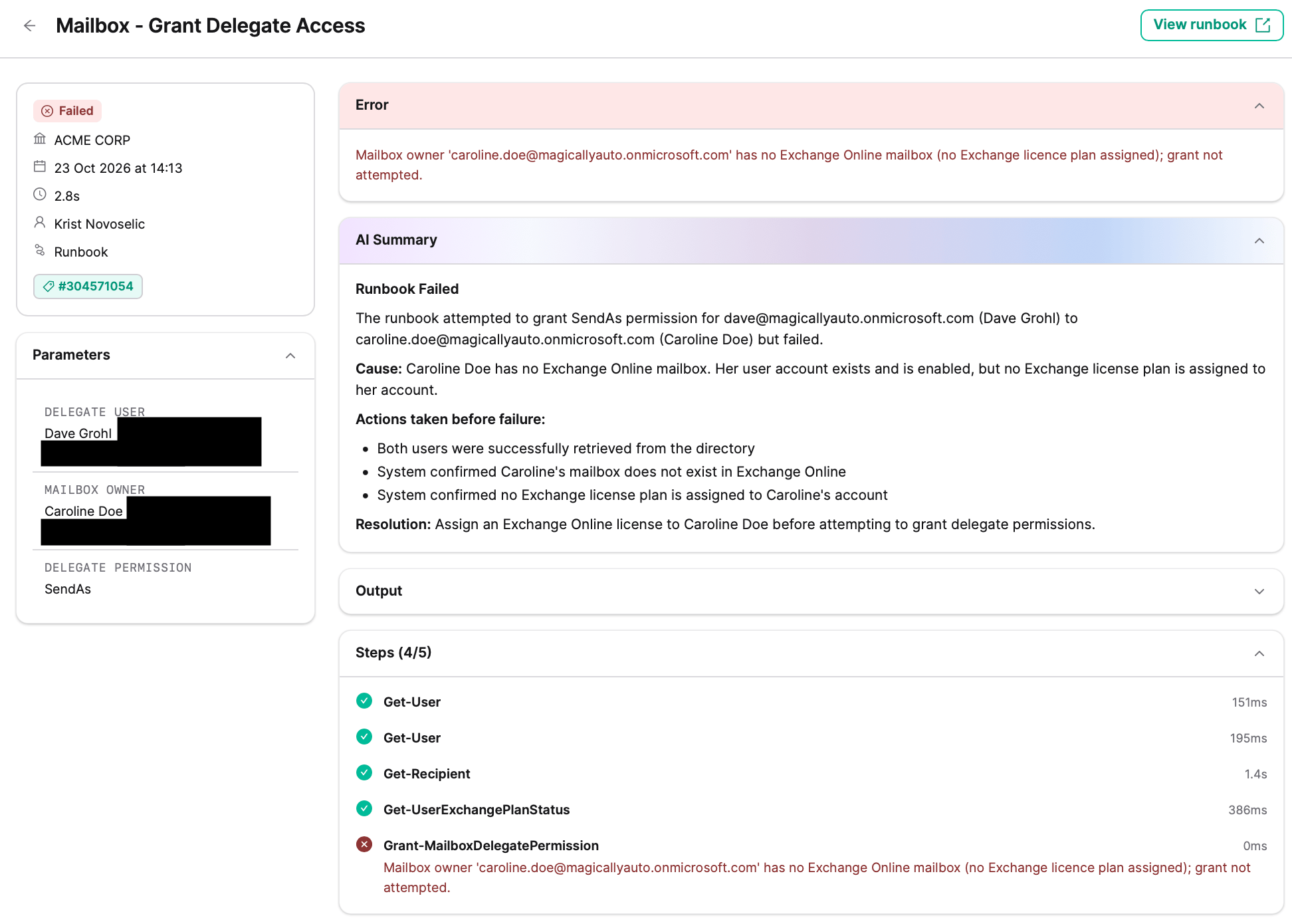
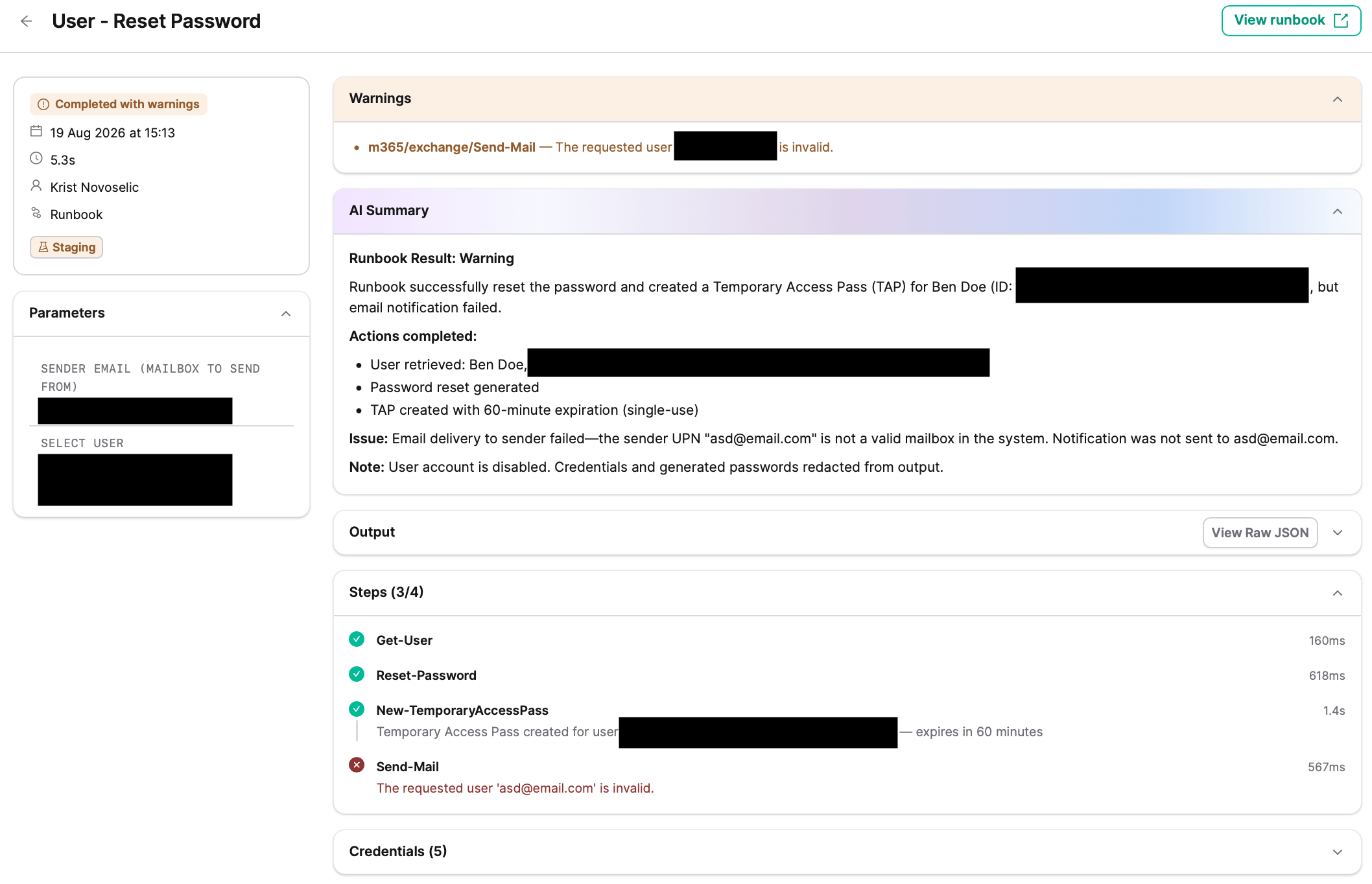
- Status: where the run stands. It shows Running while it executes, then ends as Succeeded, Warning (Partial Success), or Failed.
- Run details: the client, when it ran, how long it took, who triggered it, and the ticket it is linked to. A Staging tag appears here if it was a test run.
- Parameters: the inputs provided when running the runbook.
- AI Summary: an explanation of what happened in plain language.
- Output: the output of the runbook. This is where you’ll find the reports for informational runbooks. A summary line states what happened, for example: “Offboarded ‘Samantha Doe’ (sessions revoked, mailbox converted to shared, 3 groups removed, 1 licenses removed)”. Expand Details for the individual fields, or View Raw JSON for the full data.
- Steps: each action the runbook took, in order, each with a status and how long it took. For example, an offboarding run might show that it revoked sessions, converted the mailbox to shared, and removed the user from groups. A successful run shows every action completed. A failed run shows which action failed and highlights the error inline.
When a run does not fully succeed
Every step in a runbook is either critical or optional. Critical steps are the ones the outcome depends on, and they carry a Critical label on the runbook page.- When a critical step fails: the run stops at that step and ends as Failed. Later steps do not run.
- When an optional step fails: the run keeps going and ends as Warning (Partial Success), if no subsequent critical step fails.