Magic Library
Automagically is currently in a closed beta.
Building a Runbook
A runbook is a reusable automation that resolves a specific IT request. You describe the task in plain English, and Automagically plans it, builds it, tests it, and hands it back to you for approval, ready to run against your clients’ environments.Start a new runbook
You can start building a runbook in two ways:- From the Automagically portal: click New Runbook.

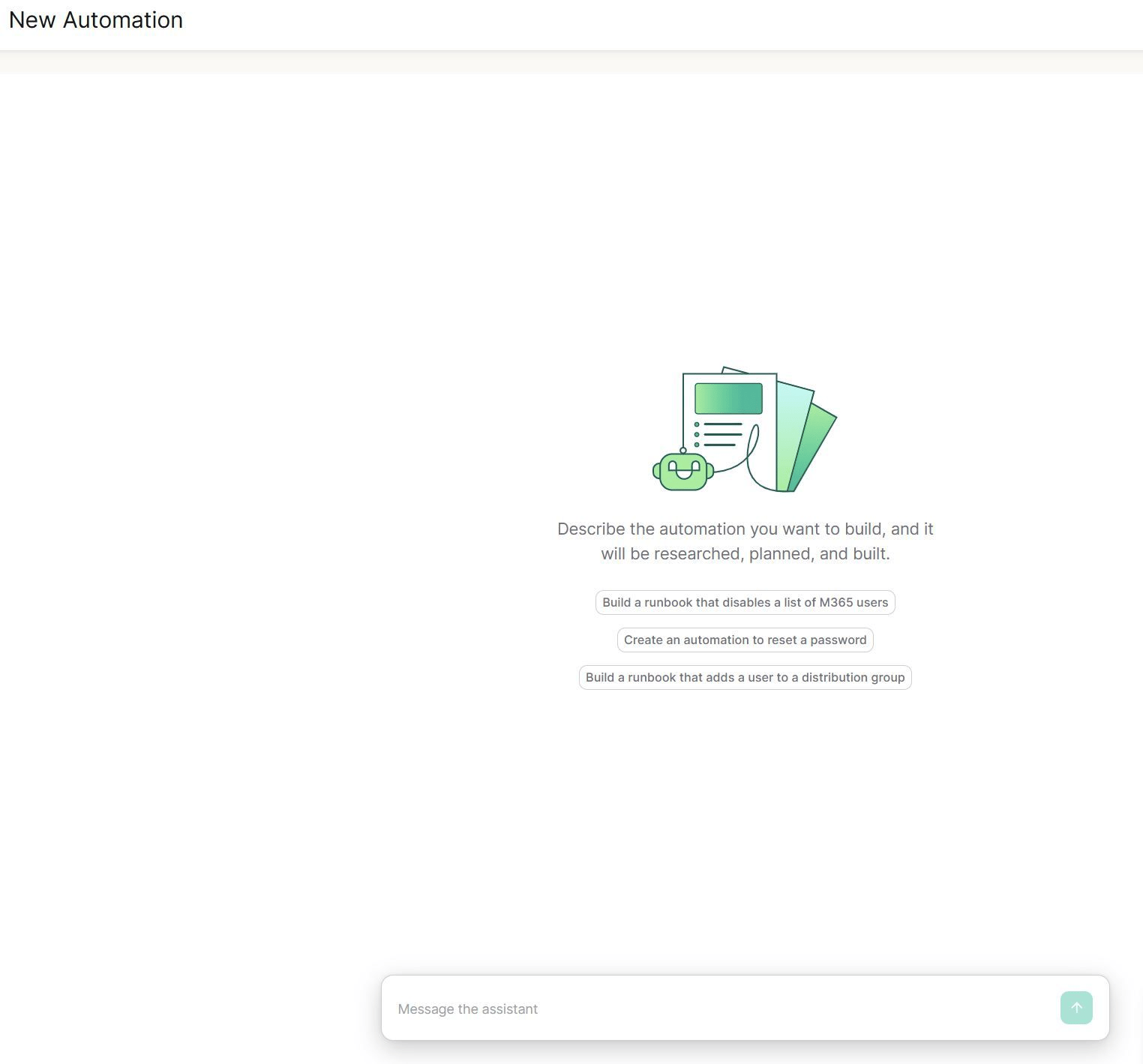
- From Super Magic chat: ask Automagically to build a runbook for the task you have in mind.
Describe the task
Tell Automagically what you want automated, in plain English, the same way you’d explain it to a colleague.Be specific about how forms and outputs should look. For example: “Present the user selection as a drop-down and allow multiple selections.”

How Automagically builds your runbook
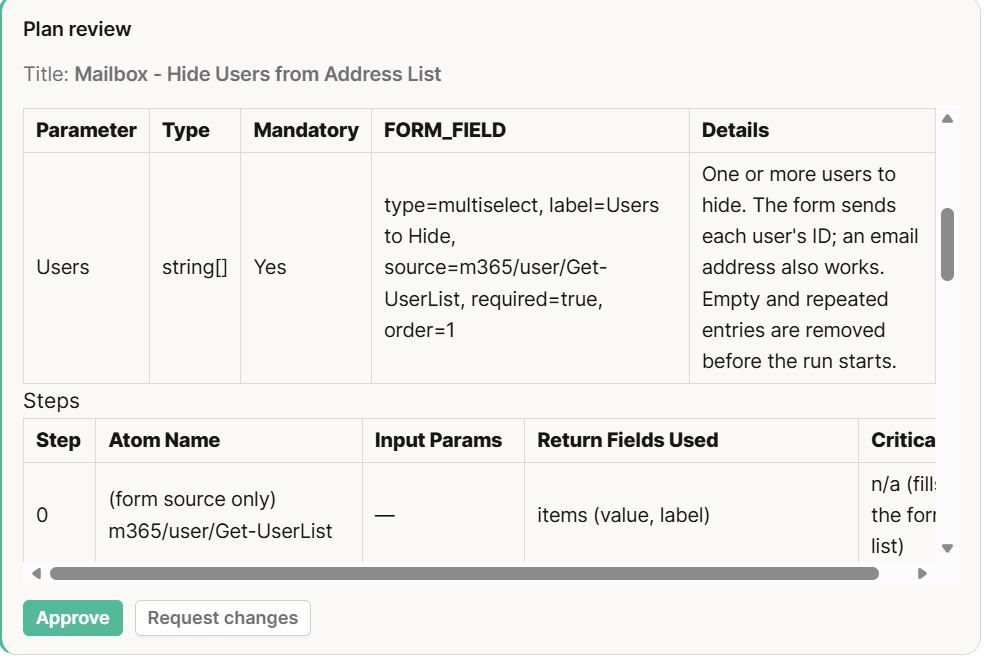
Building happens in two phases.- Planning: Automagically drafts a plan and presents it for your approval. This is your chance to shape the runbook, ask it to add or remove steps, change input fields, or adjust anything else before building starts.
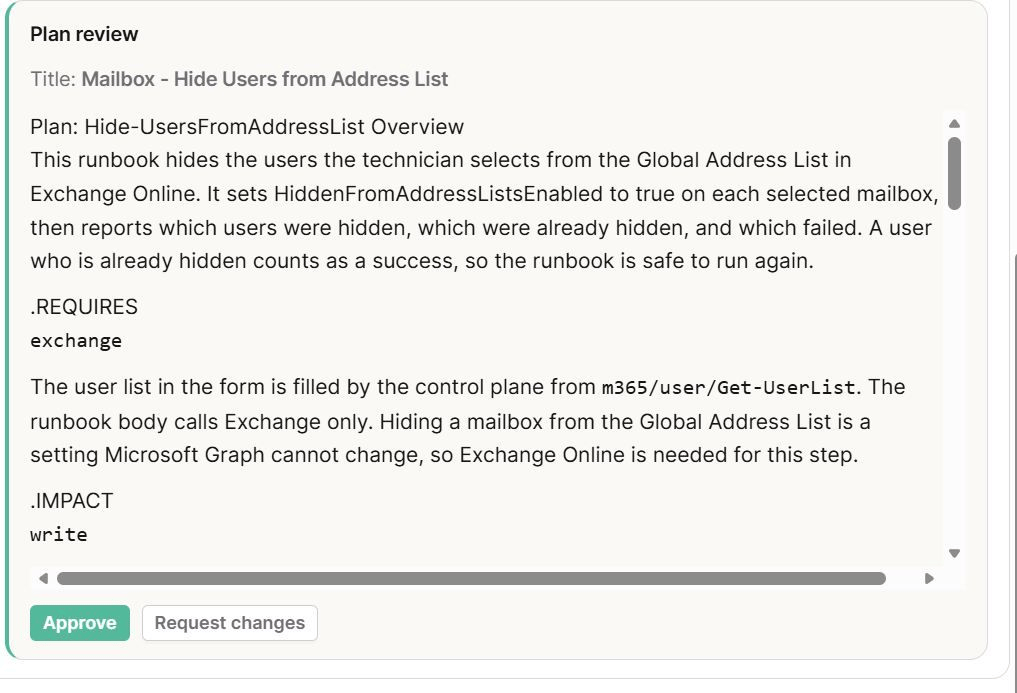
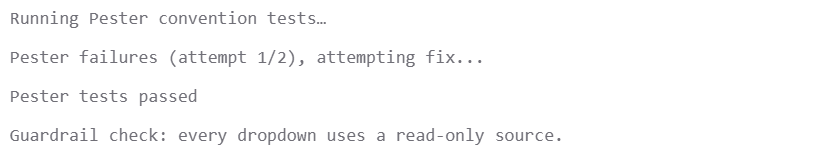
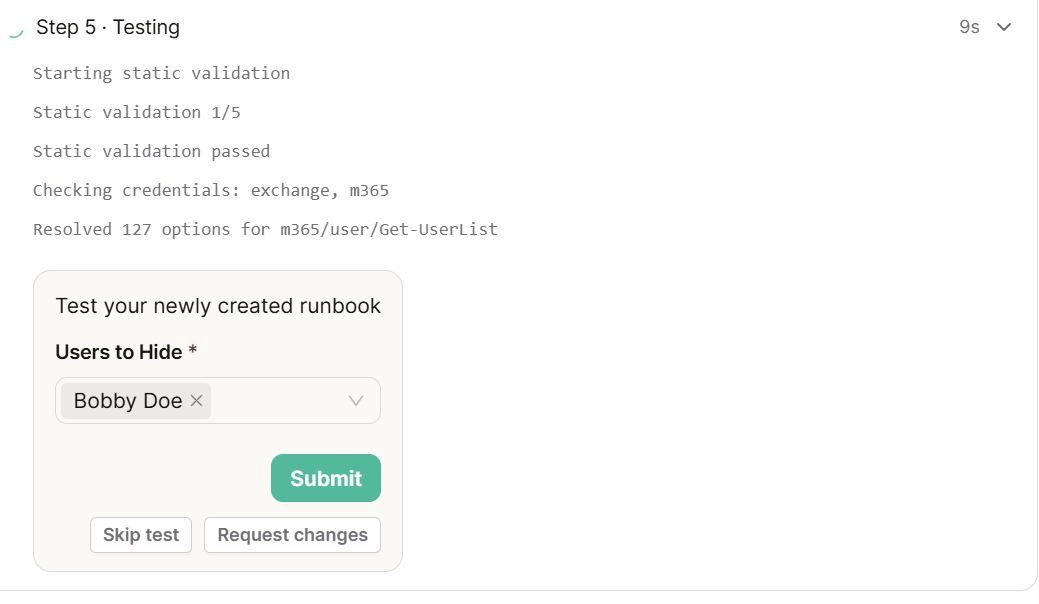
- Building: once you approve the plan, Automagically builds the runbook, runs quality checks, and automatically fixes any issues it finds.
Approve the runbook
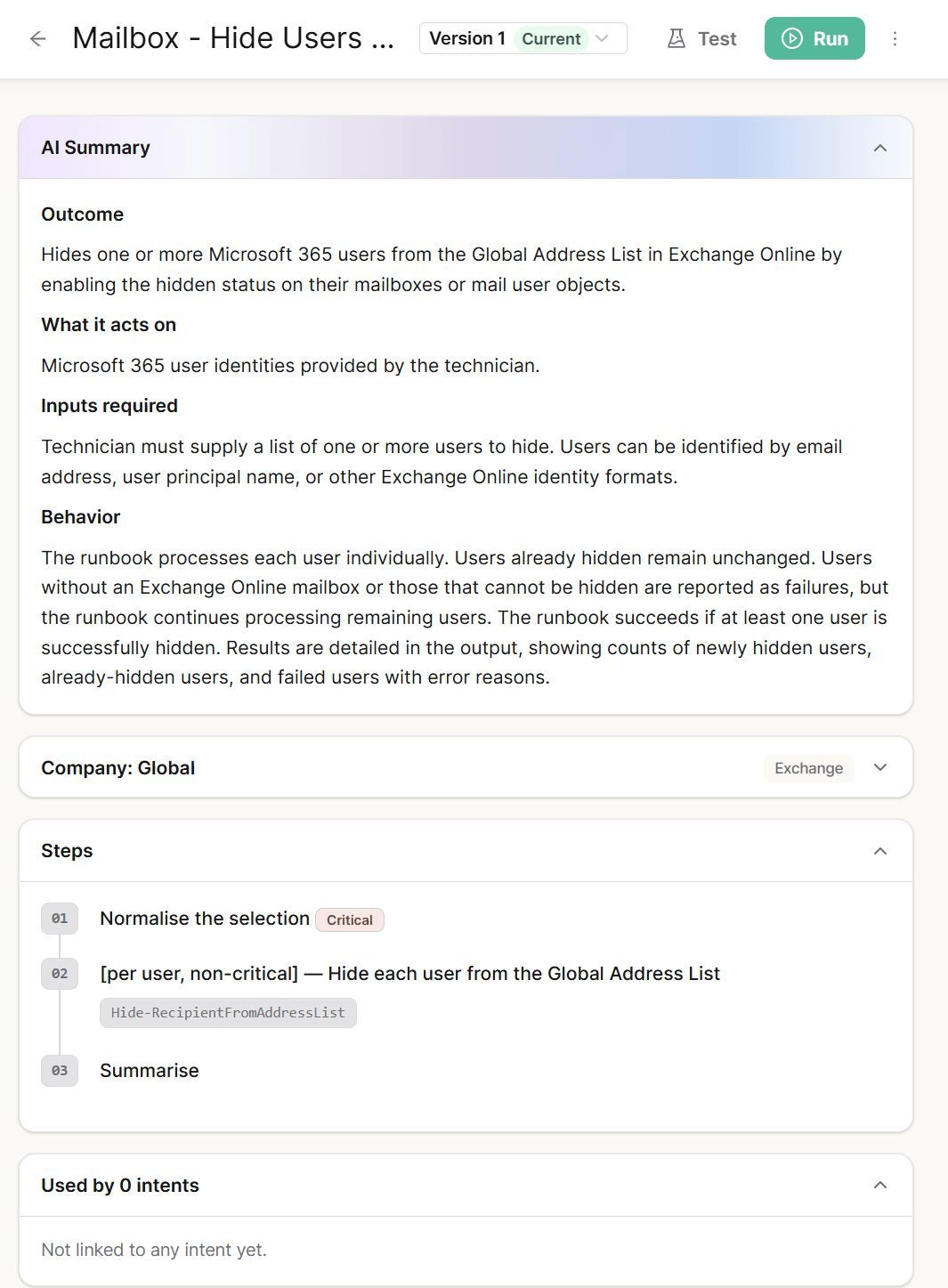
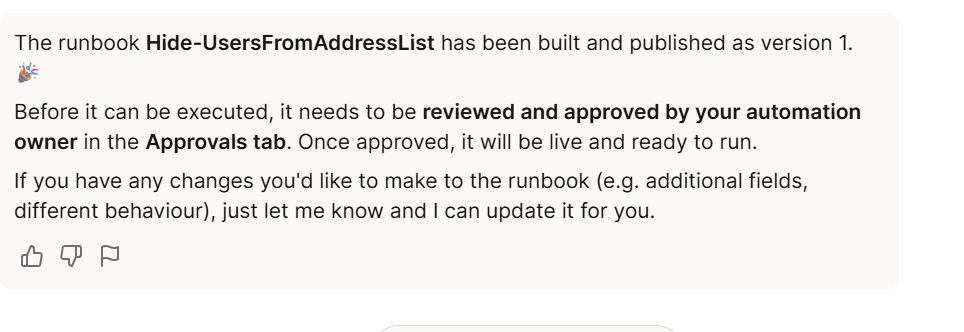
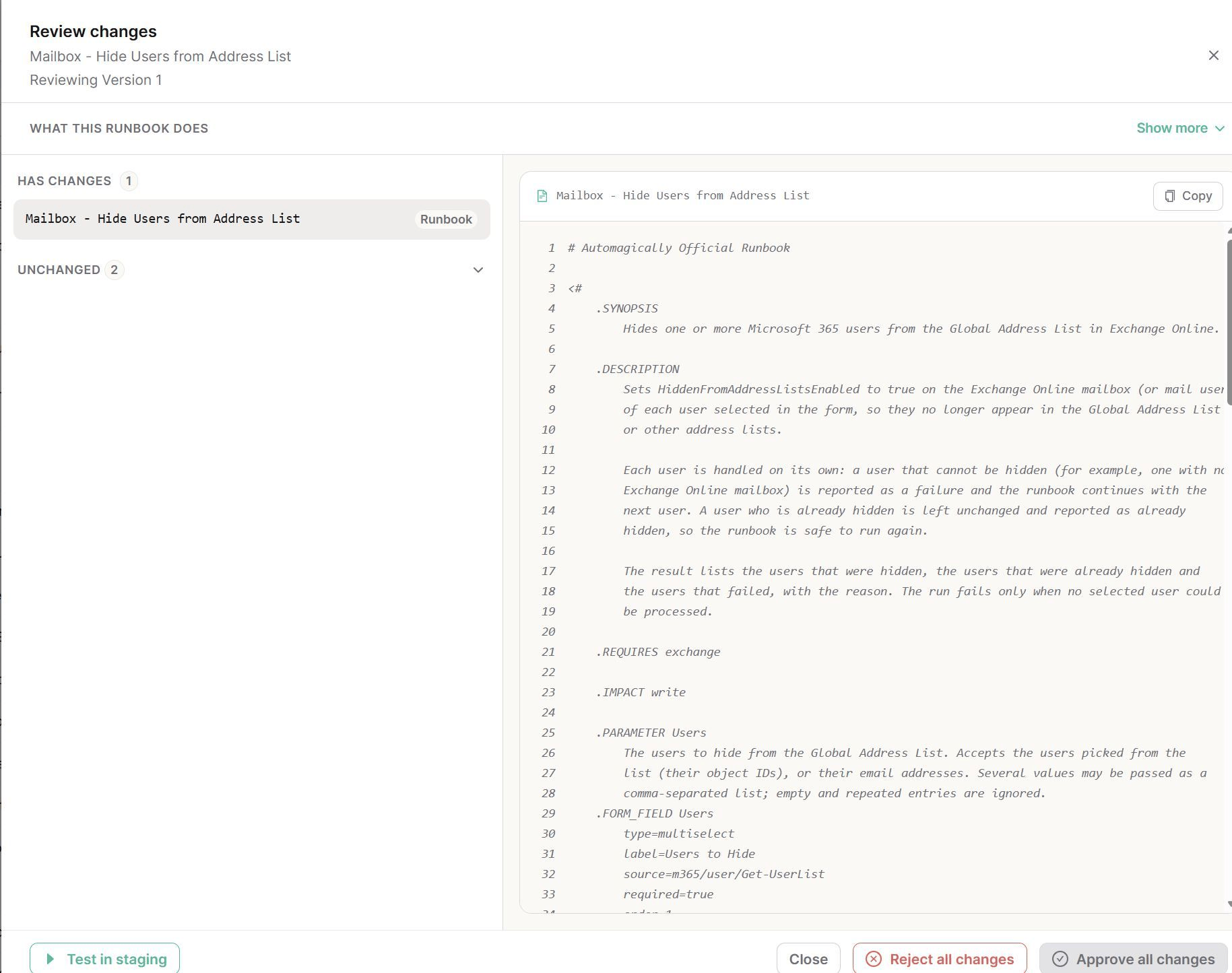
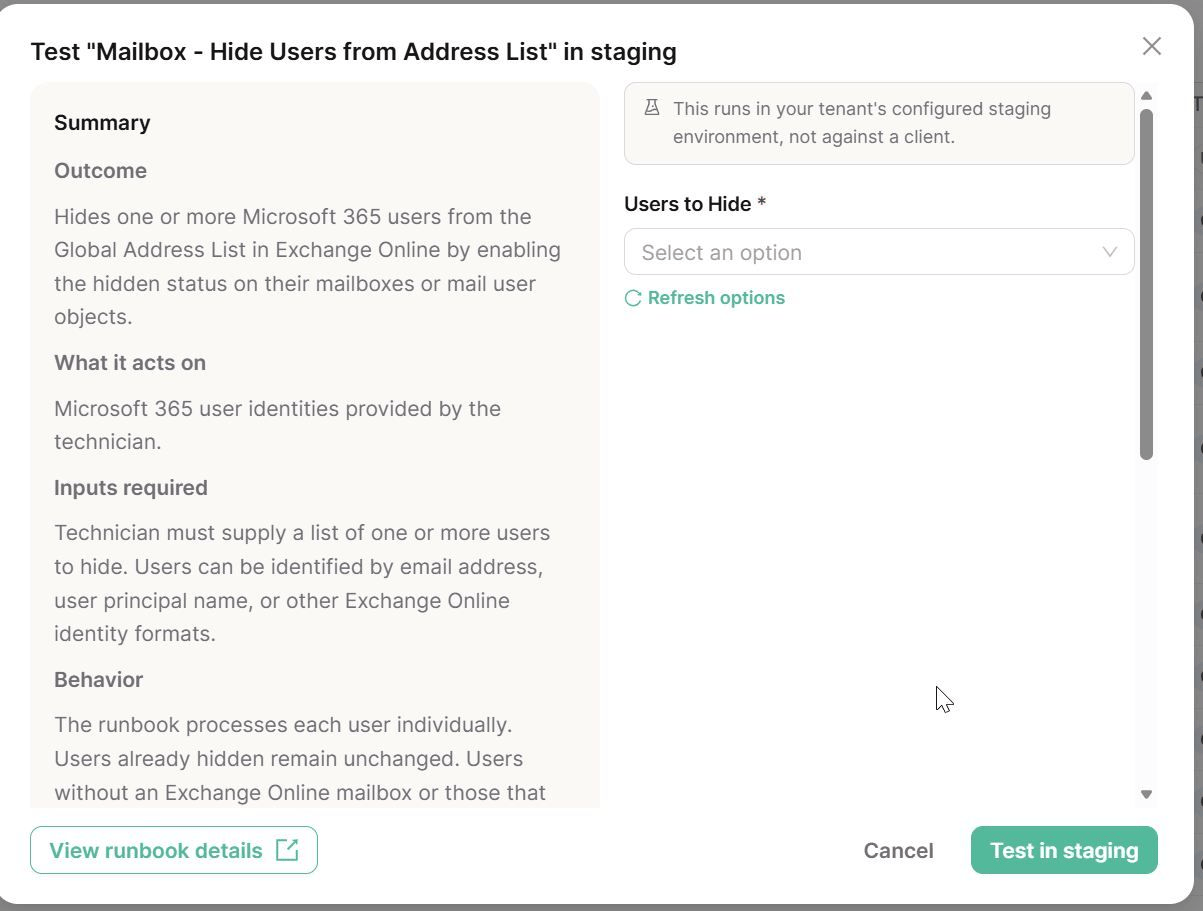
Before a runbook can run in a client environment, it must be reviewed and approved in the Approvals tab. Approval includes a code review and requires a successful staging test.See Automagically: Approving Runbooks for details.
Run it
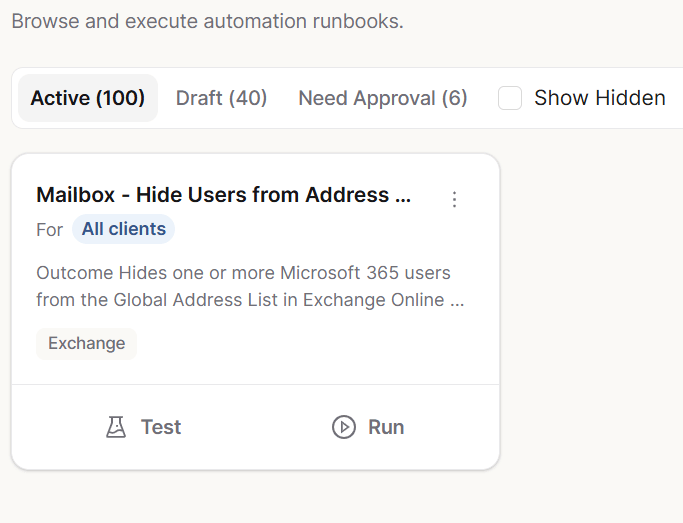
Once approved, the runbook appears under the Active tab in Runbooks and is ready to resolve support requests. See Automagically: Running Runbooks for the ways runbooks can be triggered.