Magic Library
Automagically is currently in a closed beta.
How to run from a ticket link
1
Find the suggestion in the ticket
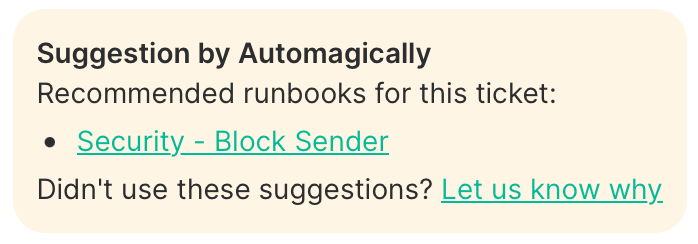
Open the ticket and look for the internal note from Automagically. It lists the runbooks that can handle the request, each as a link. If there is more than one, pick the one that fits.
2
Run it
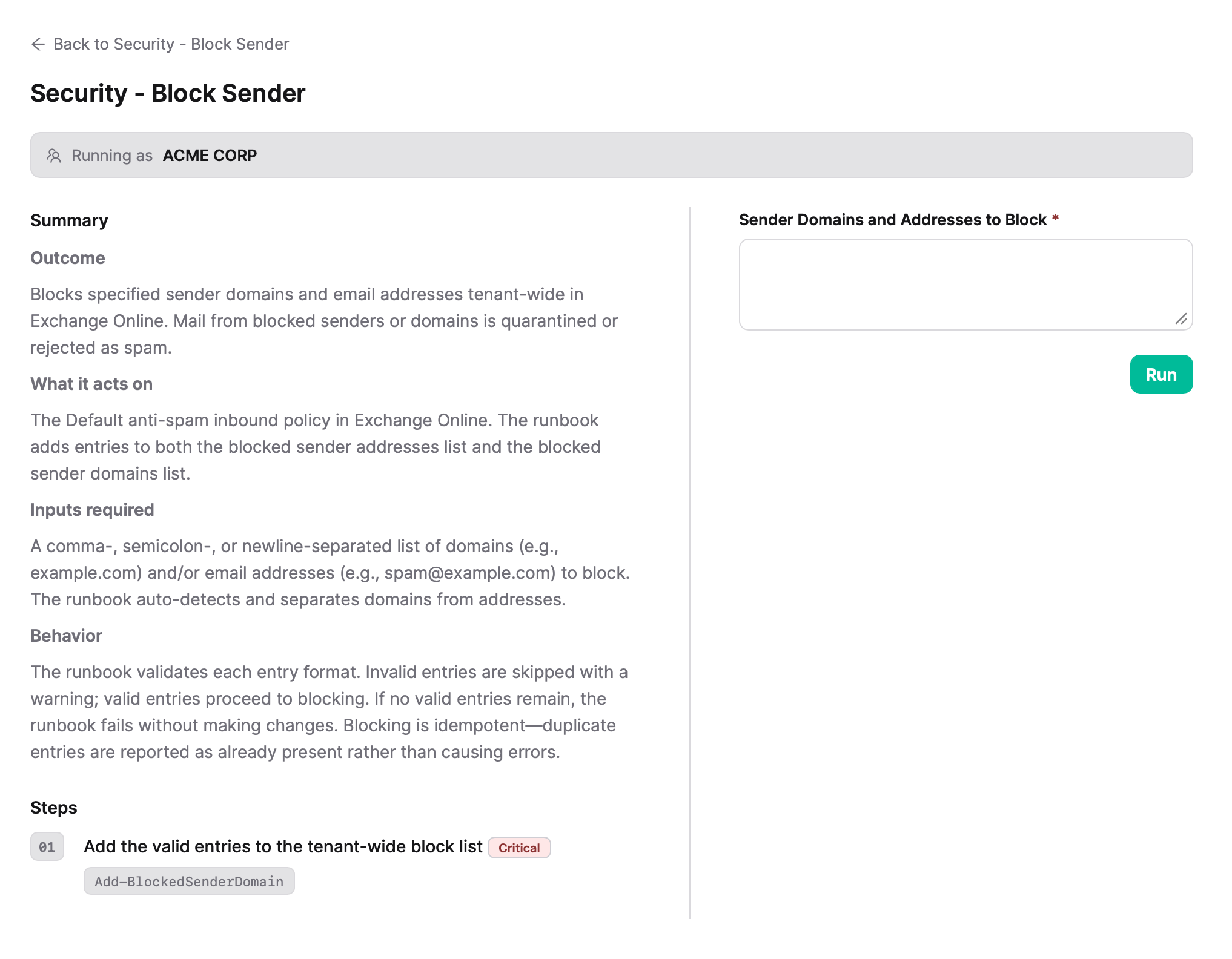
Click the runbook link in the note. The run form opens in a new tab with both client and ticket already selected for you based on the ticket data, so you can go straight to the inputs.
3
Verify the result and close the ticket
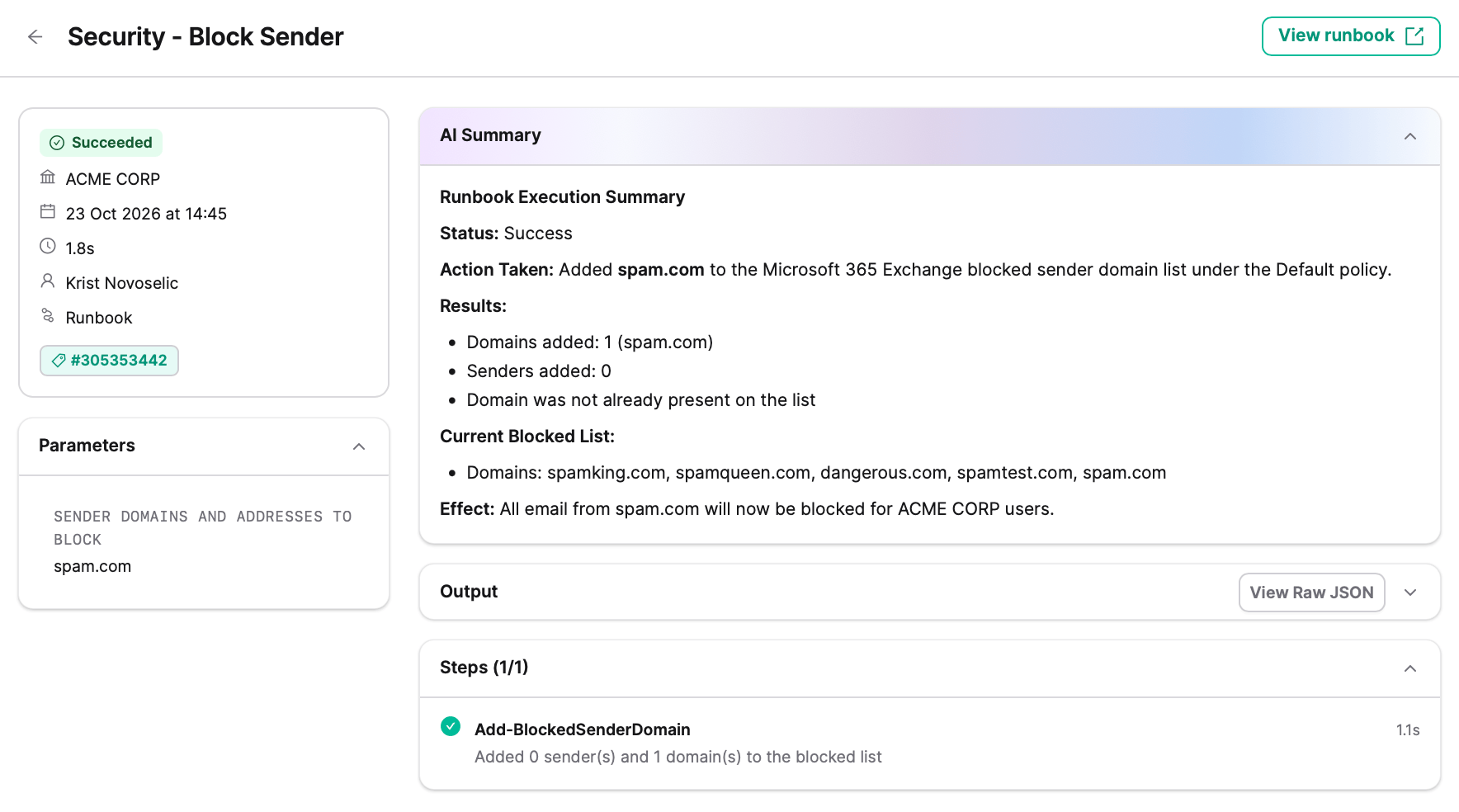
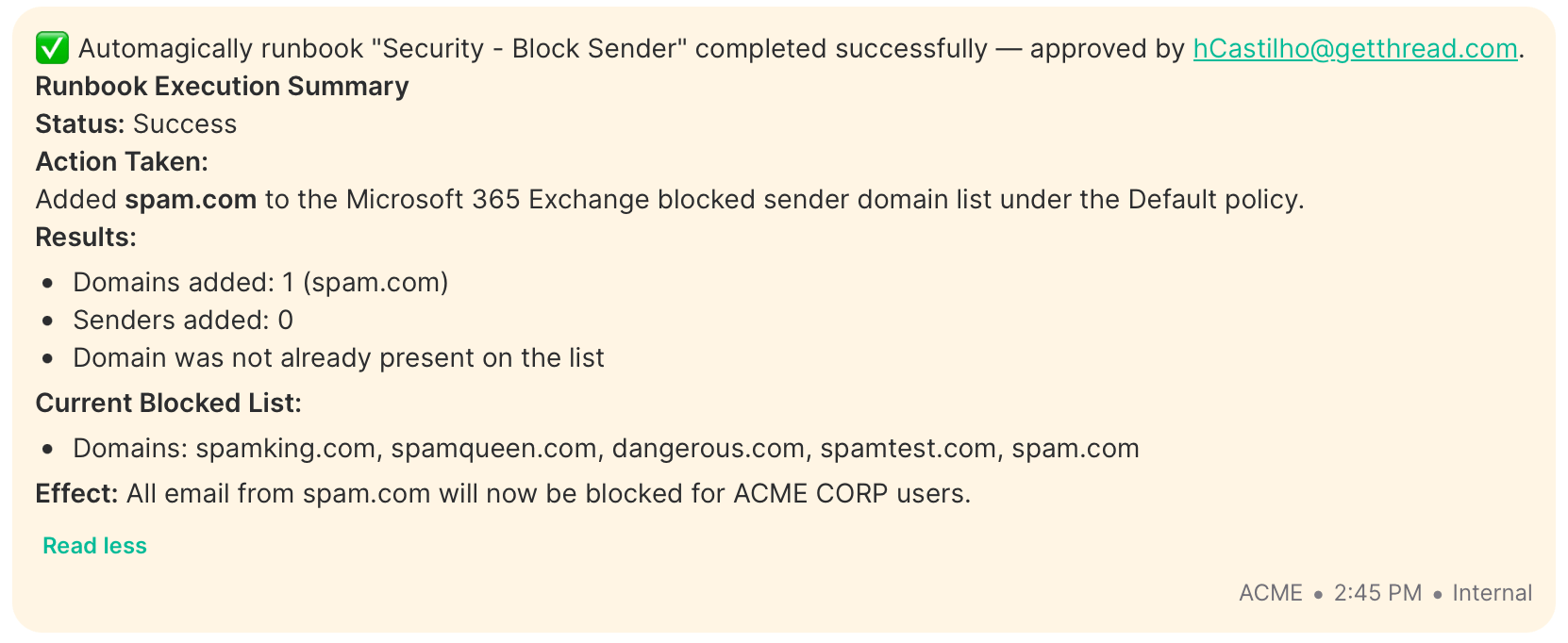
You will be taken to the Automagically platform, where a banner confirms the runbook was initiated. Click View details or navigate to the History page to follow the execution and review the result.