

 Magic Library
Automagically is currently in a closed beta.
Running on a client
1
Find the runbook
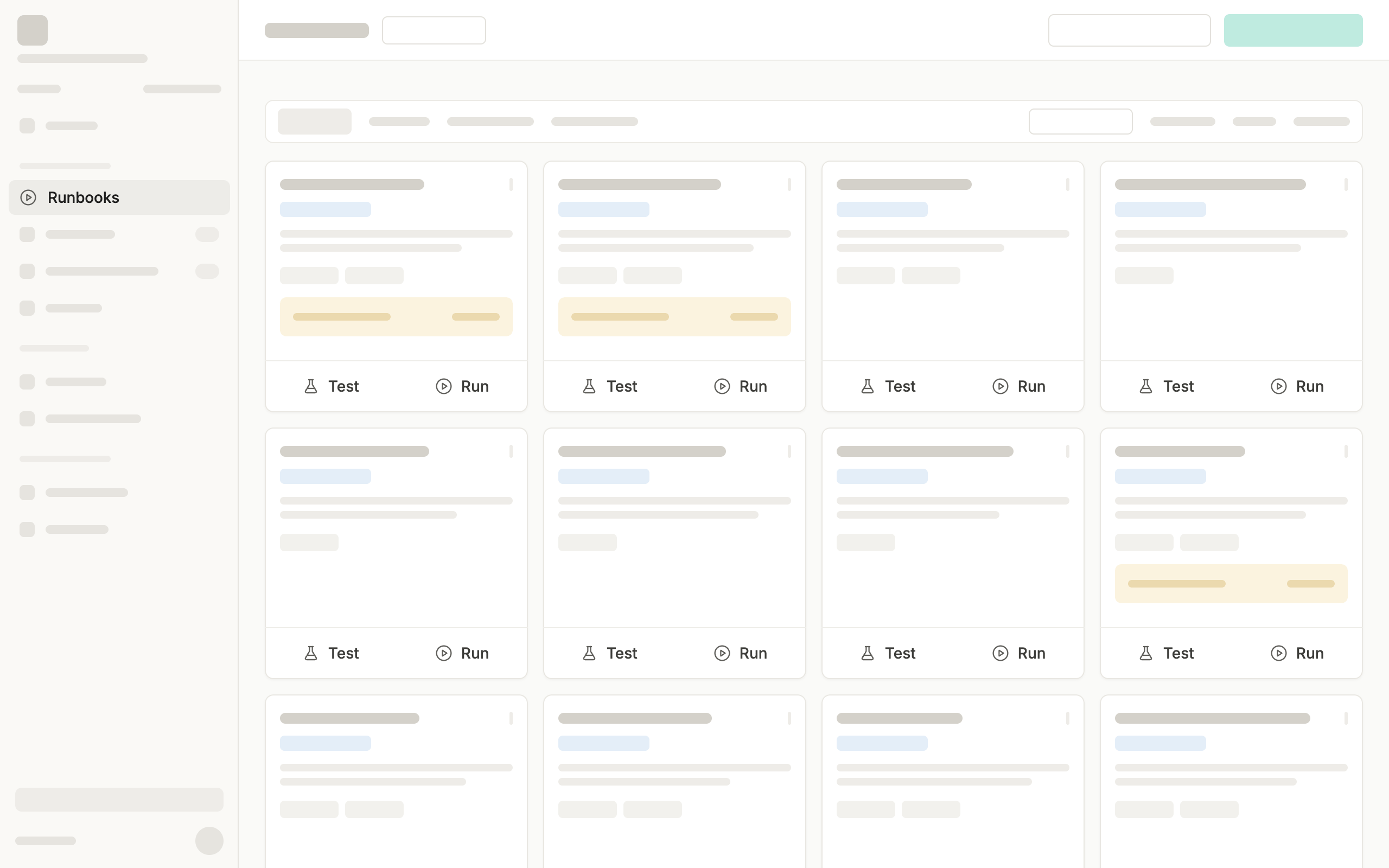
Go to Runbooks in the left panel and browse for the runbook that matches the request. You can also search or filter by tags to narrow the list. Only runbooks in the Active tab are ready to run.
2
Open the form
There are two ways to open the run form:
-
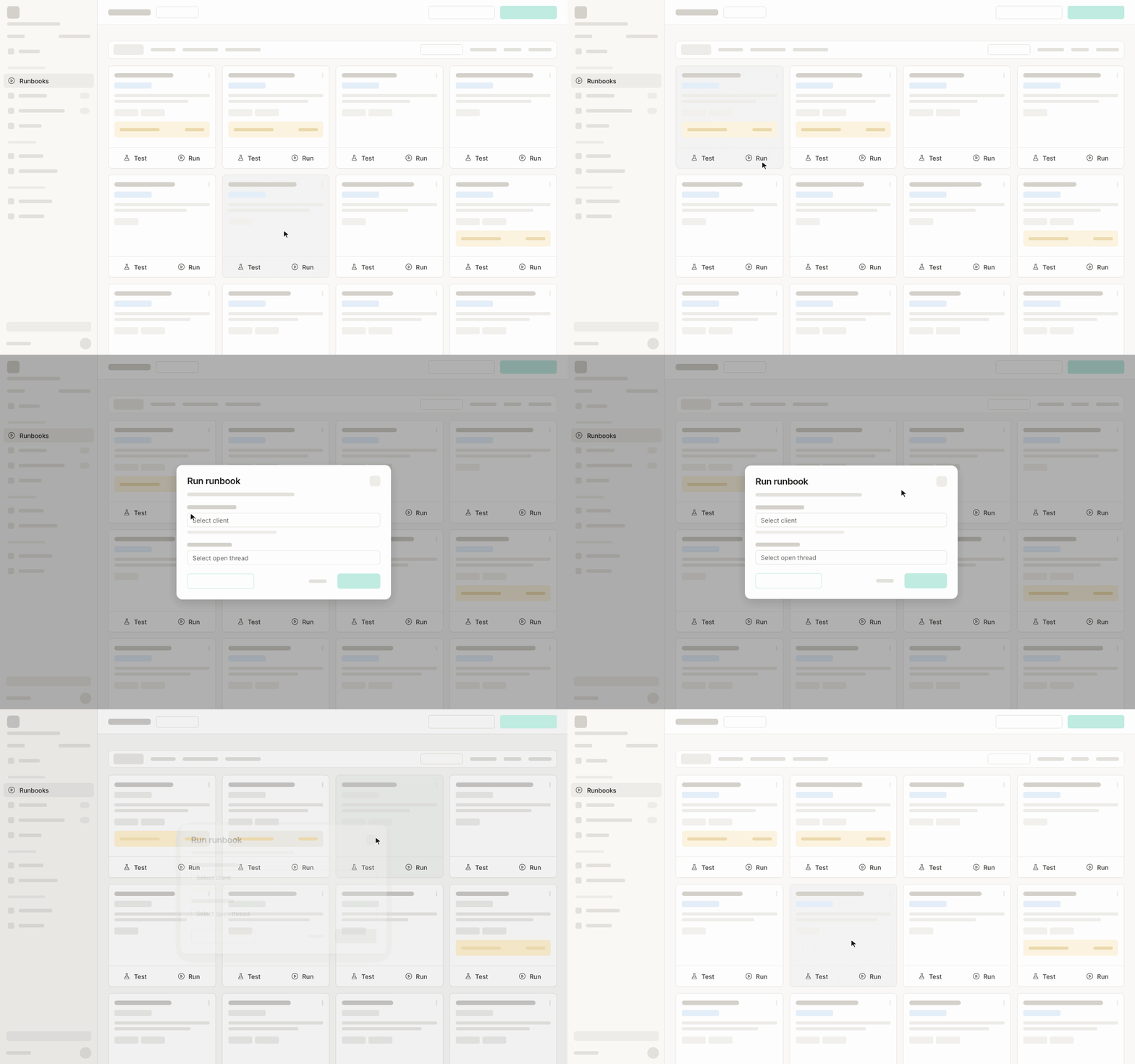
From the runbook library, click Run directly on the runbook card.
-
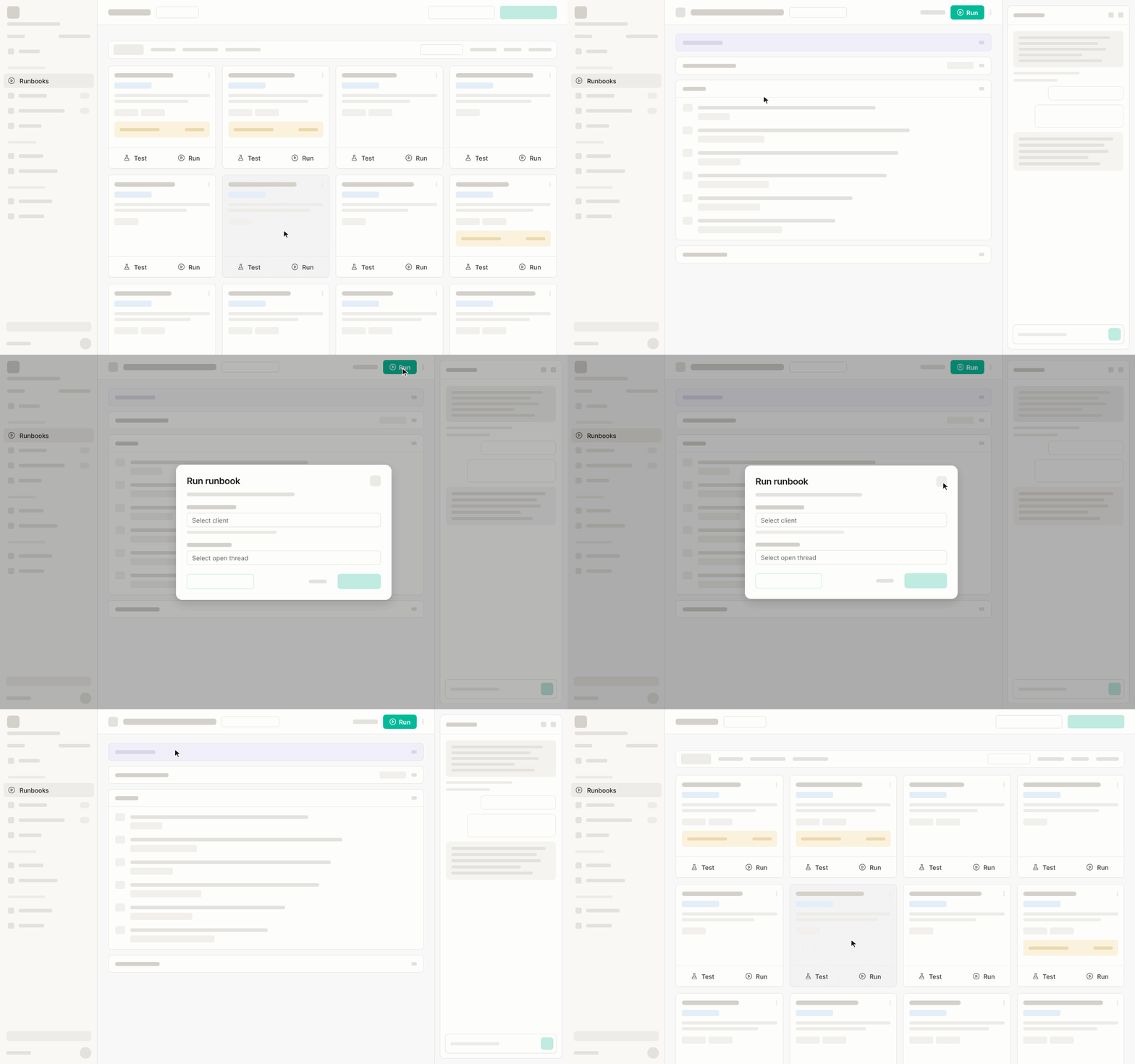
Or, from the runbook detail page, click the Run button at the top right. Use this if you’re unfamiliar with the runbook and want to get additional details before running.
3
Select the client and the associated ticket
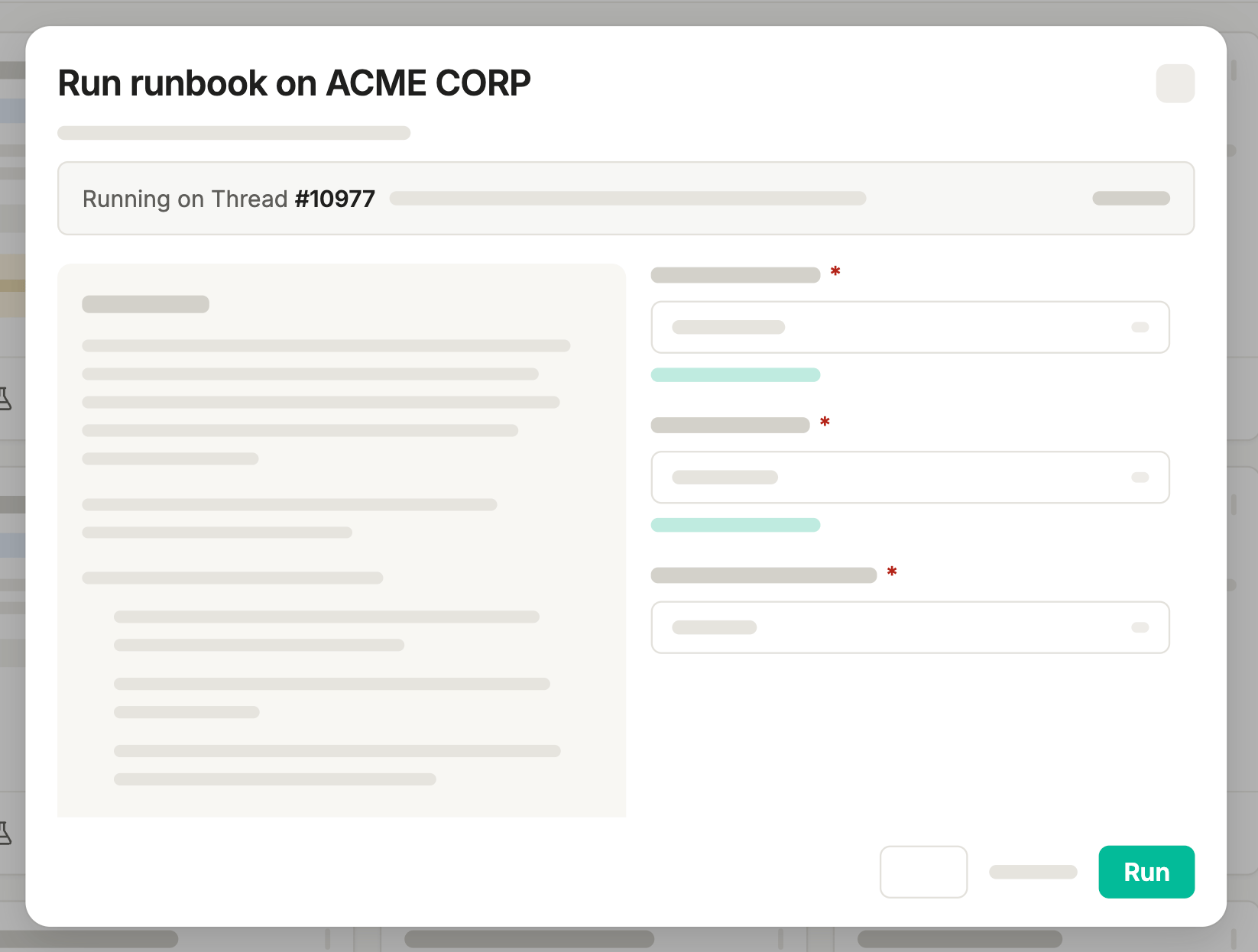
Select the client and the associated thread the request came from. The thread dropdown automatically loads threads assigned to you. If there are none, you can type the thread title or number into the search bar.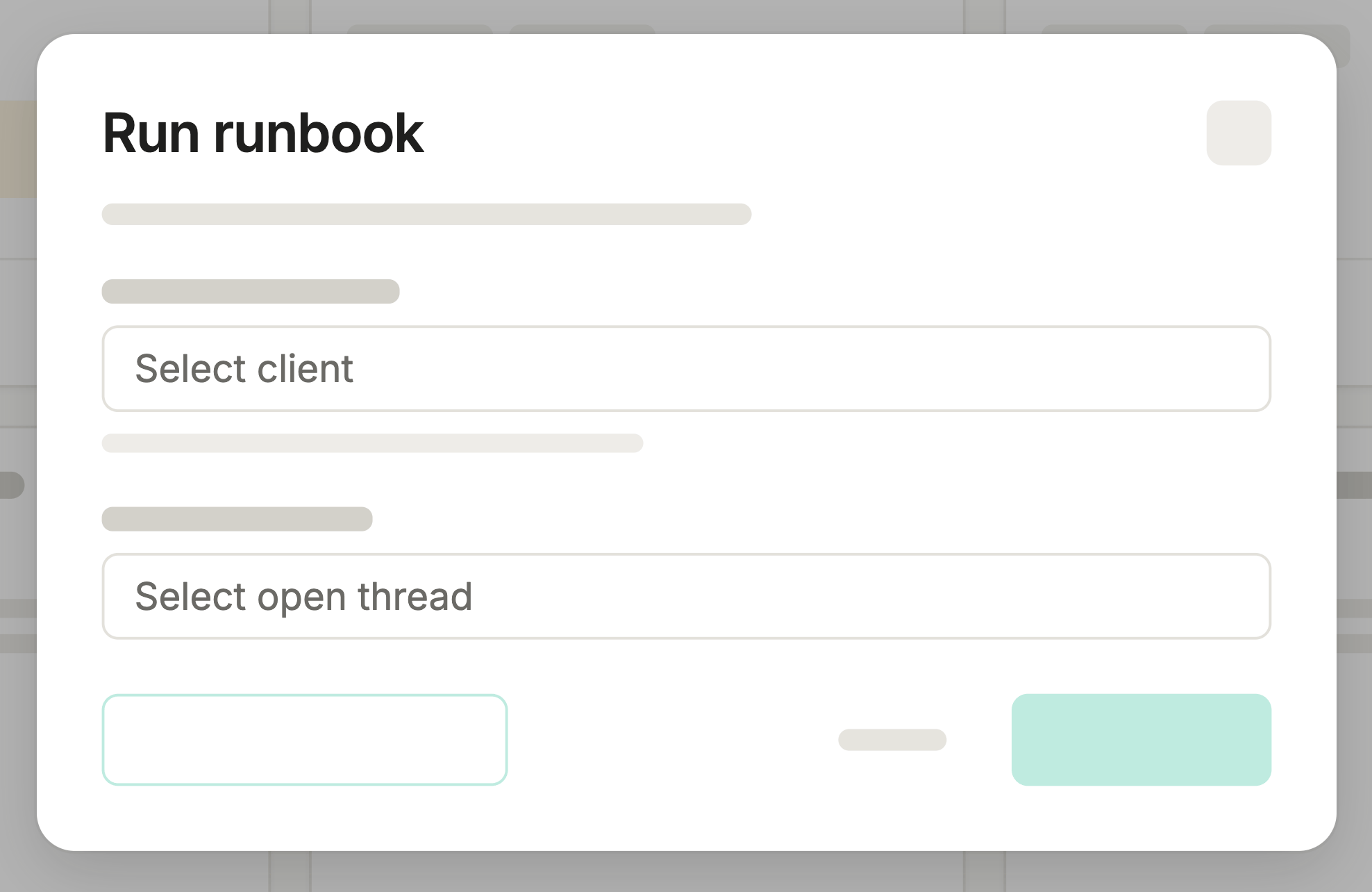
4
Fill in the form
Fill in the remaining inputs as specified in the ticket. Required fields are marked with a red asterisk. Before submitting, confirm the correct client and ticket have been selected.
5
Run it, verify the result, and close the ticket
As simple as it sounds: click Run. The automation executes against the selected client environment. Once finished, review the result to confirm it matches what was requested. Once confirmed, document the outcome and close the ticket.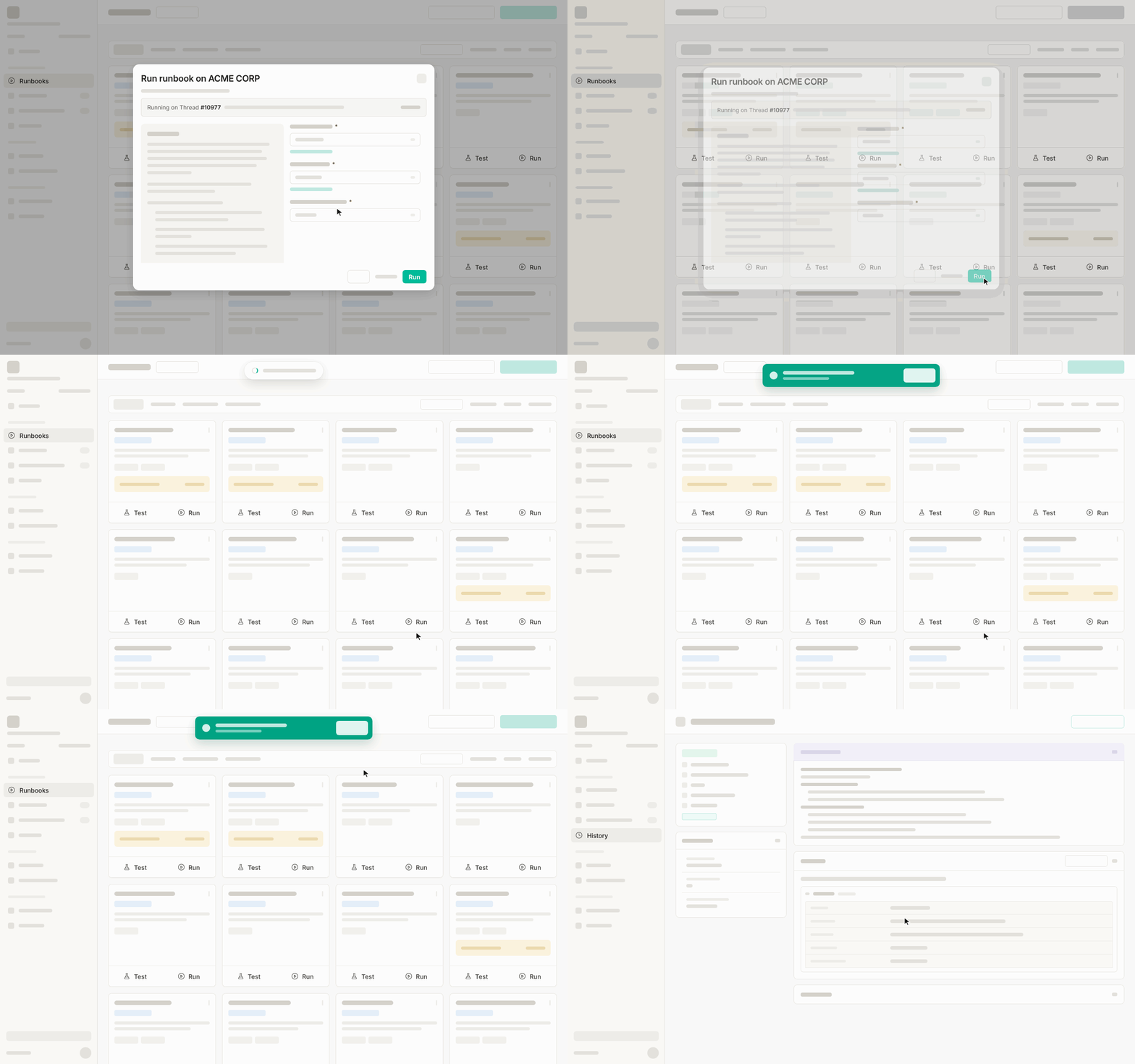
Testing in staging
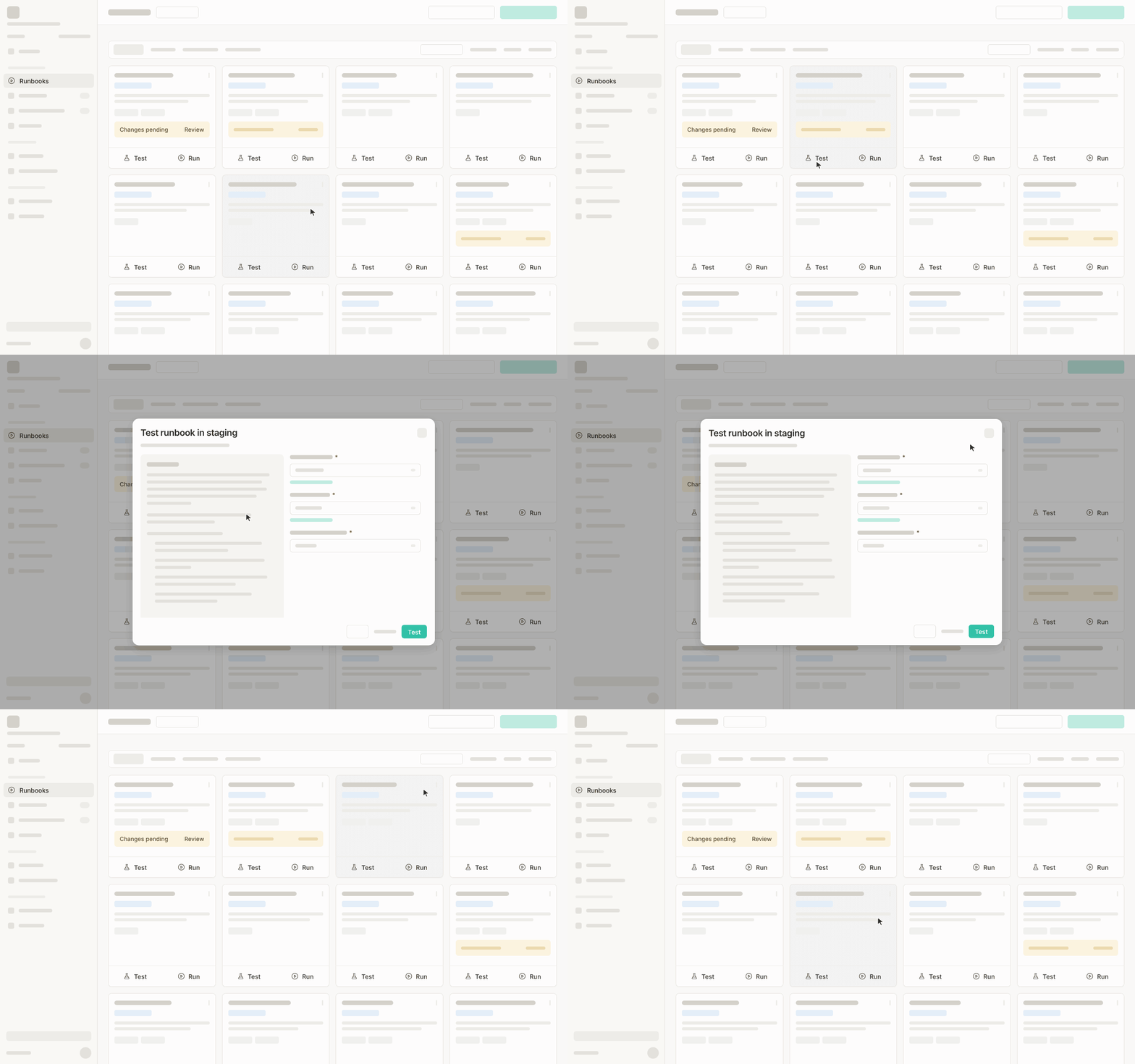
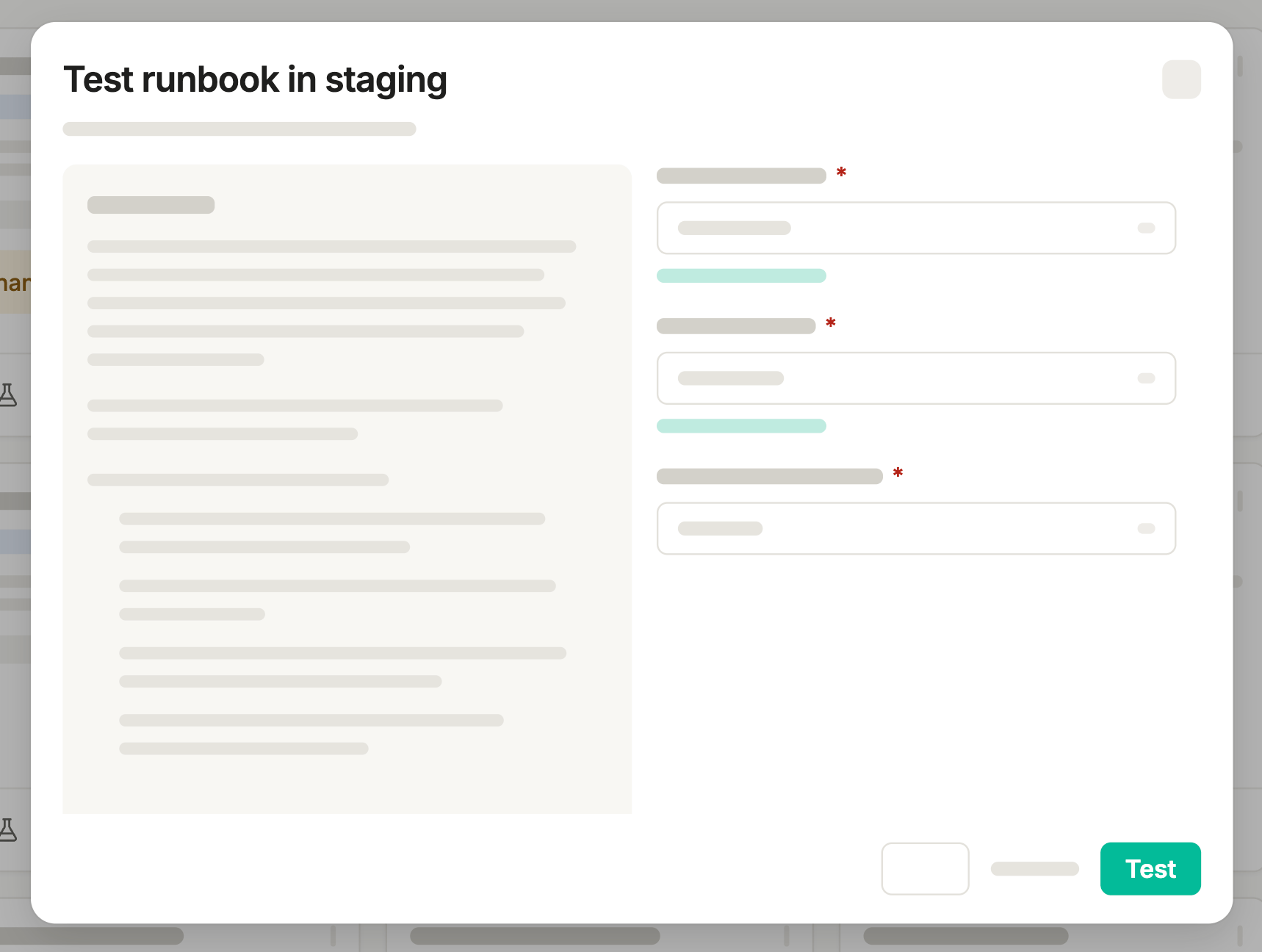
Before running a runbook against a client, you can test it in your staging tenant to understand how it behaves.- Click Test from the runbook library, or
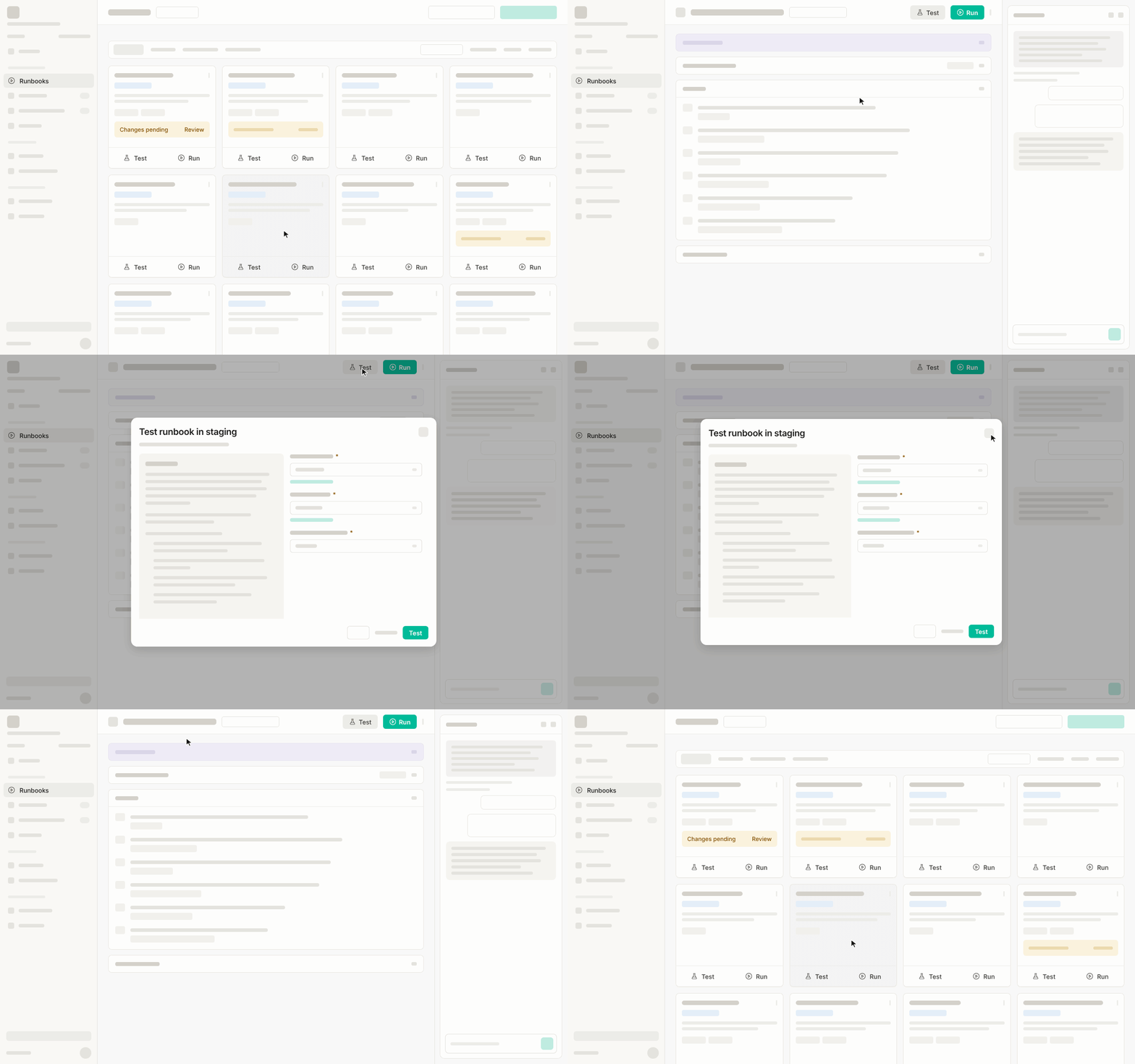
- Click Test from a runbook details page.
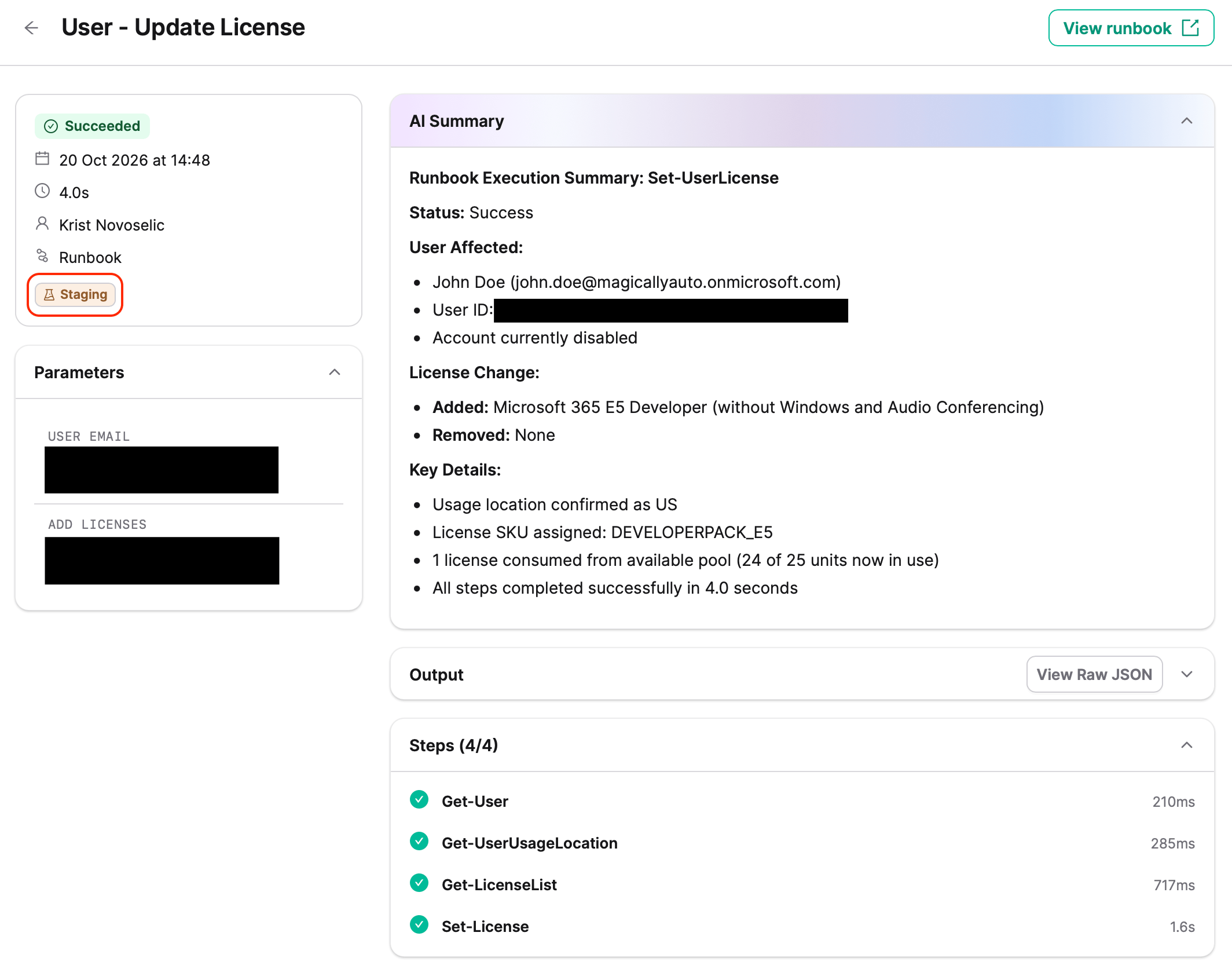
Testing is a required step before any runbook can run in production. Learn more in Approving Runbooks.