Magic Library
Automagically is currently in a closed beta.
Running from Super Magic in the context of a ticket
Use this when you are already working the ticket.1
Open Super Magic on the ticket
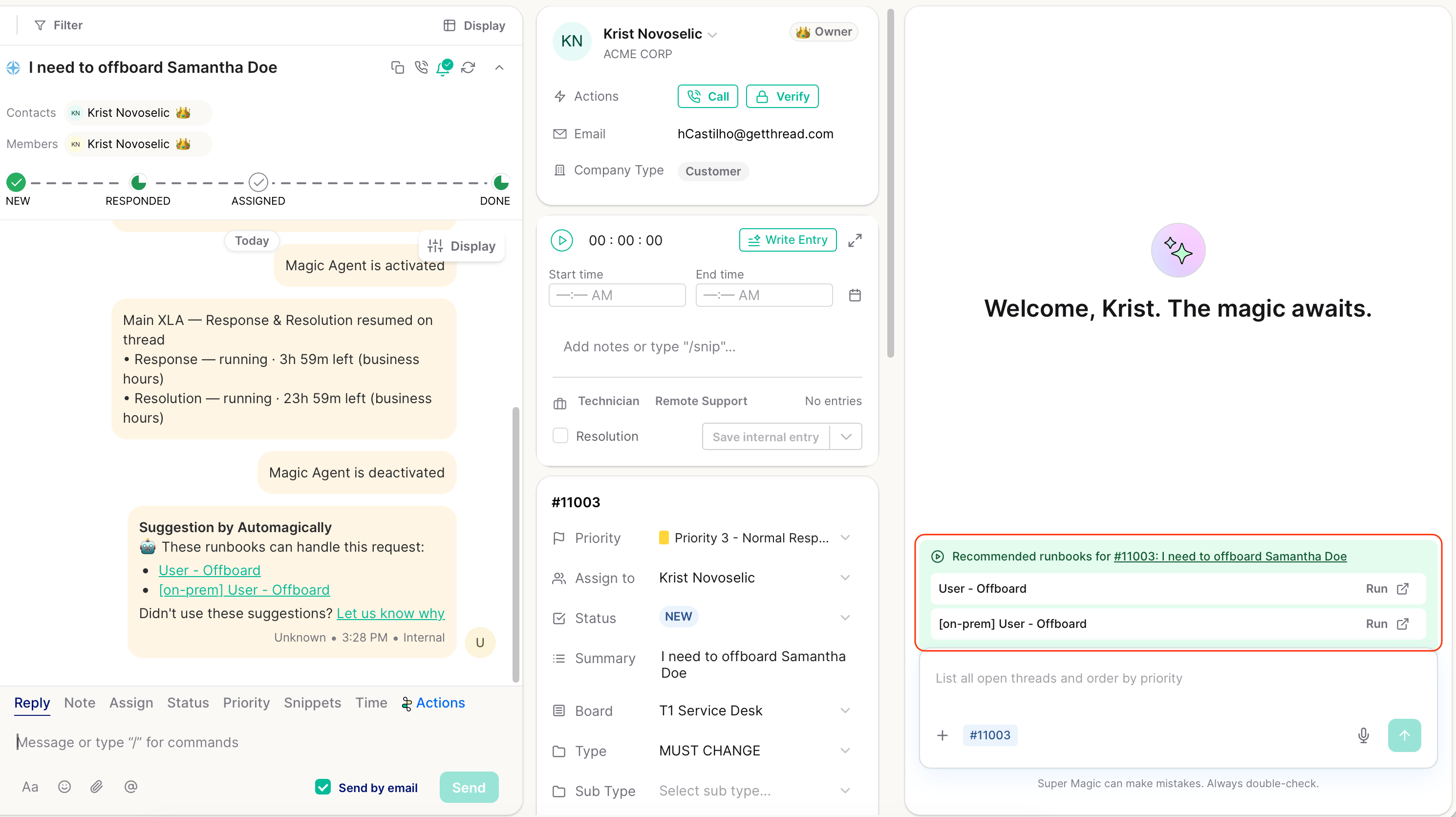
Open the ticket and open Super Magic. Super Magic appears in a panel next to the ticket, with the ticket already attached to the chat. A banner at the bottom of the chat lists the recommended runbooks for the ticket, so there is nothing to ask for.
2
Pick a runbook and run it
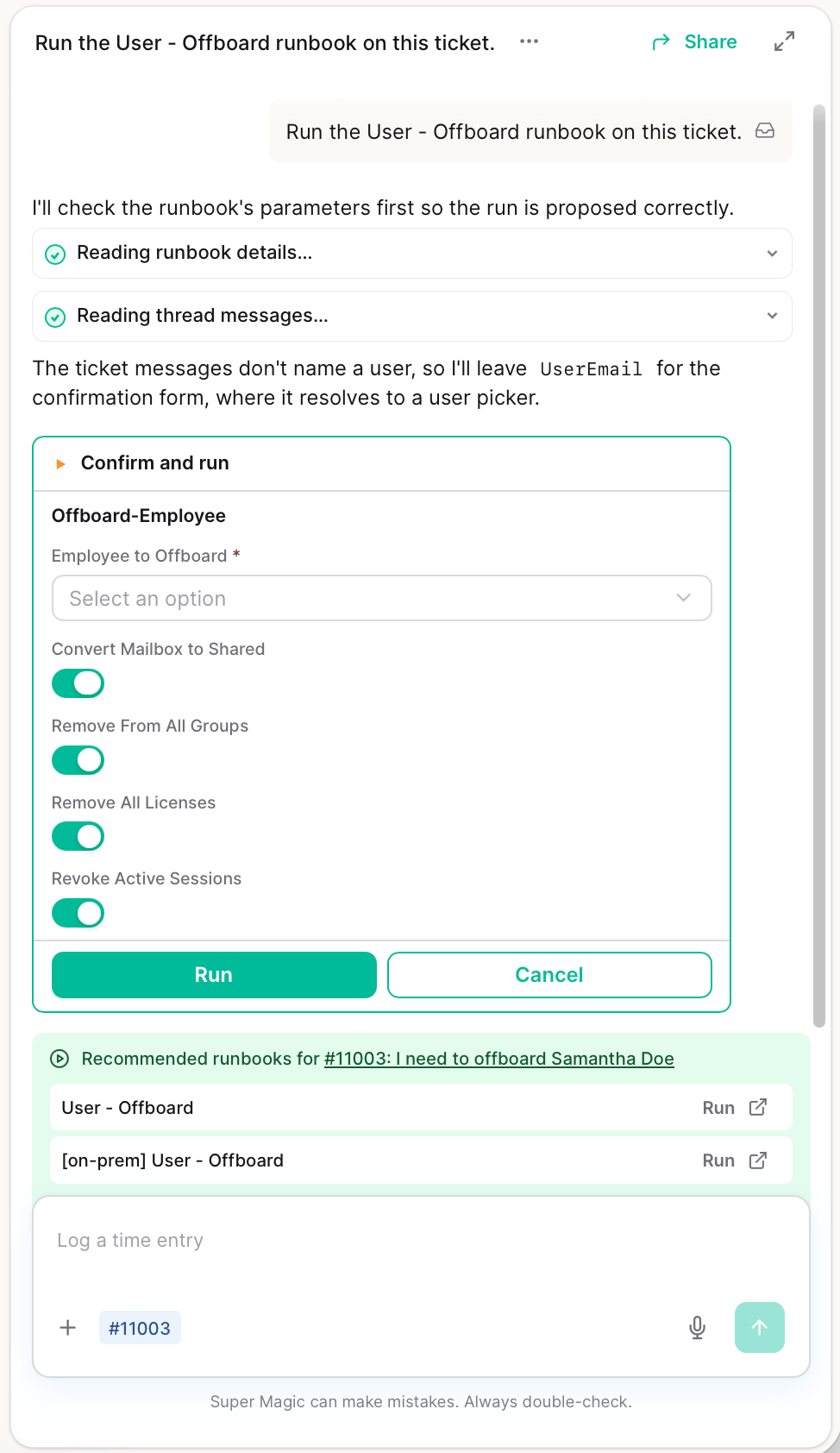
If more than one runbook is recommended, choose the one that fits the request. For example, a ticket to offboard a user may list both a cloud and an on-prem version. Click Run next to it. The runbook form appears right in the chat, with the client and ticket already taken from the ticket context, so you can go straight to the inputs.
3
Verify the result and close the ticket
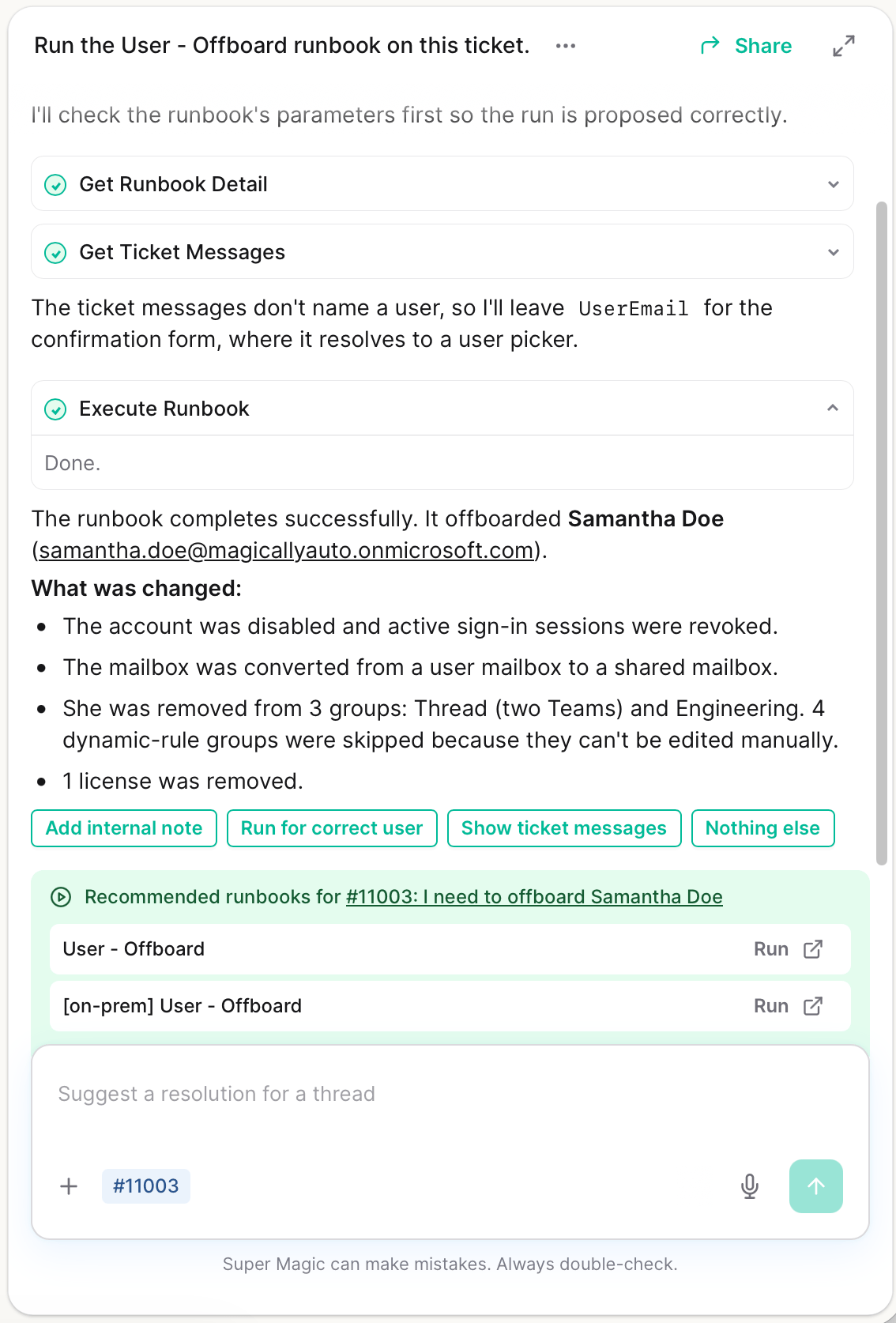
The result appears in the same chat, so you can confirm it matches what was requested without switching screens. Review it, document the outcome, and close the ticket.
Running from Super Magic outside of a ticket
Use this when you are already in Super Magic and know which runbook you need to run.1
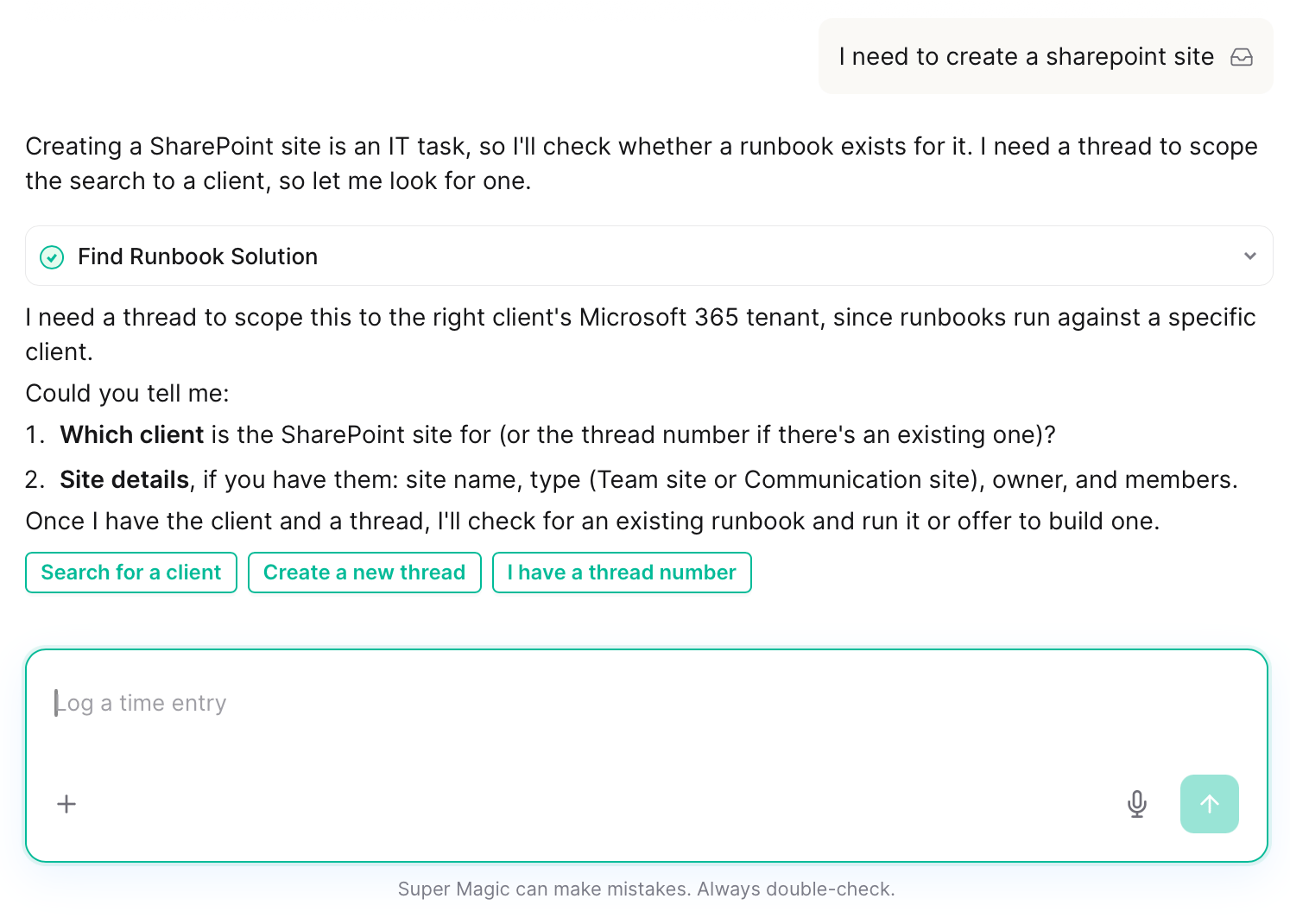
Ask for the runbook by name
Tell Super Magic what you want to do, or name the runbook, for example: “I need to create a SharePoint site”.
2
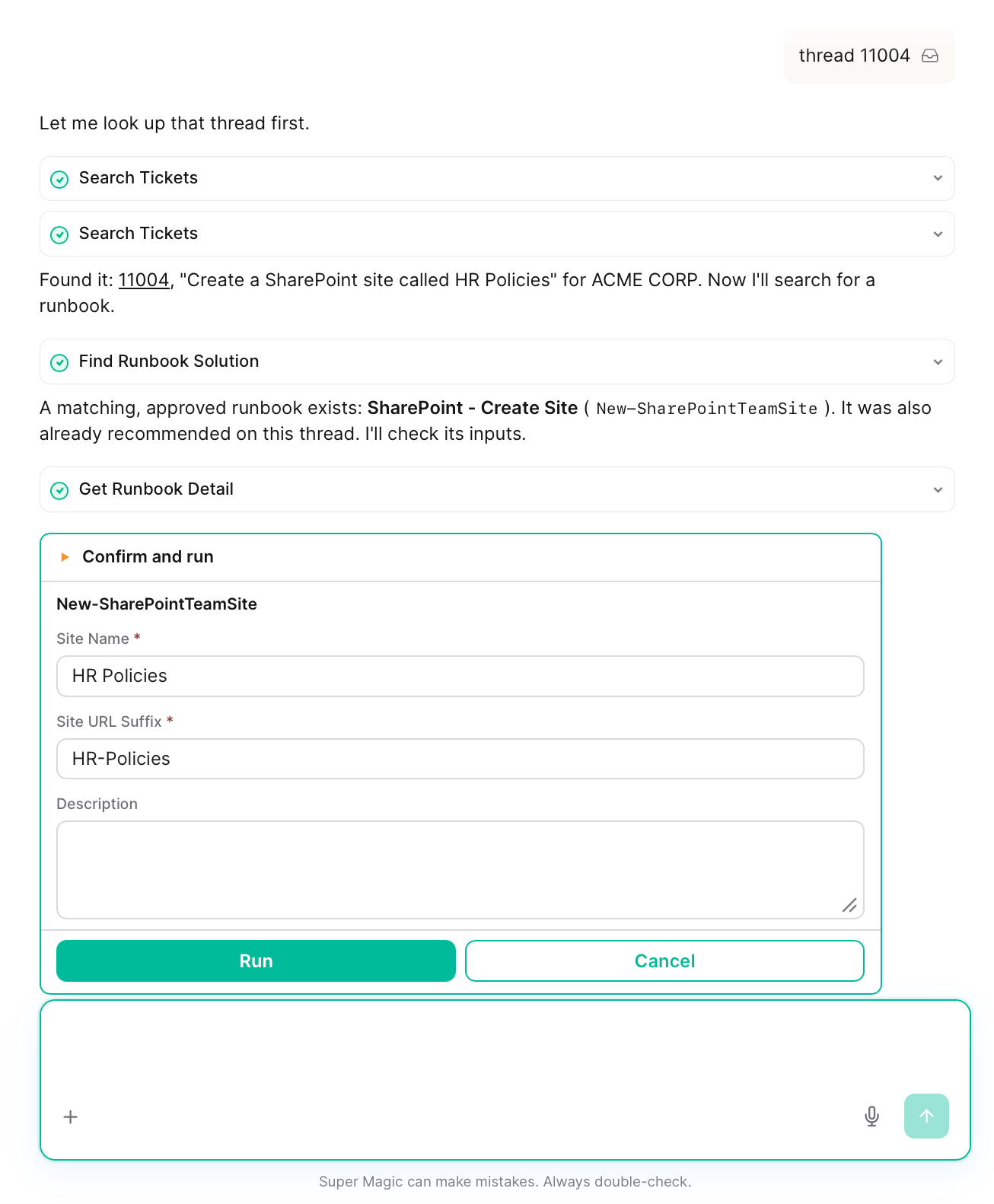
Provide client and ticket, fill in the form, and run it
Before searching for a matching runbook, Super Magic asks which client and which ticket the run is for. Provide them to continue.
3
Verify the result and close the ticket
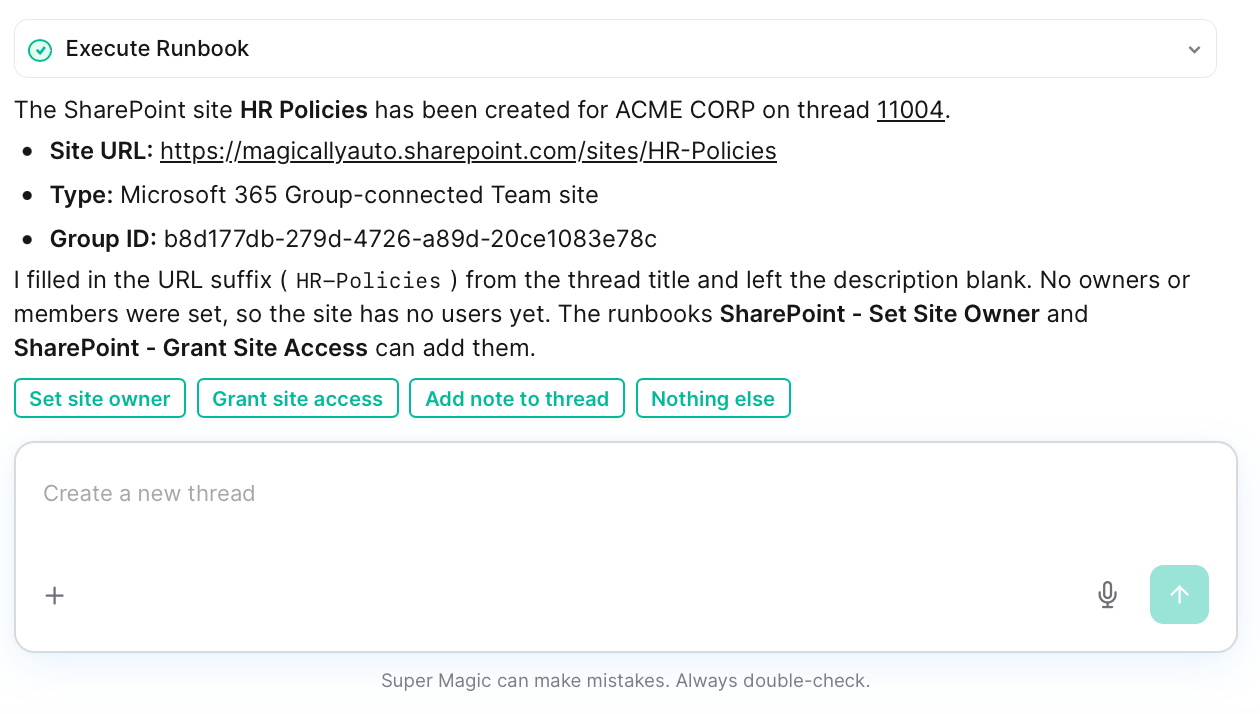
The result appears in the same chat, so you can confirm it matches what was requested without switching screens.