

 Magic Library
Who this applies to
This Microsoft Teams deployment model applies to MSPs where multiple companies operate within the same Microsoft 365 tenant. If each of your companies has its own separate Microsoft 365 tenant this does not impact you.What this means for you
Teams can be installed once at the parent company and all sub-companies automatically inherit access. Direct sub-company installations are no longer supported once a parent deployment exists.How to Set Up a Parent–Child Relationship
The Parent-Child relationship feature allows you to associate multiple sub-accounts (“Child” companies) under a single main account (“Parent” company). This is essential for managing organizations with multiple locations, departments, or distinct entities that need to be grouped together.Prerequisites
- You must have Admin permissions to access the Clients menu.
- Both the Parent and Child entities must already exist in your Client list.
1
Navigate to the Client List
First, locate the company you wish to designate as the Parent entity.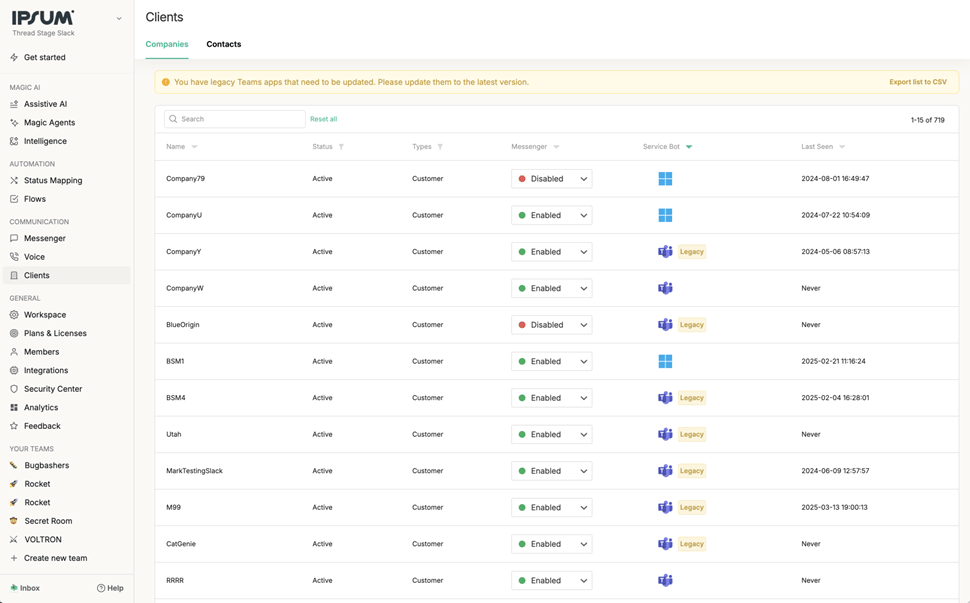
- Log in to your Dashboard.
- On the left-hand sidebar, click on Clients.
- Locate the specific client in the list that will serve as the Parent organization.
2
Access Company Mapping
Once you have clicked into the specific client profile: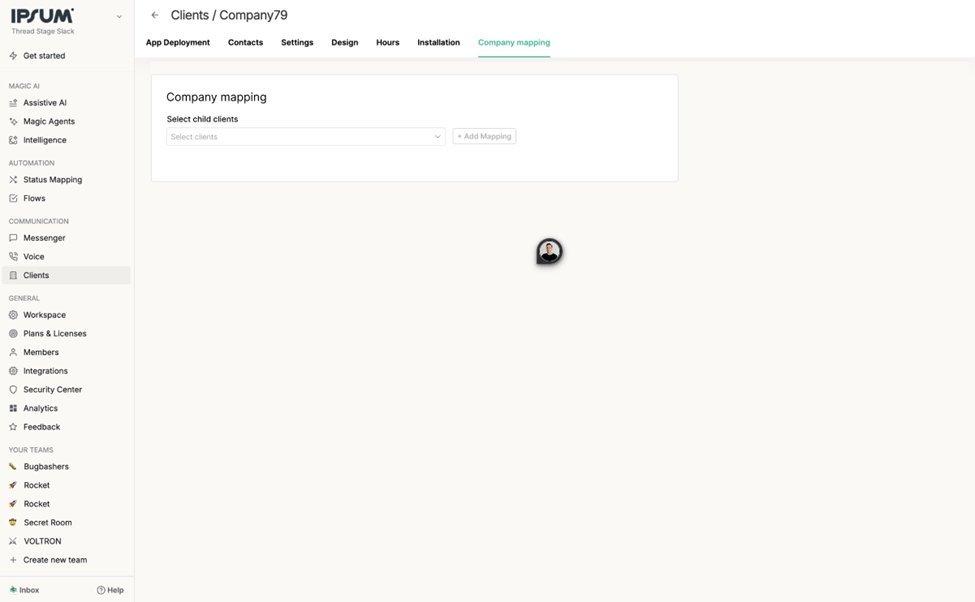
- Look at the top navigation bar within the client profile (e.g., App Deployment, Contacts, Settings).
- Click on the tab labeled Company Mapping.
3
Map Child Companies
In the Company Mapping section, you will link the sub-accounts.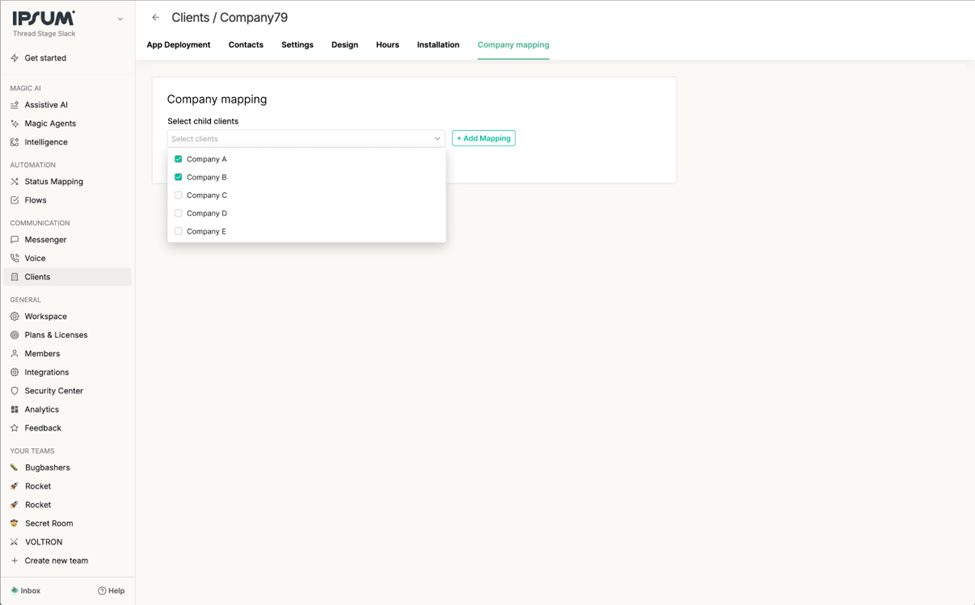
- Click the dropdown menu labeled Select child accounts (or similar based on final UI text).
- A list of available companies will appear. Check the boxes next to the companies you want to add as Children to this Parent.
- Click the + Add Mapping button to save the relationship.
4
Verify the Relationship
Once mapped, the relationship will be established in the system. You can verify this by checking the mapping list or returning to the main client view to ensure the hierarchy is respected.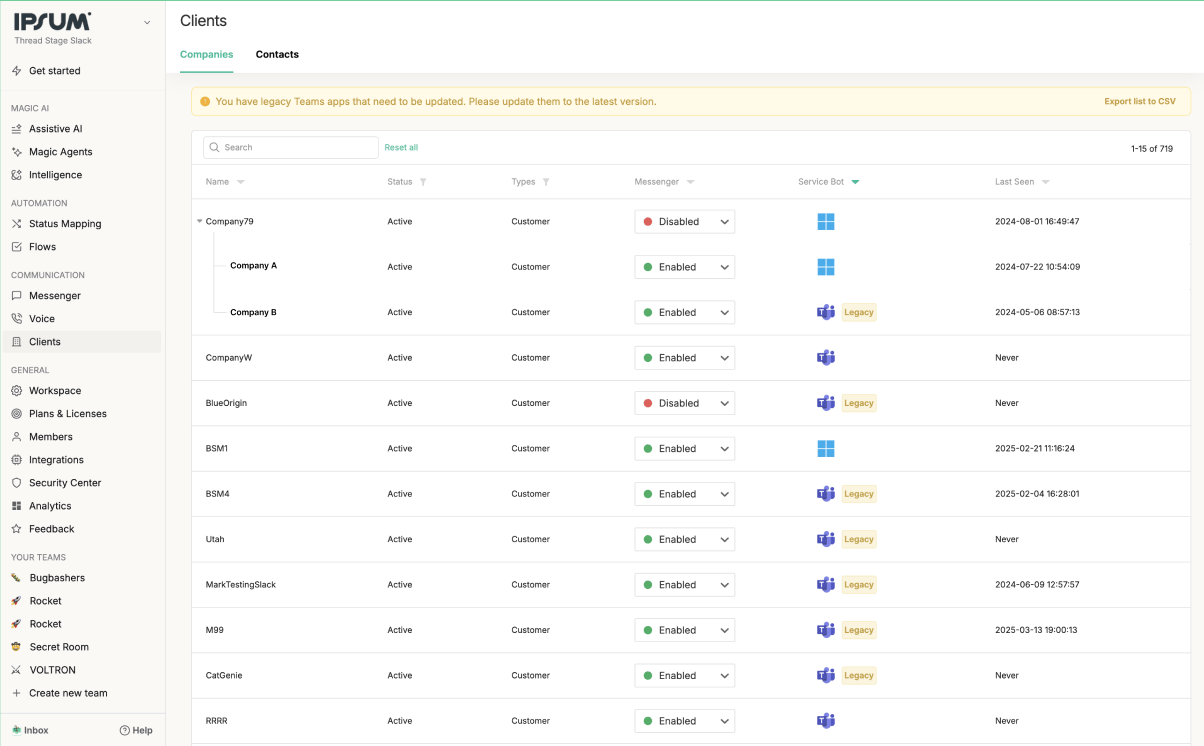
Troubleshooting
- Cannot find a child company? Ensure the child company has been created in the Clients list first. You cannot map a company that does not exist in the system.
Migration Scenarios
Sub-companies have Teams installed, parent does not
What to do:- Disconnect Teams integrations from all sub-companies
- Deploy Teams once at the parent company level
- All sub-companies inherit automatically
Parent already has Teams installed
If sub-companies also have installations:- Those must be disconnected first
- Redeploy at the parent level
- Ensure the selected tenant allows access for users across all sub-companies