

 Magic Library
How the connection works
- One workspace connection, made once by an admin. An admin connects ConnectWise RMM with API client credentials on the integrations page. Super Magic uses that single connection for everyone.
- No per-technician sign-in. Technicians never connect their own RMM accounts.
- Pick your region once. The form has a Region selector (US / EU / AU); Thread also infers the region from your Client ID.
If RMM tools aren’t appearing in chat, it’s either the workspace connection or the Super Magic
toggle, never a per-member sign-in.
Connect it
1
Create API client credentials in ConnectWise RMM
In ConnectWise RMM (Asio), create API client credentials. You’ll get a Client ID and a Client Secret.
2
Fill in the form in Thread
Go to Thread Admin → Integrations → ConnectWise RMM.
Click Connect. Thread validates live, so a wrong value fails immediately with an error banner.
3
Turn on Super Magic access
On the same integration page, below the connection form, find the Additional Enablement card and switch the Super Magic toggle on.It’s off by default: connecting RMM alone does not give Super Magic access. Your existing RMM integration keeps working exactly as before; Super Magic access is opt-in.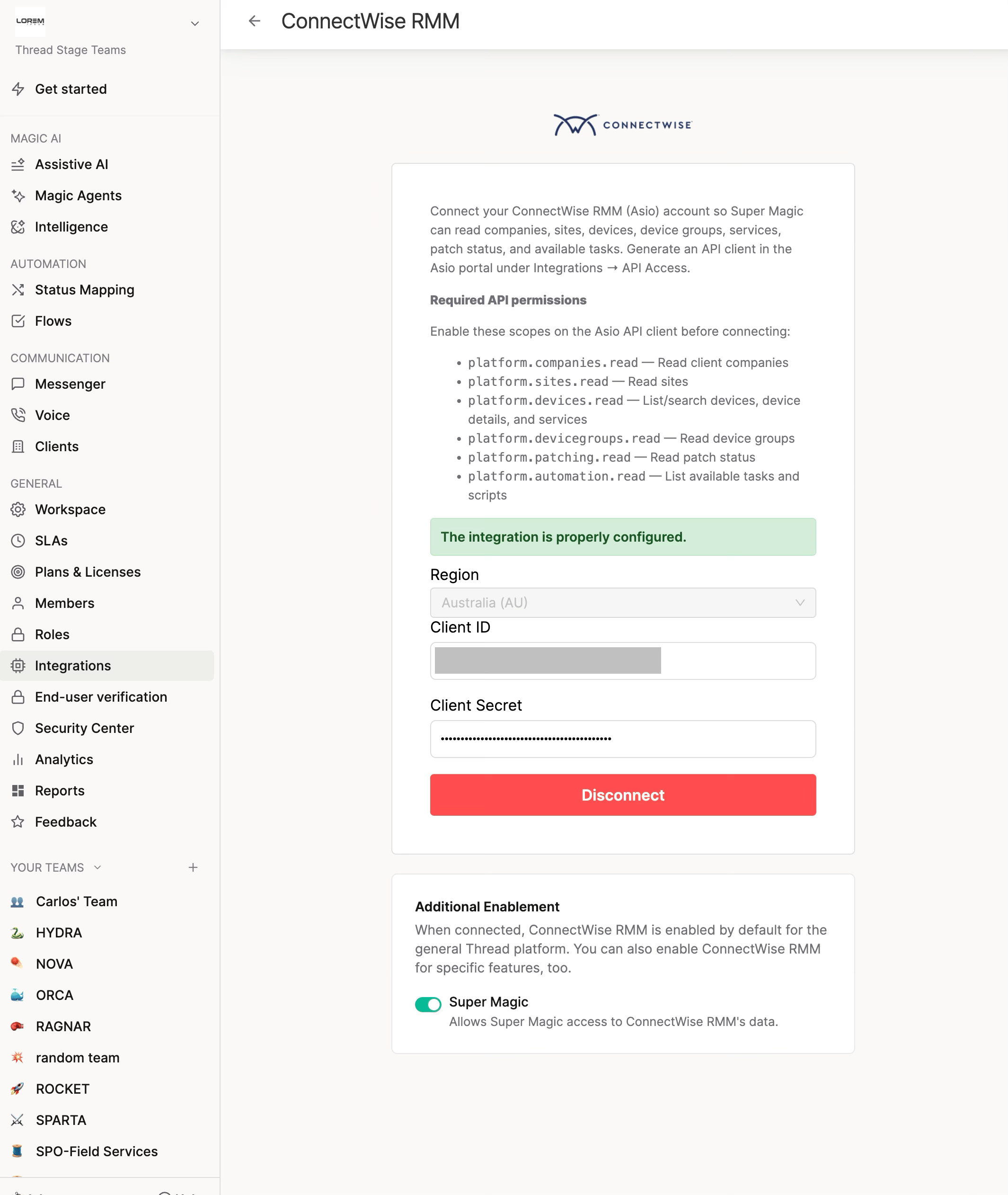
4
Test it
Open Inbox → Super Magic and try:Every technician in the workspace can use the lookups now — there’s no per-member step.
What Super Magic can do
Taking action is not available yet. Asked to change something in RMM, Super Magic says so
plainly and points the technician to ConnectWise RMM. When actions arrive they’ll go through the
Confirm action card and respect your write-access settings.