

 Magic Library
All configurations are applied at the board, queue, or team level, depending on your ticketing system.
1. Define status groups (recommended first step)
Status Mappings can be configured by going to Thread Admin Panel -> Click on Status Automation On The Right Side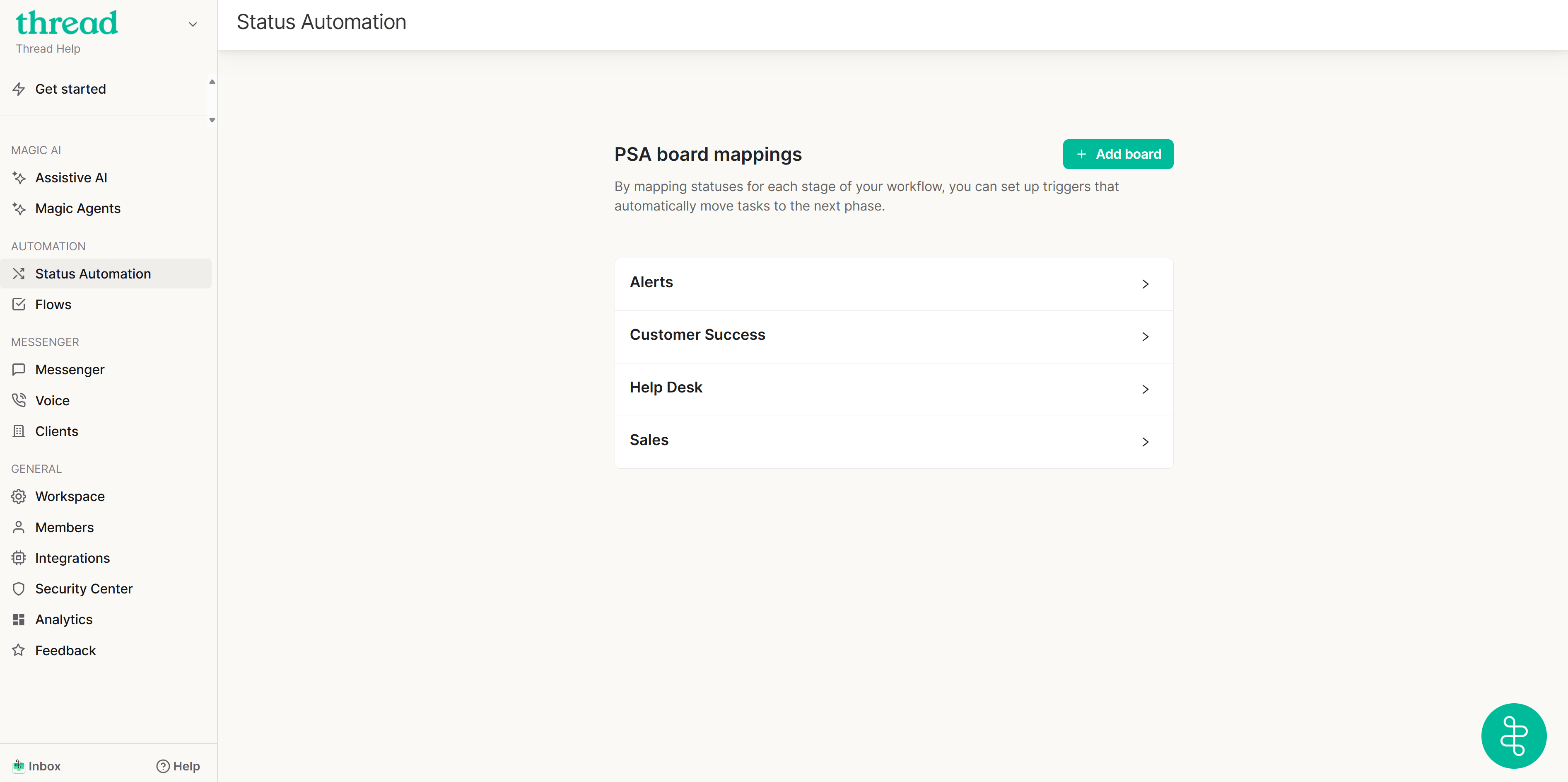
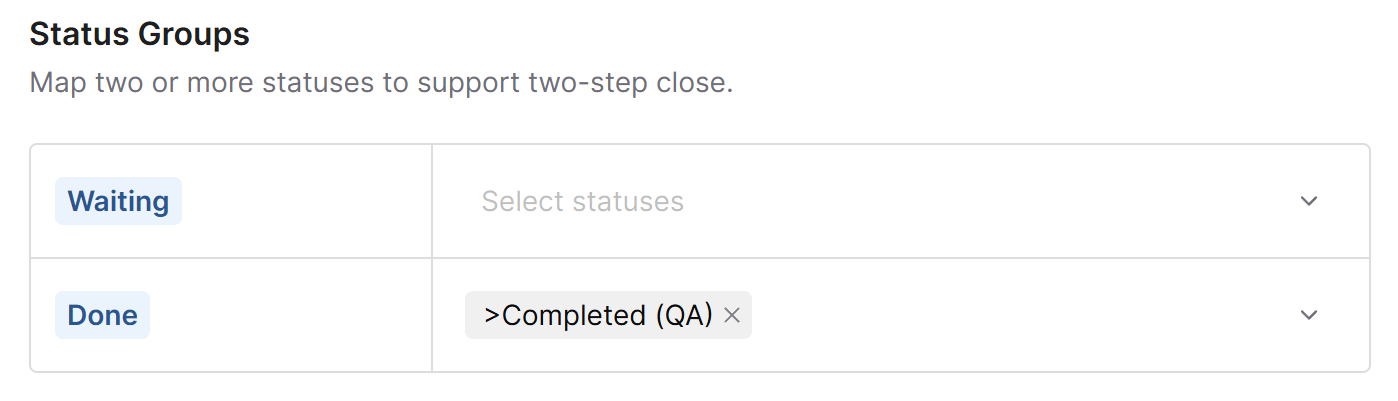
How Thread interprets Done states
A ticket is DONE if the status is either:- Marked as a closed status in your PSA
- Added to the Board status mappings field
Done (Recommended)
The “Done” group should include all statuses that you want to consider a Done State in Thread but aren’t considered a Closed State in your PSA such as:Completed (QA)- Marked for review
Waiting (Optional)
The “Waiting” group includes statuses that indicate active work on a ticket. Common examples are:Waiting on Customer
When you click Save, what happens?
We will look at all active tickets on that board and see if any have the status entered under the Done field and mark those as Done2. (Optional) Configure status change mappings
With Status Groups configured, you can optionally set up automatic transitions triggered by specific thread activity. These mappings reduce manual status updates and ensure consistency across workflows.Note statuses configured in Thread are visible to end-users in the Messenger chat application. Select clear and appropriate status names that reflect progress or resolution accurately from the customer’s perspective.
When a contact replies after the first agent reply
Automatically moves the thread to a mapped status to resume visibility and SLA response tracking, such as:Waiting for TechnicianUpdated
When a contact replies to a closed thread
Reopens the thread and sets it to a visible status, ensuring it re-enters active workflows, such as:ReopenedNew
When a TimePad Entry Has a Resolution Flag
Moves the thread to a resolved status when TimePad marks the issue as resolved, such as:ResolvedCompletedClosed
When a contact replies to threads in the “Waiting” group
Ensures the thread stays in a visible, active state when customer engagement resumes, such as:In ProgressWith CustomerWaiting on Customer
When an approval is requested
Transitions the thread to a pending status the moment an approval request is sent, so it’s easy to spot threads awaiting a decision, such as:Awaiting ApprovalPending Approval
When an approval is finished (approved, declined, or canceled)
Updates the status once the approval resolves (whether it was approved, declined, or canceled) aiding in visibility and closure, such as:ApprovedDeclinedCancelled
3. (Optional) Magic Agent automation mapping
If your team uses Magic Agents, you can also automate status updates based on agent activity:When Magic Agent begins working on a thread
Sets the thread to a triage or intake status, such as:TriageInitial Review
When Magic Agent completes automation work and exits a thread
Moves the thread to a ready-for-review or next-step status, such as:Ready for DispatchAwaiting Assignment
When a contact confirms resolution while the Magic Agent is engaged
Automatically marks the thread as closed, such as:ClosedConfirmed ResolvedCompleted
4. Saving changes
Be sure to click Save at the bottom of the board configuration page after making any updates. Changes are not applied until saved.5. Best practices
- Configure Status Groups before enabling any other automations.
- Review configuration per board or queue to reflect the specific structure of your ticketing system.
- Ensure that Magic Agent logic is clearly tied to appropriate status transitions to avoid workflow ambiguity.