Magic Library
Overview
Magic Agents can be used across both chat and email-sourced service tickets to triage, troubleshoot, and collect information for your team or trigger powerful workflow automations. This guide will walk you through how to enable email for each ticketing system integration, ensuring your customers have a seamless experience via email.Enable email for your PSA
- ConnectWise
- Autotask
- HaloPSA
To enable email for Magic Agents in ConnectWise Manage, ensure the following:
1
Email Connector Configuration
Make sure your email connector is configured. For detailed instructions, refer to the ConnectWise Email Configuration Guide.
2
Email Source Mapping
In the Thread Admin panel, go to Integrations → PSA → Settings, and ensure that the Email Source is mapped to the correct default source used for all inbound service tickets to your service desk.
3
Closed Loop Automatic Email Options
Enable Closed Loop Automatic Email Options at the service board level for all service boards where you want Magic Agents to be active.
4
Reply from Connected API Member
The Magic Agent will reply from the connected API member used for the Thread integration. You can change the display name of the API member to match your bot name, which is the one used in your Messenger settings.
5
Enable Updates to Discussion
Ensure that updates to the discussion are enabled under the Closed Loop Options.
6
Enable Email Support with Magic Agents
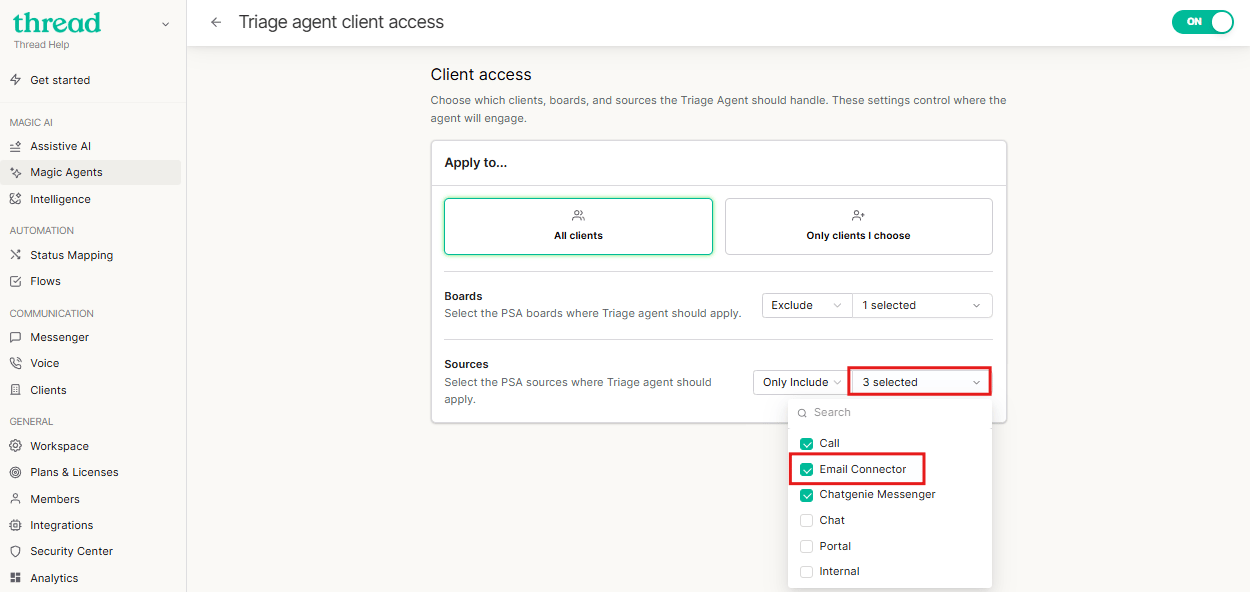
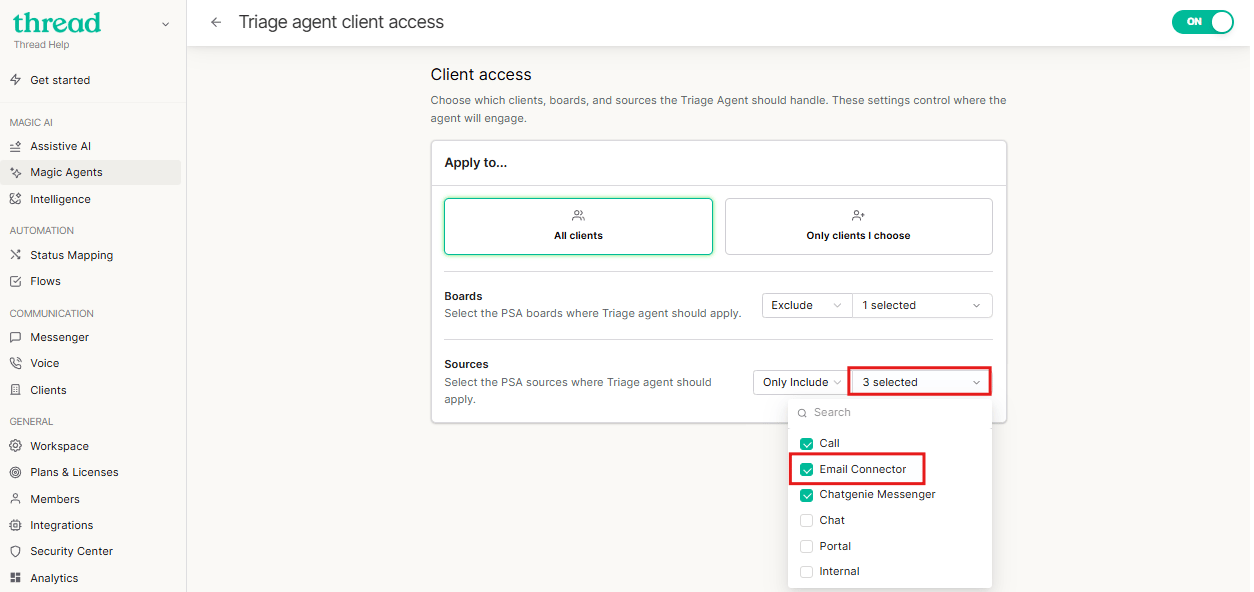
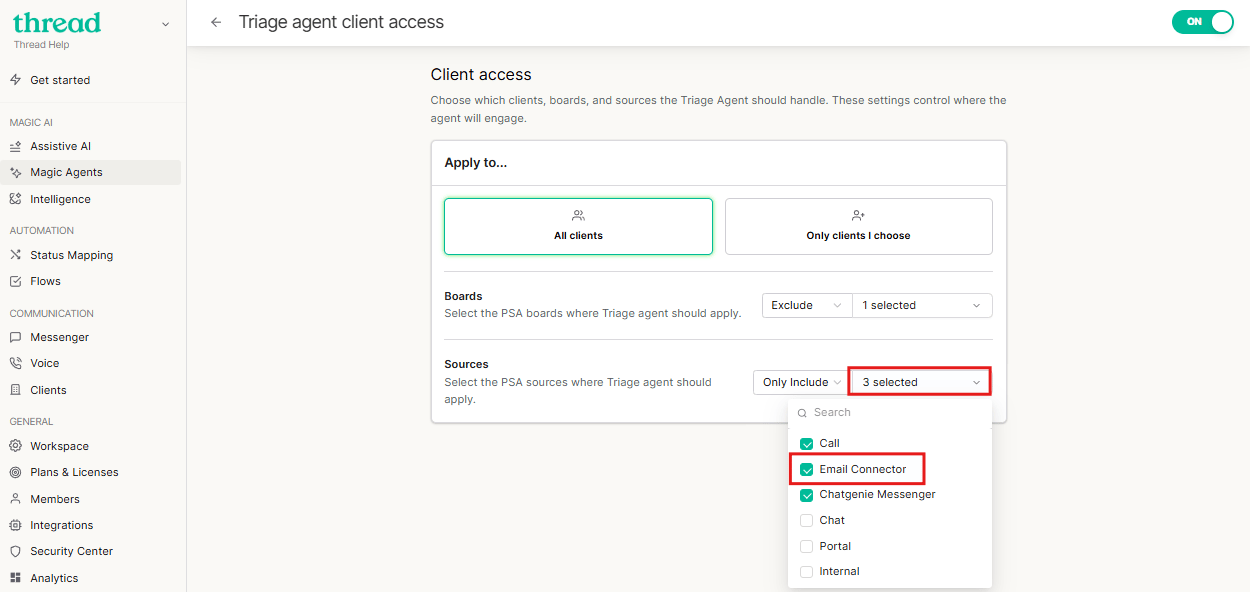
In the Thread Admin panel, navigate to Magic Agents → Triage Agent (Manage client access) → Apply to. Under the Sources option, ensure that Email is selected, then click Save.