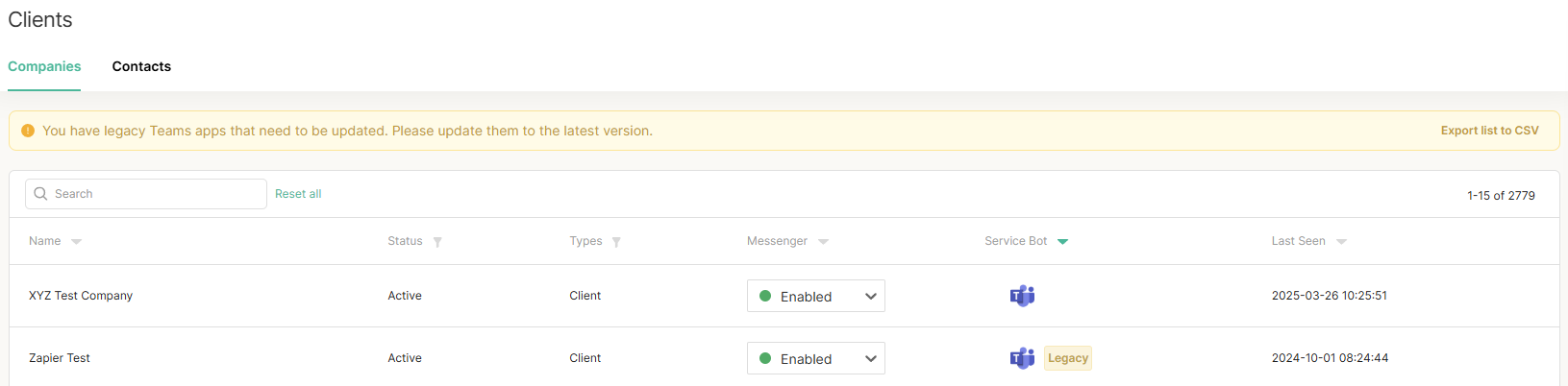
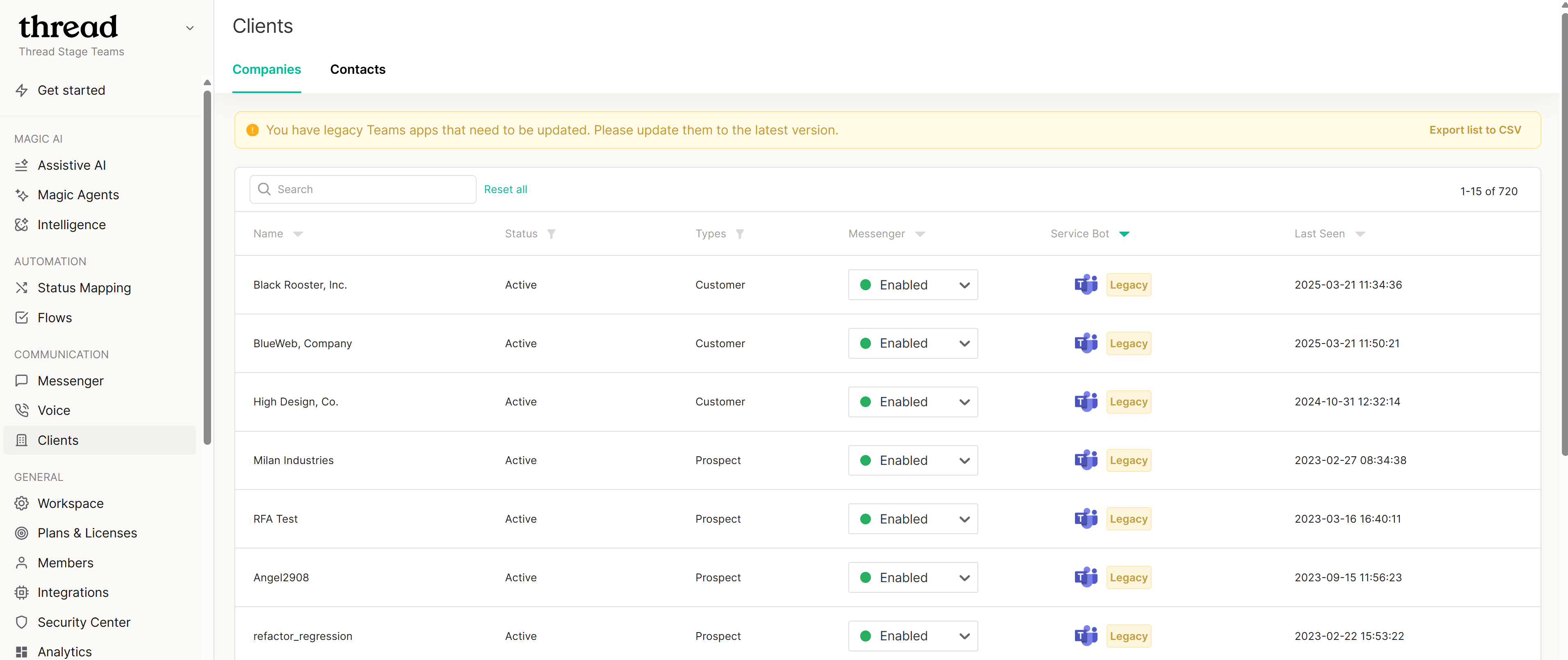
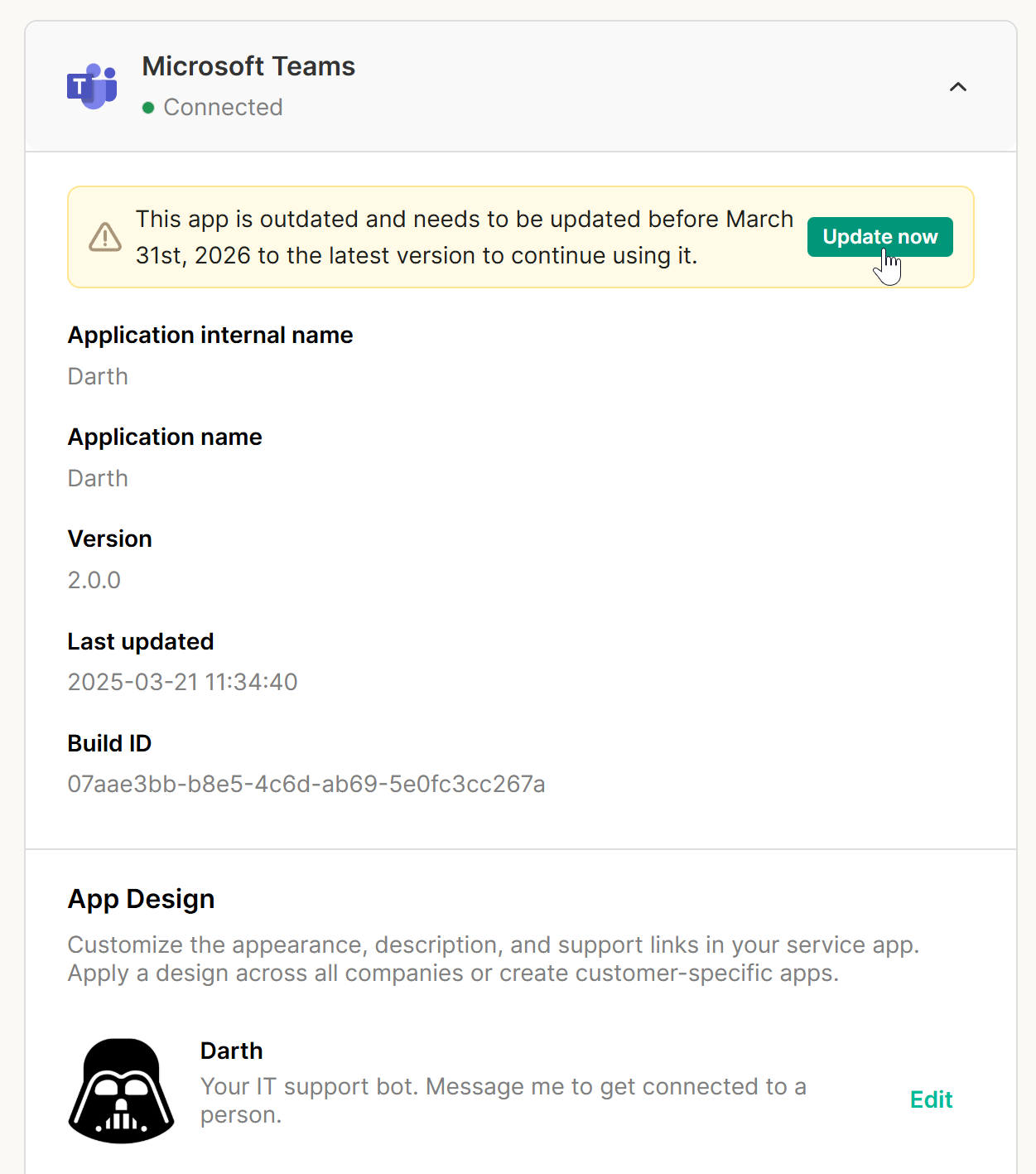
This guide will walk you through the process of upgrading your Legacy Teams App deployments. You can check to see if you have Legacy Teams apps deployed by navigating to Thread Admin Panel > Clients. If you see the following banner, you need to upgrade all Teams apps before March 31st, 2026, or they willcould functioning for your clients.
We are now past the deadline and Microsoft can and will choose to depreciate the legacy app at any time. If you do not Upgrade your app, you could lose service at ANY TIME.
You need to upgrade your legacy teams Apps because Microsoft is deprecating older authentication methods due to security vulnerabilities.
The new Teams app includes several new features that will improve your client experience:
Full SSO - Clients will no longer need to sign in with their Microsoft Credentials when opening the application the first time.
Auto-Update Capability - You shouldn't need to update your apps again; they will stay up-to-date automatically.
Below is step by step guild on how to update your Teams apps.
Preliminary Steps
Open a separate browser session in incognito mode to ensure you sign into the correct Microsoft Teams environment.
If you have lots of Legacy Apps to upgrade we recommend exporting list to CSV to share the upgrade work to multiple people. The csv will give you Client Name and direct link to App Deployment page of that client.
Deployment Process
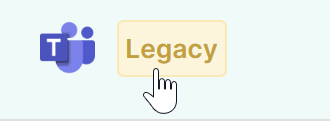
You can click on the Legacy Service Bot from the Clients page or use the direct link from the csv if you downloaded it.Both ways will end you up on the following page below:
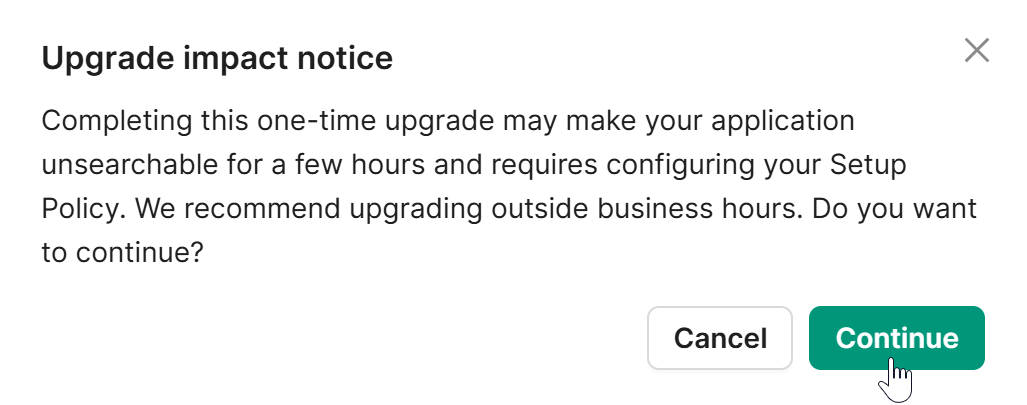
Click on Update Now button You will get the following pop-up just warning you that if you do the upgrade during your clients business hours they may lose the ability to use the Teams Support app for a few hours.
We recommend doing this outside of business hours
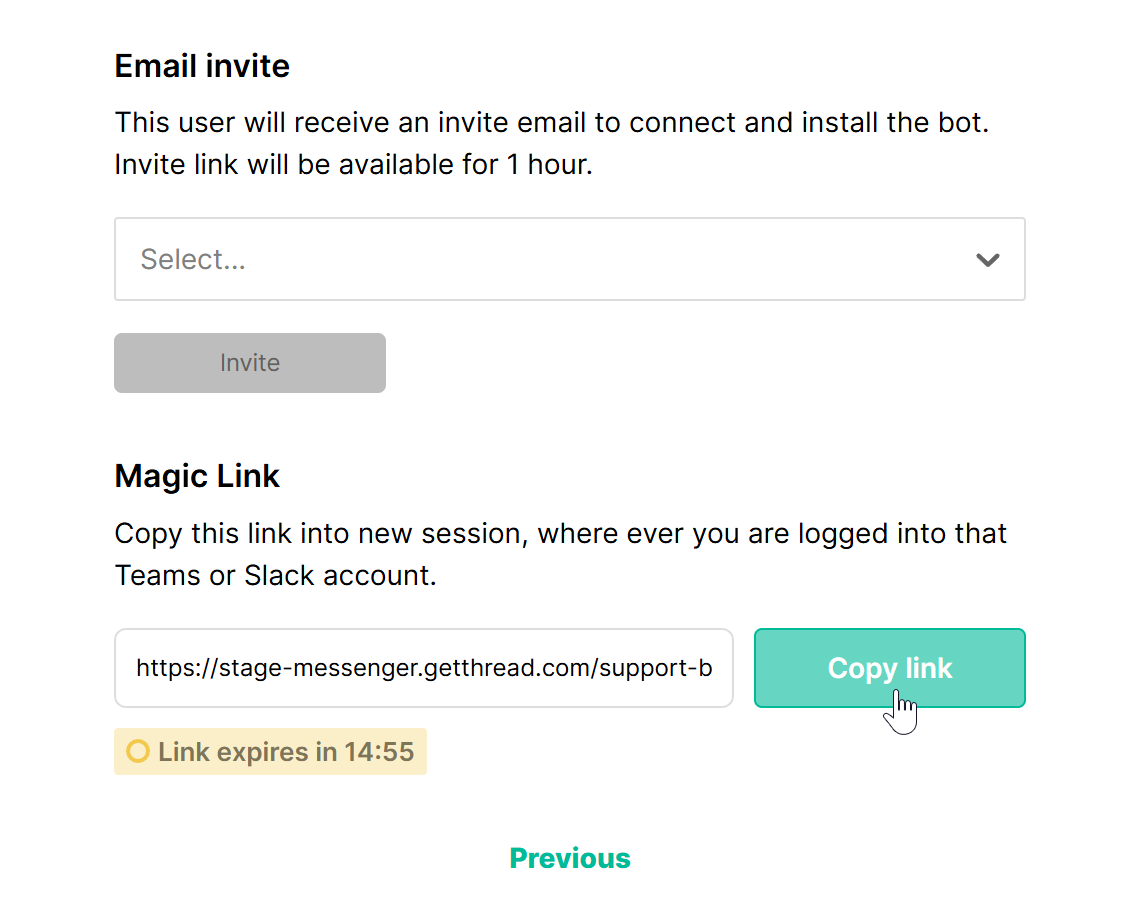
Click Continue you will see the screen below:
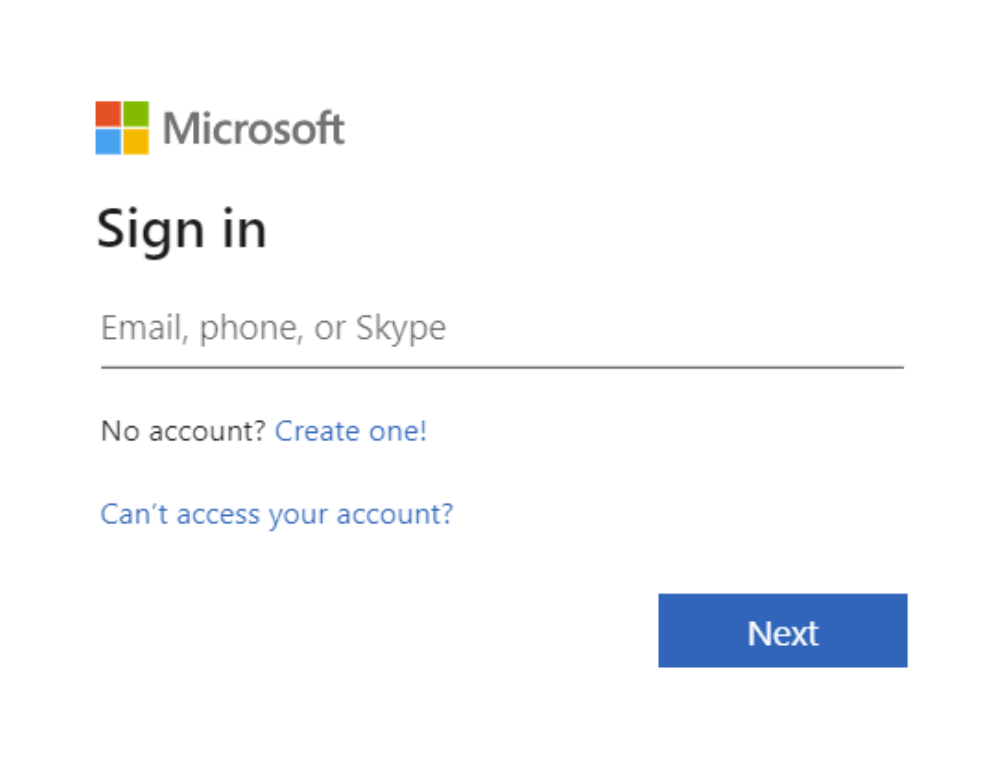
Click "Copy link" next to the Magic Link and paste it into a new tab in your current incognito browser session. When you navigate to the Magic Link, you'll be prompted to authenticate with an Administrator account in the customer's Microsoft 365 tenant. Enter the username for that account and click Next.
Enter the password and complete any required MFA (multi-factor authentication).
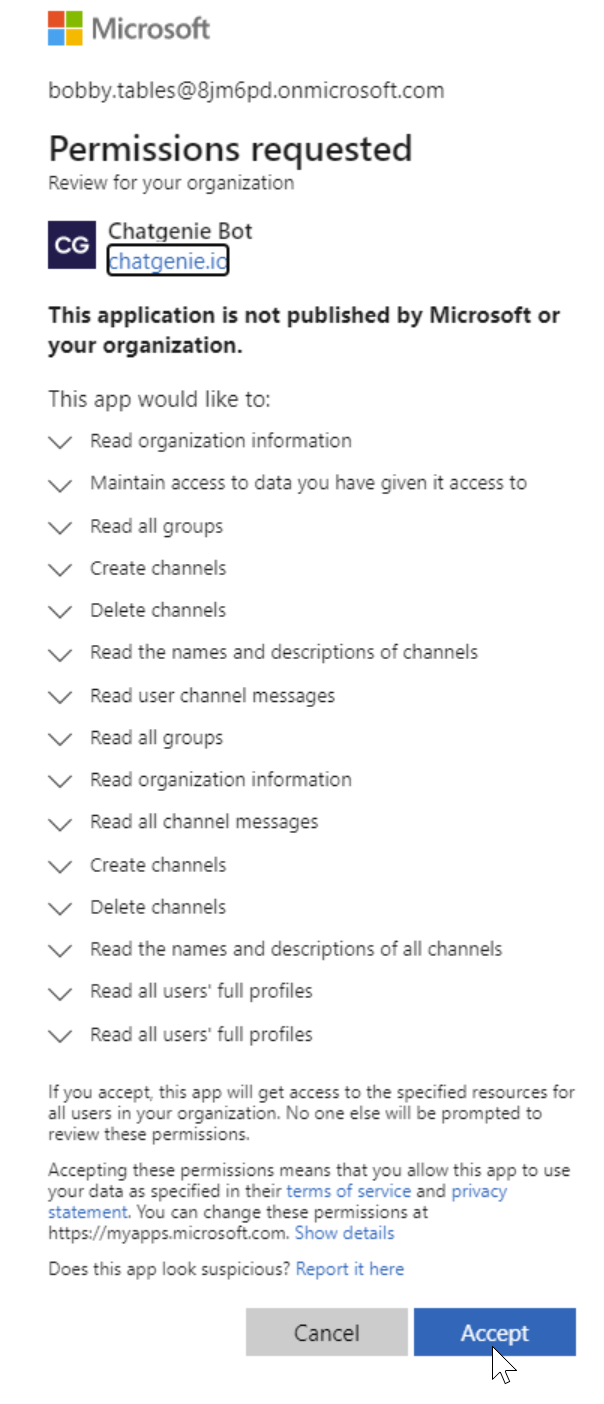
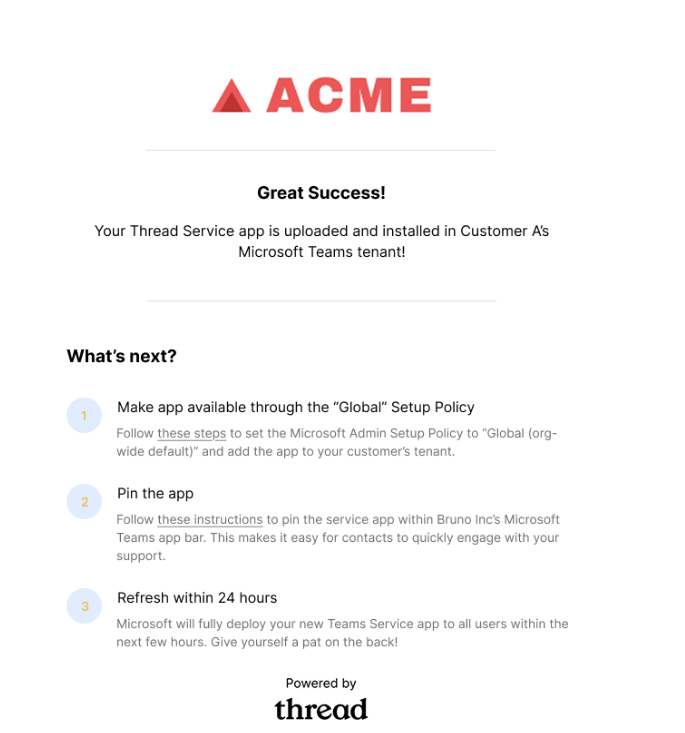
You will be prompted to grant permissions for the bot. Click Accept.If this step was successful, you will see a confirmation screen similar to below:
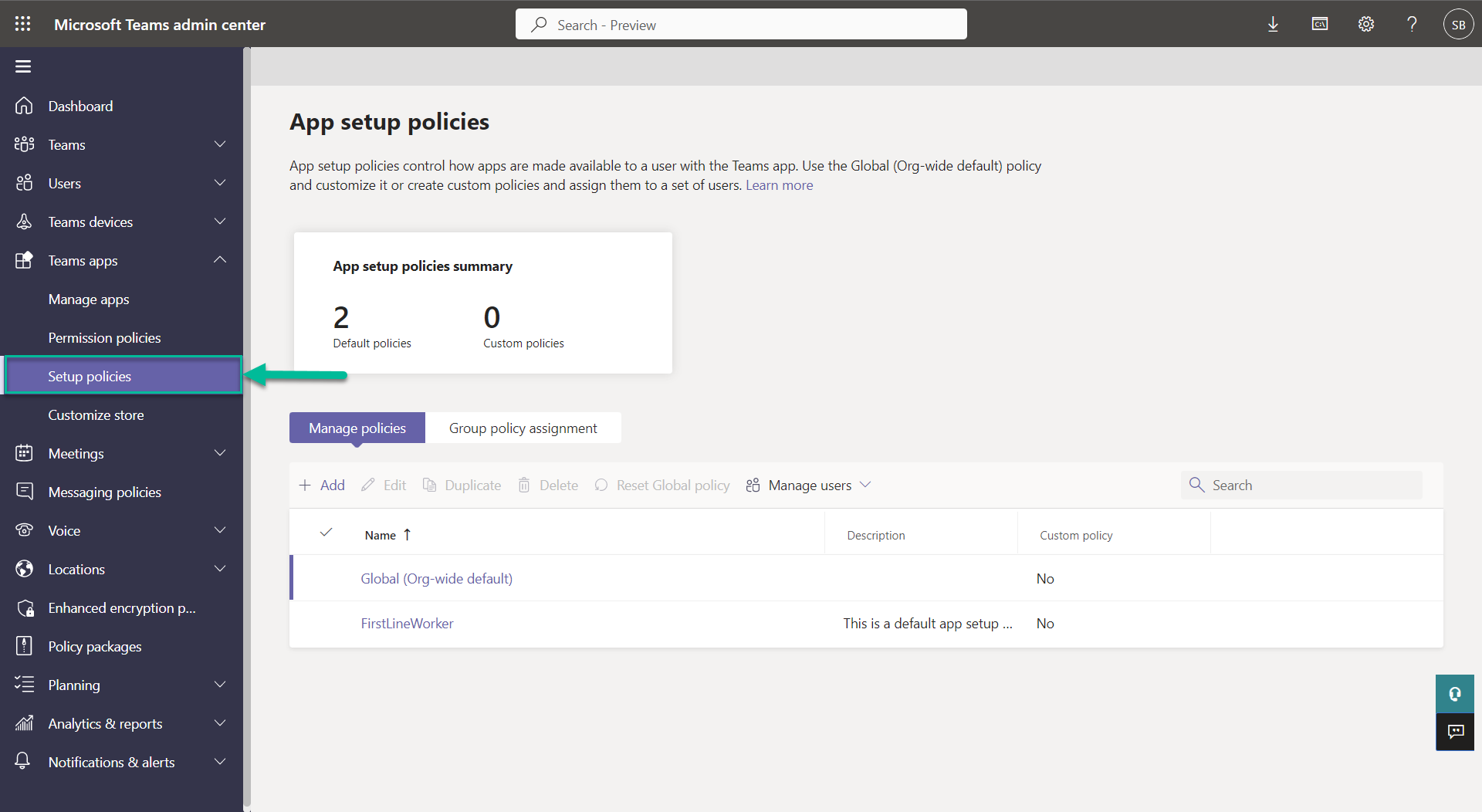
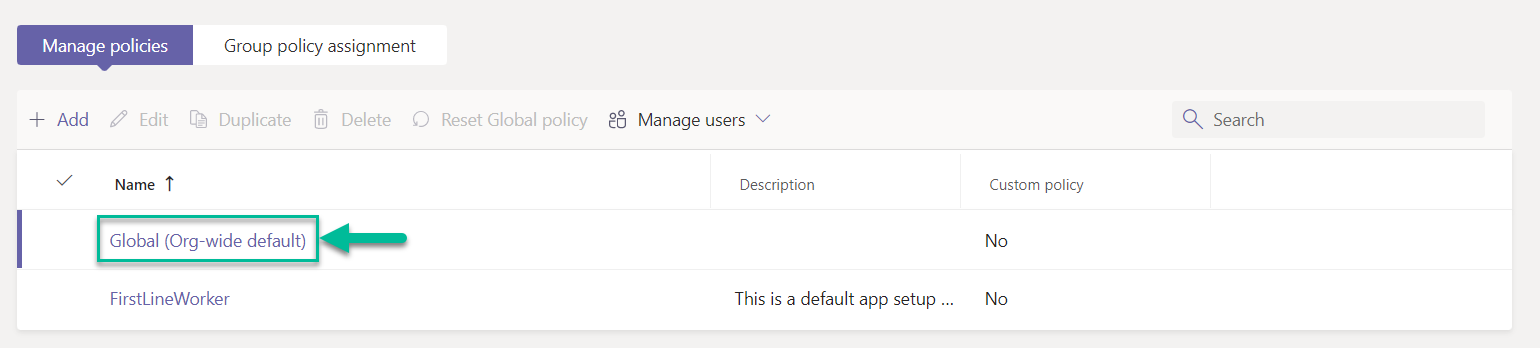
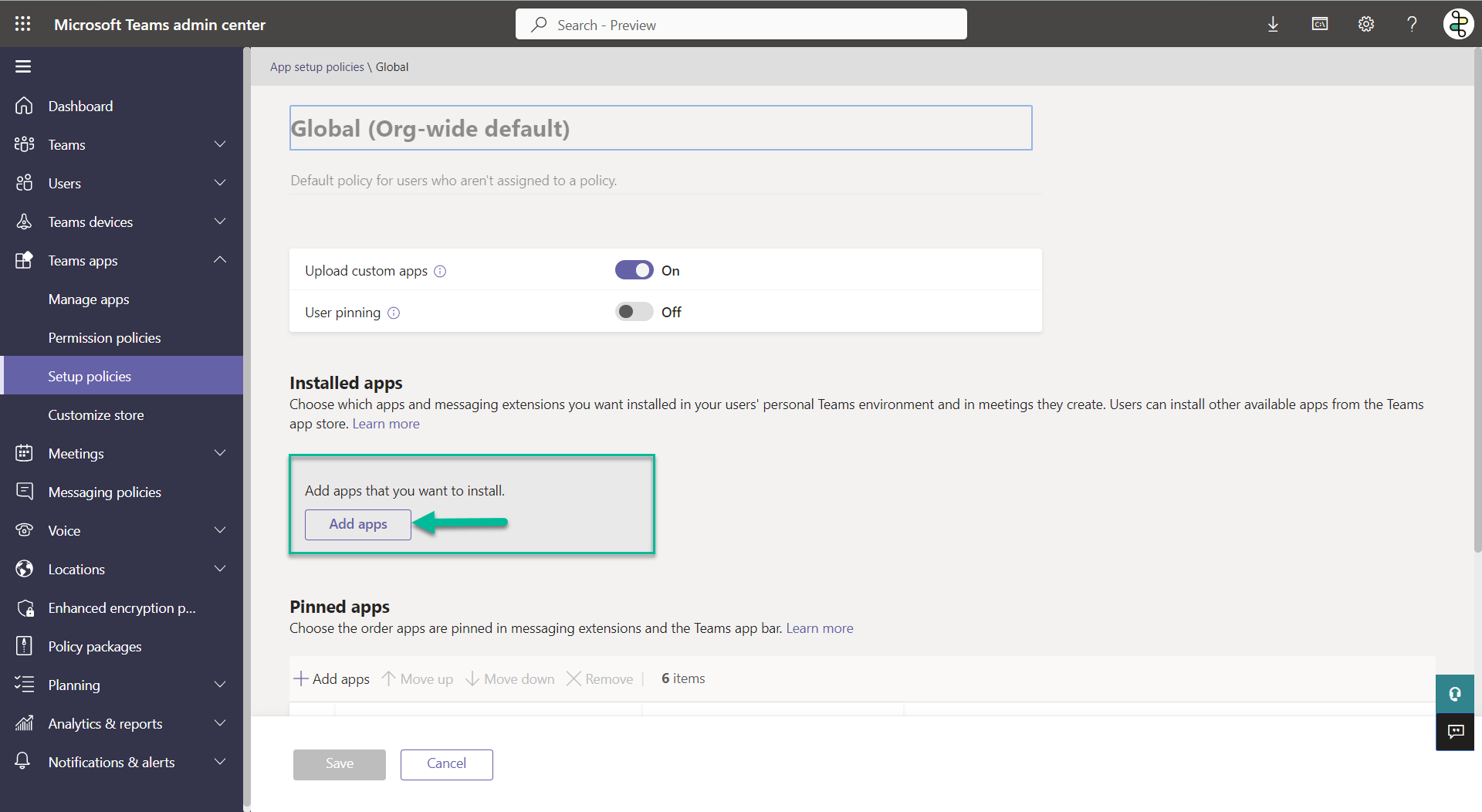
Click Global (Org-wide default). The Global policy will apply to all users in the environment, but if you want to limit who in your customer's environment can use and interact with the application, you can set up your own policy assignment here. Follow our guide on How to roll out the Teams Service app to specific users here.
Under the Installed apps section, click the Add apps button
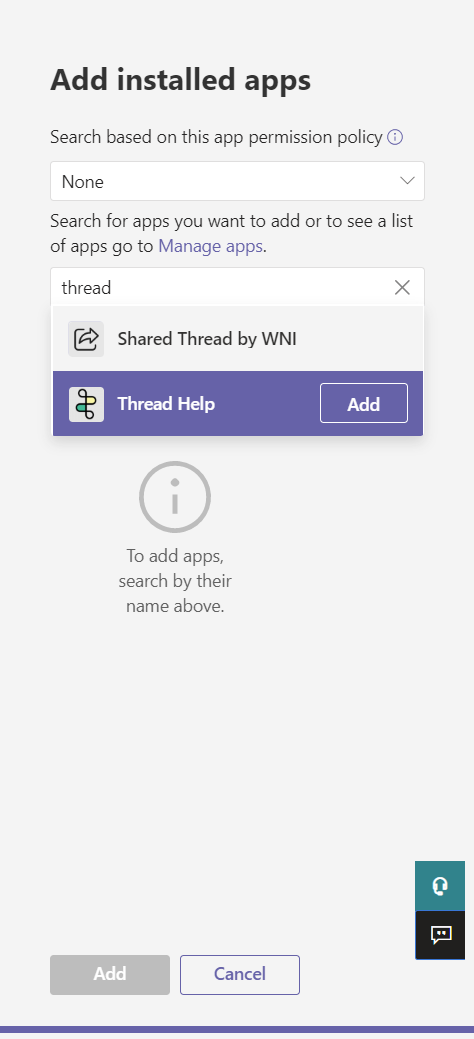
An Add installed apps sidebar will appear. Search for the app based on the Teams app name you defined when building your custom teams app. Find the app, click Add and Add again at the bottom of the panel.
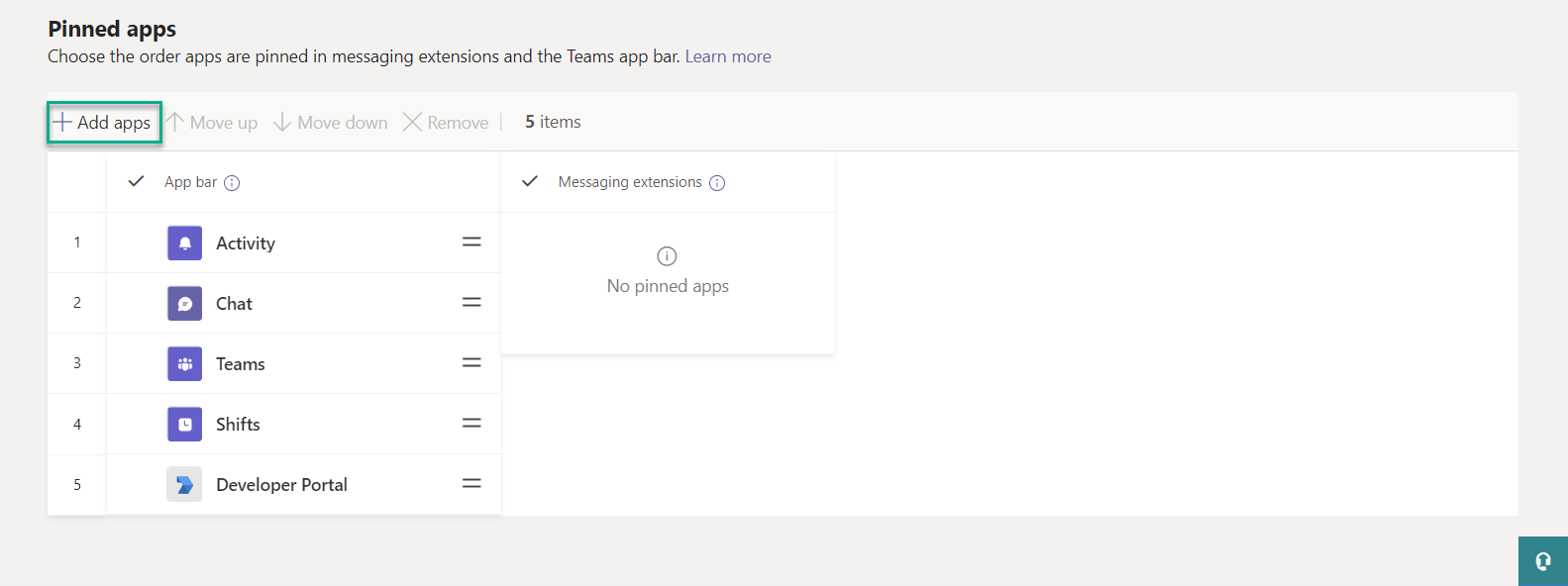
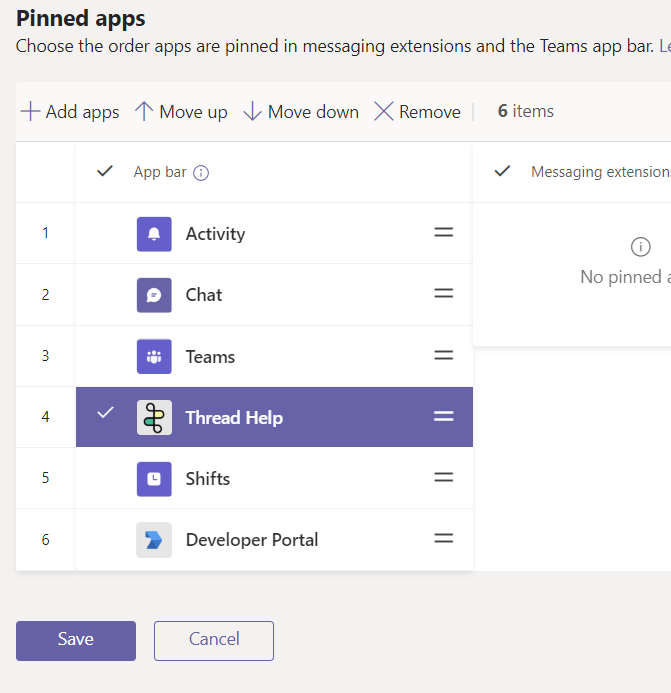
Under the Pinned apps section, click the + Add apps button.
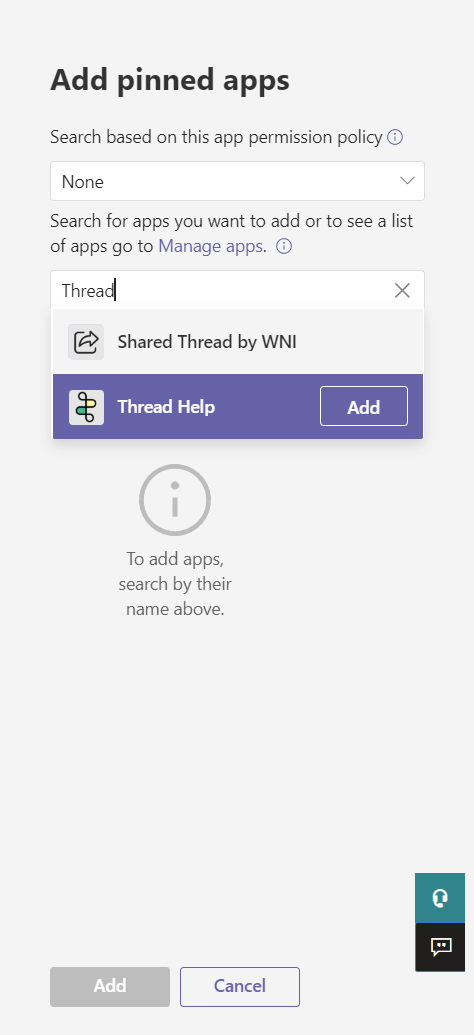
Search for the app based on the Teams app name you defined when building your custom teams app. Find the app, click Add and Add again at the bottom of the panel.You will see the app under Pinned apps. If you want the app to feature prominently in your users Teams, you can move it up or down and click Save when done.
Congrats you have upgraded your Legacy Teams app in your customer's Microsoft 365 tenant. After a short wait period, your end users are ready to start using Messenger.
It may take time for the app to show up in users' Teams environment, due to Microsoft internal publishing process. Allow up to 24 hours for these changes to complete.