Meet Super Magic: Your AI Agent in the Inbox

What is Super Magic?
Super Magic is an AI assistant built into your Inbox. Ask it anything in plain language — about a ticket, a contact, a company, a device — and it finds the answer or does the work. It can search everything your workspace knows, and (when your admin allows it) take real actions like updating tickets, logging time, and rebooting devices.
Two rules it always follows:
- It reads freely. Searching and looking things up never changes anything.
- It acts only with your confirmation. Before any change, you see exactly what's about to happen and click Confirm — or Cancel.
Where to find it
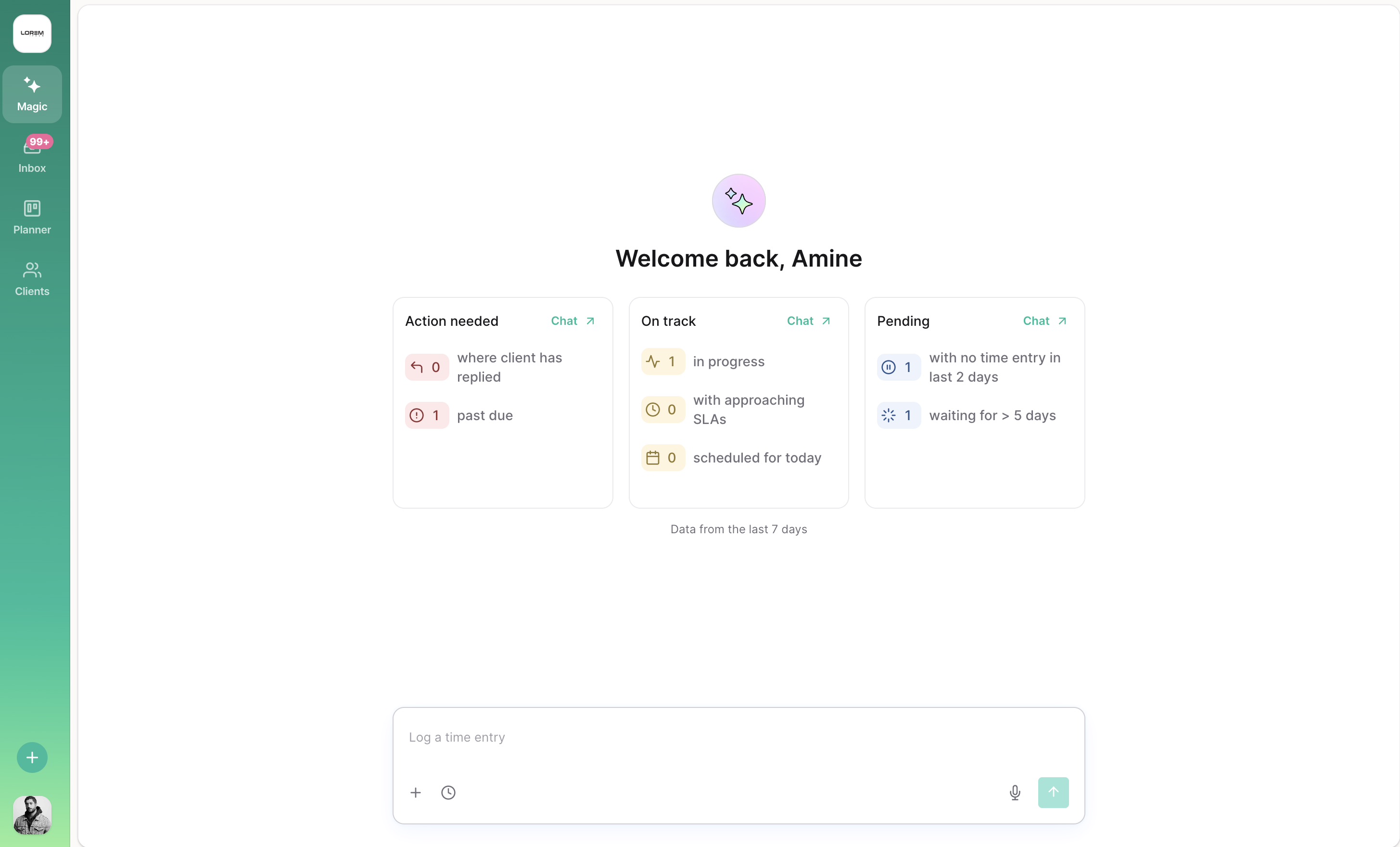
Super Magic is available in two places:
- The Magic button in the navigation — takes you straight to a new conversation.
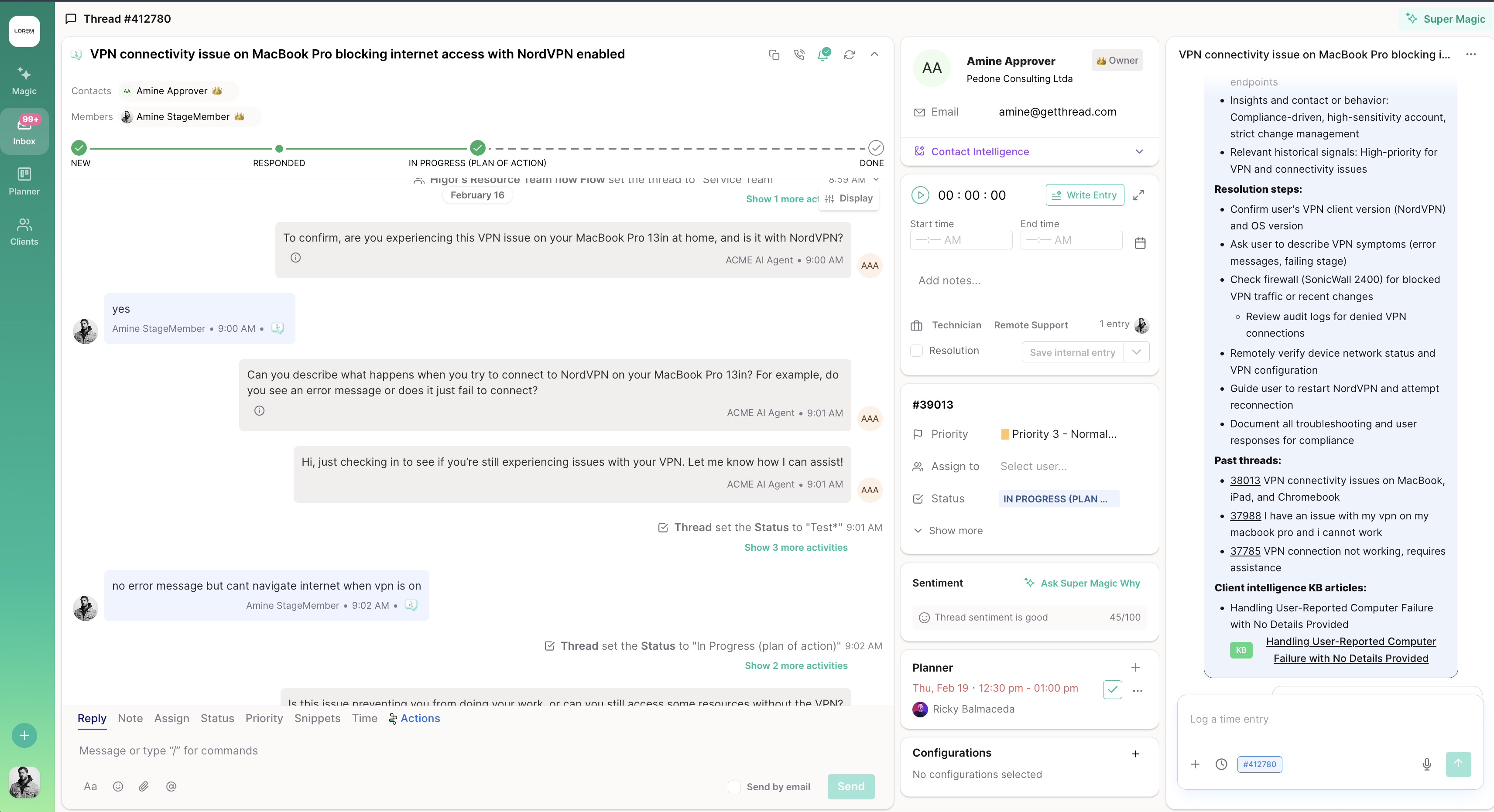
- The top-right of your Inbox — open it at any time, wherever you are.
It's thread-aware: open it while you're viewing a conversation and it already knows that thread's context — no need to explain what ticket you're on. Your history is kept under Past Chats, and you can start fresh anytime with the new chat button.
You can type, attach images and PDFs (drag them straight in), or use the microphone to dictate. Want live results from the internet? Just ask — "search the web for this error code" — and Super Magic will look it up.
What it can do
Family | In plain language |
Tickets | Find any ticket by id, keyword, client, board, status, priority, or date. Create tickets, update status/priority/assignee, add internal or client-facing notes, log time, send approval requests, run AI cleanup (title, priority, category, recap). Merge tickets (ConnectWise workspaces). |
People & companies | Look up clients, their contacts (including what Intelligence has learned about them), and your own teammates. |
Scheduling | Put a ticket on a technician's calendar, or adjust an existing entry. |
Knowledge | Search your knowledge base, IT Glue, Hudu, Thread's own Intelligence, and the live web. |
Devices — NinjaOne (Limited release) | Check if a device is online, see alerts and recent activity, list Windows services — and with confirmation: reboot, set maintenance mode, restart services. Requires connecting your own NinjaOne account. |
Scheduling links — TimeZest | Look up resources and appointment types, and send a contact a real scheduling email. |
Automations — intents & flows (admins) | Admins can inspect and build intents and flows conversationally. |
The complete list with details lives in the Super Magic Tool Reference.
Example prompts
Steal these — then adapt.
Tickets
"Show me open tickets for Acme on the Support board"
"Find ticket 12345 and show me the conversation"
"How many P1 tickets did Acme open in the last 30 days?"
"Create a ticket for Acme: printer offline in accounting, normal priority"
"Assign this ticket to Sarah and set it to In Progress"
"Log 30 minutes on this ticket and add an internal note: replaced the toner, monitoring"
People & companies
"Who is John Smith at Acme — and what do we know about him?"
"List Acme's site admin contacts"
"Which clients have the most open tickets right now?"
Knowledge
"Search the KB for our VPN reset procedure"
"Find the firewall documentation for Acme in IT Glue"
"Search the web for this error code and tell me the likely cause"
Devices (NinjaOne connected)
"Is John's laptop online? Any alerts?"
"Show me recent activity for DESKTOP-7842"
"Reboot DESKTOP-7842" (you'll confirm before anything happens)
Scheduling & approvals
"Schedule this ticket for me tomorrow 2–4pm"
"Send Jane a scheduling link for a 30-minute remote session"
"Send the client an approval request for the server upgrade"
Chain it together: end-to-end workflows
The real power is chaining — describe the whole job in one message and Super Magic works through it step by step, pausing for your confirmation at each change:
Troubleshoot and dispatch
"Search IT Glue for Acme's VPN setup and find similar resolved tickets. Post an internal note with what you find, move this to the Network board, and assign it to whoever has the fewest open tickets."
Escalate a stale ticket
"Recap this ticket, recalculate the priority, post an escalation note listing what's been tried, move it to the Escalations board, and assign it to Diego."
Close out a job
"Log 45 minutes as the resolution with a summary of the fix, post an internal note with the troubleshooting steps, run a recap, send the client a thank-you, and set the status to closed."
Schedule an on-site
"Book me on this ticket Thursday 9–11am, send the client a scheduling link to confirm, and post an internal note about site access requirements."
Mass response to an outage
"Find all open tickets mentioning the mail server outage, move them to the Outage board, and post the same internal note on each." (and later: "close them all with a resolution note")
Document the fix (Notion connected)
"Turn this ticket's resolution into a runbook page in our Notion database, and post an internal note linking to it."
Flag an at-risk client (Zapier connected)
"Show me Acme's negative-sentiment tickets from this month, then trigger the At-Risk Client Zap to alert the CSM channel."
Good to know (limits that matter)
- Mass actions are bounded — about 30 steps per request, searching across the newest ~500 tickets. For huge batches, work in chunks.
- Scheduling lands on the Planner and your PSA dispatch calendar
- Voice input/dictation shines on long requests — dictating a multi-step workflow is often faster than typing it.
Confirming actions
When Super Magic is about to change something, it stops and shows a Confirm action card:
- What it will do — in plain language ("Create ticket: 'Printer offline in accounting'")
- Which action — the exact tool, shown as a tag
- Every detail — each value it will use, listed line by line
Nothing happens until you click Confirm. Click Cancel and the action is discarded — no half-steps.
After you confirm, the change is applied to the ticket and recorded under your name, just as if you'd done it by hand. If you don't see the change in an open ticket view right away, refresh the view.
Why a tool might be missing
Super Magic only offers you the tools you're allowed to use. If something you expect isn't there:
- Write actions are controlled by your admin — your workspace may limit them to admins or a custom list, or have a specific action turned off.
- Intents and flows are admin-only, always.
- Integration tools need setup — IT Glue, Hudu, TimeZest, Liongard and NinjaOne only appear once your admin connects and enables them.
- Some tools need your sign-in — NinjaOne and connectors (Linear, Notion, Zapier) act with your own account, so you have to connect it first.
- Some are PSA-specific — merging tickets only exists on ConnectWise workspaces.
Admins can work through the full checklist in the Super Magic Admin Guide → Troubleshooting.
Connecting your own accounts
Some tools act as you in another system, so they need your personal sign-in:
- NinjaOne (Limited release) — connect your own NinjaOne account once, and device tools light up with exactly your NinjaOne permissions. See Connect NinjaOne to Super Magic.
- Connectors — Linear, Notion, Zapier (Limited release) — open the Connectors page, click Connect, and sign in. Each connection is tied to your account, and you can disconnect anytime.
