Connecting NinjaOne to Super Magic

Connect NinjaOne and your technicians can work on devices without leaving the ticket: check a device's health and alerts, look up activity, and — with confirmation — reboot a machine or restart a service, all from Super Magic.
What you get
Once connected, Super Magic gains these device capabilities (full details in the Super Magic Tool Reference):
Look things up (read): client organizations · device search and detail · a direct link to the device in NinjaOne · recent device activity · active alerts · Windows services.
Take action (write — always behind a confirmation step): reboot a device · turn maintenance mode on or off · reset an alert · start/stop/restart a Windows service · approve or reject a device.
Write actions also respect your Super Magic write-access settings — see the Super Magic Admin Guide.
How the connection works
NinjaOne is connected in two layers, and you need both:
- The workspace connection (admin, once). You create an API app in NinjaOne and enter its credentials in Thread. This tells Thread which NinjaOne instance to talk to.
- Each member's sign-in (every technician, once each). Every member who wants to use device tools signs in to NinjaOne with their own account. Super Magic then acts with that member's NinjaOne permissions — a technician can never do more through Super Magic than they could do logged into NinjaOne directly.
If device tools aren't appearing for someone, it's almost always layer 2.
Step 1 — Create the API app in NinjaOne (admin)
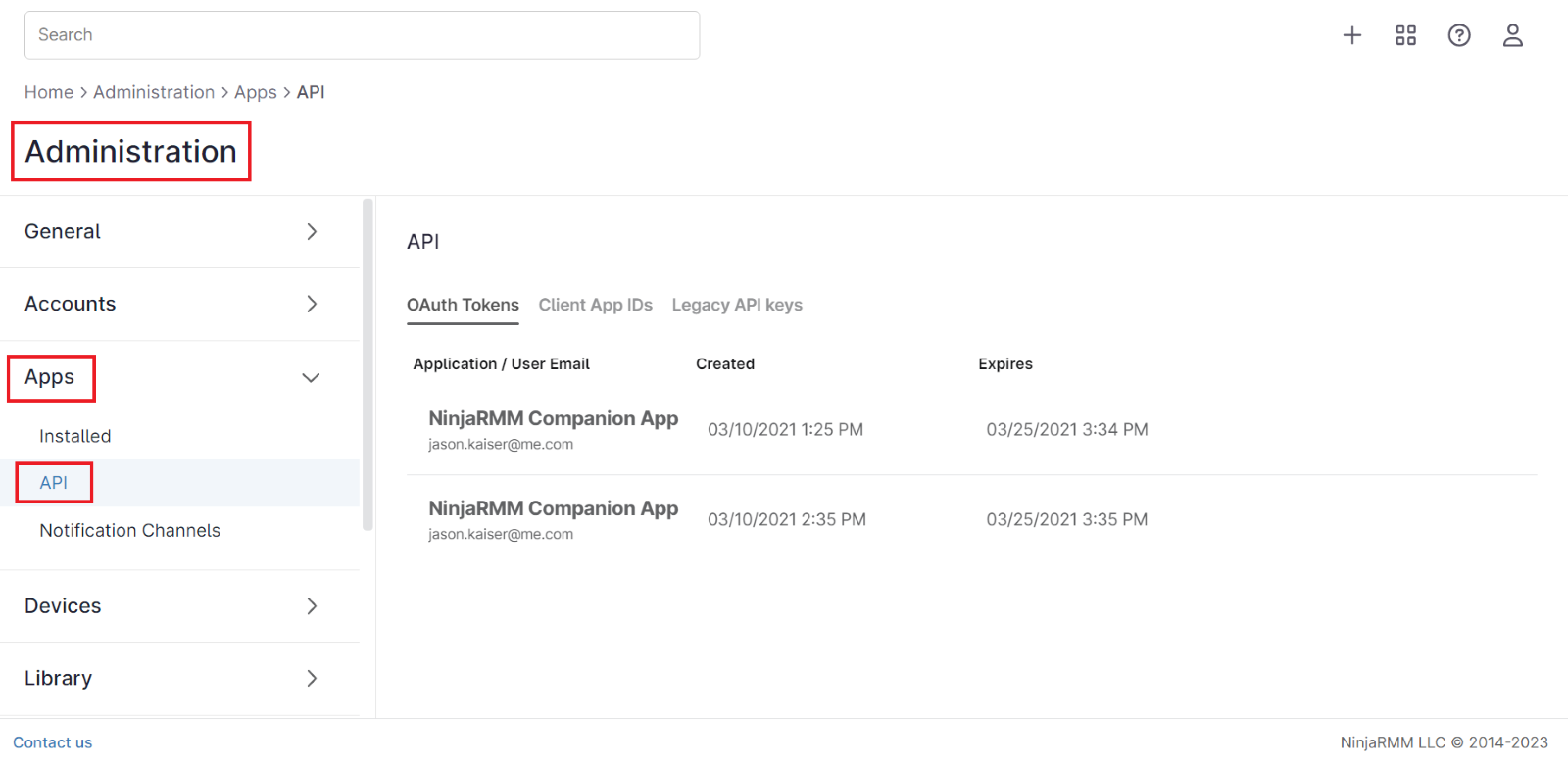
In NinjaOne, go to Administration → Apps → API → Client App IDs and click Add.
Configure the app exactly like this:
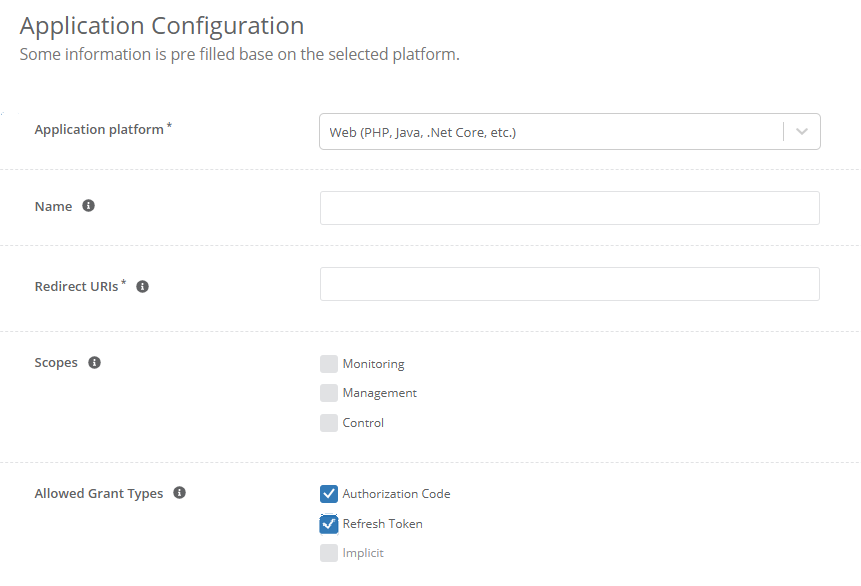
Setting | Value | Why it matters |
Application platform | Web | Only Web apps get a client secret. Native/Single-Page apps won't work. |
Name | e.g. "Thread Super Magic" | Shown to members on the consent screen |
Redirect URI | Copy it from Thread: Super Magic settings → Integrations → NinjaOne — the setup dialog shows the exact URI with a copy button | Must match character for character — no trailing slash |
Scopes | Monitoring and Management | Reads + device actions |
Grant type | Authorization Code | Required for member sign-in (refresh enabled) |
Grant Type | Refresh Token | Required for member sign-in |
Click Save and copy the Client ID and Client Secret. The secret is shown once — store it safely.
More Info here.
Step 2 — Configure the connection in Thread (admin)
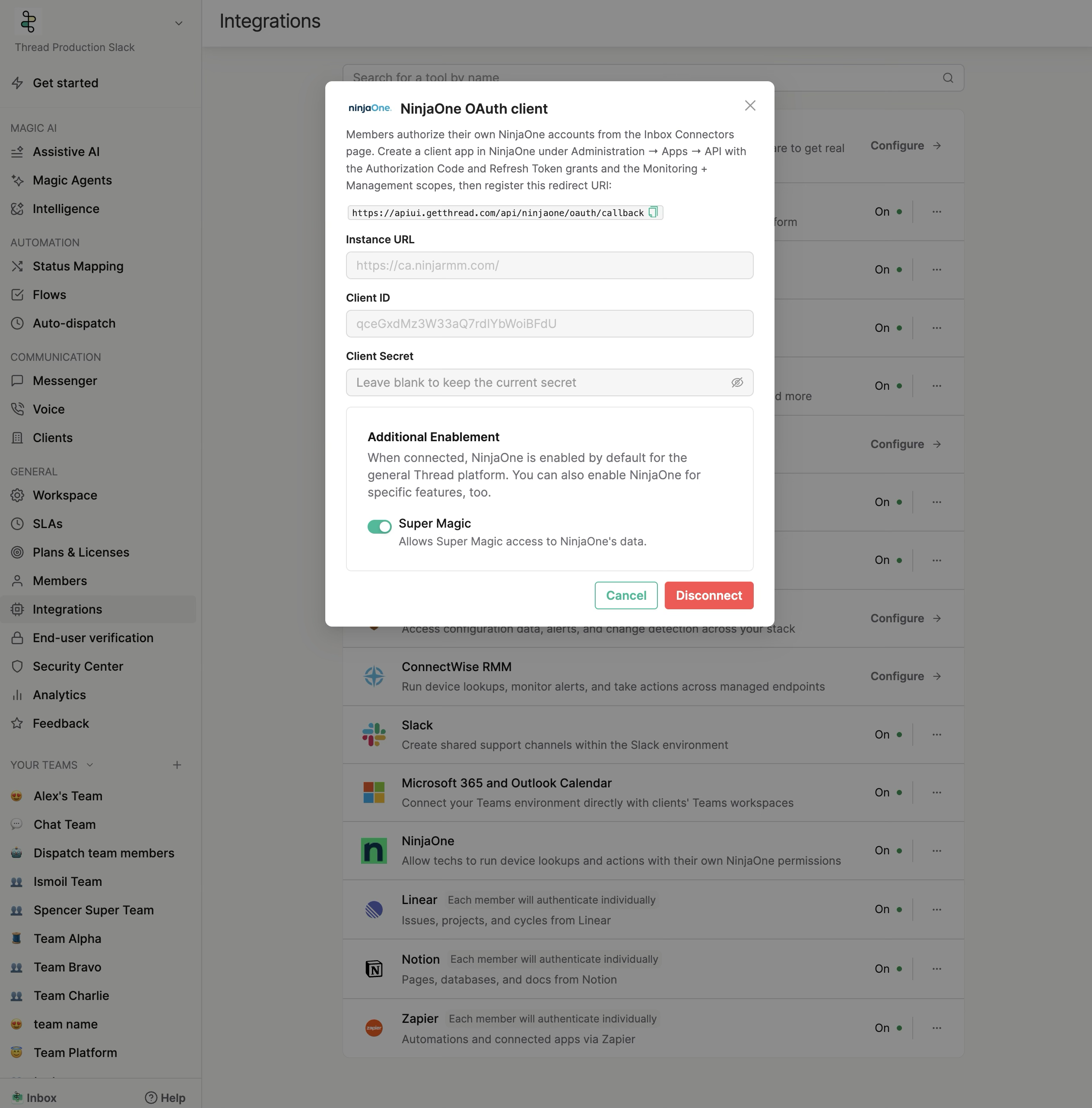
In the Thread Admin app, go to Admin → Integrations → NinjaOne and open the setup dialog ("NinjaOne OAuth client"). Enter:
- Instance URL — your NinjaOne web address, exactly as it appears in your browser when you're logged in to NinjaOne. NinjaOne runs regional instances, and using the wrong one is the most common setup failure:
Region | Instance URL |
North America |
|
Canada |
|
Europe |
|
Asia-Pacific |
|
It must start with https:// and be a ninjaone.com or ninjarmm.com address.
- Client ID and Client Secret — from Step 1. The secret is stored encrypted; when editing later, leave the secret blank to keep the current one.
Then turn the NinjaOne toggle on in the same Integrations card.
Step 3 — Each member connects their NinjaOne account
Every technician who should use device tools signs in once:
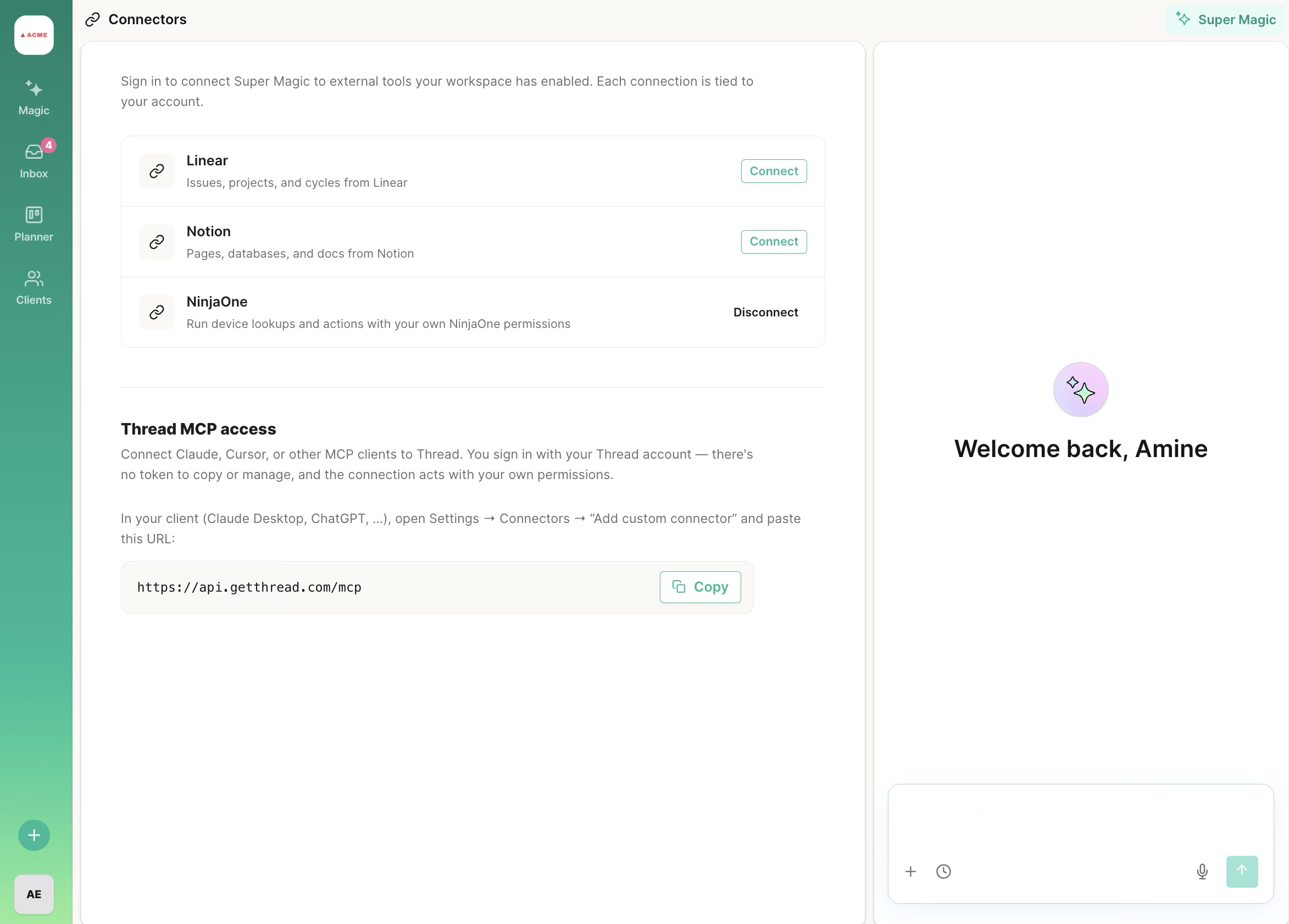
In Inbox, go to Magic tab or "+" in Super Magic Chat → Connectors → NinjaOne and click Connect.
- Open the Connectors page in your Inbox and click Connect on the NinjaOne row ("Run device lookups and actions with your own NinjaOne permissions") — a NinjaOne sign-in window opens.
- Sign in with your own NinjaOne credentials and approve the access request.
- The window closes and your connection is confirmed. Device tools now appear in your Super Magic chat.
You stay connected from then on (Thread refreshes your session automatically). You can disconnect at any time, and an admin can verify who's connected.
Troubleshooting
Symptom | Cause | Fix |
There's no Client Secret to copy in NinjaOne | The API app was created as Native or Single Page — those types don't issue secrets | Create a new app with platform Web (Step 1) and reconfigure Thread with its credentials. |
Sign-in window shows a redirect error | The Redirect URI on the NinjaOne app doesn't match exactly | Re-check Step 1's redirect URI — character for character, no trailing slash. |
Device tools don't appear in chat for a member | Usually layer 2: that member hasn't connected their own NinjaOne account — or the integration toggle is off, or your workspace isn't in the NinjaOne release yet | Have the member complete Step 3. Then check Super Magic settings → Integrations → NinjaOne toggle. Then work through the decision tree in the Super Magic Admin Guide. |
