Connect ImmyBot to Super Magic - Beta

Connect ImmyBot and Super Magic can answer device and patching questions without a technician leaving the thread. ImmyBot is an Azure-hosted MSP patching / IT-automation platform.
Before you start
1. Find the ImmyBot card. Open Thread Admin → Integrations — ImmyBot is available to all workspaces. If you don't see the card, contact Thread support before continuing.
2. You need three different hats (can be one person, often isn't):
Who | What they do | Access needed |
Microsoft/Azure admin | Creates the app registration + client secret | Rights to create app registrations in the Entra tenant your ImmyBot instance uses |
ImmyBot admin | Registers the app as an admin user inside ImmyBot | Admin in your |
Thread admin | Fills the connection form, flips the toggle | Admin role in your Thread workspace |
3. Know your ImmyBot subdomain. Log into ImmyBot and look at the address bar: if it says acme.immy.bot, your subdomain is acme. You'll need it in Step 3.
How the connection works
ImmyBot connects differently from NinjaOne. There is one layer, not two:
- A single workspace connection (admin, once). An admin enters the ImmyBot instance + Azure app credentials on the integrations page. Super Magic talks to ImmyBot as that one service principal, shared by everyone in the workspace.
- No per-technician sign-in. Technicians do not connect their own ImmyBot accounts. ImmyBot authenticates via a Microsoft Entra app (client credentials), which is instance-wide by design.
If ImmyBot tools aren't appearing in chat, it's the workspace connection or the Super Magic toggle — never a per-member sign-in.
Step 1 — Create the Azure app (Microsoft admin)
ImmyBot's API authenticates through Microsoft Entra (Azure AD). You'll create an app, give it a secret, then tell ImmyBot to trust it (Step 2).
⚠️ Sign into the right tenant. Everything below must happen in the same Microsoft tenant your ImmyBot instance is tied to. Check the directory name in the top-right corner of the Entra portal. Wrong tenant =
AADSTS700016error later.
💡 An app may already exist. Search App registrations for "ImmyBot" first. If your team already created one for Thread, reuse its IDs from the Overview page. If it was created for another integration (Rewst uses this exact same pattern), it would technically work — but create a separate app for Thread instead: you can then revoke either integration independently and tell their API activity apart.
ℹ️ Is this extra work for Thread? Yes — one-time, ~15 minutes. Your existing ImmyBot admin logins are human accounts; the Thread integration needs its own machine identity (an Azure app that ImmyBot trusts as an admin User). This is ImmyBot's standard pattern for any API integration (their guide).
1a. Register the app
- Go to entra.microsoft.com (or portal.azure.com and type "App registrations" in the top search bar — same place)
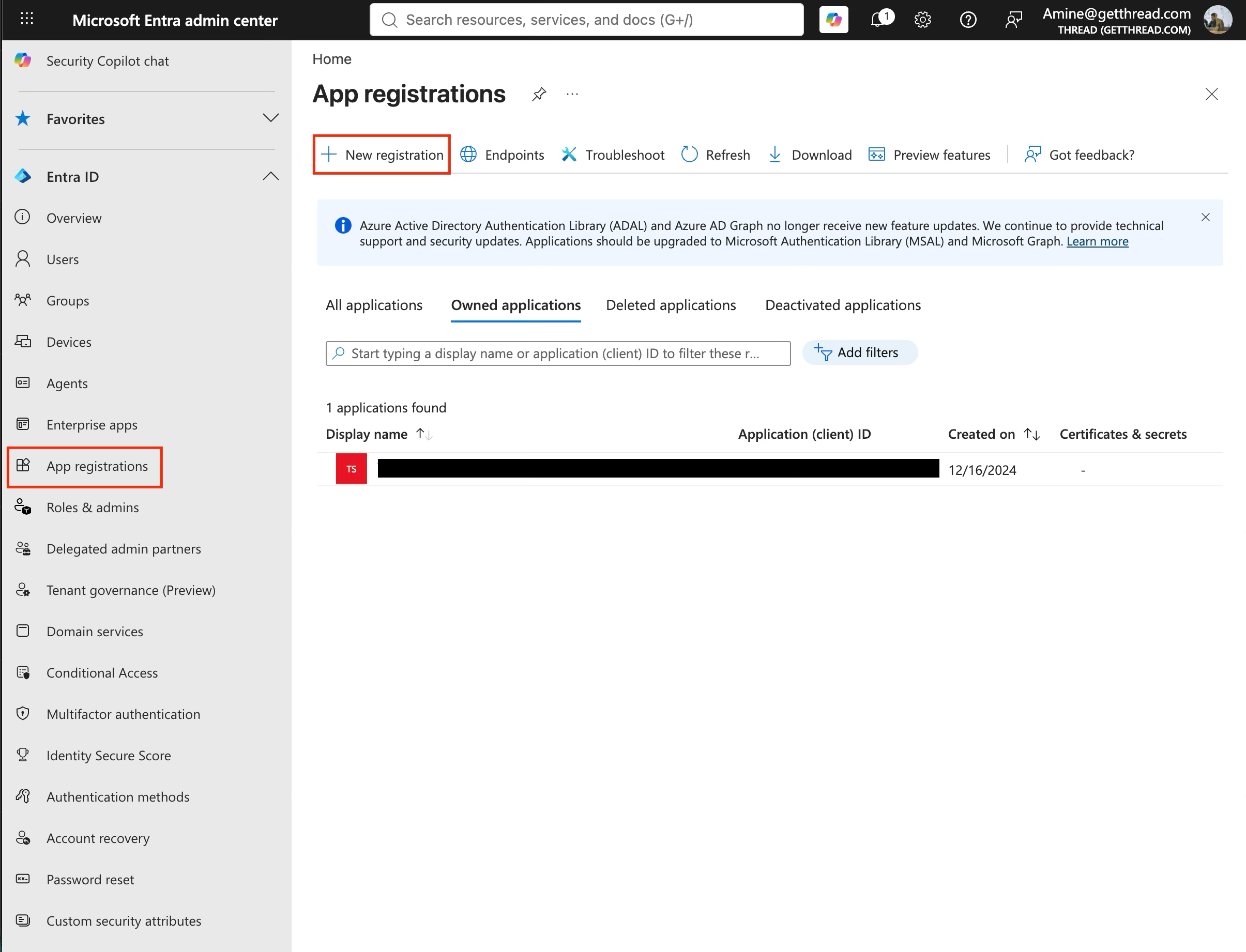
- Left sidebar: Identity → Applications → App registrations (if the sidebar shows only icons, click the ☰ at top-left)
- Click + New registration
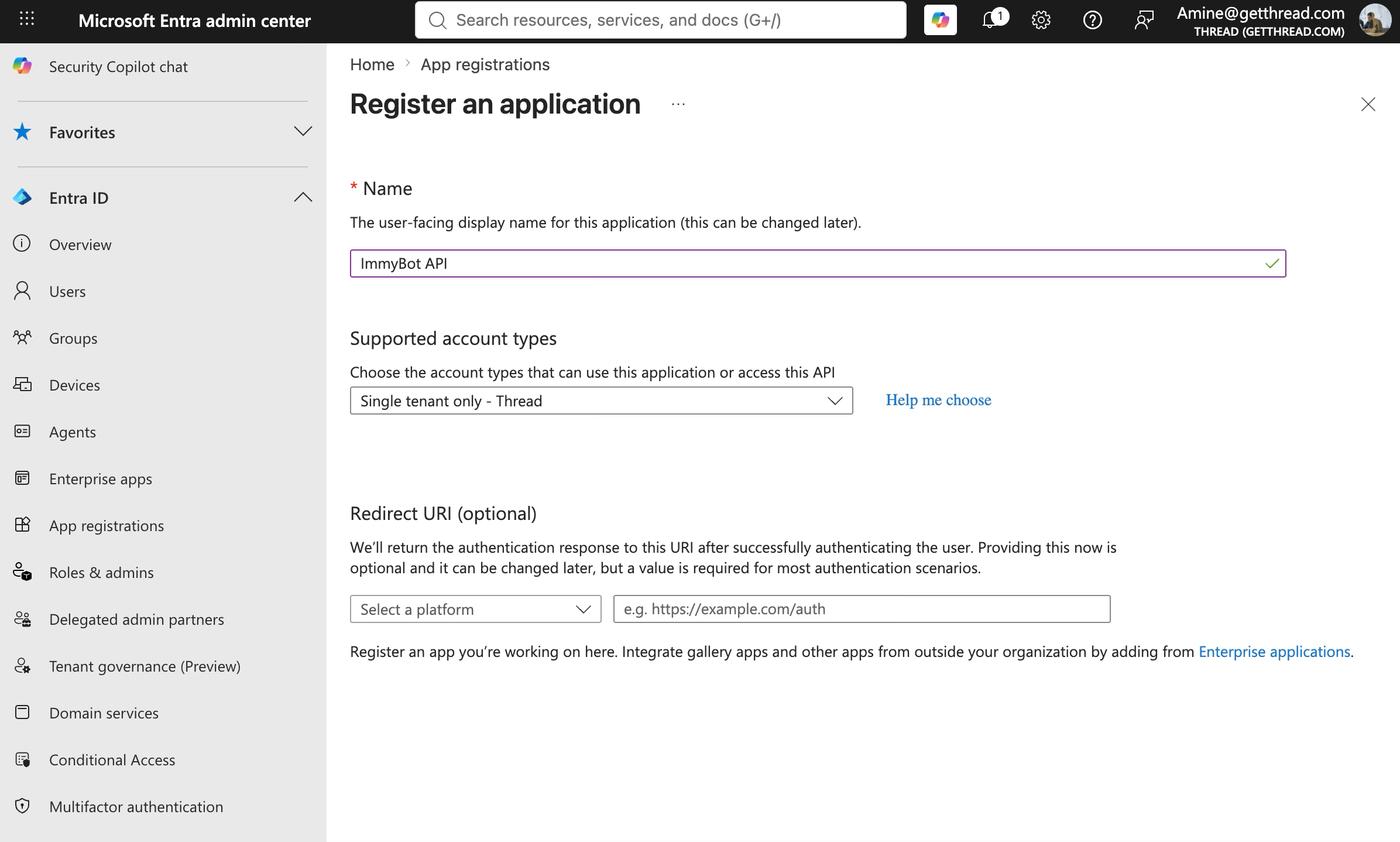
- Name: e.g.
ImmyBot API· Supported account types: leave the default (single tenant) · Redirect URI: leave empty - Click Register
- You land on the app's Overview. Copy these two values (both look like
xxxxxxxx-xxxx-xxxx-xxxx-xxxxxxxxxxxx):- Application (client) ID → this becomes Client ID in Thread
- Directory (tenant) ID → this becomes Azure Tenant ID in Thread
1b. Create a client secret
- In the app's left menu: Certificates & secrets → Client secrets tab → + New client secret
- Any description, expiry e.g. 24 months → Add
- Copy the Value column immediately — it is shown only once and masked forever after you leave the page.
⚠️ Three secret traps:
- The Value is the secret. The Secret ID (the GUID in the right-hand column) is NOT — pasting it into Thread will always fail.
- If the + New client secret button is greyed out with a banner about permissions, you're not an owner of this app. Ask an application owner (listed in the banner link) to create one and send you the Value, or to add you as an owner.
- An existing secret's Value can never be viewed again. If nobody saved it, just create a new secret — that's normal and doesn't break anything.
1c. (No API permissions needed)
Leave API permissions at default — no Graph or other permissions are required. Authorization happens inside ImmyBot, in the next step.
Step 2 — Authorize the app inside ImmyBot (ImmyBot admin) ← don't skip
The Azure app is only an identity; ImmyBot accepts it only once it exists as an admin User inside ImmyBot.
- In Entra, go to Identity → Applications → Enterprise applications (this is a different menu item than App registrations) → open the app you just created → copy its Object ID
⚠️ The App registration page also shows an "Object ID" — that's the wrong one. ImmyBot needs the Enterprise applications Object ID (the service principal).
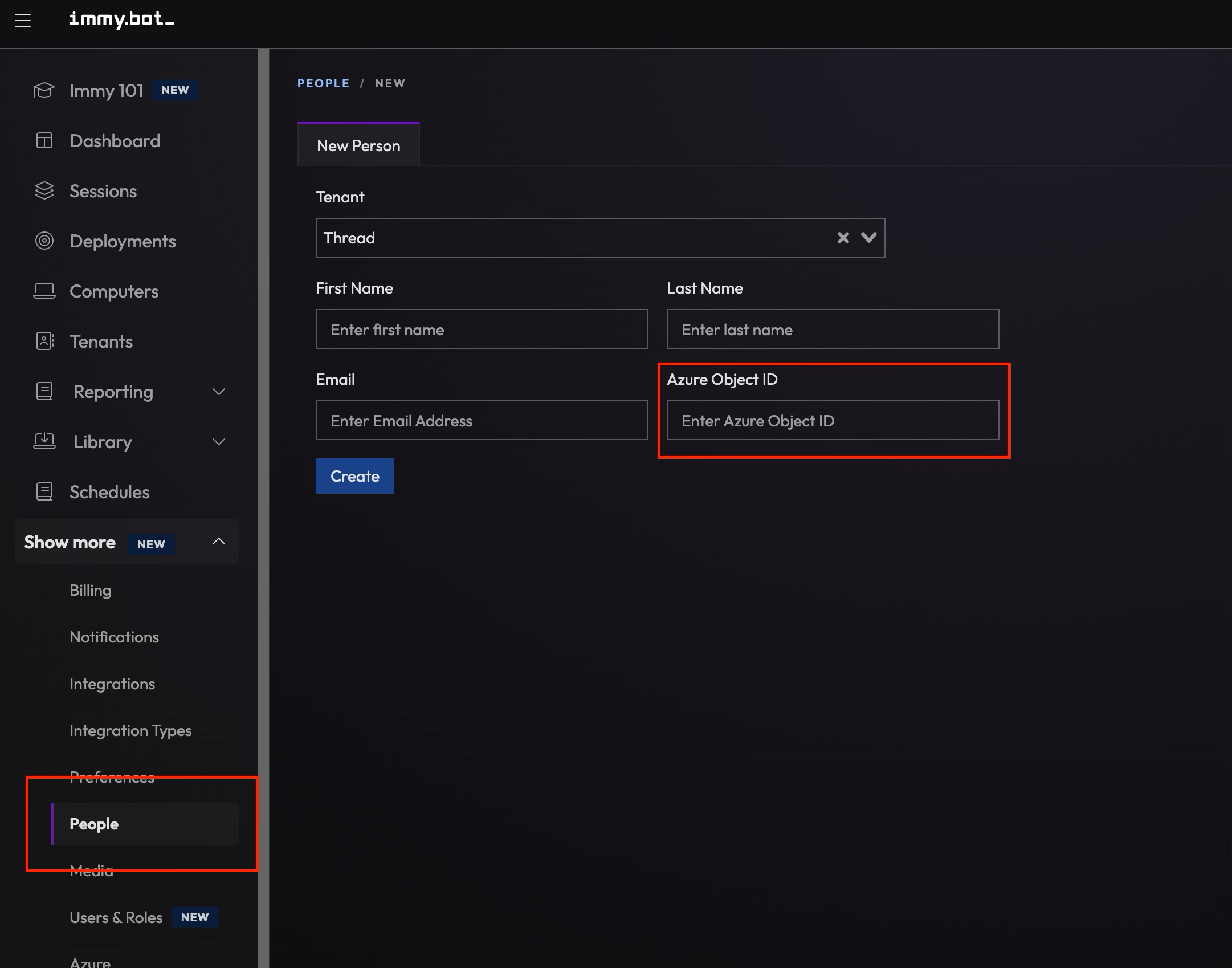
- In ImmyBot (
yoursubdomain.immy.bot): Show More → People → + New → on the New Person form: Tenant = your MSP tenant (the first/default one) · first/last name e.g.Thread/Integration· any valid email · paste that Object ID into the Azure Object ID field (ImmyBot's own docs still call this field "AD External ID" — it's the same field; their UI was renamed ahead of their docs) → Create - Create a User from that Person and grant it admin: Show More → Users & Roles → + New → select the Person you just created → assign the Admin role. Until this admin user exists, Thread's connection check fails with
403 KnownTenantUserMissing.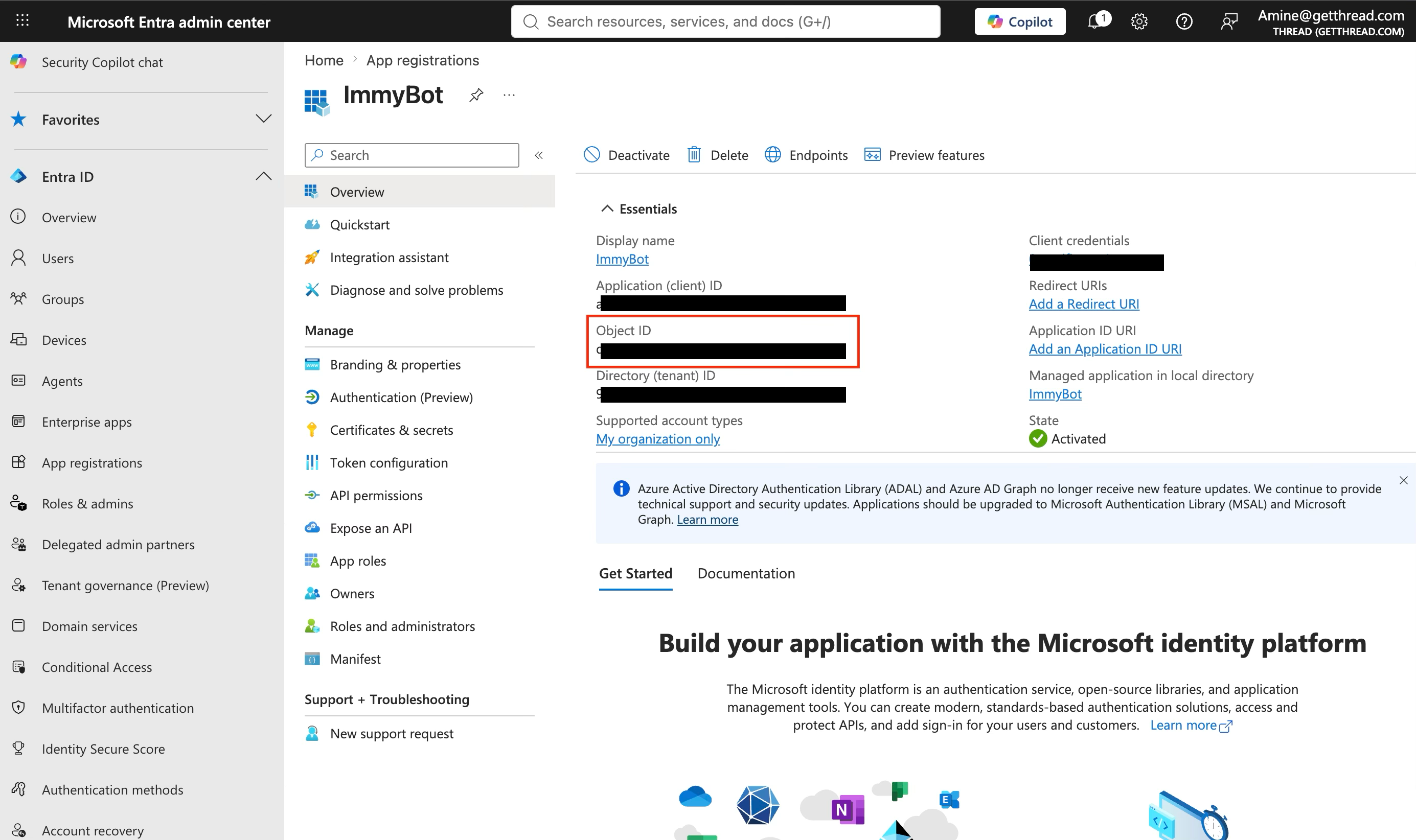
Step 3 — Connect in Thread (Thread admin)
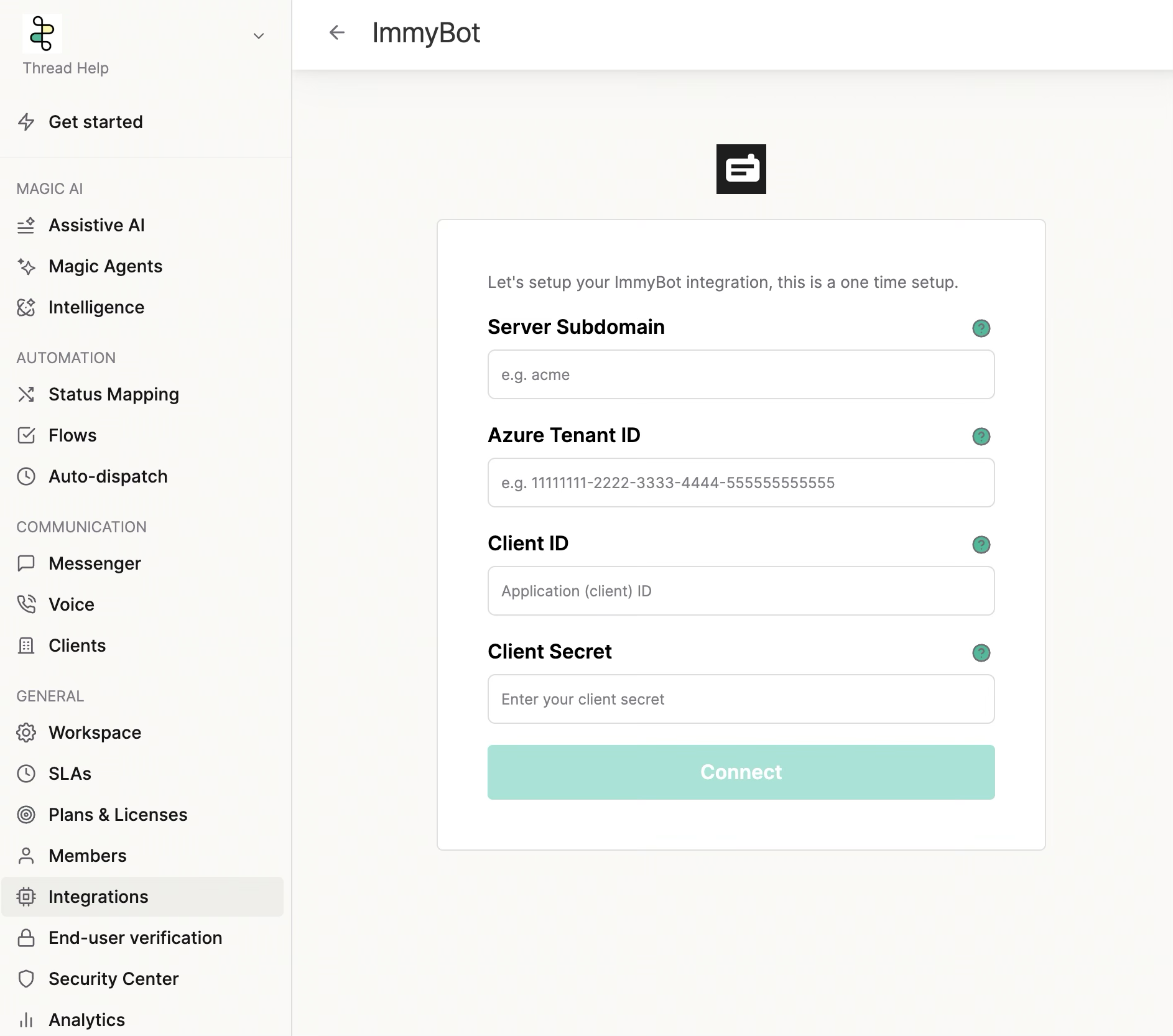
Thread Admin → Integrations → ImmyBot. Fill the form exactly like this:
Field | What goes in it | Example | NOT this |
Server Subdomain | Only the first part of your ImmyBot URL |
| ❌ |
Azure Tenant ID | The Directory (tenant) ID GUID from Step 1a |
| ❌ any URL, ❌ your company domain |
Client ID | The Application (client) ID GUID from Step 1a |
| ❌ the secret's ID, ❌ the app name |
Client Secret | The secret Value from Step 1b | starts with random characters | ❌ the Secret ID GUID |
Click Connect. Thread performs a live credential check (it mints a real Azure token and lists your ImmyBot tenants), so a bad value fails right here with the error banner — see Troubleshooting below.
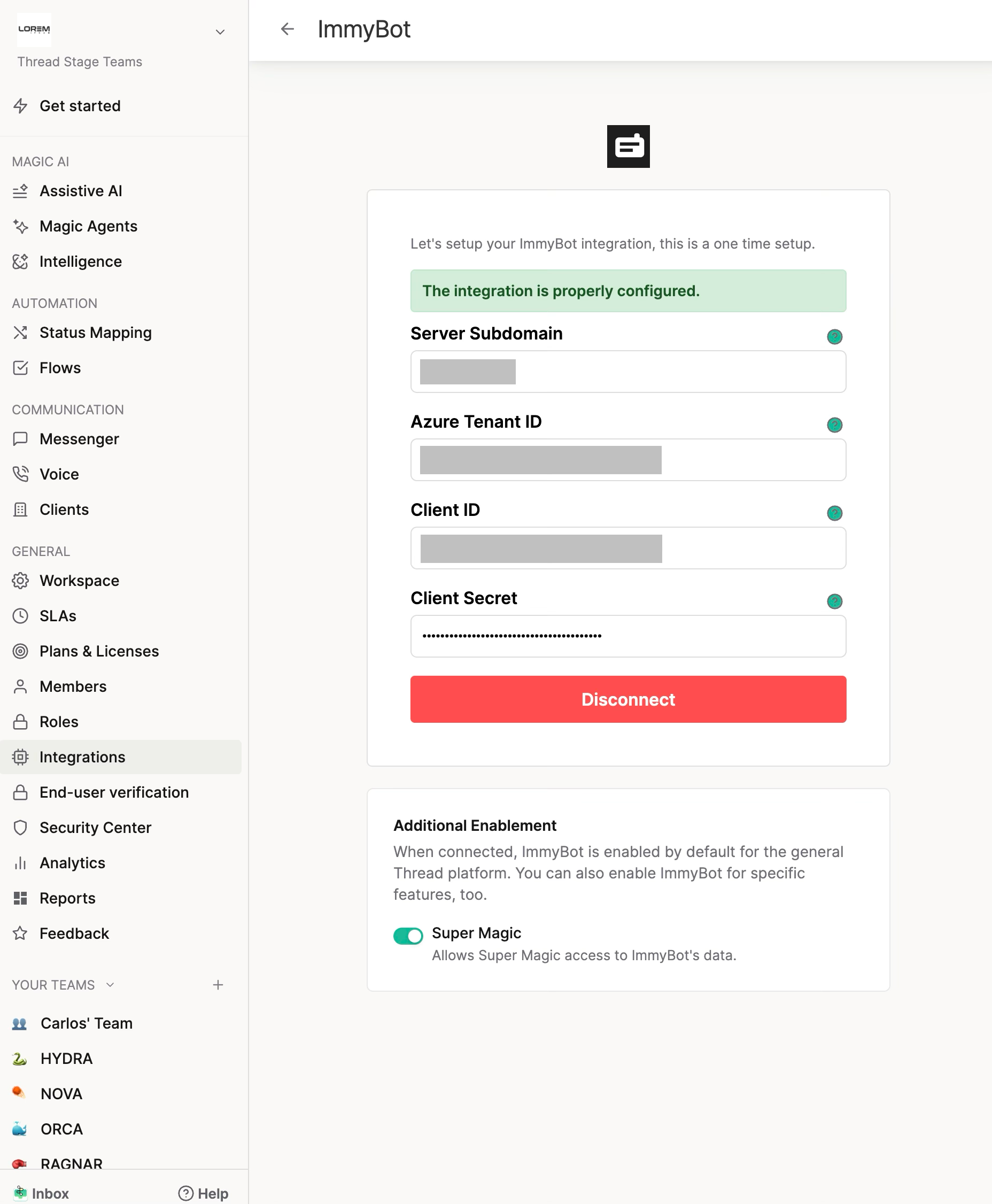
Then flip the toggle: after a successful connect, an Additional Enablement card appears below the form with a Super Magic toggle ("Allows Super Magic access to ImmyBot's data"). Turn it ON — it is off by default, and without it the connection works but Super Magic never gets the tools. (When editing the connection later, leave Client Secret blank to keep the stored one.)
Step 4 — Test it
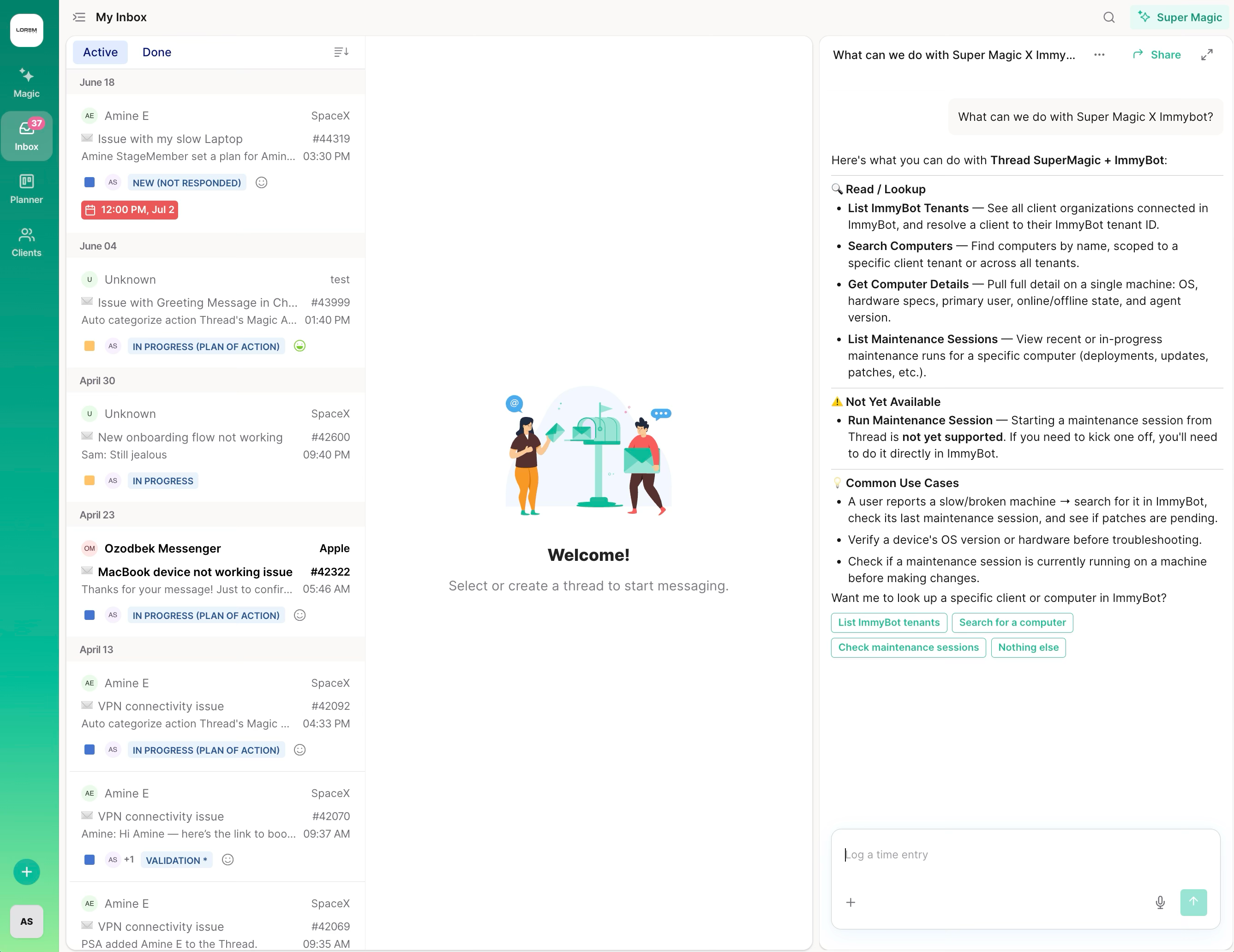
Open the Inbox → Super Magic → ask: "List our ImmyBot tenants." You should get real client organizations back. Every technician in the workspace can now use the ImmyBot read tools — there is no per-member step.
Troubleshooting
Symptom | Cause | Fix |
No ImmyBot card anywhere in Thread Admin | ImmyBot not yet enabled for your workspace | Contact Thread support / your account team |
"The configuration is incorrect, check the data is correct" | One of the four fields is wrong | Re-check against the Step 3 table — the most common mistakes are a URL in the Tenant ID field, |
| App registration lives in a different tenant than the Tenant ID you entered | Recreate the app in the tenant your ImmyBot instance uses, or fix the Tenant ID |
| Step 2 skipped or incomplete | Create the ImmyBot Person (Enterprise-app Object ID in the Azure Object ID field) + admin User — see Step 2 |
Connect succeeds but no ImmyBot tools in chat | Super Magic toggle off | Turn on the Super Magic toggle under Additional Enablement on the ImmyBot integration page |
"New client secret" button greyed out in Azure | You're not an owner of the app | Ask an application owner to create the secret or add you as owner |
What Super Magic can do with ImmyBot
Tool | Type |
List tenants — your client organizations in ImmyBot | Read |
Search computers by name | Read |
Computer detail — OS, hardware, online state | Read |
Maintenance-session history for a computer | Read |
Start a maintenance session | Write — not available yet |
Starting a maintenance session isn't available yet — if asked, Super Magic clearly says so and points the technician to ImmyBot; it never claims a session started. When it arrives, it will go through the Confirm action card, require write access, and confirm the exact target computer first.
How it compares to our other RMM/doc integrations
Integration | Where you connect | Auth model |
ImmyBot | Integrations page | Azure client credentials, one service principal per instance (workspace-wide) |
Liongard | Integrations page | Instance API key (workspace-wide) |
NinjaOne | Super Magic settings + per-member Connectors | Per-technician OAuth (acts as each member) |
