Managing Board Visibility in Thread (Board Exclusion)
Boards & Categories Sync Management
Concept
Every PSA board connected to Thread has a checkbox that controls whether that board is synced and visible across the platform. When a checkbox is unchecked, Thread stops syncing that board, hides it from all dropdowns and filters, and silently drops any inbound webhook events for tickets on that board. When checkbox is checked, syncing resumes, the board reappears throughout the interface, and new ticket updates begin flowing in again.
Area | Board Excluded (Toggle OFF) | Board Re-Included (Toggle ON) |
Views | A hidden filter rule is applied — tickets from the board no longer surface. | The hidden filter rule is removed; tickets surface again naturally after ticket updates from the PSA. |
Webhooks | Webhook events for that board are silently dropped. | Webhooks resume, but events that fired during the exclusion window are not retroactively replayed. |
PSA Sync | Board data stops syncing to Thread. | Board data resumes syncing on the next daily sync (12:00 AM EST) or on-demand via Force Sync. |
Existing Filters | Filters that explicitly reference the board are not auto-cleaned. | The board becomes available again, but previously removed filter references must be re-added manually. |
⚠️ Important: Excluding a board does not update existing filters automatically. If the board was referenced in Assistive AI managed access rules or any explicit filter, those must be cleaned up manually.
Value
- Noise reduction — Exclude boards that aren't relevant to your team's workflow so agents only see actionable tickets in Thread.
- Sync efficiency — Stop unnecessary data transfer for boards you don't need, keeping your Thread workspace lean and performant.
- Fully reversible — Re-including a board restores visibility with no permanent data loss; tickets reappear once they are updated or force-synced from the PSA.
- Instant effect — Changes take effect immediately with no save button, giving admins real-time control over what's visible.
How To
Enable or Disable a Board
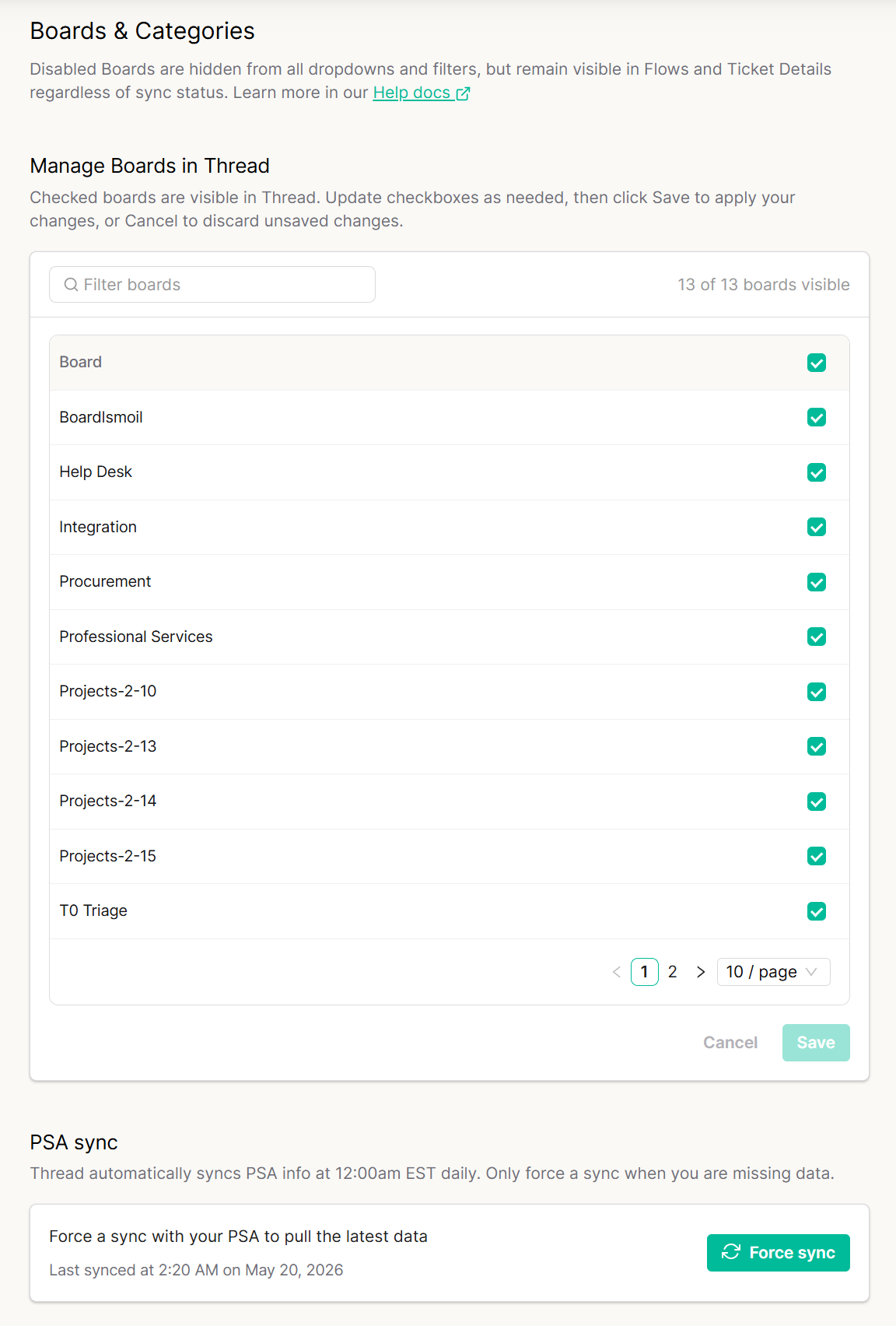
- Navigate to Integrations → PSA → PSA Sync → Manage Sync for Boards & Categories.
- Locate the board using the Filter boards search bar, or scroll through the paginated list.
- Check or Uncheck boxes:
- Green Checkmark— Board is synced and visible in Thread.
- No Checkmark — Board is excluded from sync and hidden from dropdowns and filters.For Partners using Autotask, do not exclude the Merged Ticket Queue as it will cause merged tickets to be orphaned
- Click Save
- Refresh (F5) Inbox Web or re-login Inbox Desktop for Views to update.All users need to refresh or re-login to the platform for view filters to update
Restore Tickets Immediately After Re-Including a Board
Because webhook events fired during the exclusion window were silently dropped, tickets updated while the board was off won't appear on their own until the next update. To force all tickets back into Thread right away:
- Open your PSA.
- Select ALL tickets on the re-included board.
- Save them (a bulk save triggers Thread to pick up each ticket).
- All threads will now be visible in Thread immediately.
Force Sync Board Data On-Demand
Thread automatically syncs board data from your PSA daily at 12:00 AM EST. If you've recently added or modified boards in your PSA and don't see them reflected:
- Go to the Boards & Categories settings page.
- Click the Force Sync button to pull the latest data immediately.
- Check the Last synced timestamp beneath the button to confirm the sync completed.
