Kiosk Mode

Kiosk Mode
Concept
Kiosk Mode is a deployment option for the Thread Desktop Windows App that lets employees start a support conversation from a shared device — without needing to log in or create an account.
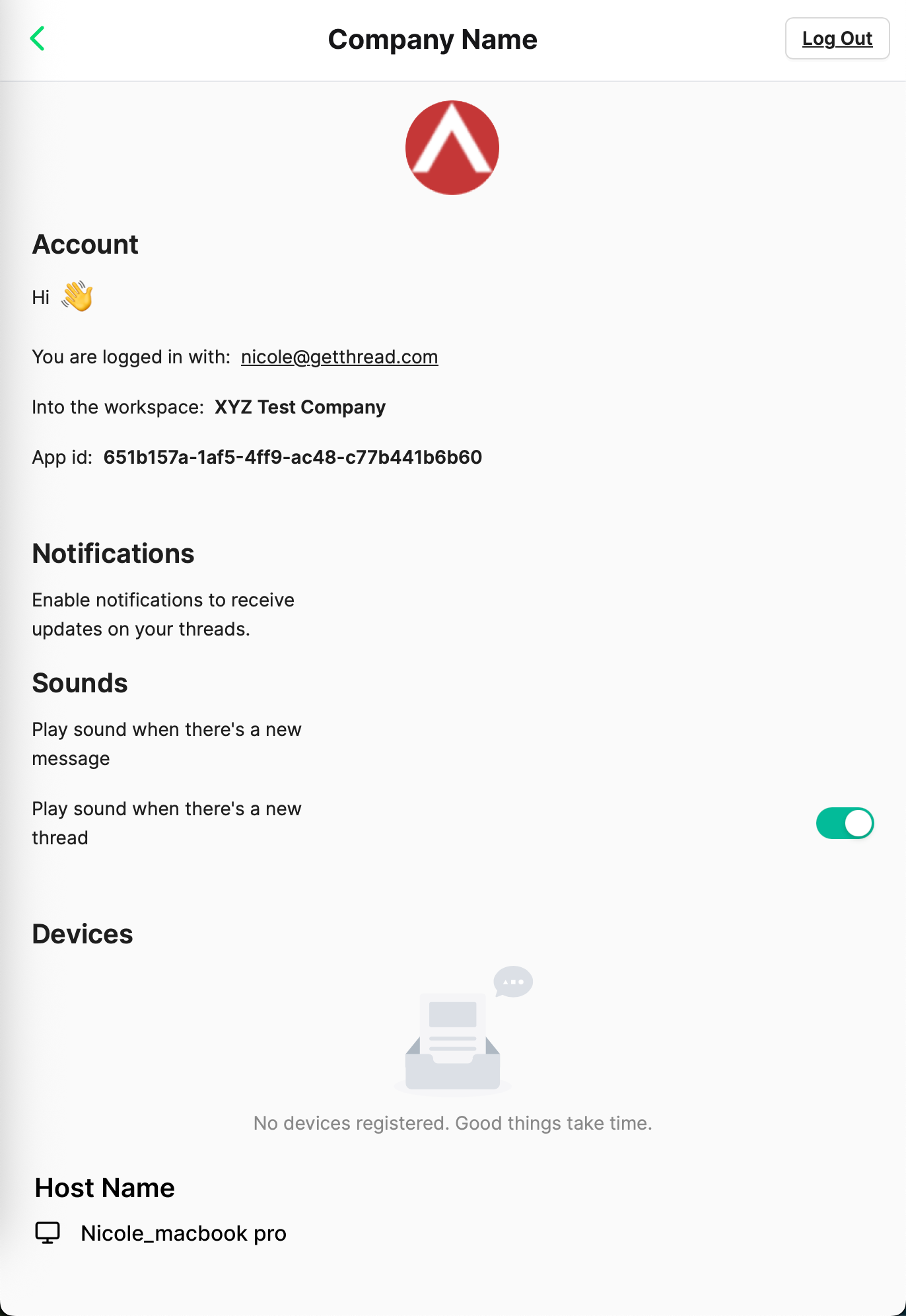
Instead of requiring individual credentials, Kiosk Mode attributes all conversations from a shared device to a single placeholder contact you configure in advance. The device hostname is displayed alongside every conversation in your Inbox so your technicians always know exactly which machine is reaching out.
Kiosk Mode is available on the Desktop Windows App only. There is no Mac or mobile equivalent.
Value
Most Messenger deployments work great on dedicated, personal devices — but shared devices are a different story. Requiring employees to authenticate on a machine they don’t own creates friction, support overhead, and often results in people skipping the ticketing process altogether.
Kiosk Mode removes that barrier entirely.
Environment | The Problem It Solves |
🏥 Healthcare | Clinic staff rotate across shared workstations and can’t be expected to log in to each one |
🛒 Retail | POS terminals and back-office PCs are shared by shift workers without personal accounts |
🏭 Manufacturing | Floor terminals are used by multiple operators throughout the day |
With Kiosk Mode:
- Employees can open Messenger and start a chat immediately — no login required
- Your technicians see the device hostname in Inbox, so they always know which machine sent the message
- Standard and Kiosk deployments can coexist at the same client site
- All standard Messenger features remain fully available
- Kiosk Mode is included in standard per-client pricing at no additional costThough by default our script installs it under user context, It can be installed under System context as well. See here for Documentation - https://docs.getthread.com/article/68gd2y9l0b-deploying-messenger-on-windows
How To
Before You Begin
- You must have Admin permissions in Inbox to configure Kiosk Mode
- Prepare a placeholder contact to serve as the “Default Contact” for all Kiosk conversations at this client (e.g., “Shared Device User” or “[Client Name] Kiosk”). Do not use a real employee’s contact — all shared device conversations will be attributed to this placeholder
Step 1 — Enable Kiosk Mode for the Client
- In the Inbox Admin panel, navigate to Clients
- Open the Settings tab for the relevant client
- Click the override parent settings checkbox
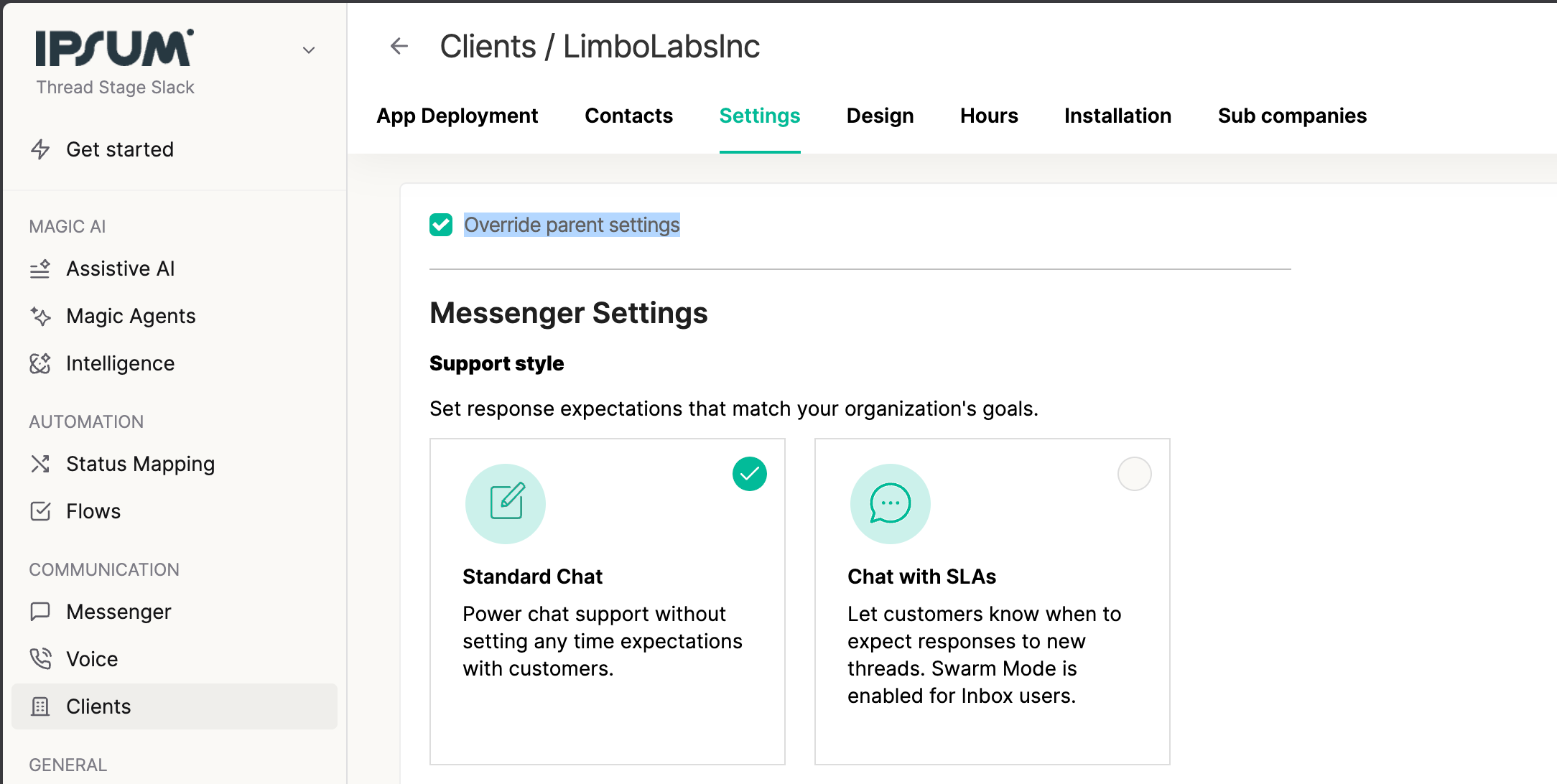
- Toggle Kiosk Mode on
- Select the Default Contact that all Kiosk Mode chats will be mapped to
- Save your changes
⚠️ Choose your Default Contact carefully. Changing it later will not retroactively reassign past conversations — only new threads going forward will be attributed to the new contact.
Step 2 — Deploy the App on Shared Devices
- In the Inbox Admin panel, go to App Deployment → Windows
- You will see two install scripts — a standard Messenger script and a Kiosk Mode script
- Copy the Kiosk Mode install script
- Run the Kiosk Mode script on each shared device
💡 Two scripts, two modes. The standard script requires authentication and is intended for personal/dedicated devices. The Kiosk Mode script removes authentication and is intended for shared devices. Both can be used within the same client environment — just install each on the appropriate device type.
What Your Technicians Will See
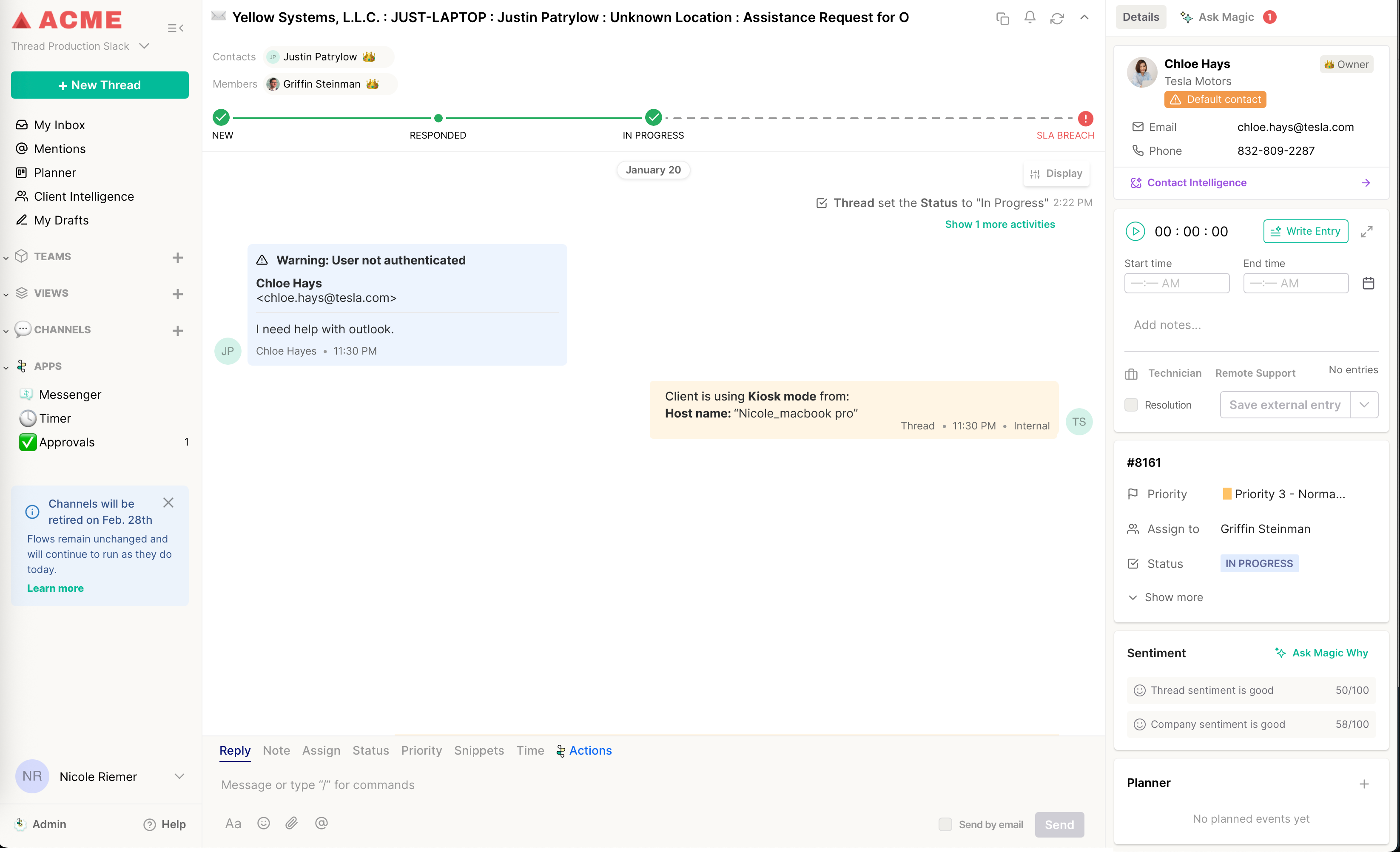
Once deployed, every conversation initiated from a Kiosk device will appear in Inbox like this:
Field | What It Shows |
Contact Name | The Default Contact you configured (e.g., “Shared Device User”) |
Device Identifier | The hostname of the machine that initiated the conversation |
Message History | All prior threads from any Kiosk device at this client, accessible under the same contact |
Since all Kiosk chats share the same contact name, the hostname is the primary way to identify which machine reached out.
Frequently Asked Questions
Q: Will a chat started on Shared Device A be visible on Shared Device B?
A: Yes. Because all Kiosk Mode conversations are tied to the same Default Contact, threads from any shared device at that client are visible across all devices. Users can move between machines and continue an existing conversation. Threads are still grouped individually so conversations don't get mixed up.
Q: Can Kiosk Mode and standard Messenger coexist at the same client site?
A: Yes. Thread provides two separate install scripts — one for standard mode and one for Kiosk Mode. Each can be deployed independently to the appropriate devices. For example, a receptionist's dedicated workstation would use the standard script, while the shared floor terminal would use the Kiosk Mode script.
Q: Does an end user need to log in or create an account to use Kiosk Mode?
A: No. That's the core purpose of Kiosk Mode — it removes the authentication requirement entirely. Users can open Messenger on the shared device and start a conversation immediately, with no credentials needed.
Q: How does a technician know which device sent a message?
A: The device hostname is displayed alongside the conversation in Inbox. Technicians should note that all Kiosk chats share the same Contact name, so the hostname is the primary identifier for which machine reached out.
Q: What if the Default Contact is deleted?
A: If the Kiosk Mode default contact is deleted, we will send an email informing the Partner as this will cause Kiosk Messenger App to malfunction (ie. ticket creation failures). If their intention was to disable Kiosk mode then they can toggle it off and the existing deployments will work in normal mode.
Q: Can I change the Default Contact after Kiosk Mode is already deployed?
A: Yes, and the change takes effect immediately without requiring redeployment of the app. New threads going forward will be attributed to the new Default Contact. Existing historical threads will remain under the original contact and are not retroactively reassigned.
Q: Does Kiosk Mode cost extra?
A: No. Kiosk Mode is included in standard per-client pricing at no additional cost.
Q: Does Kiosk Mode support all the same Messenger features as the standard app?
A: Yes. All standard messaging features remain available in Kiosk Mode. There is no reduction in functionality compared to the standard Messenger experience.
Q: Can a client have different Default Contacts for different locations or departments?
A: Currently, Kiosk Mode is configured at the client level with a single Default Contact. If a client needs to differentiate between sites or departments, this would require separate client records in Inbox — each with their own Kiosk Mode configuration.
Q: What should the Default Contact be named?
A: The Default Contact should be a generic placeholder — not a real employee. Common conventions include "Shared Device User," "[Client Name] Kiosk," or "Walk-Up Support." Avoid using a real person's account, as all shared device conversations will be attributed to them.
Q: What happens if Kiosk Mode is toggled off after it's been in use?
A: If Kiosk mode is disabled from Admin, existing Kiosk app deployments will revert to behaving in normal mode.
Q: Is Kiosk Mode available on Mac or mobile?
A: No. Kiosk Mode is currently available on the Desktop Windows App only. There is no Mac or mobile equivalent at this time.
Q: Can end users accidentally access another person's conversation on a shared device?
A: Because all Kiosk Mode chats share the same Contact, conversation threads from other sessions are technically accessible on any device with the Kiosk Mode app installed. This is by design — it enables continuity across devices. MSPs should be aware of this when advising clients with privacy-sensitive environments.
Q: How do I fix a device that had the wrong script installed?
A: If the standard Messenger script was installed on a device intended for Kiosk Mode (or vice versa), the app will not behave correctly for that use case. To fix this, uninstall the app from the device and reinstall using the correct script from the App Deployment tab in Inbox.
Quick Reference
Platform | Desktop Windows App only |
Login required? | No |
Who configures it? | Inbox Admin |
Where to configure | Clients → Settings → Kiosk Mode toggle |
Default Contact | One per client; all Kiosk chats map to this contact |
Device identification | Hostname shown in Inbox |
Install script | Separate Kiosk Mode script (App Deployment → Windows) |
Mixed environments | Standard + Kiosk scripts can coexist |
Pricing | Included — no additional cost |
Feature availability | Full Messenger feature parity |
